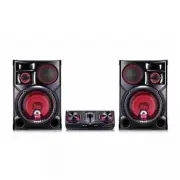
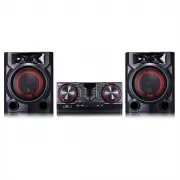
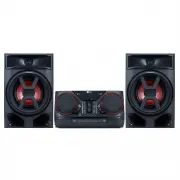
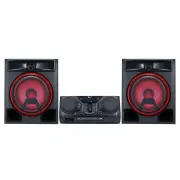
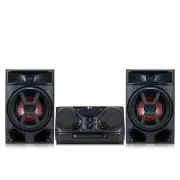
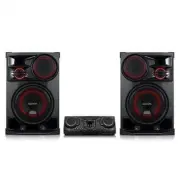
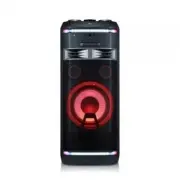
Page 2 - Safety Information; CAUTION
1 Getting Started Getting Started 2 Getting Star ted 1 Safety Information CAUTION RISK OF ELECTRIC SHOCK DO NOT OPEN CAUTION: TO REDUCE THE RISK OF ELECTRIC SHOCK DO NOT REMOVE COVER (OR BACK) NO USER-SERVICEABLE PARTS INSIDE REFER SERVICING TO QUALIFIED SERVICE PERSONNEL. This lightning flash with ...
Page 3 - Symbols
Getting Started 3 Getting Star ted 1 CAUTION concerning the Power Cord Check the specification page of this owner’s manual to be certain of the current requirements. Do not overload wall outlets. Overloaded wall outlets, loose or damaged wall outlets, extension cords, frayed power cords, or damaged ...
Page 4 - Getting Started; Table of Contents
Table of Contents 4 1 Getting Started 2 Safety Information 4 Table of Contents 6 Unique Features 7 Playable file Requirement 7 – Music file requirement 7 – Compatible USB Devices 7 – USB device requirement 8 Remote control 10 Front panel 12 Rear panel 2 Connecting 13 How to affix the ferrite core 13...
Page 5 - Troubleshooting
Table of Contents 5 1 2 3 4 5 36 – Dimmer 36 – Auto power down 37 – AUTO POWER On 37 – Auto function change38 Setting the Clock 38 – Setting the Clock through “Music Flow Bluetooth” App 38 – Using your player as an alarm clock39 LG Sound Sync 40 WIRELESS PARTY LINK Connection 4 Troubleshooting 41 Tr...
Page 6 - Unique Features
Getting Started 6 Getting Star ted 1 Unique Features BLUETOOTH® Listens to music stored on your Bluetooth device. Portable In Listens to music from your portable device. (MP3, Notebook, etc.) Playback effects Listens to music with various sound and playback effects. USB Direct Recording Records musi...
Page 7 - Playable file; Music file requirement
Getting Started 7 Getting Star ted 1 Playable file Requirement Music file requirement MP3/WMA file compatibility with this unit is limited as follows. y Sampling frequency : within 32 to 48 kHz (MP3), within 32 to 48 kHz (WMA) y Bit rate : within 32 to 320 kbps (MP3), 40 to 192 kbps (WMA) y Maximum ...
Page 8 - Remote control; Replacement of battery
Getting Started 8 Getting Star ted 1 Remote control Replacement of battery (R03 ) (R03) Remove the battery cover on the rear of the remote control, and insert the battery with 4 and 5 matched correctly. • • • • • • • • • • • • • • a • • • • • • • • • • • • • 1 (Standby) : Turns the power on or off. ...
Page 10 - Front panel
Getting Started 10 Getting Star ted 1 Front panel a 1 (Standby) Turns the power on or off. b USB REC / DEMO - Records to USB. - In power off status, if you press USB REC / DEMO , show DEMO mode. c USB 1 Port You can play sound files by connecting the USB device. d PARTY THRUSTER MODE Selects PARTY T...
Page 12 - Rear panel; Caution
Getting Started 12 Getting Star ted 1 Rear panel a Power cord y Connect the power cord to wall outlet directly if possible. Or when you use an extension cable, it is highly recommended to use an extension cable of 110 V / 15 A or 230 V / 15 A, otherwise the unit may not operate properly because of t...
Page 13 - How to affix the ferrite; Affix the ferrite core for power
2 Connecting Connecting 13 Connecting 2 How to affix the ferrite core Ferrite core may not be provided depending on each nation’s regulations. Affix the ferrite core for power cord You must affix a ferrite core in order to reduce or eliminate electrical interference.1. Pull the stopper [a] of the fe...
Page 14 - Connecting to speakers; Attaching the speaker light
Connecting 14 Connecting 2 Connecting to speakers Connect the speaker cable plugs to the SPEAKERS connector. Make sure to connect the speaker’s plug to the corresponding colored speaker connector when connecting the plug. Attaching the speaker light cables to the unit To connect the speaker light ca...
Page 15 - Optional Equipment; AUX IN Connection; Listening to music from your; Note
Connecting 15 Connecting 2 Optional Equipment Connection AUX IN Connection Connect an output of auxiliary device (Camcorder, TV, Player, etc) to the AUX IN (L/R) connector. If your device has only one output for audio(mono), connect it to the left(white) audio jack on the unit. White Red Audio cable...
Page 16 - USB Connection; Antenna Connection
Connecting 16 Connecting 2 USB Connection Connect a USB device (or MP3 player, etc.) to the USB ports on the unit. USB device Removing the USB device from the unit : 1. Choose a different function/mode or press Z on the remote control or I on the unit twice in a row. 2. Remove the USB device from th...
Page 17 - Basic Operations; Auto Play
3 Operating Operating 17 Oper ating 3 Basic Operations CD/USB Operations 1. Insert the disc by pressing B on the remote control or R on the unit. Or connect the USB device to the USB port. 2. Select CD or USB function by pressing F . To Do this Stop Press Z on the remote control or I on the unit. Pl...
Page 18 - Selecting a folder and; On the unit
Operating 18 Oper ating 3 Selecting a folder and an MP3/WMA file On the unit 1. Press SEARCH and rotate SCRATCH / SEARCH & LEVEL CONTROL until a desired file appears. You can also search a folder if you press SEARCH again. 2. Press OK or T to play the selected file. When you search a folder, pre...
Page 19 - Deleting a file/folder or format; Playback Effect; DJ EFFECT; SCRATCH
Operating 19 Oper ating 3 Deleting a file/folder or format You can delete file, folder on your USB or format the USB. 1. Select USB function by pressing F . 2. - Deletes file : Select the file you want to delete and select “DEL FILE” by pressing DELETE on the remote control. - Deletes folder : Selec...
Page 20 - AUTO DJ; DJ PRO
Operating 20 Oper ating 3 AUTO DJ Auto DJ blends the end of one song into the beginning of another for seamless playback. It equalizes volume across tracks/files for uninterrupted playback. Press AUTO DJ on the remote control repeatedly, the display changes as followings. AUTO DJ RANDOM AUTO DJ SEQU...
Page 21 - DJ LOOP; PARTY THRUST
Operating 21 Oper ating 3 DJ LOOP The certain section (about 1 sec) of sound is repeatedly played. (CD, USB only)During playback, press and hold DJ LOOP on the unit at the point you want. And you can cancel DJ LOOP function by releasing it. This function is released after operating 10 times or relea...
Page 22 - Using BLUETOOTH®; About Bluetooth; Listening to music stored on the; Pairing your unit and Bluetooth device
Operating 22 Oper ating 3 Using BLUETOOTH® wireless technology About Bluetooth Bluetooth is wireless communication technology for short range connection.The sound may be interrupted when the connection interfered by the other electronic wave or you connect the Bluetooth in the other rooms. Connectin...
Page 25 - Using the Music Flow; About “Music Flow Bluetooth”; Install “Music Flow Bluetooth”; Install “Music Flow Bluetooth” App
Operating 25 Oper ating 3 Using the Music Flow Bluetooth App y Only Android OS is available to use “Music Flow Bluetooth” app with this unit. y It is recommended to use the latest version of app. , Note About “Music Flow Bluetooth” App “Music Flow Bluetooth” app brings a suite of new features to thi...
Page 26 - Activate Bluetooth with “Music
Operating 26 Oper ating 3 Install “Music Flow Bluetooth” App through “Google Android Market (Google Play Store)” 1. Tap the “Google Android Market (Google Play Store)” icon. 2. In the search bar, type in the “Music Flow Bluetooth” and search it. 3. In the search result list, find and tap “Music Flow...
Page 27 - Radio Operations; Listening to the radio; Improving poor FM reception; Presetting the Radio Stations; Deleting all the saved stations
Operating 27 Oper ating 3 Radio Operations Be sure that both FM aerials are connected. (Page 16) Listening to the radio 1. Press F until FM appears in the display window. The last received station is tuned in. 2. Auto tuning : Press and hold TUNING-/+ on the remote control or Y / U on the unit for a...
Page 28 - Sound adjustment; Setting the sound mode; Setting the USER EQ
Operating 28 Oper ating 3 Sound adjustment Setting the sound mode This system has a number of pre-set surround sound fields. The displayed items for the equalizer may be different depending on sound sources and effects.You can select a desired sound mode by using SOUND EFFECT on the remote control. ...
Page 29 - Advanced Operations; Recording to USB; Pausing recording
Operating 29 Oper ating 3 Advanced Operations Recording to USB You can record a various sound source to USB. (CD, USB1, AUX, PORTABLE, FM) 1. Connect the USB device to the unit. 2. Press F to select a function you want to record. 3. Start the recording by pressing USB REC on the remote control or US...
Page 31 - JUKE BOX Playback
Operating 31 Oper ating 3 JUKE BOX Playback JUKE BOX function enables you to make a playlist of your favorite tracks/files from a disc or USB device. A playlist of up to 100 tracks/files can be entered. Making JUKE BOX list 1. Press and hold JUKEBOX/MEMORY on the remote control to enter the edit mod...
Page 32 - Other Operations; Turn off the sound temporarily; CHILDSAFE Mode; DEMO; Resume stop
Operating 32 Oper ating 3 Other Operations Turn off the sound temporarily Press on the remote control to mute your sound. You can mute your unit, for example, to answer the telephone, the “MUTE” will appear in the display window.To cancel it, press on the remote control again or change the volume le...
Page 33 - Using Microphone
Operating 33 Oper ating 3 Using Microphone 1. Connect your microphone to the MIC jack.2. Play the music you want.3. Sing along with the accompaniment. Adjust the microphone volume by pressing MIC +/- on the unit. y When not using the microphone, set the MIC volume to minimum or turn off the MIC and ...
Page 34 - KEY CHANGER
Operating 34 Oper ating 3 KEY CHANGER You can adjust the key to 9 steps (4 steps higher, 4 steps lower and the original key). y To sharp the key one by one, press KEY CHANGER ( ) repeatedly during playback. y To flatten the key one by one, press KEY CHANGER ( ) repeatedly during playback. y This fun...
Page 35 - ECHO; LIGHTING
Operating 35 Oper ating 3 ECHO When you connect your microphone to the MIC jack, y ou can give an echo effect to the sound from the microphones by pressing ECHO . ECHO 1 ECHO 2 ECHO OFF y If a microphone is not connected, “INSERT MIC” appears in the display window. y If you press VOCAL EFFECTS butto...
Page 36 - Sleep Timer Setting; Dimmer; Auto power down
Operating 36 Oper ating 3 Sleep Timer Setting Press SLEEP on the remote control repeatedly to select delay time between 10 and 180 minutes. After the delay time, the unit will be turned off.To cancel the sleep function, press SLEEP on the remote control repeatedly until “SLEEP 10” appears, and then ...
Page 37 - AUTO POWER On
Operating 37 Oper ating 3 AUTO POWER On This unit automatically turns on by an input source : LG TV or Bluetooth When you turn on your TV connected to this unit, this unit recognizes the input signal and selects the suitable function. You can hear the sound from the unit.If you try to connect your B...
Page 38 - Setting the Clock; Setting the Clock through; Using your player as an alarm
Operating 38 Oper ating 3 Setting the Clock 1. Turn the unit on.2. Press and hold CLOCK on the remote control. 3. Select time mode by pressing C/V on the remote control.- AM 12:00 (for an AM and PM display) or 0:00 (for a 24 hour display) 4. Press SET on the remote control to confirm your selection....
Page 39 - LG Sound Sync
Operating 39 Oper ating 3 LG Sound Sync You can control some functions of this unit by your TV’s remote control with LG Sound Sync. It is compatible with LG TV that supports LG Sound Sync. Make sure your TV has the LG Sound Sync logo. Controllable function by LG TV’s remote control : Volume up/down,...
Page 40 - WIRELESS PARTY LINK
Operating 40 Oper ating 3 WIRELESS PARTY LINK Connection The output sound of (MASTER) unit is expanded to (SLAVE) unit . It is compatible with unit that supports WIRELESS PARTY LINK. The name of function about sound expansion between the compatible products wired or wirelessly was changed to PARTY L...
Page 41 - Troubleshooting; General; Problem
4 Troubleshooting Troubleshooting 41 Troubleshoo ting 4 Troubleshooting General Problem Cause & Solution The unit does not work properly y Turn off the power of this unit and the connected external device (TV, Woofer, DVD-player, Amplifier, etc.) and turn them on again. y Disconnect the power co...
Page 43 - General specifications
5 Appendix Appendix 43 Appendix 5 General specifications General Power requirements Refer to the main label on the unit. Power consumption Refer to the main label on the unit. Dimensions (W x H x D) Approx. 450 mm x 170 mm x 349 mm Operating temperature 5 °C to 35 °C (41 °F to 95 °F) Operating humid...
Page 44 - Speakers specifications; Trademarks and Licenses
Appendix 44 Appendix 5 Speakers specifications Front speaker Type HIGH : 2 Way 2 SpeakerMID : 1 Way 1 SpeakerLOW : 1 Way 1 Speaker Impedance HIGH : 6 Ω MID : 6 Ω LOW : 6 Ω Rated Input power HIGH : 590 W RMSMID : 590 W RMSLOW : 570 W RMS Max. Input power HIGH : 1,180 W RMSMID : 1,180 W RMSLOW : 1,140...
Page 45 - Maintenance; Notes on Discs; Handling the Unit
Appendix 45 Appendix 5 Maintenance Notes on Discs Handling Discs Never stick paper or tape on the disc. Storing Discs After playing, store the disc in its case. Do not expose the disc to direct sunlight or sources of heat and never leave it in a parked car exposed to direct sunlight. Cleaning Discs ...