LG CM4630 - User Manual
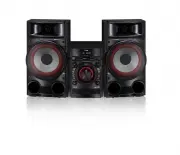
A user manual for LG’s Mini Hi-Fi System covers essential topics like setup, operation, and maintenance for compatible models (CM4630, CM4530, CM4430, CM4330). The guide emphasizes safety–including laser warnings, battery handling, and proper ventilation–while detailing connectivity options such as USB recording, FM radio tuning, and speaker connections. It also includes troubleshooting for common issues like power failures or audio distortion, alongside technical specs for performance and compatibility with devices like MP3 players and iPods/iPhones.


Table of Contents:
- Page 1 – Product Identification and Compatibility
- Page 2 – Safety Precautions for Laser Product
- Page 3 – Battery Handling and Safety Guidelines
- Page 4 – Instruction Manual Table of Contents
- Page 5 – Manual Index Sections
- Page 6 – Playback Features and File Requirements
- Page 7 – USB Device Compatibility and Limitations
- Page 8 – Remote Control Functions and Battery Installation
- Page 9 – Front Panel Component Labeling
- Page 10 – Audio Device Controls and Functions
- Page 11 – Rear Panel Components of CM4530
- Page 12 – Rear Panel Components of CM4630
- Page 13 – Rear Panel Connections for Models
- Page 14 – Speaker Connection Instructions
- Page 15 – Connecting External Equipment via AUX and FM
- Page 16 – Connecting USB Devices
- Page 17 – CD and USB Playback Operations
- Page 18 – Muting, File Deletion, and AUTO DJ Management
- Page 19 – External Sound and Radio Operation
- Page 20 – FM Radio Station Management
- Page 21 – Sound Settings and Clock Configuration
- Page 22 – Sleep Timer, Dimmer, and Media Playback
- Page 23 – iPod/iPhone Operation and Troubleshooting
- Page 24 – USB Audio Recording Modes
- Page 25 – USB Recording Limits and Copyright
- Page 26 – Troubleshooting Guide
- Page 27 – Technical Specifications for Model Variants
- Page 28 – Speaker and Subwoofer Specifications
- Page 29 – Maintenance and Trademark Information
Please read this manual carefully before operating
your set and retain it for future reference.
CM4630 (CM4630, CMS4630F)
CM4530 (CM4530, CMS4530F, CMS4530W)
CM4430 (CM4430, CMS4530F)
CM4330 (CM4330, CMS4330F)
OWNER’S MANUAL
Mini Hi-Fi System
ENGLISH
CM4630-FE_DAUSLLK_ENG_7539.indd 1
2013-02-18 11:55:39
"Loading the manual" means you need to wait until the file loads and becomes available for online reading. Some manuals are very large, and the time they take to appear depends on your internet speed.
Was this manual helpful?
About this manual
- Brand
- LG
- Model
- CM4630
- Document type
- User Manual
- Category
- Sound System
- Language(s)
- English
- Pages
- 30
- File size
- 2.1 MB
- Format
Summary
Listing of compatible models including CM4630, CM4530, CM4430, and CM4330, and instructions for pre-operation review.
Warnings regarding electric shock, fire hazards, proper cord usage, ventilation requirements, and servicing restrictions for the Class 1 laser unit.
Instructions for safely removing and disposing of the battery, warnings against water exposure, and safety precautions for young children and electrical outlet usage.
Ask a question
Related manuals
More LG Sound Systems models


Other LG appliances
 LG 2 Manual
 LG 3 Manual
 LG 4 42 2P PQ Q1 10 0* ** * 5 50 0P PQ Q1 10 0* ** * 4 42 2P PQ Q1 11 1* ** * 5 50 0P PQ Q1 11 1* ** * 4 42 2P PQ Q2 20 0* ** * 5 50 0P PQ Q2 20 0* ** * 4 42 2P PQ Q3 30 0* ** * 5 50 0P PQ Q3 30 0* ** * Manual
 LG 10 Manual
 LG 14HK701G-WP User Manual
 LG 14HQ701G-BP User Manual
 LG 15LC1R Manual
 LG 15LC1RB User Manual
 LG 15LS766A0UA User Manual