Page 2 - Warning; more of the following measures:
DLP PROJECTOR DLP PROJECTOR Warning - Class B (b) For a Class B Digital device or peripheral, the instructions furnished the user shall include the fol- lowing or similar statement, placed in a prominent location in the text of the manual: NOTE: This equipment has been tested and found to comply wit...
Page 3 - Contents
Contents 3 Contents Disposal of your old appliance 1. When this crossed-out wheeled bin symbol is attached to a product it means the product is covered by the European Directive 2002/96/EC. 2. All electrical and electronic products should be disposed of separately from the municipal waste stream thr...
Page 4 - Safety Instructions; WARNING; WARNING; Indoor Installation; NOTES
Safety Instructions 4 Safety Instructions Please take note of the safety instructions to prevent any potential accident or misuse of the projector. ꔈ Safety Instructions are given in two forms as detailed below. WARNING : The violation of this instruction may cause serious injuries and even death. N...
Page 5 - Using; CAUTION concerning the Power Cord
Safety Instructions 5 Using WARNING If water is spilt into the projector unplug it from the power supply immediately and consult your Service Agent. This may cause an electric shock hazard or damage to the unit! Dispose of used batteries carefully and safely. In the case of a battery being swallowed...
Page 7 - Names of parts; Main Body
Names of parts 7 AUTO Button It automatically corrects the position and the shaking of the image at the RGB mode. Front remote control sensor Foot adjusting button Names of parts Main Body * The projector is manufactured using high-precision technology. You may, however, see on the Projector screen ...
Page 8 - Connecting Part
Names of parts 8 USB AC IN Kensington Security System Connector (Refer to page 14) VIDEO HDMI/DVI RGB OUT RGB 2 IN RGB 1 IN IR (Remote control sensor) * Do not block the IR port for normal operation of remote control. RS-232C LAN AUDIO IN Connecting Part * When using HDMI/USB connector, if the size ...
Page 9 - CAUTION
Names of parts 9 3D Button SLEEP Button L/R Button TIMER Button Zoom Button Remote Control INPUT Button KEYSTONE Button MENU Button AUTO Button BACK Button OK ◉ , ∧ / ∨ / < / > Button STILL Button ( Functions as the STILL button in any mode other than DivX.) BLANK Button USB Button Q.MENU Button PAG...
Page 10 - Projector Status Indicators; Lamp indicators
Names of parts 10 Operation Indicator / Temperature Indicator Lamp Indicator RedGreen(flashing)GreenOrange(flashing) OffOrange Red(flashing) Red Red(flashing) Green (flashing) Orange(flashing) Standby.Lamp is starting up.Unit is in operation (Lamp is turned on)The lamp is cooling (10 seconds).The pr...
Page 11 - Accessories
Names of parts 11 Remote Control AAA Battery Owner’s manual Lens cap and Strap Computer Cable Power Cord Projection Screen Lamp Component Cable HDMI Cable RS-232CCable RCA to D-Sub Adapter Video Cable Ceiling mount for projector LAN Cable Accessories CD Owner’s manual Optional Extras * Contact your ...
Page 12 - Provide proper ventilation for this projector.; Installing and Composition; Installation Precautions; Don’t place the projector where it can be covered with dust.
Installing and Composition 12 Provide proper ventilation for this projector. • The projector is equipped with ventilation holes(intake) on the bottom and ventilation holes(exhaust) on the front. Do not block or place anything near these holes. Internal heat build-up may occur, causing picture degrad...
Page 13 - screen determines the actual size of the image.; projection distance based on the picture format; Basic Operation of the Projector
Installing and Composition 13 1. Place the projector on a sturdy and horizontal surface with the PC or AV source.2. Place the projector with the desired distance from the screen. The distance between the projector and the screen determines the actual size of the image. 3. Position the projector so t...
Page 14 - Turning on the Projector; POWER button on the remote control or top cover.; Select the source mode with the INPUT button.; Turning off the Projector; POWER button on the top cover or remote control.; Kensington Security System
Installing and Composition 14 Turning on the Projector 1. Connect power cord correctly.2. Remove the lens cap. If it is left on, it could become deformed due to the heat produced by the projection lamp.3. Press the POWER button on the remote control or top cover. (Green operation indicator flashes i...
Page 15 - Focus and Position of the Screen Image; by pushing foot adjusting button as below.; Focus ring; Selecting input mode; INPUT button on the remote control.; Selecting an input signal with the; Input; Component1
Installing and Composition 15 When an image appears on the screen, check if it is in focus and fits well to the screen. ꔈ To adjust the focus of the image, rotate the focus ring which is the outer ring on the lens. ꔈ To adjust the size of the image, rotate the zoom ring which is the inner ring on th...
Page 16 - Connection; Connecting to a Notebook PC; * Refer to page 49 for resolutions the projector supports.; RGB 1 IN of the projector and the computer; output port with a computer cable.; AUDIO IN RGB 1 of the projector and the; computer audio output port with an audio cable.; * You may have to change the resolution that your PC exports to; Connecting to a Video Source; VIDEO IN of the projector to the output; jack of the video source with a video cable.; AUDIO IN VIDEO of the projector to the; output jack of the audio source with an audio cable.; * You can also connect to the
Connection 16 Connection Connecting to a Notebook PC * You can connect the projector to a computer with VGA, SVGA, XGA, SXGA, UXGA output. * Refer to page 49 for resolutions the projector supports. < How to connect > 1. Connect the RGB 1 IN of the projector and the computer output port with a ...
Page 17 - Connecting to a DVD Player; * When connecting the component cable, match the jack
Connection 17 Connecting to a DVD Player < How to connect a Component source > 1. After connecting the Component cable of DVD Player to the RGB to Component cable, connect it to the RGB 1 IN terminal of the projector. * When connecting the component cable, match the jack colors with the compon...
Page 18 - D Video Function; Before watch 3D image; Warning of photosensitive seizure.; While watching 3D image; Please put extra care when children are watching; Check these when watching 3D image; Please watch the image within effective angle and distance.
3D Video Function 18 3D Video function. * 3D image is a technology that utilizes parallax of both eyes to make an image to be perceived solid. Before watch 3D image ► Do not watch 3D image at a close distance for a long time. It might impair visual acuity. ► It might cause dizziness if one watch pro...
Page 19 - How to watch 3D image; for questions regarding 3D glasses.; To watch 3D image; * Effective watching angle: 9° up and down and left and right.
3D Video Function 19 How to watch 3D image 1. While watching 3D image from the projector, press a button on the glasses. 2. When it is pressed, it will blink and synchronize with 3D image. (Blinking is operating method of DLP-LINK Type 3D glasses and it varies by its variety.) 3. If it blinks or has...
Page 20 - Function; connection”on page 17 for HDMI-PC sound output); FG; D part; D image only supports 4:3 aspect ratio
Function 20 O X O O O O X X X X X X X X O X X X X O X O O O O X X X X X X X X O X X X X O X O O O O X X X X X X X X O X X X X O O X O O O X X X X X X X X O X X X X < Remote Controller Function only operational in 3D mode > 3D Mode Top & Bottom Side by Side Frame Sequential Frame Packing PO...
Page 21 - PICTURE Menu Options; MENU button. Then, move to PICTURE with the; Adjusting Picture Mode; Picture mode
Function 21 PICTURE Menu Options 1. Press the MENU button. Then, move to PICTURE with the ∧ , ∨ , < , > buttons and press the ◉ OK button. 2. Press the ∧ , ∨ buttons to move to a desired function and press the ◉ OK button. 3. Press the < , > buttons to make a desired adjustment and then press the ◉ ...
Page 22 - Advanced Control; Advanced Control Function
Function 22 Color Temperature - This function enables Vivid/Standard/Cinema/Sport/Game. ꔈ Set to warm to enhance hotter colors such as red, or set to cool to make picture bluish. Dynamic Contrast ꔈ Adjusts the contrast to keep it at the best level according to the brightness of the screen. The pictu...
Page 23 - Picture Reset Function; Color Temperature Function
Function 23 1. Press the MENU button. Then, move to PICTURE with the ∧ , ∨ , < , > buttons and press the ◉ OK button. 2. Press the ∧ , ∨ buttons to move to Picture Reset and press the ◉ OK button. 3. Press the < , > buttons to move to Yes and press the ◉ OK button. • Press the BACK button to exit th...
Page 24 - SCREEN Menu Options; To Change PJT Mode; Press the; RATIO; button to select a desired screen size.; Using Aspect Ratio Function; KEYSTONE button of remote control.; Using Keystone Function; buttons to move to; AUTO button of the remote control.; Auto Configure Function
Function 24 SCREEN Menu Options • Select Rear when projecting from the back of the transparent screen purchased separately. • Select Ceiling when installing the product on the ceiling. • When PJT Mode is Rear/Ceiling, the left/right of the speaker changes automatically. • You can use this function t...
Page 25 - MENU button. Then, move to SCREEN with the; • Press the; STILL button on the remote control.; Using the Still Function; you change the SOURCE or input signal,or turn the power off.; Adjusting the Zoom; ZOOM button on the remote control.; Adjusting the Position; ZOOM button on the remote control.
Function 25 RGB Config. Function RGB Config. Auto Config. Position Resolution ꔃ Size Phase Reset ꔐ 1024 x 768 1280 x 768 1360 x 768 ꔂ Move ꕉ Prev. 1. Press the MENU button. Then, move to SCREEN with the ∧ , ∨ , < , > buttons and press the ◉ OK button. 2. Press the ∧ , ∨ buttons to move to RGB Config...
Page 26 - Adjusting Treble; Adjusting Bass; Adjusting Volume; AUDIO Menu Options
Function 26 Adjusting Treble AUDIO Volume 10 Balance 0 Treble 50 Bass 50 L R 1. Press the MENU button. Then, move to AUDIO with the ∧ , ∨ , < , > buttons and press the ◉ OK button. 2. Press the ∧ , ∨ buttons to move to Treble and press the ◉ OK button. 3. Press the < , > buttons to adjusting audio t...
Page 27 - Sleep time Function; TIME Menu Options; MENU button. Then, move to TIME with the
Function 27 * The sleep timer turns the projector off at the preset time. 1. Press the Q.MENU button on the remote control. 2. Press the < , > buttons to move to Sleep Timer. 3. Press the ∧ , ∨ buttons to select a desired preset time. • You can use this function through the MENU button. • Press the ...
Page 28 - Presentation timer Function; TIMER button of remote control.; button to select; Time alarm or Time keeper item.; button to select the desired preset time.
Function 28 Presentation timer Function 1. Press the TIMER button of remote control. 2. Press the ∧ , ∨ button to select Time alarm or Time keeper item. 3. Press the < , > button to select the desired preset time. 4. The timer starts to operate if you select specific time. • Time alarm function : If...
Page 29 - OPTION Menu Options; Selecting Language; BLANK button on the remote control.; • To temporarily turn off the lamp, press; Using Blank Function; MENU button. Then, move to OPTION with the; Captured Image will display the Logo.; Selecting Blank image; OPTION; OPTION
Function 29 OPTION Menu Options 1. Press the MENU button. Then, move to OPTION with the ∧ , ∨ , < , > buttons and press the ◉ OK button. 2. Press the ∧ , ∨ buttons to move to Menu Language and press the ◉ OK button. 3. Move to a desired item with the ∧ , ∨ , < , > buttons and then press the ◉ OK but...
Page 30 - among; Using Monitor out Function; To adjust the brightness of the screen; Screen Capture Function; * You can select either of the two RGB inputs.
Function 30 1. Press the MENU button. Then, move to OPTION with the ∧ , ∨ , < , > buttons and press the ◉ OK button. 2. Press the ∧ , ∨ buttons to move to Monitor Out and press the ◉ OK button. 3. Press the < , > button to select RGB1, RGB2 or Auto. • Auto mode is the mode to output an image of curr...
Page 31 - buttons and press the; Set ID and press the; button to select your desired number. Press the; OK button to save the selected number.; SET ID; Communication Parameter Setup
Function 31 1. Press the MENU button. Then, move to OPTION with the ∧ , ∨ , < , > buttons and press the ◉ OK button. 2. Press the ∧ , ∨ buttons to move to Set ID and press the ◉ OK button. 3. Press the < , > button to select your desired number. Press the ◉ OK button to save the selected number. • T...
Page 32 - Command Reference List; Communication Protocol
Function 32 Command Reference List 01.Power k a 0 ~ 1 02.Aspect Ratio k c * 03.Blank Image k d 0 ~ 1 04. Contrast k g 0 ~ 64 05. Brightness k h 0 ~ 64 06. Color k i 0 ~ 64 07.Tint k j 0 ~ 64 08. Sharpness k k 0 ~ 64 09. OSD Select k l 0 ~ 1 10. Remote Control Lock / Key Lock k m 0 ~ 1 11. Color Temp...
Page 37 - Network Setup; Connect the; LAN of the projector and the LAN port
Function 37 Network Setup < NOTICE > ▪ Use a standard LAN cable with this Projector. Cat5 or better with a RJ45 connector. ▪ Many network connection problems during set up can often be fixed by re-setting the router or modem. After con-necting the player to the home network, quickly power off ...
Page 38 - INFORMATION Menu Options; To See The Projector Information
USB 38 INFORMATION Menu Options 1. Press the MENU button. Then, move to INFORMATION with the ∧ , ∨ , < , > buttons and press the ◉ OK button. 2. You can see the current information of the projector. • Press the BACK button to exit the menu screen. To See The Projector Information INFORMATION Model N...
Page 39 - Connecting the USB device; Connect the USB device to the USB jack on the back of the set.; Eject USB; OK button on the remote control.; Eject USB, USB memory cannot be read. Remove USB memory, and connect; USB; To use the USB device
USB 39 * When you connect a USB device, this screen is displayed, automatically. In USB device, you can not add a new folder or delete the existing folder. Connecting the USB device 1. Connect the USB device to the USB jack on the back of the set. 2. It turns automatically to DivX Home Menu. * Selec...
Page 40 - Screen Components; USB button. Then, move to PHOTO LIST with
USB 40 ꔂ Navigation ꔉ PopUp Menu ꘧ Page Change ꘁ Mark ꕉ Exit PHOTO LIST * It is available to playback the photo file(*.jpg) in the USB device. The On Screen Display may be different from your set. Images are an example to assist with the projector operation. PHOTO(*.JPEG) supporting file Baseline :...
Page 41 - Full Screen Menu
USB 41 Full Screen Menu 1. Press the USB button. Then, move to PHOTO LIST with the < , > buttons and press the ◉ OK button. 2. Press the ∧ , ∨ , < , > buttons to move to desired photo and press the ◉ OK button. 3. Press the ∧ , ∨ buttons to move to View and press the ◉ OK button. 4. The selected pho...
Page 42 - The On Screen Display on your model may be slightly different.; MUSIC LIST; Music Selection and Popup Menu; USB button. Then, move to MUSIC LIST with; MUSIC LIST; OK button, the current music in playback will stop.
USB 42 ꔂ Navigation ꔉ PopUp Menu ꘧ Page Change ꘁ Mark ꕉ Exit MUSIC LIST * You can use the Music List menu to play MP3 files form a USB storage device. The On Screen Display on your model may be slightly different. 1. Moves to upper level file2. Preview: Display the title/folder name of the music in ...
Page 43 - MOVIE LIST; Supported Movie File
USB 43 MOVIE LIST * The movie list is activated once USB is detected. It is used when playing movie files on projector. Supported Movie File Extension name Video Codec Audio Codec Max Resolution mpg, mpeg, vob MPEG1, MPEG2 Dolby Digital,MPEG,MP3,LPCM 1920x1080 @30p dat MPEG1 Dolby Digital,MPEG,MP3,L...
Page 44 - Precautions when playing the DivX; Dolby
USB 44 Precautions when playing the DivX ► A DivX movie file and its subtitle file must be located in the same folder. ► At this time, a movie file name and its subtitle file name must be identical for it to be displayed. ► Specific subtitles created by the user may not be operated normally. ► Some ...
Page 45 - Movie Selection and Popup Menu; USB button. Then, move to MOVIE LIST with
USB 45 1. Moves to upper level folder2. Preview: Display the title/folder name of the movie in the selected folder 3. Current page/Total pages4. Total number of marked movies5. Corresponding buttons on the remote control Up Folder Page 1/1 No Marked MUSIC LIST 704 x 396 668 MB Movie Up Folder Up Fol...
Page 46 - II; Subtitle Language Group
USB 46 Option Menu Selection Playing the Movie 1. Press the USB button. Then, move to MOVIE LIST with the < , > buttons and press the ◉ OK button. 2. Press the ∧ , ∨ , < , > move to a desired movie file and press the ◉ OK button. 3. Press the ∧ , ∨ buttons to move to Play and press the ◉ OK button. ...
Page 47 - To See The DivX Registration Code; DivX Reg. Code and press the; or unable to be played.; * Confirm the DivX registration code number of the projector.; Deactivation Function; Deactivation and press the
USB 47 To See The DivX Registration Code 1. Press the MENU button. Then, move to USB with the ∧ , ∨ , < , > buttons and press the ◉ OK button. 2. Press the ∧ , ∨ buttons to move to DivX Reg. Code and press the ◉ OK button. 3. You can see the DivX registration code of the projector. • With a DivX reg...
Page 48 - FILE VIEWER; View File; and press; Menu; Go Page with
USB 48 FILE VIEWER Screen Components 1. Moves to upper level file2. Preview: Display the title/folder name of the file in the selected folder 3. Current page/Total pages4. Corresponding buttons on the remote control Page 1/1 FILE VIEWER Drive 1 Requiem 2 story.txt Title Date Up Folder information.pp...
Page 49 - Supported Monitor Display; Invalid Format”; Information; Cleaning the lens; Maintenance
Information 49 Supported Monitor Display * The following table lists the display formats supported by the projector. * If the projector does not support the input signal, “ Invalid Format” message appears on the screen. * The projector supports DDC1/2B type as Plug & Play function. (Auto recogni...
Page 50 - Lamp Replacement; Replacing the Lamp
Information 50 The change interval of lamp may depend on the use environment of Projector. You can see the used lamp time in the Lamp Time section of the Menu. You must replace the lamp when: * The projected image gets darker or starts to deteriorate. * The lamp indicator is red. * The message “Repl...
Page 52 - How to fix the lens cap; How to fix the lens cap to the projector
Information 52 Prepare the lens cap and the strap supplied as accessories. Insert the non-knot end of the strap into the hole at the bottom of the lens section of the projector. Fix the strap at the hole of the projector into the hole of the lens cap, and then pass the lens cap through the strp lass...
Page 53 - MEMO
Page 56 - MODEL
The model and serial number of the projector is located on the back or one side of the projector. Record it below should you ever need service. MODEL SERIAL


 LG HU715QW
User Manual
LG HU715QW
User Manual
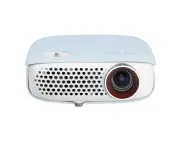 LG PW800G
User Manual
LG PW800G
User Manual
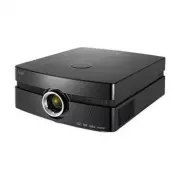 LG AF115
User Manual
LG AF115
User Manual
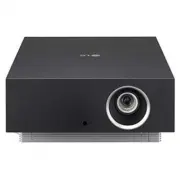 LG AU810PB
User Manual
LG AU810PB
User Manual
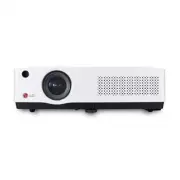 LG BD450
User Manual
LG BD450
User Manual
 LG BF50NST
User Manual
LG BF50NST
User Manual
 LG BF50RG
User Manual
LG BF50RG
User Manual
 LG BF60PST
User Manual
LG BF60PST
User Manual
 LG BG630
User Manual
LG BG630
User Manual
 LG BG650
User Manual
LG BG650
User Manual
 LG BU50NST
User Manual
LG BU50NST
User Manual
 LG BU50RG
User Manual
LG BU50RG
User Manual
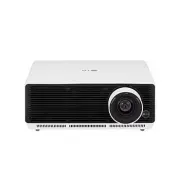 LG BU53PST
User Manual
LG BU53PST
User Manual
 LG BU53RG
User Manual
LG BU53RG
User Manual
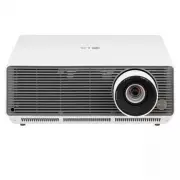 LG BU60PST
User Manual
LG BU60PST
User Manual
 LG BU70QGA
User Manual
LG BU70QGA
User Manual
 LG CF181D
User Manual
LG CF181D
User Manual