Page 2 - LICENSE; NOTE
2 LICENSE LICENSE Manufactured under license from Dolby Laboratories. Dolby and the double-D symbol are trademarks of Dolby Laboratories. ABOUT DIVX VIDEO: DivX® is a digital video format created by DivX, LLC, a subsidiary of Rovi Corporation. This is an official DivX Certified® device that plays Di...
Page 3 - SAFETY PRECAUTIONS; Indoor Installation
3 SAFETY PRECAUTIONS SAFETY PRECAUTIONS Please take note of the safety instructions to prevent any potential accident or misuse of the product. y y Safety precautions are given in two forms, i.e. Warning and Caution as detailed below. WARNING : Failure to follow the instructions may cause serious in...
Page 4 - might be exposed to dust.; Power
4 SAFETY PRECAUTIONS y y Do not install the product onto a wall or ceiling that is close to sources of oil or oil mist. - The product may be damaged and fall, resulting in serious injury. y y Do not place the product where it might be exposed to dust. - This may cause fire. y y Do not use the produc...
Page 5 - remain plugged in for approximately; When in Use
5 SAFETY PRECAUTIONS y y To turn off the main power, remove the power plug, which should be positioned so it is easy to access for operation. y y To prevent damage to lamp, unit must remain plugged in for approximately 3 minutes after power down to allow for proper cooldown. CAUTION y y Hold the plu...
Page 6 - Do not insert anything into or cover
6 SAFETY PRECAUTIONS y y Never open any cover on the projec-tor. There is a high risk of electric shock. y y Do not look directly into the lens when the projector is in use. The strong light may damage your eyes. y y When the lamp is on or has just been turned off, avoid touching the air vent or lam...
Page 7 - Cleaning; Others; WARNING
7 SAFETY PRECAUTIONS Cleaning WARNING y y Do not spray the projector with water when cleaning. Do not allow water to get into the product or do not allow it to get wet. - This may cause fire or an electric shock. y y In the unlikely event of smoke or a strange smell coming out from the projector, sw...
Page 8 - Do not store it at temperatures higher
8 SAFETY PRECAUTIONS y y Do not store it at temperatures higher than 60 °C or in high humidity. - This may cause explosion or fire. y y Keep the battery out of reach of children. - Failure to do so may cause personal injury or product malfunction. y y Make sure that the battery is installed correctl...
Page 9 - CONTENTS
9 CONTENTS - Watching the Videos 28 - Viewing the Photos 35 - Listening to Music 37 - Viewing the Files 39 CUSTOMIZING SETTINGS 41 Settings 41 PICTURE Settings 42 AUDIO Settings 46 TIME Settings 47 OPTION Settings 48 CONNECTING EXTERNAL DEVICES 50 Connecting HD Receiver, DVD, or VCR Player 51 - HDMI...
Page 10 - PREPARATION; Accessories; Use a standard sized jack.
10 PREPARATION PREPARATION Accessories Check the accessories provided with the product. The picture may be different from the actual product. y y When connecting a cable to the HDMI or USB port, be sure to use the jack that fits into the USB/HDMI port. Use a standard sized jack. TIMER SOUND MARK SET...
Page 11 - Optional Accessories; HDMI Cable
11 PREPARATION Optional Accessories To purchase optional accessories, visit an electronics store or online shopping site or contact the retail store where you purchased the product. Without prior notice, optional extras are subject to change in order to improve the per - formance of the product, and...
Page 12 - Button; It prevents dust or foreign objects from entering the product.; Part names; Bottom; Main body
12 PREPARATION Button Description $9,1 '&,1 5*%,1 M ㅁ VOL - VOL + (Power) Turns the projector on or off. S (Settings) Selects or closes settings. ∧, ∨, <, > Moves between menus and changes the settings. ( < , > button: The volume can be adjusted according to the input mode.) ꔉ (OK) Shows the cur...
Page 13 - Connecting Part; RGB IN1
13 PREPARATION Connecting Part RGB IN 1 RGB IN 2 RGB OUT RS 232C LAN USB AUDIO OUT VIDEO R-AUDIO-L (PC1/DVI) (PC2) AUDIO IN HDMI/DVI VIDEO AUDIO OUT USB AC IN Kensington Security System Connector HDMI/DVI IN RGB OUT RGB IN2 RGB IN1 RS-232C LAN R-AUDIO-L AUDIO IN (PC1/DVI)(PC2) Speaker
Page 14 - High temperature warning; Projector status indicator
14 PREPARATION Projector status indicator Off Power cable disconnected. Red STAND-BY. (Power standby) Green Running state Orange High temperature warning Turn off the projector and check its ventilation holes. Red (blinking) Turn off power to the lamp and cool down the lamp. The projector is being t...
Page 15 - Installation; Installation Precautions; removing the protective film, the
15 PREPARATION Installation Installation Precautions y y Make sure to remove the protective film attached to the projector. - If you use the projector without removing the protective film, the product may not work properly. y y Place the projector in a well-ventilated environment. - To prevent inter...
Page 16 - Projection Distance per Screen Size
16 PREPARATION Projection Distance per Screen Size 1 Place the projector on a sturdy, level surface, together with the computer or audio/ video source. 2 Place the projector at an appropriate distance from the screen. The distance be- tween the projector and the screen determines the actual size of ...
Page 17 - Kensington Security System; The Kensington Security System is an optional accessory.
17 PREPARATION Kensington Security System y y This projector has a Kensington Security Standard connector. Connect a Kensington Security System cable as shown below. y y For more information on installation and use of the Kensington Security System, refer to the user’s guide provided with the Kensin...
Page 18 - REMOTE CONTROL; CAUTION
18 REMOTE CONTROL REMOTE CONTROL Open the battery cover on the back of the remote control and insert the batteries which are specified in the battery room with poles pointing in the correct direction. The new and same type of batteries (1.5 V AAA) must be used. CAUTION y y Do not mix new batteries w...
Page 20 - Watching with the Projector; Watching with the; Turning on the Projector; screen, check if it is in focus and fits; fixed at the current position.; Watching with the Projector
20 Watching with the Projector Watching with the Projector Watching with the Projector Turning on the Projector 1 Connect the power cord correctly. 2 After waiting for a moment, press the POWER button on the remote control or the control panel. (The light on the control panel will be turned on.) 3 I...
Page 21 - Do not turn off the; Replace the lamp; POWER
21 Watching with the Projector Do not turn off the projector Do not turn off the projector The lifetime of the lamp depends on the environment in which the projector is used. You can check how long the projec- tor lamp has been used in the Option menu. Make sure to replace the lamp in the following ...
Page 22 - Additional Options; Adjusting the Aspect Ratio; : Enlarges an image to fit the
22 Watching with the Projector Additional Options Adjusting the Aspect Ratio You can adjust the aspect ratio of the picture by pressing RATIO while watching projector. NOTE y y Available options may vary depend- ing on the input signal. y y You can also change the image size by pressing Q.MENU or SE...
Page 23 - Using the Keystone; Keystone; Using the Input List; first. Please note that the Compo
23 Watching with the Projector Using the Keystone Function To prevent the screen image from becoming trapezoidal, Keystone adjusts the top and bottom width of the image if the projector is not set up at a right angle to the screen. Because the Keystone function may cause inferior screen image qualit...
Page 24 - Using the Quick Menu; turned off at the specified; Blank Function; Using Blank Function; formed or even cause a fire.
24 Watching with the Projector Using the Quick Menu You can customize frequently used menus. 1 Press Q.MENU to access the quick menus. 2 Press the ︿ or ﹀ button to scroll through the following menus and press OK . Menu Description Aspect Ratio Changes the aspect ratio (See page 22.) Picture Mode Cha...
Page 25 - ENTERTAINMENT; Using SCREEN SHARE
25 ENTERTAINMENT ENTERTAINMENT Using SCREEN SHARE 1 Enable related SCREEN SHARE function on the device you wish to connect. 2 Connect the Projector from the search list on the device you wish to connect. (When you connect the projector to your laptop, input the PIN code shown on your display. The re...
Page 26 - My media; Connecting a USB Device; Connect a USB flash drive as shown; Removing a USB Device; USB Device
26 ENTERTAINMENT My media Connecting a USB Device When a USB storage device is connect- ed, the USB adjustment screen appears. You cannot write or delete data in the USB device. Connect a USB flash drive as shown below. USB flash drive Removing a USB Device 1 Press the Q.MENU button. 2 Use the ︿ or ...
Page 27 - Tips for Using a USB Device; USB hubs are not supported.
27 ENTERTAINMENT Tips for Using a USB Device y y Only a USB storage device is recog-nizable. y y USB hubs are not supported. y y A USB storage device which uses its own driver may not be recognized. y y The recognition speed of a USB storage device will depend on each device. y y If a normal USB dev...
Page 28 - Watching the Videos; In the Movie List, you can watch movies stored on the connected USB; HTML tags are not supported in sub
28 ENTERTAINMENT Watching the Videos In the Movie List, you can watch movies stored on the connected USB device. Tips for Playing Videos y y Some subtitles created by a user may not work. y y Some special characters are not sup-ported in subtitles. y y HTML tags are not supported in sub - titles. y ...
Page 29 - Supported Files
29 ENTERTAINMENT Supported Files Exten- sion Codec category Code type Profile/Level Support .asf .wmv Video codec VC-1 Advanced Profile Advanced Profile @ Level 3 (e.g.720p60,1080i60,1080p30) Only files compliant with SMPTE 421M VC-1 stan - dard can be streamed. VC-1 Simple and Main Profiles Simple ...
Page 30 - Supported Audio Files
30 ENTERTAINMENT Supported Audio Files No Audio Codec Bit rate Sampling rate Remark 1 MP3 32 Kbps - 320 Kbps 32 kHz - 48 kHz 2 AC3 32 kbps - 640 kbps 32 kHz, 44.1 kHz, 48 kHz 3 MPEG 32 kbps - 448 kbps 32 kHz - 48 kHz 4 AAC,HEAAC 24 kbps - 3844 kbps 8 kHz - 96 kHz 5 CDDA 1.44 kbps 44.1 kHz 6 LPCM 1.4...
Page 31 - Browsing Movie List; Play a video file stored in the
31 ENTERTAINMENT Browsing Movie List Play a video file stored in the connected device. 1 Connect a USB storage device. 2 Press the USB button. 3 Use the ︿, ﹀, ︿ , or ﹀ button to select Movie List and press the OK button. 4 Use the ︿, ﹀, ︿, or ﹀ button to select the file you want and press the OK but...
Page 32 - Set options; the file with multiple audio
32 ENTERTAINMENT Set options 1 Press the Q.MENU button. 2 Use the ︿ or ﹀ button to move to a desired option and press the OK but- ton. 3 Use ︿, ﹀, ︿, or ﹀ button to set up each item. Set Video Play. Item Description Picture Size Selects the aspect ratio of the image. y y Full: Files are played in fu...
Page 33 - Hungarian
33 ENTERTAINMENT y y Subtitle Language Subtitle Lan- guage Language Latin1 English, Spanish, Irish, Welsh, French, German, Italian, Dutch, Swedish, Finnish, Portuguese, Danish, Romanian, Norwegian, Albanian, Gaelic, Catalan, Valencian Latin2 Bosnian, Polish, Croatian, Czech, Slovak, Slovene, Serbian...
Page 34 - To deregister the DivX code; 〈 or 〉 button to go to; benefits and rights of the copyright; Registering the DivX code; 〈 or 〉; The video or audio files that are
34 ENTERTAINMENT To deregister the DivX code Use the DivX deregistration code to deactivate the DivX DRM function. 1 Move from the menu to OPTION and press DivX(R) VOD. 2 Use the ︿ or ﹀ button to go to Deregistration and press the OK button. 3 Select Yes . Yes No Your device is already registered. A...
Page 35 - Viewing the Photos; Photo File; USB; select the file you want and press the; Description
35 ENTERTAINMENT Viewing the Photos You can view photos stored on a con- nected device. Photo File PHOTO (*.JPEG) Baseline: 64-pixel (width) x 64-pixel (height) - 15360-pixel (width) x 8640-pix - el (height) Progressive: 64-pixel (width) x 64-pixel (height) - 1920-pixel (width) x 1440-pixel (height)...
Page 36 - Item; Selects the previous or next
36 ENTERTAINMENT 5 Control playback by using the follow- ing buttons. 01_a.jpg 2008/12/10 1920 x 1080 479 KB [1/4] Q.MENU ꔦ Option Slideshow BGM Hide Exit Item Description Selects the previous or next photo. Slide show Displays all photos in a slide show. Set Slide Speed in the Option → Set Photo Vi...
Page 37 - Listening to Music; You can play audio files stored on the; Audio File; Sampling rate MPEG1 Layer3:; Browsing Music List
37 ENTERTAINMENT Listening to Music You can play audio files stored on the connected device. Audio File *.MP3 Bit rate range 32 Kbps - 320 Kbps y y Sampling rate MPEG1 Layer3: 32 kHz, 44.1 kHz, 48 kHz y y Sampling rate MPEG2 Layer3: 16 kHz, 22.05 kHz, 24 kHz Browsing Music List 1 Connect a USB stora...
Page 38 - Hides the playback bar.; You can change audio settings.
38 ENTERTAINMENT 5 Control playback by using the follow- ing buttons. Music List USB STORAGE DEVICE Butterfly_... 00:03:25 Drive1 Page 1/1 Page 1/1 ꘧ Page Change Q.MENU � 02:30 / 03:25 002. - B02.mp3 �� Option Hide Exit Item Description ◀▶ Changes the playing position. � Stops playing. � Resumes nor...
Page 39 - File List Screen; Viewing the Files; You can see document files stored on a; Supported File Formats
39 ENTERTAINMENT File List Screen 1 Connect a USB storage device. 2 Press the USB button. 3 Use the ︿, ﹀, ︿ , or ﹀ button to select File List and press the OK button. 4 Use the ︿, ﹀, ︿ , or ﹀ button to select the file you want and press the OK button. File List USB STORAGE DEVICE Butterfly_... 06/09...
Page 40 - a file to memory
40 ENTERTAINMENT 5 Control playback by using the follow- ing buttons. y y When you press the Go page but- ton, a window where you can enter a page number appears. When you enter a page to go, you can move to the page. y y Press the volume button to zoom in or zoom out . 1. Press the OK button. y 2. ...
Page 41 - CUSTOMIZING SETTINGS; Settings; Adjusts the image quality for optimal viewing.
41 CUSTOMIZING SETTINGS CUSTOMIZING SETTINGS Settings 1 Press the SETTINGS button. 2 Use the ︿, ﹀, ︿ , or ﹀ button to select a desired item and press the OK button. 3 Use the ︿, ﹀, ︿ , or ﹀ button to set up a desired item and press the OK button. 4 Press the EXIT button when completed. Menu Descript...
Page 42 - PICTURE Settings; The available picture settings are described as follows.; Maximizes the visual effect of video.
42 CUSTOMIZING SETTINGS PICTURE Settings 1 Press the SETTINGS button. 2 Use the ︿, ﹀, ︿, or ﹀ button to select PICTURE and press the OK button. 3 Use the ︿, ﹀, ︿, or ﹀ button to set up a desired item and press the OK button. - To return to the previous menu, press the ꕣ button. 4 Press the EXIT butt...
Page 43 - Horizontal and Vertical Sharpness are available only Expert1/2.
43 CUSTOMIZING SETTINGS Item Description Contrast Increases or decreases the gradient of the video signal. Brightness Adjusts the base level of the video signal to make the image brighter or darker. Sharpness Adjusts the level of edge sharpness between the light and dark ar- eas of the picture. The ...
Page 44 - size of the video signal and can be set as either 10, 20, 30 -
44 CUSTOMIZING SETTINGS Advanced / Expert Control Item Description Dynamic Contrast Adjusts the contrast to keep it at the best level for the brightness of the screen. Dynamic Color Adjusts screen colors so that they look natural. Skin Color Detects the skin area of image and adjusts it to render a ...
Page 45 - an expert to adjust the tint using a test pattern. Six colors (Red/
45 CUSTOMIZING SETTINGS Item Description Color Management Adjusts Red/Green/Blue/Yellow/Cyan/Magenta colors. Allows an expert to adjust the tint using a test pattern. Six colors (Red/ Green/Blue/Cyan/Magenta/Yellow) can be selectively adjusted without affecting other colors. You may not see colors c...
Page 46 - AUDIO Settings; The available sound settings are described as follows.
46 CUSTOMIZING SETTINGS AUDIO Settings 1 Press the SETTINGS button. 2 Use the ︿, ﹀, ︿, or﹀ buttons to select AUDIO and press the OK button. 3 Use the ︿, ﹀, ︿, or ﹀ button to set up a desired item and press the OK button. - To return to the previous menu, press the ꕣ button. 4 Press the EXIT button w...
Page 47 - TIME Settings; The available time settings are described as follows.
47 CUSTOMIZING SETTINGS TIME Settings 1 Press the SETTINGS button. 2 Use the ︿, ﹀, ︿, or ﹀ button to select TIME and press the OK button. 3 Use the ︿, ﹀, ︿, or ﹀ button to set up a desired item and press the OK button. - To return to the previous menu, press the ꕣ button. 4 Press the EXIT button whe...
Page 48 - OPTION Settings; The available option settings are described below.; The SCREEN SHARE displays the screen of the connected device.
48 CUSTOMIZING SETTINGS OPTION Settings 1 Press the SETTINGS button. 2 Use the ︿, ﹀, ︿, or ﹀ button to select OPTION and press the OK button. 3 Use the ︿, ﹀, ︿, or ﹀ button to set up a desired item and press the OK button. - To return to the previous menu, press the ꕣ button. 4 Press the EXIT button...
Page 50 - CONNECTING EXTERNAL DEVICES; You can connect various external devices to the projector.
50 CONNECTING EXTERNAL DEVICES CONNECTING EXTERNAL DEVICES You can connect various external devices to the projector. HDMI - page 51 Component 1, Component 2 - page 53 Input (AV) - page 53 RGB1, RGB2 - page 52 Memory - page 26 Headphones - page 54 Computer/Laptop Video DVD Digital Device USB Headpho...
Page 51 - HDMI connection; With an HDMI cable, you can en; HDMI to DVI Connection; connector using a HDMI to DVI; HDMI
51 CONNECTING EXTERNAL DEVICES Connecting HD Receiver, DVD, or VCR Player Connect an HD receiver, DVD, or VCR player to projector and select an appropriate input mode. HDMI connection With an HDMI cable, you can en - joy high quality picture and sound. Connect the HDMI/DVI connector of a projector t...
Page 52 - Connecting PC; RGB Connection; RGB to DVI Connection; RGB IN 1
52 CONNECTING EXTERNAL DEVICES Connecting PC The projector supports Plug & Play. Your PC will automatically detect the projector and requires no driver installation. RGB Connection Connect the PC output and the PC video input port of the projector with the RGB cable. Connect the RGB IN 1 connect...
Page 53 - Component Connection; you connect an external device; Connecting to the AV; AV Connection; external device and the AV INPUT; INPUT
53 CONNECTING EXTERNAL DEVICES Component Connection You can enjoy vivid images when you connect an external device with a component port to the RGB IN port of the projector. Press the INPUT button on the remote con- trol to select Component . RGB IN 1 RGB IN 2 RGB OUT RS 232C LAN USB AUDIO OUT VIDEO...
Page 54 - Connecting; You can listen to the audio through
54 CONNECTING EXTERNAL DEVICES Connecting Headphones You can listen to the audio through headphones. RGB IN 1 RGB IN 2 RGB OUT RS 232C LAN USB AUDIO OUT VIDEO R-AUDIO-L (PC1/DVI) (PC2) AUDIO IN HDMI/DVI RGB IN 1 RGB IN 2 RGB OUT RS 232C LAN USB AUDIO OUT VIDEO R-AUDIO-L (PC1/DVI) (PC2) AUDIO IN HDMI...
Page 55 - Cleaning the Air Inlet and; if the filter is damaged.; Outlet; MAINTENANCE; Cleaning the Lens; flow into the lens if the product is; Cleaning the Projector Case; To clean the projector case, first
55 MAINTENANCE Cleaning the Air Inlet and Outlet Dust or foreign objects can easily build up in the air inlet and outlet. Remove dust and foreign objects from the inlet and outlet regularly, clean the air inlet (Air filter) regu - larly and replace it with a new one if the filter is damaged. If you ...
Page 56 - Replacing the lamp
56 MAINTENANCE Replacing the lamp 1 Turn off the projector and unplug the power cable from the outlet and place it on a table or a flat surface. - Allow the lamp to cool down for 1 hour before removing the used lamp from the projector because it is very hot. 2 Unscrew the screw fixing the lamp cover...
Page 57 - SERIAL COMMUNICATION; Using Serial Communication; LAN; to; Off; Establishing Serial Communication; the back of the projector.
57 SERIAL COMMUNICATION FUNCTION SERIAL COMMUNICATION FUNCTION Using Serial Communication If the projector is connected to a PC through an RS-232C cable, you can use the PC to control functions of the projector such as power On/Off or input selection, etc. It cannot be used with the eZ-Net Manager c...
Page 58 - Communication; Communication Parameter Setup; Communication code: ASCII code; Data Structure
58 SERIAL COMMUNICATION FUNCTION Communication Protocol 1. Transmission [Command1][Command2][ ][Set ID][ ][Data] [Cr] * [Command1]: The first command to control the projector (k. j, x, m, n ASCII code, 1 Character) * [Command2]: The second command to control the projector (ASCII code, 1 character) *...
Page 59 - Command Reference List
59 SERIAL COMMUNICATION FUNCTION Command Reference List Command 1 Command 2 Data (Hexadecimal) 01. Power Sources k a 00 - 01 02. Aspect Ratio k c * 03. Blank Image k d 00 - 01 04. Contrast k g 00 - 64 05. Brightness k h 00 - 64 06. Color k i 00 - 64 07. Tint k j 00 - 64 08. Sharpness k k 00 - 32 09....
Page 64 - Select either RGB1 or RGB2 input as an
64 SERIAL COMMUNICATION FUNCTION 16. Key (Command: mc) ⇒ Sends a key code of the IR remote control. Transmission [m][c][][Set ID][][Data][Cr] Data Key Code: see page 65 ( * Tr a n s m i t t e d i n h e x a d e c i m a l code) Ack [c][][Set ID][][OK][Data][x] Data Key Code 20. Monitor Out (Command: n...
Page 65 - Key Name
65 SERIAL COMMUNICATION FUNCTION Key Name Key Code Key Name Key Code ︿ 0x40 YELLOW 0x63 ﹀ 0x41 BLUE 0x61 ﹀ 0x06 Key's 0xA4 ︿ 0x07 USB 0x7C Power 0xAD MUTE 0x09 INPUT 0xEF STILL 0xBC SETTINGS 0x43 EXIT 0x5B BACK 0x28 TIMER SOUND MARK SETTINGS 음량 내 미디어 외부입력 선택 키스톤 취침예약 영상모드 페이지 화면크기 화면가림 조용히 설정메뉴 화면정지...
Page 66 - SPECIFICATIONS; MODELS
66 SPECIFICATIONS SPECIFICATIONS MODELS BG630 (BG630-JL) BG650 (BG650-JL) Resolution (Pixel) 1024 (H) × 768 (V) Aspect ratio 4:3 (H:V) Panel size (mm) 16 Projection distance Wide: 873 mm - 8,953 mm Tele: 1,052 mm - 10,753 mm Projection Offset 90 % Working range of the remote control 6 m Audio output...
Page 67 - Supported Monitor Display
67 SPECIFICATIONS y y If an invalid signal is input into the product, it will not be displayed prop-erly on the screen or a message such as “No Signal” or “Invalid Mode” will be displayed. y y The product supports the DDC1/2B type as the Plug & Play function (Auto-recogni-tion of PC monitor). y ...
Page 68 - Open Source software Information; upon email request to opensource@; Component Port Connection
68 SPECIFICATIONS Open Source software Information To obtain the source code under GPL, LGPL, MPL and other open source licenses, that is contained in this prod- uct, please visit http://opensource.lge.com . In addition to the source code, all referred license terms, warranty disclaimers and copyrig...
Page 69 - MODEL
The model and serial number of the projector are located on the back or on the side of the projector. Record them below should you ever need service. MODEL SERIAL
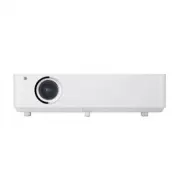


 LG HU715QW
User Manual
LG HU715QW
User Manual
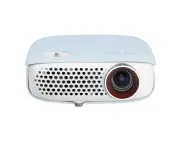 LG PW800G
User Manual
LG PW800G
User Manual
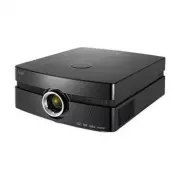 LG AF115
User Manual
LG AF115
User Manual
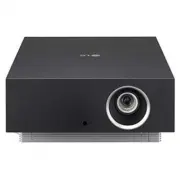 LG AU810PB
User Manual
LG AU810PB
User Manual
 LG BD450
User Manual
LG BD450
User Manual
 LG BF50NST
User Manual
LG BF50NST
User Manual
 LG BF50RG
User Manual
LG BF50RG
User Manual
 LG BF60PST
User Manual
LG BF60PST
User Manual
 LG BG630
User Manual
LG BG630
User Manual
 LG BU50NST
User Manual
LG BU50NST
User Manual
 LG BU50RG
User Manual
LG BU50RG
User Manual
 LG BU53PST
User Manual
LG BU53PST
User Manual
 LG BU53RG
User Manual
LG BU53RG
User Manual
 LG BU60PST
User Manual
LG BU60PST
User Manual
 LG BU70QGA
User Manual
LG BU70QGA
User Manual
 LG BX327
User Manual
LG BX327
User Manual