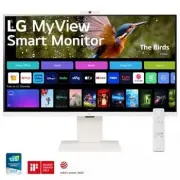
Page 2 - Before reading this manual; Separate Purchase; Important Precautions; Precautions to the AC Adapter and Electrical Power
2 Before reading this manual • Read this manual thoroughly before operating your Monitor, and keep it for future reference. • On the website you can download the manual including installation, using, troubleshooting, specifications, license etc and view its contents on your PC or mobile device. • Us...
Page 3 - Precautions in installing the Product
3 • Never disassemble, repair or modify the power cord or AC adapter. - This may cause a fire or electric shock. • Use only the power cord supplied with the unit or another manufacturer's authorized cord. - Failure to do so may result in fire or electrical shock or damage to the product. • Use only ...
Page 4 - Precautions in Moving the Product
4 • If you smell smoke or other odors or hear a strange sound from the product unplug the power cord and contact LG Customer Service. - If you continue to use without taking proper measures, electrical shock or fire can occur. • If you dropped the product or the case is broken, turn off the product ...
Page 5 - Precautions in Using/Cleaning the Product
5 Precautions in Using/Cleaning the Product • Do not attempt to disassemble, repair or modify the product yourself. - Fire or electric shock can occur. - Contact LG Customer Service for repair. • When cleaning the product, unplug the power cord and scrub gently with a soft cloth to prevent scratchin...
Page 6 - Installation; Lifting and moving the Monitor
6 Installation Lifting and moving the Monitor Please note the following advice to prevent the Monitor from being scratched or damaged and for safe transportation regardless of its type and size. • It is recommended to move the Monitor in the box or packing material that the Monitor originally came i...
Page 7 - Installing on a Table
7 Installing on a Table • Lift the monitor and place it on the table in an upright position. Place the monitor at least 100 mm (3.9 inches) away from the wall to ensure sufficient ventilation. : 100 mm (3.9 inches) • Unplug the power cord before moving or installing the monitor. There is risk of ele...
Page 8 - Adjusting the Angle
8 Adjusting the Angle 1 Place the monitor mounted on the stand base in an upright position.2 Adjust the angle of the screen.The angle of the screen can be adjusted forward or backward from -5° to 15° for a comfortable viewing experience. • To avoid injury to the fingers when adjusting the screen, do...
Page 9 - Adjusting the Stand Height; Using the Kensington Lock
9 Adjusting the Stand Height 1 Make sure to hold and move the monitor with both hands. Max 110.0 mm (4.3 inches) • To avoid injury when adjusting the height, do not put your hands on the stand. Using the Kensington Lock For more information on installation and usage, refer to the Kensington lock own...
Page 10 - Installing on the Wall
10 Installing on the Wall This monitor meets the specifications for the wall mount plate or other compatible devices. • Install the monitor at least 100 mm (3.9 inches) away from the wall and leave about 100 mm (3.9 inches) of space at each side of the monitor to ensure sufficient ventilation. Detai...
Page 12 - Connections; Connecting to a Port
12 Connections You can connect various external devices to your monitor. Change the input mode and select the external device you want to connect. For more information about external device connections, see the user manual provided with each device. Connecting to a Port Some of the cables are not pr...
Page 13 - HDMI Connection
13 HDMI Connection • When connecting the HDMI cable, the product and external devices should be turned off and unplugged. • Supported HDMI Audio format:Dolby Digital / Dolby Digital Plus (32 kHz / 44.1 kHz / 48 kHz), PCM (32 kHz / 44.1 kHz / 48 kHz / 96 kHz / 192 kHz) • To comply with the specificat...
Page 15 - Starting Monitor; Parts and Buttons; Quick Menu
15 Starting Monitor Parts and Buttons The image may be different according to the model. Power On (Press)Quick Menu (Press 1 ) Menu Selection (Press 2 ) Power Off 3 (Press and Hold) Volume ControlMenu Control 2 Menu Control 2 1 When the monitor is turned on, press the button one time.2 You can use t...
Page 16 - Using Remote Control; Replacing the Remote Control Battery
16 Using Remote Control Replacing the Remote Control Battery Use 3 V, CR2025 button cell battery. Replace the battery with new one and insert it in the battery tray as shown. 2 1 1 To separate the battery tray on the back of the remote control, push the hook to the side and then pull it.2 Align the ...
Page 17 - Product Information
17 Product Information Environment Condition Operating Temperature 0 °C to 40 °C (32 °F to 104 °F) Operating Humidity Less than 80 % Storage Temperature -20 °C to 60 °C (-4 °F to 140 °F) Storage Humidity Less than 85 % Wireless module (LGSBWAC23) Specifications Wireless LAN (IEEE 802.11a/b/g/n/ac) F...
Page 21 - Webcam Specifications
21 Webcam Specifications Model CAM23PW Size (Width x Height x Depth) 80 mm x 44.23 mm x 23.1 mm(3.1 inches x 1.74 inches x 0.9 inches) Weight 42 g (0.09 lbs) Video Lens Focus 56 cm (22.0 inches) or more Visual range 76.9° diagonally Pixels 1920 x 1080, 30fps Output format MJPEG, YUV2 Output image FH...
Page 22 - Troubleshooting
22 Troubleshooting Nothing is displayed on the screen. • Is the monitor's power cord plugged in? - Check if the power cord is correctly plugged into the power outlet. • Is the [No Signal] message being displayed? - This is displayed when the signal cable between the PC and the monitor is missing or ...