LG 29WL500-B - Manuals
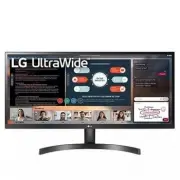
User Manual LG 29WL500-B


Summary
2 ENGLISH LICENSE Each model has different licenses. Visit www.lg.com for more information on the license. The terms HDMI and HDMI High-Definition Multimedia Interface, and the HDMI Logo are trademarks or registered trademarks of HDMI Licensing administrator, Inc. TabLE of CoNTENTS LICEnsE ............
3 ENGLISH aSSEMbLING aND PREPaRING CaUTIoN • always use genuine LG components to ensure safety and product performance. • The product warranty will not cover damage or injury caused by the use of unauthorized components. • It is recommended that use the supplied components. • If you use generic cabl...
4 ENGLISH Product and button Description How to Use the Joystick button You can easily control the functions of the monitor by pressing the joystick button or moving it left/right/up/down with your finger. basic functions Power on Press the joystick button once with your finger to turn on the monito...
LG Monitors Manuals
-
 LG 22MP410-B (22MP410-B)
User Manual
LG 22MP410-B (22MP410-B)
User Manual
-
 LG 24GL600F
User Manual
LG 24GL600F
User Manual
-
 LG 24MD4KL-B.AUS
User Manual
LG 24MD4KL-B.AUS
User Manual
-
 LG 27LQ615S
User Manual
LG 27LQ615S
User Manual
-
 LG 27MD5KL-B.AUS
User Manual
LG 27MD5KL-B.AUS
User Manual
-
 LG 27MP400-B
User Manual
LG 27MP400-B
User Manual
-
 LG 27UL500
User Manual
LG 27UL500
User Manual
-
 LG 27UL500WAUS
User Manual
LG 27UL500WAUS
User Manual
-
 LG 27UL850
User Manual
LG 27UL850
User Manual
-
 LG 27UP850N-W (27UP850N-W)
User Manual
LG 27UP850N-W (27UP850N-W)
User Manual
-
 LG 28MQ780-B
User Manual
LG 28MQ780-B
User Manual
-
 LG 32GN50R-B (32GN50R-B)
User Manual
LG 32GN50R-B (32GN50R-B)
User Manual
-
 LG 32GQ850-B (32GQ850-B)
User Manual
LG 32GQ850-B (32GQ850-B)
User Manual
-
 LG 32MN500M-B
User Manual
LG 32MN500M-B
User Manual
-
 LG 35WN75C
User Manual
LG 35WN75C
User Manual
-
 LG 38WN95C-WL
User Manual
LG 38WN95C-WL
User Manual
-
 LG E2060S
Manual
LG E2060S
Manual
-
 LG E2360V
Manual
LG E2360V
Manual
-
 LG UltraWide 34WP500-B
User Manual
LG UltraWide 34WP500-B
User Manual
-
 LG 16MQ70
User Manual
LG 16MQ70
User Manual