LG 29WL500-B - User Manual
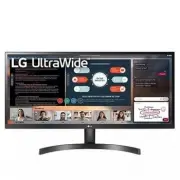
LG 29WL500-B Monitor – User Manual, read for free online in PDF format. We hope this helps you resolve any issues you may have. If you have further questions, please contact us through the contact form.


Table of Contents:
- Page 2 – LICENSE; TabLE of CoNTENTS
- Page 3 – aSSEMbLING aND PREPaRING; Supported Drivers and Software
- Page 4 – Product and button Description; How to Use the Joystick button; Moving and Lifting the Monitor
- Page 5 – Installing on a Table; adjusting the angle
- Page 6 – Using the Kensington Lock; Installing the Wall Mount Plate; Installing on the Wall
- Page 8 – USING THE MoNIToR; Connecting to a PC; HDMI Connection; Connecting Peripherals; Headphones Connection
- Page 9 – USER SETTINGS; activating the Main Menu
- Page 10 – Main Menu features; User Settings; Menu Settings
- Page 19 – TRoUbLESHooTING
- Page 21 – PRODUCT SPECIFICATION
- Page 26 – Power LED
* LG LED Monitor applies LCD screen with LED backlights.
Please read this manual carefully before operating your set and
retain it for future reference.
29WL500
34WL500
OWnEr’s ManuaL
LED LCD MOnITOr
(LED Monitor*)
www.lg.com
Copyright © 2019 LG Electronics Inc. all rights reserved.
"Loading the manual" means you need to wait until the file loads and becomes available for online reading. Some manuals are very large, and the time they take to appear depends on your internet speed.
Was this manual helpful?
About this manual
- Brand
- LG
- Model
- 29WL500-B
- Document type
- User Manual
- Category
- Monitor
- Language(s)
- English
- Pages
- 27
- File size
- 2.4 MB
- Format
Summary
2 ENGLISH LICENSE Each model has different licenses. Visit www.lg.com for more information on the license. The terms HDMI and HDMI High-Definition Multimedia Interface, and the HDMI Logo are trademarks or registered trademarks of HDMI Licensing administrator, Inc. TabLE of CoNTENTS LICEnsE ............
3 ENGLISH aSSEMbLING aND PREPaRING CaUTIoN • always use genuine LG components to ensure safety and product performance. • The product warranty will not cover damage or injury caused by the use of unauthorized components. • It is recommended that use the supplied components. • If you use generic cabl...
4 ENGLISH Product and button Description How to Use the Joystick button You can easily control the functions of the monitor by pressing the joystick button or moving it left/right/up/down with your finger. basic functions Power on Press the joystick button once with your finger to turn on the monito...


