Page 3 - How to reset your unit; • If this does not work, reset the unit.; Cautions on the monitor:; • Your preset adjustments will also
3 ENGLISH INTRODUCTION How to reset your unit How to forcibly eject a disc • If this does not work, reset the unit. [Hold] [Hold] For safety... • Do not raise the volume level too much, as this will block outside sounds, making driving dangerous. • Stop the car before performing any complicated oper...
Page 4 - Basic operations — Monitor panel/; NAVIGATION SYSTEM; Safety instructions for the Navigation; AV OPERATIONS; Bluetooth® operations — Mobile; REFERENCES; Contents
ENGLISH 4 INTRODUCTION Before operations ........................... 5 Initial settings ................................ 7 Basic operations — Monitor panel/ touch panel ................................. 10 Basic operations — Remote controller (RM-RK250) ..... 11 Menu operations ........................
Page 5 - Before operations; Monitor panel buttons; Features of the illumination; INTRODUCTION
5 ENGLISH INTRODUCTION Screen While the unit is turned on, you can turn off the screen by holding DISP. The screen is turned on again in the following cases:– When you touch the touch panel– When you press MAP on the monitor panel or press DISP – When a call/SMS comes in (for Bluetooth mobile phone)...
Page 6 - ENGLISH; Detaching/attaching the monitor panel; Detaching
Detach? Yes No Open Eject Close Tilt + Tilt – Exit Open/Tilt Detach ENGLISH 6 Detaching/attaching the monitor panel Detaching 1 While the unit is turned on: The monitor panel opens by about 50°.• It closes automatically when no operation is done for about a minute. 2 • The attaching plate closes aut...
Page 7 - Initial settings; Installation settings; Select the language you want for the; Start Installation Settings
7 ENGLISH INTRODUCTION Initial settings Installation settings When you turn on the unit for the first time, the initial setup screen appears. Follow the procedure below and make the necessary settings. Indication language: In this manual, English indications are used for the purpose of explanation. ...
Page 8 - • Reverse Signal Polarity:; Finish the procedure.
ENGLISH 8 ⁄ Adjust the settings. Country* Select the country where you are living. Reverse Signal Polarity Select the reverse signal polarity (< Battery > or < GND >) according to the connection of your car. You can also change these settings through the menu screens as follows:• Languag...
Page 9 - You can cancel the demonstration on the screen.; Canceling demonstration; Cancel the demonstration.
Exit Back Exit Setup DemonstrationWall PaperColorScrollDimmer Dimmer Time Set Blue Metal Auto Auto Once 7 18 Back Exit Setup DemonstrationWall PaperColorScrollDimmer Dimmer Time Set Blue Metal Auto Auto Once 7 18 9 ENGLISH INTRODUCTION You can cancel the demonstration on the screen. 1 Turn on the po...
Page 10 - Basic operations —; Monitor panel/touch panel; Also adjustable on the; Open
Open Eject Close Tilt + Tilt – Exit Open/Tilt Detach 15 VOL ENGLISH 10 Basic operations — Monitor panel/touch panel • Turns on the power.• Turns off the power. [Hold]• Attenuates the sound (if the power is on). • Changes the display information.* 2 • Turns off the screen. [Hold] Remote sensor Adjust...
Page 11 - Installing the battery; Before using the remote controller:; To turn off the AV function
15:45 Source Off Exit Bayern Radio Pop Music 11 ENGLISH INTRODUCTION Basic operations — Remote controller (RM-RK250) Installing the battery Insert the batteries into the remote controller by matching the polarity (+ and –) correctly. Caution: Battery shall not be exposed to excessive heat such as su...
Page 12 - Main elements and features
ENGLISH 12 Main elements and features For navigation system operations and AV operations On the map screen On the AV screens On menu screens 1 AV/OFF Switches to the AV screen. Selects the source. • In navigation menus: Switches to the AV screen. • In < AV Menu > screen: Selects the source. Tu...
Page 15 - Menu operations; To display a menu; panel or MAP/POS on the remote controller.; panel or MAP/POS on the remote controller.; • If the operating buttons are
15 ENGLISH INTRODUCTION Menu operations Continued on the next page To display a menu On the remote: To return to the map, press [ Exit ] on the touch panel or MAP/POS on the remote controller. To return to the map, press [ Exit ] on the touch panel or MAP/POS on the remote controller. Map screen Des...
Page 16 - AV screen; Basic menu operations; Navigation menu; Sound; AV menu; Setup; • Non-available items will be shaded on the menu; AV Menu
Exit Back Exit Setup DemonstrationWall PaperColorScrollDimmer Dimmer Time Set Blue Metal Auto Auto Once 6 18 Back Exit Setup DemonstrationWall PaperColorScrollDimmer Dimmer Time Set Blue Metal Auto Auto Once 6 18 ENGLISH 16 On the remote: AV menu AV screen Returns to < AV Menu > screen To retu...
Page 17 - • When operating on <; ] to close the selection list or to change; AV Input; screen
Setup AV InputCamera InputExternal Input Audio&Video iPod External Off Back Exit Back Exit Setup DemonstrationWall PaperColorScrollDimmer Dimmer Time Set Blue Metal Auto Auto Once 6 18 Setup AV InputCamera InputExternal Input Audio&Video iPod (Off) Audio Off Back Exit Exit Setup AV InputCame...
Page 18 - Safety instructions for the Navigation System; SAFETY INSTRUCTIONS; The destination must not be; • Traffic guidance is restricted to passenger vehicles; • Do not operate the unit while driving.; Terms of license; Reset Calibration Data; On map updating
18 ENGLISH Safety instructions for the Navigation System SAFETY INSTRUCTIONS Use of the Navigation System is only permitted if the traffic conditions are suitable and you are absolutely sure that no risk, obstruction or inconvenience will be incurred to you, your passengers or other road users. The ...
Page 19 - Basic operations; Icons on the map; • Home and Favourite points icons are displayed when; POI Icon; • The POI information of the selected travel or leisure
NAVIGATION SYSTEM 19 ENGLISH Basic operations Your position Current street Current time Speed limit on the current street Scale Direction The map scrolls automatically so that your position is always at the centre of the map. Icons on the map Home ( ☞ pages 22 to 24) Favourite points ( ☞ pages 22 to...
Page 20 - To scroll the map; To change the map scale; Touch the screen to display the operating
20 ENGLISH To scroll the map The position you touched is centred on the map. The map scrolls to the direction you are touching and holding.• Touch and hold the map to keep scrolling the map.• The scrolling speed varies depending on the position you are touching and holding: – Inner area: slow– Outer...
Page 21 - D Map; Display; To change the map view
NAVIGATION SYSTEM 21 ENGLISH The map view changes as follows:2D Heading Up = 3D Map = 2D North Up • You can also change the map view through < ( Function Menu) > - < ( Map Settings) > - < Display > - < View Mode >. ( ☞ page 48) 2D Heading Up (2D H.Up) The map rotates so that ...
Page 22 - Registering your home/favourite points
22 ENGLISH Registering your home/favourite points You can register one point as your home and 100 favourite points.• For guidance to your home, ☞ page 24. • For guidance to a favourite point, ☞ page 36. 1 Place the cursor on the position where you want to register. ( ☞ page 20) 2 • If there are seve...
Page 23 - • You can use up to 31 characters.; To delete the registration; Editing information
Continued on the next page NAVIGATION SYSTEM 23 ENGLISH Displays other keyboards* Deletes the entry• Press briefly: last character• Press and hold: all characters Deletes the entry• Press briefly: last number• Press and hold: all numbers A To edit the name. • You can use up to 31 characters. * For a...
Page 24 - To go home; On the map screen only; To delete all registered items; Home
Your home 24 ENGLISH To go home When you have registered your home, you can easily get guided to home. While not guided... On the unit: 1 2 3 On the remote: On the map screen only • To cancel guidance, ☞ page 26. To delete all registered items 1 2 3 4 [ Home ]: Deletes your home [ Favourite ]: Delet...
Page 25 - • If there are several POIs on the selected position,; Starting guidance; Setting a destination on the map; • You can display the map of selected area on
Information on the cursor-pointed position Distance and direction from your position Cancels the calculation NAVIGATION SYSTEM 25 ENGLISH 1 Touch the position where you want to select as a destination. ( ☞ page 20) 2 • If there are several POIs on the selected position, select one from the list.– Th...
Page 26 - To cancel guidance; Searches by an address.
26 ENGLISH 1 2 A confirmation message appears. Press [ Yes ] to confirm the operation. Press [ No ] to cancel. To cancel guidance Setting a destination using the Destination Menu Home ( ☞ page 24) Goes to your home.• Not selectable if no home is registered. Previous ( ☞ page 35) Searches from the hi...
Page 27 - Changing route options; • You can also change these settings through
NAVIGATION SYSTEM 27 ENGLISH You can modify your route options each time before you start guidance. 1 Place the cursor on your destination. 2 3 4 Set options. Priority Select the priority for route calculation (fastest route or shortest route). ( ☞ page 47) Motorway Select whether to use or avoid th...
Page 28 - Searching for a place; numbers; Ex. Input screen for a city name; Enter the city name, then select from the list.
28 ENGLISH Searching for a place To enter names, addresses, or numbers Ex. Input screen for a city name • Buttons vary depending on the input item.• Non-available items will be shaded on the menu screen. • For some input screens, available characters are automatically narrowed down as the System sea...
Page 31 - Enter the telephone number, then select; • The country code of the selected country is; To change country; Select
NAVIGATION SYSTEM 31 ENGLISH 1 2 Enter the telephone number, then select from the list. • The country code of the selected country is automatically added. By telephone number <Phone> A Changes country A To change country 3 • You can display the map of selected area on whole screen by touching ...
Page 32 - Enter the POI name, then start searching.; • You can also specify the category and sub-; Select Category
32 ENGLISH 1 2 Enter the city name, then select from the list. A To change country From the list of POI <POI Name> Cancels 3 Enter the POI name, then start searching. • You can also specify the category and sub- category by pressing [ Select Category ]. ( ☞ page 33) A Changes country Moves to ...
Page 33 - • You can start searching POIs only with
NAVIGATION SYSTEM 33 ENGLISH To specify the category and sub-category • Press [ Cancel ] to cancel the selected category. (Previous screen is displayed.) • You can start searching POIs only with specifying a category/sub-category by pressing [ Search ]. 4 Select a POI from the list. [ A to Z ]: Alph...
Page 34 - • You can also select the centre of the city by
34 ENGLISH 1 2 Enter the postcode, then select from the list. A To change country By postcode <Postcode> 3 Enter the street name, then select from the list. • You can also select the centre of the city by pressing [ Centre ]. When selecting centre of the city, go to step 5 . ( ☞ page 35) 4 Ent...
Page 35 - Select a place from the list of the previous
Continued on the next page NAVIGATION SYSTEM 35 ENGLISH From previous destinations <Previous> You can select a place from the last 50 destinations and via points. 1 2 Select a place from the list of the previous destinations/via points. 3 • You can display the map of selected area on whole scr...
Page 36 - • For registering your favourite points,; Select a favourite point from the list.
36 ENGLISH From your favourites <Favourites> • For registering your favourite points, ☞ page 22. 1 2 Select a favourite point from the list. 3 • You can display the map of selected area on whole screen by touching the map part once. (If you press more than once, the map scrolls.) To display ab...
Page 37 - To register a category to the buttons; Quick Search
NAVIGATION SYSTEM 37 ENGLISH You have three [ Quick Search ] buttons in < Destination Menu >. You can assign a POI category to each button. When you press one of the buttons, the System searches for a POI of the registered category within about 20 km around your current position. To register a...
Page 38 - To use Quick Search
38 ENGLISH To use Quick Search 1 Press one of the [Quick Search] buttons to start searching. 2 Select a POI from the list. 3 • You can display the map of selected area on whole screen by touching the map part once. (If you press more than once, the map scrolls.) To display above screen again, press ...
Page 39 - Screen while guided; How you are guided; • To cancel guidance,
NAVIGATION SYSTEM 39 ENGLISH Name of the next street Route to take (green) Screen while guided Current street How you are guided Lanes to take • Yellow: Recommended lane • White: The lane leading to the destination • Grey: Not the lane for the destination Distance to the next turn.• Press to listen ...
Page 40 - Guidance at turns; The voice guides you several times as you approach
40 ENGLISH Guidance at turns When you approach a turn, the System guides you with voice guidance and indications on the screen.• Guidance voice comes out only through the front speakers (and the front line out on the rear). When you do not have to make a turn, the System gives no guidance. What if I...
Page 41 - Getting information on your route and places; Overview; ]: Displays information of the destination; check its detailed information.; To confirm the information on your route
NAVIGATION SYSTEM 41 ENGLISH Getting information on your route and places To check the entire route/information on the destination and via points 1 2 3 [ Overview ]: Displays entire route [ Dest. ]: Displays information of the destination and via points • To return to the map, press [ Exit ]. • When...
Page 42 - Adjust the volume level on <; To confirm how your trip will go; Drive simulation starts.
42 ENGLISH Customizing how you are guided To adjust the volume of the voice guidance Adjust the volume level on < Guidance Volume >. ( ☞ page 47) To customize how the map is displayed at turns Select whether or not to display the magnified map at turns on < Magnified View >. ( ☞ page 48)...
Page 43 - To add via points; Select a place you want to stop by.; • To search for a via point,; Arranging your route; Adding places to stop by; To change the sequence of via points
NAVIGATION SYSTEM 43 ENGLISH After selecting your destination, you can select up to four places (“via points”) to stop by. To add via points After guidance has started... 1 Select a place you want to stop by. • To search for a via point, ☞ page 28. • To find a via point by scrolling the map, ☞ page ...
Page 44 - Avoiding a congestion ahead; A detour is calculated, and guidance starts.; To delete a via point
44 ENGLISH Avoiding a congestion ahead If you realize a congestion exists ahead... While being guided... 1 2 3 4 Select the distance to avoid, then start recalculating the route. A detour is calculated, and guidance starts. 4 Change the sequence of via points. To optimise the sequence To rearrange t...
Page 45 - Navigation menu items; Menu items; Start guidance to the home.; Selectable only when at least one place is registered.
NAVIGATION SYSTEM 45 ENGLISH Navigation menu items Destination Menu Menu items Selectable settings, [reference page] Home* 1 Start guidance to the home. ☞ [24] Previous* 1 Search for a place using the database in the System. ☞ [28 – 38] Favourites* 1 Address* 2 Vicinity* 2 POI Name* 2 Phone* 2 Postc...
Page 46 - Vehicle Info; Selectable only while guided.
46 ENGLISH The procedure for setting an item is shown on page 16. Function Menu Menu items Selectable settings, [reference page] Vehicle Info Drive You can check your drive information:current direction, current velocity, maximum speed, average speed, trip meter, current town and street name, longit...
Page 47 - Function Menu —Map Settings; Route; When adjusting these items, test tone is produced.
NAVIGATION SYSTEM 47 ENGLISH Initial: Underlined Function Menu —Map Settings Menu items Selectable settings, [reference page] Route Priority Fastest : The System calculates the shortest journey time. Shortest : The System calculates the shortest route to the destination. • This setting is effective ...
Page 49 - System
NAVIGATION SYSTEM 49 ENGLISH Menu items Selectable settings, [reference page] System Scale Unit* 1 Select the measuring units for distance. km, mile Vehicle Position If you find your current position displayed on a wrong place on the map, use this setting to correct your position.• To change your po...
Page 50 - Additional information; POI search; Basic navigation procedure
50 ENGLISH Additional information How you are guided • If GPS signal reception is poor, navigation guidance may not be correct. • The System may not receive GPS signals in the following places... – in a tunnel or car park in a building– under an overhead road– in a place surrounded by high buildings...
Page 51 - Vehicle information; Press
1 2345 6 7 89 p q tyui e w o;a r NAVIGATION SYSTEM 51 ENGLISH • The route calculated by the System is one of the possible routes to your destination. The route is not always the most appropriate one. • If no-exit roads (only entering the roundabout from the roads is allowed) exist on the roundabout,...
Page 52 - Messages shown on the navigation screen; Messages; Characters you can use
52 ENGLISH Arranging your route • Motorways are always used to calculate the route if distance to a destination exceeds a certain distance. • If the destination cannot be reached without using motorways, ferries, or toll roads, they are used to calculate the route without respect to the < Route &...
Page 53 - List of POI icons
NAVIGATION SYSTEM 53 ENGLISH List of POI icons Petrol Station Parking Car Park Open Parking Areas Hotel Restaurant Restaurant Chain Leisure Amusement Park Camping Ground Golf Course Marina Recreation Facility Shopping Tourist Attraction Travel Agency Zoo Entertainment Art Galleries Casino Museum Nig...
Page 54 - Common operations on AV screens; • Available sources depend on the external; or; Selecting the playback source
15:45 Source Off Bayern Radio Pop Music 15:45 Current Track TitleArtist NameAlbum Title 54 ENGLISH Common operations on AV screens Exit Current source • Available sources depend on the external components you have connected, media you have attached, and the < (Input) > settings you have made (...
Page 55 - Available icons vary among the sources.; Illumination; Changes the sound mode.; Aspect; Activates TA Standby Reception.; PTy Search; The corresponding screen is displayed.; Using Short Cut Icons
Setup BeepTelephone Muting IlluminationMotion Sensitiv.Reverse Signal Initialize Normal Proximity/Motion Touch Panel Back Exit 15:45 Bayern Radio Pop Music 55 ENGLISH AV OPERATIONS Short Cut icons: Available icons vary among the sources. Displays < Illumination > menu. ☞ page 107 Changes the s...
Page 56 - Listening to the radio; ] until “Manual Search” appears on the screen, then press it
Bayern Radio Pop Music 56 ENGLISH Listening to the radio ~ Press [SOURCE], then press [TUNER]. ( ☞ page 54) • You can also use AV/OFF on the remote controller. Press it repeatedly. Ÿ Press [BAND]. ! Press [ ] or [ ] to search for a station—Auto Search. • Manual Search: Hold either [ ]or [ ] until “M...
Page 57 - To restore stereo effect,; select
Exit Exit Back Exit Mode MonoSSMPTy StandbyPTy Code Start News Back Exit Mode MonoSSMPTy StandbyPTy Code Start News 57 ENGLISH AV OPERATIONS When an FM stereo broadcast is hard to receive 1 2 3 Reception improves, but stereo effect will be lost.• The MONO indicator lights up. To restore stereo effec...
Page 58 - Manual presetting; Tune in to a station you want to preset.; • You can also display the Preset List by pressing; Display the Preset List.; The station selected in step; Selecting a preset station; To select directly on the touch panel
Back Back 15:45 92.5 MHz ABC Radio 15:45 Bayern Radio Exit Exit 58 ENGLISH or Manual presetting Ex.: Storing FM station of 92.5 MHz into preset number 4 of the FM1 band. 1 Tune in to a station you want to preset. • You can also display the Preset List by pressing [ ]. 2 Display the Preset List. 3 Se...
Page 59 - • In the example below, a PTY code is selected; PTy Code; select one from 29 PTY codes.
Back Exit Back Exit Back Exit 15:45 Bayern Radio Pop Music 59 ENGLISH AV OPERATIONS The following features are available only for FM Radio Data System stations. Searching for FM Radio Data System programme—PTY Search You can search for your favourite programmes being broadcast by selecting the PTY c...
Page 60 - Drama
15:45 Bayern Radio Pop Music 60 ENGLISH Storing your favourite programme types You can store your favourite PTY codes into the PTY Preset List. Ex.: Storing < Drama > into < Preset 1 > 1 Display <PTy Search> menu. 2 KW-NX7000[EE].indb 60 KW-NX7000[EE].indb 60 08.7.8 5:37:39 PM 08.7...
Page 61 - Activating/deactivating TA/PTY Standby Reception
61 ENGLISH AV OPERATIONS TA Standby Reception Indicator To activate, display < (Tuner) > of < Setup > menu in < AV Menu > screen, then press [ On ] for < TA Standby >. ( ☞ page 106) TP The unit will temporarily switch to Traffic Announcement (TA) if available, from any source...
Page 62 - Select your favourite PTY code.; • When the DAB tuner is connected, refer also to; On; • The unit takes some time to tune in to another
Back Exit Mode MonoSSMPTy StandbyPTy Code Start News Exit Back Back Exit Mode MonoSSMPTy StandbyPTy Code Start Easy Listening Exit A 62 ENGLISH To change the PTY code for PTY Standby Reception 1 2 3 4 Select your favourite PTY code. Ex.: Selecting < Easy Listening > Tracing the same programme—...
Page 63 - Close; Do not place your finger behind the monitor panel.; Disc operations; If “; Open the monitor panel.; • By pressing and holding the button, you can; Caution on volume setting:
AV OPERATIONS 63 ENGLISH ! Insert a disc. Monitor panel closes automatically.If not, press [ Close ]. Caution: Do not place your finger behind the monitor panel. Disc operations The disc type is automatically detected, then playback starts (for some discs, the top menu of the disc appears). If a dis...
Page 64 - Disc type; DVD-RW dual layer discs are not playable.; Caution for DualDisc playback; Playable disc types
64 ENGLISH Disc type Recording format, file type, etc. Playable DVD DVD Video (Region Code: 5)* 1 DVD Audio DVD-ROM DVD Recordable/Rewritable(DVD-R/-RW* 2 , +R/+RW* 3 ) • DVD Video: UDF bridge• DVD-VR• DivX/MPEG1/MPEG2/JPEG/MP3/ WMA/WAV/AAC: ISO 9660 level 1, level 2, Romeo, Joliet DVD Video DVD-VR ...
Page 65 - Indicates the button pressed.
AV OPERATIONS 65 ENGLISH While playing the following discs, press DISP.• Each time you press the button, the display changes to show the different information. ( ☞ page 10) * 1 DVD-VR also indicates either VR-PRG (program) or VR-PLAY (playlist) playback. * 2 Indicates the button pressed. * 3 Search ...
Page 68 - Operation buttons on the screen; pages 71 to 75 on how the operation buttons; touch the screen
15:45 68 ENGLISH Operation buttons on the screen You can display the following operation buttons while watching the playback pictures on the screen.• If no operation is done for about 5 seconds, the operation buttons disappear (except when a disc menu is displayed). ☞ pages 71 to 75 on how the opera...
Page 69 - Selecting playback modes; pressing
Exit AV OPERATIONS 69 ENGLISH Selecting playback modes You can use the following playback modes—Repeat or Random.Ex.: To select Track Repeat 3 When one of the playback modes is selected, the corresponding indicator lights up on the source information screen. To cancel, select < Off >. Disc typ...
Page 70 - Selecting tracks on the list; Press to move to the previous/next pages of the; Prohibiting disc ejection; To cancel the prohibition,
Exit List Folder 01Folder 02Folder 03Folder 04Folder 05Folder 06 Track001.mp3Track002.mp3Track003.mp3Track004.mp3Track005.mp3Track006.mp3 Back Exit 0003/0099 0005/0035 * 1 * 1 * 1 * 1 * 2 * 2 List Folder 01Folder 02Folder 03Folder 04Folder 05Folder 06 Track061.mp3Track062.mp3Track063.mp3Track064.mp3...
Page 71 - Operations using the remote controller—RM-RK250; Using menu driven features; Select an item you want to start playback.
* 4 (twice) * 4 AV OPERATIONS 71 ENGLISH Operations using the remote controller—RM-RK250 Stop playback. Start playback/pause (if pressed during playback). Reverse/forward search.* 1 (No sound can be heard.) Slow motion during pause.* 2 (No sound can be heard.) Press : Select chapter (during playback...
Page 72 - • Reverse slow motion does not work; Using Original Program/Playlist screens; For Original Program
Also functions as CLEAR:Erases a misentry of the number. * 4 (twice) * 4 72 ENGLISH Stop playback. Start playback/pause (if pressed during playback). Reverse/forward search.* 1 (No sound can be heard.) Forward slow motion during pause.* 2 (No sound can be heard.) • Reverse slow motion does not work ...
Page 73 - For DivX6: Using menu driven features
* 4 (twice) * 4 AV OPERATIONS 73 ENGLISH While playing... Reverse/advance the scenes by 5 minutes. For DivX6: Using menu driven features 1 2 Select an item you want to start playback. 3 * 5 Search speed: ¡ 1 ] ¡ 2 ] ¡ 3 * 6 Search speed: ¡ 1 ] ¡ 2 Current playback position 2nd press 2nd press 1st pr...
Page 75 - To cancel PBC playback; Select the desired track.
* 1 * 1 * 1 * 1 AV OPERATIONS 75 ENGLISH Stop playback. Start playback/pause (if pressed during playback). Reverse/forward search.* 4 Press : Select track. Hold : Reverse/forward search.* 5 Select track. * 4 Search speed: x2 ] x5 ] x10 ] x20 ] x60 * 5 Search speed: x2 ] x10 During PBC playback... Se...
Page 76 - To remove the on-screen bar; Using the list screens; Display the Original Program/Playlist screen.; * The title of the original program or playlist may not be
76 ENGLISH Operations using the on-screen bar These operations are possible on the screen using the remote controller, while playing the following discs—DVD/VCD/DivX/MPEG1/MPEG2/JPEG. 1 Display the on-screen bar. ( ☞ page 77) Ex.: For DVD Video 2 Select an item. 3 Make a selection. If a pop-up menu ...
Page 77 - Not applicable for DVD-VR
AV OPERATIONS 77 ENGLISH Information Operation On-screen bar 5 Time indication Elapsed playing time of the disc Remaining title time (for DVD) Remaining disc time (for others) Elapsed playing time of the current chapter/track * 2 Remaining time of the current chapter/track * 2 6 Playback status Play...
Page 78 - SD operations; * This unit can play back AAC files encoded using; To eject the SD card
78 ENGLISH ! Insert an SD card. Push in the SD card until you hear a clicking sound.The source changes to “SD” and playback starts. ⁄ Close the monitor panel. • If < Open/Tilt > menu is still displayed: You can also press [ Close ] on < Open/Tilt > menu. • If < Open/Tilt > menu is ...
Page 79 - Repeats current track *
Exit AV OPERATIONS 79 ENGLISH Selecting playback modes You can use the following playback modes—Repeat or Random.Ex.: To select Track Repeat 1 2 3 When one of the playback modes is selected, the corresponding indicator lights up on the source information screen. To cancel, select < Off >. File...
Page 80 - USB operations; Connect a USB device.; Except for MPEG2 files recorded by JVC Everio
80 ENGLISH USB operations You can connect a USB mass storage class device such as a USB memory, Digital Audio Player, portable HDD, etc. to the unit.• You can also connect the iPod to the USB terminal of the unit. For details of the operations, ☞ pages 95 to 97. ~ Connect a USB device. The source ch...
Page 82 - Enter a PIN (Personal Identification; * Some devices have their own PIN code. Enter the; Bluetooth® operations —; Mobile phone/audio player; Bluetooth
Device Name Exit Back Exit 82 ENGLISH To register using <Open> Preparation: • Operate the Bluetooth device to turn on its Bluetooth function. • Make sure “NEW DEVICE” is selected. If not, press [ 5 ] or [ ∞ ] to select it. 1 2 3 4 Enter a PIN (Personal Identification Number)* code to the unit....
Page 83 - To delete a registered device
ENGLISH 83 AV OPERATIONS You can enter [ 0 ] – [ 9 ] only. • [ BS ]: Erases the character before the cursor. • [ Del ]: Erases the character on the cursor. • [ Enter ]: Confirms the entry. 5 Operate the Bluetooth device to connect while “Open...” is displayed on the screen. Enter the same PIN code (...
Page 84 - Using the Bluetooth mobile phone; To end the call; • You can adjust the microphone volume.
Connected Device Name 84 ENGLISH Using the Bluetooth mobile phone Adjusts the volume of the incoming calls.* 3 ☞ page 86 Sound mode ( ☞ page 101) Status of the device Signal strength/Battery remainder (only when the information comes from the device) Bluetooth icon lights up when the adapter is conn...
Page 85 - To make a call
Device Name Receiving Message Jack Yes No Read ? Device Name Exit Back Exit Back Exit Back Exit ENGLISH 85 AV OPERATIONS 3 4 Select a calling method, then call. Redial Shows the list of the phone numbers you have dialed. Received Calls Shows the list of the received calls. Phonebook Shows the phone ...
Page 87 - To call a preset number; Presetting the phone numbers
Back Back Exit List ENGLISH 87 AV OPERATIONS To call a preset number 1 2 3 You can use the following buttons on the remote controller for the Bluetooth phone operations. • Displays < Dial Menu > screen/Answers the incoming call. • Displays the < Redial > list if pressed and held (regardl...
Page 88 - This button appears when the Bluetooth Adapter is connected.; Using the Bluetooth audio player; Bluetooth Information:
Connected Device Name 88 ENGLISH * 1 Indicates the button pressed. It may be different from the operation status. * 2 This button appears when the Bluetooth Adapter is connected. * 3 You cannot select “NEW DEVICE” when a Bluetooth audio player is connected. ~ Press [SOURCE], then press [BLUETOOTH AU...
Page 89 - Listening to the CD changer; • You can also use AV/OFF on the remote; Select a disc to start playing.; • If you select an MP3 disc, the Track list of the current; Changer
DISC 1 Current File Name.mp3 Current Folder Name Current Track TitleArtist NameAlbum Title List Folder 05Folder 06Folder 07Folder 08Folder 09Folder 10 Track001.mp3Track002.mp3Track003.mp3Track004.mp3Track005.mp3Track006.mp3 Back Exit Back Exit Disc List DISC 01 DISC 02 DISC 03 DISC 04 DISC 06 MP3 DI...
Page 91 - LN; Listening to the DAB tuner
Service Label DRC LN Preset no. Band DAB indicators */Standby Reception indicators Sound mode ( ☞ page 101) If no signal is received, “No DAB Signal” appears. ENGLISH 91 AV OPERATIONS * While tuning in a service with DLS (Dynamic Label Segment), the TEXT indicator lights up. ~ Press [SOURCE], then p...
Page 92 - service with the DRC signals.; Tune in to a service you want to preset.; • You can also display the Preset List by holding; Select a preset number.; The service selected in step
Back Exit DAB1DAB2DAB3 Exit Exit 15:45 1471.792MHz LL DAB1 [Hold] 92 ENGLISH When surrounding sounds are noisy Some services provide Dynamic Range Control (DRC) signals together with their regular programme signals. DRC will reinforce the low level sounds to improve your listening.• The DRC indicato...
Page 93 - Selecting preset services
Exit Back Exit DAB1DAB2DAB3 ENGLISH 93 AV OPERATIONS Selecting preset services On the remote: 1 2 On the unit: 1 2 3 Activating/deactivating TA/PTY Standby Reception Operations are exactly the same as explained on page 61 for FM Radio Data System stations.• You cannot store PTY codes separately for ...
Page 94 - When driving in an area where a service cannot
Back Exit Back Exit Exit 94 ENGLISH To change the announcement type for Announcement Standby Reception 1 2 3 4 Select your favourite announcement type. Available announcement types: Transport News, Warning, News, Weather, Event, Special Event, Radio Info, Sports News, Financial News Tracing the same...
Page 95 - To operate; When connected with the USB cable; You cannot resume playback for video sources.; Listening to the iPod
Current Track TitleArtist NameAlbum Title ENGLISH 95 AV OPERATIONS You can connect the iPod using the following cable or adapter: Cable/adapter To operate To listen to the music USB 2.0 cable (supplied for the iPod) ☞ “When connected with the USB cable” below. Interface Adapter for iPod—KS-PD100 (no...
Page 96 - Shuffle Songs; • Repeat step; Music; • Available search modes depend on the type of your
Exit Search Mode MusicVideosShuffle Songs PlaylistsArtistsAlbumsSongsPodcastsGenres Back Exit PlaylistsArtistsAlbumsSongsPodcastsGenres Track 01Track 02Track 03Track 04Track 05Track 06 Back Exit 0003/0099 96 ENGLISH Selecting a track/video from <Search Mode> 1 2 3 Select <Music> or <V...
Page 97 - Plays at normal speed.; : Functions the same as
Exit Audiobooks Normal Faster Slower Exit Audiobooks Normal Faster Slower ENGLISH 97 AV OPERATIONS Changing the play speed of the audio books You can select the playback speed of the “Audiobook” sound file in your iPod. 1 2 3 Normal Plays at normal speed. Faster Plays faster. Slower Plays slower. Yo...
Page 98 - When connected with the interface adapter; > is not displayed in step
98 ENGLISH When connected with the interface adapter Preparation: Make sure < iPod > is selected for < External Input >. ( ☞ page 107) ~ Press [SOURCE], then press [iPod]. ( ☞ page 54) Playback starts automatically.• You can also use AV/OFF on the remote controller. Press it repeatedly. ...
Page 99 - Using other external components; You can connect an external component to the LINE IN/VIDEO IN jacks.; Turn on the connected component and start playing the source.; To display the operation buttons (
15:45 ENGLISH 99 AV OPERATIONS Using other external components AV-INPUT You can connect an external component to the LINE IN/VIDEO IN jacks. ~ Press [SOURCE], then press [AV-IN]. ( ☞ page 54) • You can also use AV/OFF on the remote controller. Press it repeatedly. Ÿ Turn on the connected component a...
Page 100 - External
100 ENGLISH EXT-INPUT You can connect an external component to the CD changer jack on the rear using the Line Input Adapter—KS-U57 (not supplied) or AUX Input Adapter—KS-U58 (not supplied). Preparation: Make sure < External > is selected for < External Input >. ( ☞ page 107) ~ Press [SOU...
Page 101 - Sound equalization; Storing your own adjustments; You can store your adjustments into <; Repeat; * You can also make adjustments by moving each; • For preset values of each sound mode,
Exit * 101 ENGLISH AV OPERATIONS ~ Ÿ ! Select a sound mode. Sound equalization Storing your own adjustments You can store your adjustments into < User1 >, < User2 >, and < User3 >. 1 Repeat steps ~ and Ÿ , then in step ! ... 2 Adjust ( 1 ), then store ( 2 ). Ex.: When storing into ...
Page 102 - Store; Erase the character on the cursor.; Cap; Change the character set.; Space; Assigning titles to the sources
/ ; @ Enter Setup Back Exit Title Entry Exit / ; @ / ; @ 102 ENGLISH You can assign titles to “AV-IN” and “EXT-IN.” ~ Press [SOURCE], then press [AV-IN] or [EXT-IN]. ( ☞ page 54) • You can also use AV/OFF on the remote controller. Press it repeatedly. Ÿ Display <Title Entry> screen. ! Assign a...
Page 103 - The ILLUMINATION CONTROL lead connection is required. (; AV menu items
103 ENGLISH AV OPERATIONS Initial: Underlined Setup Menu items Selectable settings, [reference page] Display Demonstration Off : Cancels. On : Activates the demonstration on the screen. To stop it temporarily, touch the screen. Wall Paper You can select the background picture of the screen. Metal, S...
Page 104 - Not adjustable when no picture is shown.
104 ENGLISH Initial: Underlined Menu items Selectable settings, [reference page] Display Aspect * 1 You can change the aspect ratio of the picture. Aspect ratio of incoming signal 4:3 16:9 Regular: For 4:3 original pictures Full: For 16:9 original pictures Panorama: For viewing 4:3 pictures naturall...
Page 105 - Disc
105 ENGLISH AV OPERATIONS Menu items Selectable settings, [reference page] Disc Menu Language * 2 Select the initial disc menu language; Initial Руccĸий ( ☞ also page 117). Audio Language * 2 Select the initial audio language; Initial Руccĸий ( ☞ also page 117). Subtitle* 2 Select the initial subtit...
Page 106 - Depends on the amplifier gain control. (
106 ENGLISH Initial: Underlined Menu items Selectable settings, [reference page] Disc Down Mix * 1 When playing back a multi-channel disc, this setting affects the signals reproduced through the LINE OUT terminals. Dolby Surr. : Select this to enjoy multi-channel surround audio by connecting an ampl...
Page 107 - Input; the camera appears on the screen in <
107 ENGLISH AV OPERATIONS Menu items Selectable settings, [reference page] Input Camera Input * 5 Off : Select when no rear view camera is connected to the CAMERA IN plug. On : Select when connecting the rear view camera to the CAMERA IN plug. The picture from the camera is displayed as it is taken....
Page 108 - Equalizer
108 ENGLISH Initial: Underlined Equalizer Flat/Hard Rock/R&B/Pop/Jazz/Dance/Country/Reggae/Classic/User1/User2/User3 ☞ [101] Sound Menu items Selectable settings, [reference page] Fader/Balance Adjust fader—speaker output balance between the front and rear speakers.• Upmost—front only (F6)• Down...
Page 109 - Only for FM. Press and hold to start SSM.; Select the method to make a call.
109 ENGLISH AV OPERATIONS Mode * 2 Menu items Selectable settings, [reference page] Mono Only for FM. ( Off , On ) ☞ [57] SSM Only for FM. Press and hold to start SSM. ☞ [57] PTy Standby Only for FM/DAB. ( Off , On ) ☞ [61] PTy Code Only for FM/DAB. (Initial News ) ☞ [62] Title Entry Only for “AV-IN...
Page 110 - Settings; Selectable only for “Bluetooth PHONE.”
110 ENGLISH The procedure for setting an item is shown on page 16. Menu items Selectable settings, [reference page] Open ☞ [82] Search ☞ [83] Special Device Only for “NEW DEVICE.”Shows the list of Bluetooth devices which require some special procedure to establish Bluetooth connection. Select a devi...
Page 111 - General
111 ENGLISH AV OPERATIONS Ejecting a disc • If “No Disc“ appears after removing a disc, insert a disc or select another playback source. • If the ejected disc is not removed within 15 seconds, the disc is automatically inserted again into the loading slot to protect it from dust. Playing Recordable/...
Page 112 - File playback; Playing DivX files
ENGLISH 112 Playing MP3/WMA/WAV/AAC files • This unit can play back files with the extension code <.mp3>, <.wma>, <.wav>, or <.m4a> (regardless of the letter case—upper/lower). • This unit can play back the files meeting the conditions below:– Bit rate: MP3/WMA: 32 kbps — 320...
Page 113 - SD; • CD
TIME 00:14 Track : 6 / 14 Track Infor mation CloudyFairFogHailIndian summer Rain ShowerSnowThunderTyphoonWindWinter sky AlbumFour seasonsAr tistRober t M. SmithTitleRain T. RPT 113 ENGLISH AV OPERATIONS SD • If “No SD Card“ appears after removing an SD card, reattach an SD card or select another pla...
Page 114 - CD changer; If tag data includes “Jacket Picture” (baseline; Bluetooth operations
ENGLISH 114 Warning messages for Bluetooth operations • Connection Error : The device is registered but the connection has failed. Use < Connect > to connect the device again. ( ☞ page 83) • Error : Try the operation again. If “Error” appears again, check if the device supports the function yo...
Page 115 - Menu settings
115 ENGLISH AV OPERATIONS Notice: When operating an iPod, some operations may not be performed correctly or as intended. In this case, visit the following JVC web site: <http://www.jvc. co.jp/english/car/> (English website only) For the USB connection: When < iPod Artwork > is set to <...
Page 116 - Sound signals emitted through the rear terminals; Through the DIGITAL OUT terminal
ENGLISH 116 Sound signals emitted through the rear terminals Through the analog terminals (Speaker out/LINE OUT) 2-channel signal is emitted. When playing multi-channel encoded disc, multi-channel signals are downmixed.• DTS sound cannot be reproduced. Through the DIGITAL OUT terminal Digital signal...
Page 117 - Preset equalizing values
117 ENGLISH AV OPERATIONS Preset equalizing values Frequency Sound mode 60 Hz 150 Hz 400 Hz 1 kHz 2.5 kHz 6.3 kHz 15 kHz Flat 00 00 00 00 00 00 00 Hard Rock +03 +03 +01 00 00 +02 +01 R&B +03 +02 +02 00 +01 +01 +03 Pop 00 +02 00 00 +01 +01 +02 Jazz +03 +02 +01 +01 +01 +03 +02 Dance +04 +02 00 –02...
Page 118 - • When any language other than <; Руccĸий
ENGLISH 118 Characters you can use • When < Руccĸий > is selected for < Language >. ( ☞ page 104) • When any language other than < Руccĸий > is selected for < Language >. ( ☞ page 104) KW-NX7000[EE].indb 118 KW-NX7000[EE].indb 118 08.7.8 5:38:52 PM 08.7.8 5:38:52 PM
Page 119 - Maintenance; When removing a disc from its case,; press down the; When storing a disc into its case,
119 REFERENCES ENGLISH Maintenance Caution on cleaning the unit Do not use any solvent (for example, thinner, benzine, etc.), detergent, or insecticide. This may damage the monitor or the unit. How to clean the connector Frequent detachment will deteriorate the connectors.To minimize this possibilit...
Page 120 - Troubleshooting; Symptoms
ENGLISH 120 Troubleshooting What appears to be trouble is not always serious. Check the following points before calling a service centre.• For operations with the external components, refer also to the instructions supplied with the adapters used for the connections (as well as the instructions supp...
Page 121 - Navigation
121 REFERENCES ENGLISH Symptoms Remedies/Causes Navigation • Guidance does not start. The System proceeds calibration. Wait until calibration is completed. When calibration is completed, the guidance starts. • You cannot operate some functions of an AV source on the map screen. On the map screen, yo...
Page 125 - Specifications
125 REFERENCES ENGLISH Specifications NAVIGATION SYSTEM System & Service L1, C/A codeGlobal Positioning SystemStandard Positioning Service Reception System 12-channel multi-channel reception system Reception Frequency 1 575.42 MHz Sensitivity –130 dBm Update Rate 1/second, continuous GPS Aerial ...
Page 127 - GENERAL; Design and specifications are subject to change without notice.
160 91.3 100 20 4 Dashboard 127 REFERENCES ENGLISH Required space for installation and the monitor ejection GENERAL Power Requirement: Operating Voltage: DC 14.4 V (11 V to 16 V allowance) Grounding System: Negative ground Allowable Storage Temperature: –10°C to +60°C Allowable Operating Temperature...
Page 129 - Как перенастроить Ваше; • Если это не помогает, перезапустите
3 РУCCKИЙ ВВЕДЕНИЕ Как перенастроить Ваше устройство Принудительное извлечение диска • Если это не помогает, перезапустите устройство. [Удерживать] [Удерживать] Для Вашей безопасности... • Не повышайте слишком сильно громкость, поскольку в результате этого заглушаются внешние звуки, что делает опасн...
Page 130 - Содержание
РУCCKИЙ 4 ВВЕДЕНИЕ Подготовка к использованию ....... 5 Начальные настройки ................... 7 Основные операции —Панель монитора/сенсорная панель ...... 10 Основные операции — Пульт дистанционного управления (RM-RK250) ................................. 11 Операции с меню ...........................
Page 131 - Подготовка к использованию; Кнопки панели монитора; В зависимости от настройки <; Функции подсветки; ВВЕДЕНИЕ
5 РУCCKИЙ ВВЕДЕНИЕ Экран Когда устройство включено, можно выключить экран, удерживая нажатой кнопку DISP. Экран включается снова в следующих случаях:– При касании сенсорной панели– При нажатии MAP на панели монитора или нажатии DISP – При входящем вызове или SMS (для мобильного телефона Bluetooth) –...
Page 132 - РУCCKИЙ; Отключение или подключение панели монитора; Отсоединение; Когда устройство включено:; Подключение; • Держите панель монитора
Detach? Yes No Open Eject Close Tilt + Tilt – Exit Open/Tilt Detach РУCCKИЙ 6 Отключение или подключение панели монитора Отсоединение 1 Когда устройство включено: Панель монитора открывается приблизительно на 50°.• Она закрывается автоматически, если в течение приблизительно минуты не выполнялось ни...
Page 133 - Начальные настройки; Выберите желаемый язык,; Start Installation; • Если вы выберете [; Skip Installation
7 РУCCKИЙ ВВЕДЕНИЕ Начальные настройки Начальные настройки При включении устройства впервые, отображается экран начальной настройки. Выполните необходимые настройки, следуя описанной ниже процедуре. Язык отображения: В данном руководстве в качестве примера языка отображения используется английский я...
Page 134 - • Обратная полярность сигналов:; Завершите процедуру.
РУCCKИЙ 8 ⁄ Отрегулируйте настройки. Country* Выберите страну вашего проживания. Reverse Signal Polarity Выберите обратную полярность сигналов (< Battery > или < GND >) в соответствии с подсоединениями в вашем автомобиле. Вы также можете изменить эти настройки с помощью экранов меню след...
Page 135 - Можно отменить демонстрацию на экране.; Включение; Отмена демонстрации; Отмена
Exit Back Exit Setup DemonstrationWall PaperColorScrollDimmer Dimmer Time Set Blue Metal Auto Auto Once 7 18 Back Exit Setup DemonstrationWall PaperColorScrollDimmer Dimmer Time Set Blue Metal Auto Auto Once 7 18 9 РУCCKИЙ ВВЕДЕНИЕ Можно отменить демонстрацию на экране. 1 Включение питания. Если ото...
Page 136 - Основные операции —; Панель монитора/сенсорная панель; Также регулировку
Open Eject Close Tilt + Tilt – Exit Open/Tilt Detach 15 VOL РУCCKИЙ 10 Основные операции — Панель монитора/сенсорная панель • Включение питания.• Выключение питания. [Удерживать]• Ослабление звука (при включенном питании). • Изменение отображаемой информации.* 2 • Выключение экрана. [Удерживать] Тел...
Page 137 - Установка аккумуляторной батареи; • При уменьшении радиуса действия или
15:45 Source Off Exit Bayern Radio Pop Music 11 РУCCKИЙ ВВЕДЕНИЕ Основные операции — Пульт дистанционного управления (RM-RK250) Установка аккумуляторной батареи Вставьте аккумуляторные батареи в пульт дистанционного управления, соблюдая полярность (+ и –). Внимание: Не подвергайте аккумуляторные бат...
Page 138 - Основные элементы и функции; На экране с картой; ENT
РУCCKИЙ 12 Основные элементы и функции Для операций с системой навигации и операций с системой аудио/видео На экране с картой На экранах системы аудио/видео На экранах меню 1 AV/OFF Переключение на экран системы аудио/видео. Осуществляет выбор источника звука. • В меню системы навигации: Переключени...
Page 141 - Операции с меню; Отображение меню; На пульте дистанционного управления:; пульте дистанционного управления.; • Если кнопки управления
15 РУCCKИЙ ВВЕДЕНИЕ Операции с меню Продолжение не следующей странице Отображение меню На пульте дистанционного управления: Чтобы вернуться к экрану с картой, нажмите [ Exit ] на сенсорной панели или MAP/POS на пульте дистанционного управления. Чтобы вернуться к экрану с картой, нажмите [ Exit ] на ...
Page 142 - Меню AV; Экран системы аудио/видео; ] на сенсорной панели или DISP на; Основные операции с меню; Меню навигационной системы; • Недоступные элементы на экранах
Exit Back Exit Setup DemonstrationWall PaperColorScrollDimmer Dimmer Time Set Blue Metal Auto Auto Once 6 18 Back Exit Setup DemonstrationWall PaperColorScrollDimmer Dimmer Time Set Blue Metal Auto Auto Once 6 18 РУCCKИЙ 16 На пульте дистанционного управления: Меню AV Экран системы аудио/видео Возвр...
Page 143 - • При управлении с использованием <; AV; изменении настроек параметров.; • Можно также использовать MENU на
Setup AV InputCamera InputExternal Input Audio&Video iPod External Off Back Exit Back Exit Setup DemonstrationWall PaperColorScrollDimmer Dimmer Time Set Blue Metal Auto Auto Once 6 18 Setup AV InputCamera InputExternal Input Audio&Video iPod (Off) Audio Off Back Exit Exit Setup AV InputCame...
Page 144 - Инструкции по безопасности для системы навигации; ИНСТРУКЦИИ ПО БЕЗОПАСНОСТИ; Не следует задавать; • Дорожная навигация ограничивается информацией; Не управляйте устройством во время вождения; Условия лицензии; Reset Calibration; Об обновлении карт; СИСТЕМА НАВИГАЦИИ
18 РУCCKИЙ Инструкции по безопасности для системы навигации ИНСТРУКЦИИ ПО БЕЗОПАСНОСТИ Использование системы навигации разрешается только в соответствующих дорожных условиях, если вы абсолютно уверены в отсутствии риска, препятствий или неудобств, которые могут быть вызваны таким использованием для ...
Page 145 - Основные операции; Значки на карте; • Значки дома и избранных пунктов отображаются; стр. 48) а для масштаба карты установлено
СИСТЕМА НАВИГАЦИИ 19 РУCCKИЙ Основные операции Ваше местоположение Текущая улица Текущее время Ограничение скорости на текущей улице Масштаб Направление Карта прокручивается автоматически таким образом, что ваше текущее местоположение всегда отображалось в центре карты. Значки на карте Дом ( ☞ стр. ...
Page 146 - Прокрутка карты; Изменение масштаба карты; Прикоснитесь к экрану, чтобы отобразить
20 РУCCKИЙ Прокрутка карты Позиция прикосновения отображается в центре карты. Карта прокручивается в направлении, в котором вы касаетесь и удерживаете руку на экране.• Прикоснитесь к карте и задержите руку, чтобы продолжить прокрутку карты. • Скорость прокрутки зависит от позиции, в которой вы касае...
Page 147 - Изменение вида карты
СИСТЕМА НАВИГАЦИИ 21 РУCCKИЙ Вид карты изменяется следующим образом:2D Heading Up = 3D Map = 2D North Up • Вид карты также можно изменить с помощью < ( Function Menu) > - < ( Map Settings) > - < Display > - < View Mode >. ( ☞ cтр. 48) 2D Heading Up (2D H.Up) Карта поворачивае...
Page 148 - • Навигация к избранному пункту:; Регистрация своего дома/избранных пунктов; Дом отображается на карте значком
22 РУCCKИЙ Регистрация своего дома/избранных пунктов Можно зарегистрировать один пункт в качестве своего дома и до 100 избранных пунктов.• Навигационное сопровождение к своему дому: ☞ стр. 24. • Навигация к избранному пункту: ☞ стр. 36. 1 Расположите курсор в позиции, которую вы хотите зарегистриров...
Page 149 - • Можно использовать до 31 символов.; Порядок удаления регистрации; • Чтобы вернуться к экрану с картой, нажмите; Редактирование информации
Продолжение не следующей странице СИСТЕМА НАВИГАЦИИ 23 РУCCKИЙ Отображение других клавиатур* Удаление записи• Нажать кратковременно: последнего символа• Нажать и удерживать: всех символов Удаление записи• Нажать кратковременно: последнего номера• Нажать и удерживать: всех номеров A Редактирование на...
Page 150 - Возвращение домой; Только на экране с картой
Ваш дом 24 РУCCKИЙ Возвращение домой Когда вы зарегистрировали свой дом, вы всегда можете легко включить навигацию домой. Когда отключена работа навигации... На устройстве: 1 2 3 На пульте дистанционного управления: Только на экране с картой • Отмена работы навигации: ☞ стр. 26. Удаление всех зареги...
Page 151 - • Если в выбранной позиции имеется несколько; Запуск навигационного сопровождения; Задание пункта назначения на карте; • Вы можете отобразить карту выбранной
Информация о позиции, на которой расположен курсор Расстояние и направление от вашего текущего местоположения Отмена расчета СИСТЕМА НАВИГАЦИИ 25 РУCCKИЙ 1 Прикоснитесь в позиции, которую вы хотите выбрать в качестве пункта назначения. ( ☞ cтр. 20) 2 • Если в выбранной позиции имеется несколько POI,...
Page 152 - Отключение навигационного сопровождения; Поиск из базы данных POI.
26 РУCCKИЙ 1 2 Появляется сообщение для подтверждения. Нажмите [ Yes ] для подтверждения операции. Нажмите [ No ], чтобы отменить. Отключение навигационного сопровождения Задание пункта назначения с помощью меню пункта назначения Home ( ☞ стр. 24) Включается навигация домой.• Невозможно выбрать, есл...
Page 153 - Изменение настроек маршрута; • Вид карты также можно изменять с помощью
СИСТЕМА НАВИГАЦИИ 27 РУCCKИЙ Вы можете изменять настройки маршрута каждый раз перед запуском навигационного сопровождения. 1 Расположите курсор на желаемом пункте назначения. 2 3 4 Задайте дополнительные настройки. Priority Выберите приоритетность расчета маршрута (самый быстрый маршрут или самый ко...
Page 154 - Поиск места; Ввод названий, адресов или цифр; Пример: Экран ввода названия города; Введите название города, а затем
28 РУCCKИЙ Поиск места Ввод названий, адресов или цифр Пример: Экран ввода названия города • Кнопки отличаются в зависимости от вводимых данных. • Недоступные элементы на экранах меню будут затемнены. • Для некоторых экранов ввода доступные символы автоматически постепенно ограничиваются по мере тог...
Page 156 - • Вы можете отобразить карту выбранной области
30 РУCCKИЙ Поиск из всех подкатегорий 3 Выберите категорию, а затем подкатегорию для POI. 4 Выберите POI из списка. 5 • Вы можете отобразить карту выбранной области во весь экран, однократно прикоснувшись к части карты. (Если вы нажмете больше одного раза, карта начнет прокручиваться.) Чтобы отобраз...
Page 157 - Введите номер телефона, а затем; • Код страны для выбранной страны; Изменение страны
СИСТЕМА НАВИГАЦИИ 31 РУCCKИЙ 1 2 Введите номер телефона, а затем выберите из списка. • Код страны для выбранной страны добавляется автоматически. По номеру телефона <Phone> A Изменение страны A Изменение страны 3 • Вы можете отобразить карту выбранной области во весь экран, однократно прикосну...
Page 158 - Введите название POI, затем запустите; • Вы также можете задать категорию и
32 РУCCKИЙ 1 2 Введите название города, а затем выберите из списка. A Изменение страны Из списка POI <POI Name> Отмена 3 Введите название POI, затем запустите поиск. • Вы также можете задать категорию и подкатегории, нажав [ Select Category ]. ( ☞ cтр. 33) A Изменение страны Переход к следующе...
Page 159 - • Вы также можете начать поиск точек POI,
СИСТЕМА НАВИГАЦИИ 33 РУCCKИЙ Задание категории и подкатегории • Нажмите [ Cancel ], чтобы отменить выбранную категорию. (Отображается предыдущий экран.) • Вы также можете начать поиск точек POI, только указав категорию/подкатегорию, нажатием [ Search ]. 4 Выберите POI из списка. [ A to Z ]: Алфавитн...
Page 160 - • Вы также можете выбрать центр города
34 РУCCKИЙ 1 2 Введите почтовый индекс, а затем выберите из списка. A Изменение страны По почтовому индексу <Postcode> 3 Введите название улицы, а затем выберите из списка. • Вы также можете выбрать центр города нажатием [ Centre ]. При выборе центра города перейдите к действию 5 . ( ☞ cтр. 35...
Page 161 - Выберите место из списка предыдущих
Продолжение не следующей странице СИСТЕМА НАВИГАЦИИ 35 РУCCKИЙ Из предыдущих пунктов назначения <Previous> Вы можете выбрать место из последних 50 пунктов назначения и промежуточных пунктов. 1 2 Выберите место из списка предыдущих пунктов назначения/промежуточных пунктов. 3 • Вы можете отобраз...
Page 162 - • Регистрация избранных пунктов:; Выберите избранный пункт из списка.
36 РУCCKИЙ Из ваших избранных пунктов <Favourites> • Регистрация избранных пунктов: ☞ стр. 22. 1 2 Выберите избранный пункт из списка. 3 • Вы можете отобразить карту выбранной области во весь экран, однократно прикоснувшись к части карты. (Если вы нажмете больше одного раза, карта начнет прокр...
Page 163 - Назначение категории кнопкам; Быстрый поиск
СИСТЕМА НАВИГАЦИИ 37 РУCCKИЙ Вы можете воспользоваться тремя кнопками [ Quick Search ] в < Destination Menu >. Вы можете назначить каждой кнопке категорию POI. При нажатии одной из кнопок, система выполнит поиск POI зарегистрированной категории в радиусе 20 км от места, где вы сейчас находитес...
Page 164 - Использование быстрого поиска
38 РУCCKИЙ Использование быстрого поиска 1 Нажмите одну из кнопок [Quick Search], чтобы запустить поиск. 2 Выберите POI из списка. 3 • Вы можете отобразить карту выбранной области во весь экран, однократно прикоснувшись к части карты. (Если вы нажмете больше одного раза, карта начнет прокручиваться....
Page 165 - Экран во время работы навигации; Как выполняется навигация; следующего промежуточного пункта.
СИСТЕМА НАВИГАЦИИ 39 РУCCKИЙ Название следующей улицы Запланированный маршрут (зеленого цвета) Экран во время работы навигации Текущая улица Как выполняется навигация Полоса движения, которую надо занять • Желтый цвет: Рекомендуемая полоса движения • Белый цвет: Полоса движения, ведущая к пункту наз...
Page 166 - Навигационное сопровождение на поворотах; “Turn right now (Поверните
40 РУCCKИЙ Навигационное сопровождение на поворотах При приближении к повороту система осуществляет навигационное сопровождение с помощью голосовых инструкций и индикации на экране.• Голосовые инструкции выводятся только через передние динамики (и вывод сигналов передних динамиков на задние). Если в...
Page 167 - Получение информации о вашем маршруте и местах; назначения и промежуточных пунктах
СИСТЕМА НАВИГАЦИИ 41 РУCCKИЙ Получение информации о вашем маршруте и местах Проверка общего маршрута/информации о пункте назначения и промежуточных пунктах 1 2 3 [ Overview ]: Отображение общего маршрута [ Dest. ]: Отображение информации о пункте назначения и промежуточных пунктах • Чтобы вернуться ...
Page 168 - Настраивайте уровень громкости в <; Проверка маршрута поездки; Начинается моделирование поездки.
42 РУCCKИЙ Настройка выполнения навигации Настройка громкости голосовых сообщений навигации Настраивайте уровень громкости в < Guidance Volume >. ( ☞ cтр. 47) Настройка отображения карты на поворотах Выберите, отображать или нет увеличенную карту, в < Magnified View >. ( ☞ cтр. 48) Настр...
Page 169 - Добавление промежуточных пунктов; Выберите место, в котором вы хотите; • Поиск промежуточного пункта:; Упорядочивание маршрута; Добавление мест для остановки в пути
СИСТЕМА НАВИГАЦИИ 43 РУCCKИЙ Выбрав пункт назначения, вы можете выбрать до четырех мест (“промежуточных пунктов”) для остановок по пути. Добавление промежуточных пунктов После того, как навигационное сопровождение было запущено... 1 Выберите место, в котором вы хотите сделать остановку. • Поиск пром...
Page 170 - вниз в порядке последовательности; Удаление промежуточного пункта
44 РУCCKИЙ Объезд дорожных заторов впереди Если вы узнали о том, что впереди имеется затор... Во время работы навигации... 1 2 3 4 Выберите расстояние, которое надо объехать, затем запустите перерасчет маршрута. Будет рассчитан объездной маршрут, и запустится навигационное сопровождение. 4 Измените ...
Page 171 - Элементы меню системы навигации; Destination Menu (Меню “Пункт назначения”); Элементы меню; Запуск навигационного сопровождения домой.
СИСТЕМА НАВИГАЦИИ 45 РУCCKИЙ Элементы меню системы навигации Destination Menu (Меню “Пункт назначения”) Элементы меню Выбираемые настройки, [страница для справки] Home (Домой)* 1 Запуск навигационного сопровождения домой. ☞ [24] Previous (Назад)* 1 Поиск места с помощью базы данных системы. ☞ [28 – ...
Page 172 - Вы можете проверить весь маршрут.
46 РУCCKИЙ Процедура установки элемента показана на стр. 16. Function Menu (Меню “Функции”) Элементы меню Выбираемые настройки, [страница для справки] Vehicle Info (Информ. об а/м) Drive (Движение) Вы можете проверить информацию о своей поездке:текущее направление, текущую скорость, максимальную ско...
Page 175 - В качестве языка сообщения можно выбрать: английский и русский.
СИСТЕМА НАВИГАЦИИ 49 РУCCKИЙ Элементы меню Выбираемые настройки, [страница для справки] System (Система) Scale Unit (Единицы измерения)* 1 Выбор единиц измерения расстояний. km, mile Vehicle Position (Местоположение) Если вы обнаружите, что ваше текущее местоположение отображается на карте неправиль...
Page 176 - Дополнительная информация; Поиск POI; Основная процедура навигации
50 РУCCKИЙ Дополнительная информация Как выполняется навигация • Если качество приема сигнала GPS плохое, навигационное сопровождение может быть неправильным. • Система может не принимать сигналы GPS в следующих местах... – в тоннеле или на автостоянке внутри здания– под надземной дорогой– в месте, ...
Page 177 - Информация автомобиля; Нажмите
1 2345 6 7 89 p q tyui e w o;a r СИСТЕМА НАВИГАЦИИ 51 РУCCKИЙ • Маршрут, рассчитанный системой, является только одним из возможных маршрутов к пункту назначения. Этот маршрут не всегда является наиболее оптимальным. • Если на кольцевой транспортной развязке с односторонним движением имеются дороги, ...
Page 178 - • Скоростные шоссе всегда используются для; • В зависимости от маршрута, система может не; Detour; Сообщения, отображаемые на экране системы навигации; Сообщения; Отмените лишние выбранные позиции.; Символу, доступные для
52 РУCCKИЙ Упорядочивание маршрута • Скоростные шоссе всегда используются для расчета маршрута, когда расстояние до пункта назначения превышает определенное значение. • Если в пункт назначения нельзя попасть без использования скоростных шоссе, паромов или платных дорог, они используются для расчета ...
Page 179 - Список значков POI
СИСТЕМА НАВИГАЦИИ 53 РУCCKИЙ Список значков POI Автозаправка Парковка Закрытая парковка Отрытая парковка Гостиница Ресторан Сеть ресторанов Досуг Парк аттракционов Кемпинг Гольф Пристань для яхт Здравница Покупки Достопримечат. Турагенство Зоопарк Развлечения Художественные галереи Казино Музей Ночн...
Page 180 - Общие операции на экранах системы аудио/видео; • Доступные источники зависят от подключенных; или; Выбор источника воспроизведения
15:45 Source Off Bayern Radio Pop Music 15:45 Current Track TitleArtist NameAlbum Title 54 РУCCKИЙ Общие операции на экранах системы аудио/видео Выход Текущий источник • Доступные источники зависят от подключенных внешних устройств, используемых носителей и настроек, выполненных на экране < (Вход...
Page 181 - Изменение режима звучания.; Отображается соответствующий экран.; Использование значков ярлыков
Setup BeepTelephone Muting IlluminationMotion Sensitiv.Reverse Signal Initialize Normal Proximity/Motion Touch Panel Back Exit 15:45 Bayern Radio Pop Music 55 РУCCKИЙ ОПЕРАЦИИ АУДИО/ВИДЕО Значки Short Cut: Доступные значки меняются в зависимости от источников. Отображение меню < Illumination >...
Page 182 - Прослушивание радио; ] для поиска радиостанций — автоматический поиск.; • Поиск вручную: Удерживайте в нажатом положении [
Bayern Radio Pop Music 56 РУCCKИЙ Прослушивание радио ~ Нажмите [SOURCE], затем нажмите [TUNER]. ( ☞ cтр. 54) • Можно также использовать AV/OFF на пульте дистанционного управления. Нажмите несколько раз. Ÿ Нажмите [BAND]. ! Нажмите [ ] или [ ] для поиска радиостанций — автоматический поиск. • Поиск ...
Page 183 - Для возобновления стереоэффекта; выберите
Exit Exit Back Exit Mode MonoSSMPTy StandbyPTy Code Start News Back Exit Mode MonoSSMPTy StandbyPTy Code Start News 57 РУCCKИЙ ОПЕРАЦИИ АУДИО/ВИДЕО При слабом стереофоническом радиовещании на частоте FM 1 2 3 Прием улучшается, но стереоэффект будет потерян.• Загорается индикатор MONO. Для возобновле...
Page 184 - Программирование вручную; Пример: Сохранение FM-радиостанции с частотой; Настройте приемник на сигнал станции,; • Можно также отобразить список; Выведите на экран список программ,; Радиостанция, выбранная в действии; Для выбора из списка программ
Back Back 15:45 92.5 MHz ABC Radio 15:45 Bayern Radio Exit Exit 58 РУCCKИЙ или Программирование вручную Пример: Сохранение FM-радиостанции с частотой 92,5 МГц для запрограммированного канала с номером 4 диапазона FM1. 1 Настройте приемник на сигнал станции, которую хотите внести в память. • Можно та...
Page 185 - • В приведенном ниже примере в списке; вы сможете выбрать один из 29 кодов PTY.
Back Exit Back Exit Back Exit 15:45 Bayern Radio Pop Music 59 РУCCKИЙ ОПЕРАЦИИ АУДИО/ВИДЕО Следующие функции доступны только при прослушивании радиостанций FM Radio Data System. Поиск программы FM Radio Data System—поиск PTY Можно осуществлять поиск предпочитаемых программ, которые передаются, выбир...
Page 188 - • Если подключен тюнер DAB, см. также раздел
Back Exit Mode MonoSSMPTy StandbyPTy Code Start News Exit Back Back Exit Mode MonoSSMPTy StandbyPTy Code Start Easy Listening Exit A 62 РУCCKИЙ Изменение кода PTY для функции резервного приема PTY 1 2 3 4 Выберите предпочитаемый код PTY. Пример: Выбор < Easy Listening > Отслеживание той же про...
Page 189 - Не просовывайте пальцы за панель монитора.; Операции с дисками; Если на экране появляется “; Открытие панели монитора.; • Нажав и удерживая нажатой эту кнопку,
ОПЕРАЦИИ АУДИО/ВИДЕО 63 РУCCKИЙ ! Вставьте диск. Панель монитора закрывается автоматически.В противном случае, нажмите [ Close ]. Внимание: Не просовывайте пальцы за панель монитора. Операции с дисками Тип диска определяется автоматически, затем начинается воспроизведение (для некоторых дисков появл...
Page 190 - Тип диска; JPEG; Dual Disc; Сторона DVD; Предостережение для воспроизведения дисков DualDisc; Типы воспроизводимых дисков
64 РУCCKИЙ Тип диска Формат записи, тип файла и т.д. Поддерживаемые DVD Видео DVD-диск (код региона: 5)* 1 Звуковые DVD-диски DVD-ROM (данные) DVD-диск однократной или многократной записи(DVD-R/-RW* 2 , +R/+RW* 3 ) • Видео DVD-диск: UDF-мост• DVD-VR• DivX/MPEG1/MPEG2/JPEG/MP3/ WMA/WAV/AAC: ISO 9660 ...
Page 191 - Обозначает нажатую кнопку.
ОПЕРАЦИИ АУДИО/ВИДЕО 65 РУCCKИЙ Во время воспроизведения следующих дисков нажмите DISP.• При каждом нажатии этой кнопки на дисплее отображается другая информация. ( ☞ cтр. 10) * 1 Для диска DVD-VR отображается также воспроизведение VR-PRG (программа) или VR-PLAY (список воспроизведения). * 2 Обознач...
Page 194 - Кнопки операций на экране; стр. с 71 по 75 (порядок работы кнопок при; коснитесь
15:45 68 РУCCKИЙ Кнопки операций на экране При просмотре воспроизводимых изображений на экране можно вывести на дисплей следующие кнопки.• Если в течение 5 секунд не выполняется никаких действий, кнопки операций исчезают (за исключением случая, когда отображается меню диска). ☞ стр. с 71 по 75 (поря...
Page 195 - Выбор режимов воспроизведения; * Нажатием значка быстрого доступа
Exit ОПЕРАЦИИ АУДИО/ВИДЕО 69 РУCCKИЙ Выбор режимов воспроизведения Можно использовать следующие режимы воспроизведения—“Repeat” или “Random”.Пример: Выбор повтора дорожек 3 При выборе одного из режимов воспроизведения на экране информации о воспроизведении загорается соответствующий индикатор. Для о...
Page 196 - Выбор дорожек в списке; Нажмите для перехода к предыдущим или; Для отмены запрещения
Exit List Folder 01Folder 02Folder 03Folder 04Folder 05Folder 06 Track001.mp3Track002.mp3Track003.mp3Track004.mp3Track005.mp3Track006.mp3 Back Exit 0003/0099 0005/0035 * 1 * 1 * 1 * 1 * 2 * 2 List Folder 01Folder 02Folder 03Folder 04Folder 05Folder 06 Track061.mp3Track062.mp3Track063.mp3Track064.mp3...
Page 197 - Операции с помощью пульта дистанционного управления—RM-RK250; Использование функций, управляемых с помощью меню; Скорость поиска: x2
* 4 (два раза) * 4 ОПЕРАЦИИ АУДИО/ВИДЕО 71 РУCCKИЙ Операции с помощью пульта дистанционного управления—RM-RK250 Останов воспроизведения. Запуск воспроизведения/пауза (при нажатии во время воспроизведения).Поиск назад или вперед.* 1 (Звук не слышен). Замедленное движение на экране во время паузы.* 2 ...
Page 198 - Использование экранов Original Program/Playlist
Функции, аналогичные CLEAR:Удаление неправильно введенной цифры. * 4 (два раза) * 4 72 РУCCKИЙ Останов воспроизведения. Запуск воспроизведения/пауза (при нажатии во время воспроизведения).Поиск назад или вперед.* 1 (Звук не слышен). Замедленное движение на экране вперед во время паузы.* 2 (Звук не с...
Page 199 - Перемотка вперед и назад на пять минут.; Для DivX6: Использование функций, управляемых с помощью меню; Выбор элемента, с которого необходимо начать отображение.; Останов воспроизведения.
* 4 (два раза) * 4 ОПЕРАЦИИ АУДИО/ВИДЕО 73 РУCCKИЙ Во время воспроизведения... Перемотка вперед и назад на пять минут. Для DivX6: Использование функций, управляемых с помощью меню 1 2 Выбор элемента, с которого необходимо начать отображение. 3 * 5 Скорость поиска: ¡ 1 ] ¡ 2 ] ¡ 3 * 6 Скорость поиска...
Page 201 - Отмена воспроизведения PBC
* 1 * 1 * 1 * 1 ОПЕРАЦИИ АУДИО/ВИДЕО 75 РУCCKИЙ Останов воспроизведения. Запуск воспроизведения/пауза (при нажатии во время воспроизведения). Поиск назад или вперед.* 4 Нажатие : Выберите дорожку. Удерживать : Поиск назад или вперед.* 5 Выберите дорожку. * 4 Скорость поиска: x2 ] x5 ] x10 ] x20 ] x6...
Page 202 - * Отображение названия исходной программы
76 РУCCKИЙ Операции с помощью строки состояния Эти операции можно выполнять на экране с помощью пульта дистанционного управления при воспроизведении следующих дисков: DVD/VCD/DivX/MPEG1/MPEG2/JPEG. 1 Отобразите строку состояния. ( ☞ cтр. 77) Пример: Для видео DVD-диска 2 Выберите элемент. 3 Подтверд...
Page 203 - Строки состояния; Неприменимо для DVD-VR
ОПЕРАЦИИ АУДИО/ВИДЕО 77 РУCCKИЙ Информация Управление Строки состояния 5 Отображение времени Истекшее время воспроизведения диска Оставшееся время для названия (для DVD) Оставшееся время для диска (для других дисков) Время, прошедшее от начала воспроизведения текущего раздела или дорожки * 2 Оставше...
Page 204 - Операции с SD-картами; • Многократное воспроизведение всех дорожек; * Данное устройство может воспроизводить
78 РУCCKИЙ ! Вставьте SD-карту. Нажмите на SD-карту и вставьте ее до щелчка.В качестве источника звука указывается “SD”, и начинается воспроизведение. ⁄ Закройте панель монитора. • Если меню < Open/Tilt > все еще отображается: Можно также нажать [ Close ] в меню < Open/ Tilt >. • Если ме...
Page 205 - Повтор текущей дорожки *
Exit ОПЕРАЦИИ АУДИО/ВИДЕО 79 РУCCKИЙ Выбор режимов воспроизведения Можно использовать следующие режимы воспроизведения—“Repeat” или “Random”.Пример: Выбор повтора дорожек 1 2 3 При выборе одного из режимов воспроизведения на экране информации о воспроизведении загорается соответствующий индикатор. Д...
Page 206 - Операции с устройством USB; Подключите устройство USB.; За исключением файлов в формате MPEG2,
80 РУCCKИЙ Операции с устройством USB К приемнику можно подключить запоминающее устройство USB большой емкости, например USB-память, цифровой аудиопроигрыватель, съемный жесткий диск и т.д.• Можно также подключать iPod к разъему USB устройства. Подробные сведения об операциях: ☞ стр. с 95 по 97. ~ П...
Page 208 - * Некоторые устройства имеют собственный; Операции Bluetooth® —; Мобильные телефоны и аудиопроигрыватели
Device Name Exit Back Exit 82 РУCCKИЙ Регистрация с использованием функции <Open> Подготовка: • Включите функцию Bluetooth на устройстве Bluetooth. • Убедитесь в том, что выбрано “NEW DEVICE”. В противном случае нажмите [ 5 ] или [ ∞ ] для выбора. 1 2 3 4 Введите PIN-код (личный идентификацион...
Page 210 - Использование мобильного телефона Bluetooth; Завершение вызова; Эта кнопка появляется при подключении адаптера Bluetooth.
Connected Device Name 84 РУCCKИЙ Использование мобильного телефона Bluetooth Настройка уровня громкости входящих звонков.* 3 ☞ cтр. 86 Режим звучания ( ☞ cтр. 101) Состояние устройства Уровень сигнала/зарядка аккумуляторной батареи (только если информация поступает с устройства) При подключении адап...
Page 211 - Выполнение вызова
Device Name Receiving Message Jack Yes No Read ? Device Name Exit Back Exit Back Exit Back Exit РУCCKИЙ 85 ОПЕРАЦИИ АУДИО/ВИДЕО 3 4 Выберите способ набора номера, затем выполните вызов. Redial Отображение списка набранных телефонных номеров. Received Calls Отображение списка принятых вызовов. Phoneb...
Page 213 - Вызов запрограммированного номера
Back Back Exit List РУCCKИЙ 87 ОПЕРАЦИИ АУДИО/ВИДЕО Вызов запрограммированного номера 1 2 3 Для выполнения операций с телефоном Bluetooth можно использовать следующие кнопки на пульте дистанционного управления. • Отображение экрана < Dial Menu > или ответ на входящий вызов. • Отображение списк...
Page 214 - Начало воспроизведения.; • Информацию о подключении нового; Использование аудиопроигрывателя Bluetooth; Информация о Bluetooth:
Connected Device Name 88 РУCCKИЙ * 1 Обозначает нажатую кнопку. Состояние может отличаться от состояния операции. * 2 Эта кнопка появляется при подключении адаптера Bluetooth. * 3 Если подключен аудиопроигрыватель Bluetooth, невозможно выбрать функцию “NEW DEVICE”. ~ Нажмите [SOURCE], затем нажмите ...
Page 215 - • Можно также использовать AV/OFF на; Выберите диск для воспроизведения.; • Если выбран диск MP3, появляется список; External Input; установить значение <
DISC 1 Current File Name.mp3 Current Folder Name Current Track TitleArtist NameAlbum Title List Folder 05Folder 06Folder 07Folder 08Folder 09Folder 10 Track001.mp3Track002.mp3Track003.mp3Track004.mp3Track005.mp3Track006.mp3 Back Exit Back Exit Disc List DISC 01 DISC 02 DISC 03 DISC 04 DISC 06 MP3 DI...
Page 216 - : Повтор всех дорожек текущей
Exit Back Exit Back Exit 90 РУCCKИЙ Выбор режимов воспроизведения Тип диска Repeat Random Track : Повтор текущей дорожки* Disc : Повтор всех дорожек текущего диска Disc : Воспроизведение всех дорожек текущего диска в произвольном порядке All : Воспроизведение всех дорожек всех загруженных дисков в с...
Page 217 - загорается индикатор TEXT.; ] для поиска блока трансляций — автоматический поиск.; Прослушивание тюнера DAB
Service Label DRC LN Запрограммированный номер программы Диапазон частот Индикаторы DAB */ резервного приема Режим звучания ( ☞ cтр. 101) Если сигнал не поступает, появляется сообщение “No DAB Signal”. РУCCKИЙ 91 ОПЕРАЦИИ АУДИО/ВИДЕО * При настройке на службу с поддержкой DLS (Dynamic Label Segment—...
Page 218 - Шум при прослушивании; загорается индикатор DRC.; Настройтесь на службу, которую; Выберите запрограммированный номер.; Служба, выбранная в действии
Back Exit DAB1DAB2DAB3 Exit Exit [Удерживать] 15:45 1471.792MHz LL DAB1 92 РУCCKИЙ Шум при прослушивании Некоторые службы передают сигналы динамического контроля диапазона (Dynamic Range Control—DRC) вместе с сигналами обычных программ. Система DRC усилит сигналы низкого уровня, чтобы улучшить качес...
Page 219 - тюнера DAB и для тюнера FM.
Exit Back Exit DAB1DAB2DAB3 РУCCKИЙ 93 ОПЕРАЦИИ АУДИО/ВИДЕО Выбор запрограммированных служб На пульте дистанционного управления: 1 2 На устройстве: 1 2 3 Включение или выключение функции резервного приема сообщений о движении на дорогах (TA) или PTY Операции в точности соответствуют описанию для рад...
Page 220 - Если автомобиль находится в регионе, где прием
Back Exit Back Exit Exit 94 РУCCKИЙ Изменение типа сообщений для резервного приема 1 2 3 4 Выберите предпочитаемый тип сообщений. Доступные типы сообщений: Transport News, Warning, News, Weather, Event, Special Event, Radio Info, Sports News, Financial News Отслеживание той же программы—Поиск альтер...
Page 221 - Кабель или адаптер; При подключении с помощью кабеля USB; Прослушивание проигрывателя iPod; текущая дорожка или видео.
Current Track TitleArtist NameAlbum Title РУCCKИЙ 95 ОПЕРАЦИИ АУДИО/ВИДЕО Можно подключить iPod с помощью следующего кабеля или адаптера: Кабель или адаптер Порядок действий Прослушивание музыки Кабель USB 2.0 (поставляется для iPod) ☞ “При подключении с помощью кабеля USB” ниже. Интерфейсный адапте...
Page 222 - • Повторяйте действие; • Доступные режимы поиска зависят от типа iPod.
Exit Search Mode MusicVideosShuffle Songs PlaylistsArtistsAlbumsSongsPodcastsGenres Back Exit PlaylistsArtistsAlbumsSongsPodcastsGenres Track 01Track 02Track 03Track 04Track 05Track 06 Back Exit 0003/0099 96 РУCCKИЙ Выбор дорожки или видеозаписи с экрана <Search Mode> 1 2 3 Выберите <Music&...
Page 223 - Нажав значок
Exit Audiobooks Normal Faster Slower Exit Audiobooks Normal Faster Slower РУCCKИЙ 97 ОПЕРАЦИИ АУДИО/ВИДЕО Изменение скорости воспроизведения аудиокниг В проигрывателе iPod можно выбрать скорость воспроизведения звукового файла из категории “Audiobook”. 1 2 3 Normal Воспроизведение на обычной скорост...
Page 224 - При подключении с помощью интерфейсного адаптера; • Когда выбрана дорожка, начинается
98 РУCCKИЙ При подключении с помощью интерфейсного адаптера Подготовка: Убедитесь в том, что для параметра < External Input > выбрано значение < iPod >. ( ☞ cтр. 107) ~ Нажмите [SOURCE], затем нажмите [iPod]. ( ☞ cтр. 54) Воспроизведение начинается автоматически.• Можно также использоват...
Page 225 - Использование других внешних устройств; Отображение кнопок операций (; Прикоснитесь к экрану (к центральной части)
15:45 РУCCKИЙ 99 ОПЕРАЦИИ АУДИО/ВИДЕО Использование других внешних устройств AV-INPUT Внешнее устройство можно подсоединить к разъемам LINE IN/VIDEO IN. ~ Нажмите [SOURCE], затем нажмите [AV-IN]. ( ☞ cтр. 54) • Можно также использовать AV/OFF на пульте дистанционного управления. Нажмите несколько ра...
Page 227 - Звуковой эквалайзер; Сохранение пользовательских настроек; Повторите; Нажатием значок быстрого доступа; • Запрограммированные значения
Exit * 101 РУCCKИЙ ОПЕРАЦИИ АУДИО/ВИДЕО ~ Ÿ ! Выберите режим звучания. Звуковой эквалайзер Сохранение пользовательских настроек Вы можете сохранить свои пользовательские настройки в качестве < User1 >, < User2 > и < User3 >. 1 Повторите действия ~ и Ÿ , затем в действии ! ... 2 Нас...
Page 228 - Присвоение названия.; регистра; A 0 Ä; Смена набора символов.; Присвоение названий источникам
/ ; @ Enter Setup Back Exit Title Entry Exit / ; @ / ; @ 102 РУCCKИЙ Источникам “AV-IN” и “EXT-IN” можно присвоить названия. ~ Нажмите [SOURCE], затем нажмите [AV-IN] или [EXT-IN]. ( ☞ cтр. 54) • Можно также использовать AV/OFF на пульте дистанционного управления. Нажмите несколько раз. Ÿ Отобразите...
Page 229 - Дисплей; Необходимо подключение провода ILLUMINATION CONTROL. (; Элементы меню системы аудио/видео
103 РУCCKИЙ ОПЕРАЦИИ АУДИО/ВИДЕО По умолчанию: Подчеркнуто Setup (Установки) Элементы меню Выбираемые настройки, [страница для справки] Дисплей Demonstration (Демонстрация) Off : Отмена. On : Включение демонстрации на экране. Для временной остановки коснитесь экрана. Wall Paper (Фоновый Рисунок) Мож...
Page 230 - Невозможно настроить, если не отображается картинка.
104 РУCCKИЙ По умолчанию: Подчеркнуто Элементы меню Выбираемые настройки, [страница для справки] Дисплей Aspect (Формат) * 1 Можно изменить формат изображения. Формат входного сигнала 4:3 16:9 Regular: Для изображений 4:3 Full: Для изображений 16:9 Panorama: Просмотр изображений 4:3 в широкоэкранном...
Page 231 - Диск
105 РУCCKИЙ ОПЕРАЦИИ АУДИО/ВИДЕО Элементы меню Выбираемые настройки, [страница для справки] Диск Menu Language (Меню Языков)* 2 Выбор первоначального языка меню диска; По умолчанию Руccĸий ( ☞ также стр. 117). Audio Language (Авт. Выбор Языка)* 2 Выбор первоначального языка аудио; По умолчанию Руccĸ...
Page 232 - Зависит от использования регулятора усиления. (
106 РУCCKИЙ По умолчанию: Подчеркнуто Элементы меню Выбираемые настройки, [страница для справки] Диск Down Mix (Смешение)* 1 При воспроизведении многоканального диска эта настройка оказывает влияние на сигналы, воспроизводимые через разъемы LINE OUT. Dolby Surr. : Выберите для получения многоканальн...
Page 233 - Вход; разъему устройства автоматической смены компакт-дисков.
107 РУCCKИЙ ОПЕРАЦИИ АУДИО/ВИДЕО Элементы меню Выбираемые настройки, [страница для справки] Вход Camera Input (Камера Вход)* 5 Off : Выберите, если камера заднего вида не подключена к разъему CAMERA IN. On : Выберите при подключении камеры заднего вида к разъему CAMERA IN. Изображение на дисплее соо...
Page 234 - умолчанию
108 РУCCKИЙ По умолчанию: Подчеркнуто Equalizer (Эквалайзер) Flat/Hard Rock/R&B/Pop/Jazz/Dance/Country/Reggae/Classic/User1/User2/User3 ☞ [101] Sound (Звук) Элементы меню Выбираемые настройки, [страница для справки] Fader/Balance (Микшер/Баланс) Настройте регулятор уровня—баланс выходного сигнал...
Page 235 - >, различаются в зависимости от источников
109 РУCCKИЙ ОПЕРАЦИИ АУДИО/ВИДЕО Mode (Режим)* 2 Элементы меню Выбираемые настройки, [страница для справки] Mono (Моно) Только для FM. ( Off , On ) ☞ [57] SSM (SSM) Только для FM. Нажмите и удерживайте для запуска SSM. ☞ [57] PTy Standby (Фикс. Типа Прог.) Только для FM/DAB. ( Off , On ) ☞ [61] PTy ...
Page 236 - Доступно только для “Bluetooth PHONE”.
110 РУCCKИЙ Процедура установки элемента показана на стр. 16. Элементы меню Выбираемые настройки, [страница для справки] Open (Открыть) ☞ [82] Search (Поиск) ☞ [83] Special Device (Спец. Устройства) Только для “NEW DEVICE”.Отображает список устройств Bluetooth, для установления соединения Bluetooth ...
Page 237 - Общие сведения
111 РУCCKИЙ ОПЕРАЦИИ АУДИО/ВИДЕО Извлечение диска • Если после извлечения диска появляется надпись “No Disc”, установите диск или выберите другой источник воспроизведения. • Если в течение 15 секунд извлеченный диск не будет вынут, он автоматически помещается обратно в загрузочный отсек в целях защи...
Page 238 - Воспроизведение файла; Воспроизведение файлов DivX
РУCCKИЙ 112 Воспроизведение файлов MP3/WMA/WAV/AAC • Данный приемник может воспроизводить файлы с расширением <.mp3>, <.wma>, <.wav> или <.m4a> (не зависит от регистра). • Файлы отображаются на данном приемнике в соответствии со следующими характеристиками:– Скорость в битах:...
Page 240 - Устройство автоматической смены
РУCCKИЙ 114 Предупреждающие сообщения при работе с Bluetooth • Connection Error : Устройство зарегистрировано, но установить соединение не удается. Для повторного подключения устройства используйте функцию < Connect >. ( ☞ cтр. 83) • Error : Повторите операцию. Если сообщение “Error” отображае...
Page 241 - Настройки меню
115 РУCCKИЙ ОПЕРАЦИИ АУДИО/ВИДЕО Примечание: При управлении проигрывателем iPod некоторые операции могут выполняться неправильно или не так, как вы намеревались. В этом случае см. веб-узел компании JVC: <http://www.jvc.co.jp/english/car/> (только веб-сайт на английском языке) Для подключения U...
Page 242 - Звуковые сигналы, передаваемые задними терминалами; Через терминал DIGITAL OUT
РУCCKИЙ 116 Звуковые сигналы, передаваемые задними терминалами Через аналоговые терминалы (выход для динамиков/LINE OUT) Передается двухканальный сигнал. При воспроизведении диска с многоканальным кодированием выполняется преобразование многоканальных сигналов.• Звук DTS невозможно воспроизвести. Че...
Page 243 - Запрограммированные настройки эквалайзера
117 РУCCKИЙ ОПЕРАЦИИ АУДИО/ВИДЕО Запрограммированные настройки эквалайзера Частота Режим звучания 60 Гц 150 Гц 400 Гц 1 кГц 2,5 кГц 6,3 кГц 15 кГц Flat 00 00 00 00 00 00 00 Hard Rock +03 +03 +01 00 00 +02 +01 R&B +03 +02 +02 00 +01 +01 +03 Pop 00 +02 00 00 +01 +01 +02 Jazz +03 +02 +01 +01 +01 +0...
Page 244 - • Когда выбрано значение <; • Когда выбран какой-либо другой язык, кроме
РУCCKИЙ 118 Символу, доступные для использования • Когда выбрано значение < Руccĸий > для параметра < Language >. ( ☞ cтр. 104) • Когда выбран какой-либо другой язык, кроме < Руccĸий > для параметра < Language >. ( ☞ cтр. 104) NX7000EE_RU.indb 118 NX7000EE_RU.indb 118 08.7.17...
Page 245 - Обслуживание; нажмите на; Чтобы поместить диск в футляр,; аккуратно; Не используйте следующие диски:; СПРАВОЧНАЯ ИНФОРМАЦИЯ
119 СПРАВОЧНАЯ ИНФОРМАЦИЯ РУCCKИЙ Обслуживание Предостережение, касающееся чистки устройства Не используйте какие-либо растворители (например, разбавитель, бензин и т.д.), моющие средства или инсектициды. Это может повредить монитор или устройство. Очистка разъема При частом отсоединении разъемы заг...
Page 246 - Устранение проблем; Симптомы
РУCCKИЙ 120 Устранение проблем Не всякое нарушение в работе устройства является результатом его неисправности. Перед обращением в сервисный центр проверьте следующее.• Сведения об операциях с внешними устройствами см. в инструкциях, входящих в комплект поставки адаптеров, предназначенных для установ...
Page 247 - Навигация
121 СПРАВОЧНАЯ ИНФОРМАЦИЯ РУCCKИЙ Симптомы Способы устранения/Причины Навигация • Навигационное сопровождение не запускается. Система выполняет калибровку. Подождите, пока калибровка не завершится. Навигационное сопровождение запустится, когда выполнение калибровки завершится. • Недоступно управлени...
Page 251 - Технические характеристики
125 СПРАВОЧНАЯ ИНФОРМАЦИЯ РУCCKИЙ Технические характеристики СИСТЕМА НАВИГАЦИИ Системы и службы L1, C/A code (код гражданского доступа)Global Positioning System (система глобального позиционирования)Standard Positioning Service (служба стандартного определения местоположения на местности) Система пр...
Page 253 - ОБЩИЕ ТРЕБОВАНИЯ
160 91,3 100 20 4 Приборная панель 127 СПРАВОЧНАЯ ИНФОРМАЦИЯ РУCCKИЙ Необходимое пространство для установки и извлечения монитора ОБЩИЕ ТРЕБОВАНИЯ Электрическое питание: Рабочее напряжение: постоянное напряжение 14,4 В (допустимо от 11 В до 16 В) Система заземления: отрицательное заземление Допустим...
Page 254 - © 2008 Victor Company of Japan, Limited; Having TROUBLE with operation?; Please reset your unit; Refer to page of How to reset your unit; Затруднения при эксплуатации?; Пожалуйста, перезагрузите Ваше устройство; Для получения информации о перезагрузке Вашего устройства
EN, RU 0708NSMMDWJEIN © 2008 Victor Company of Japan, Limited Having TROUBLE with operation? Please reset your unit Refer to page of How to reset your unit Затруднения при эксплуатации? Пожалуйста, перезагрузите Ваше устройство Для получения информации о перезагрузке Вашего устройства обратитесь на ...
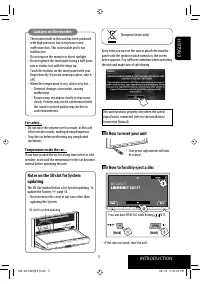
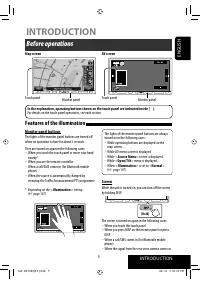
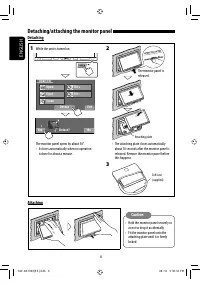
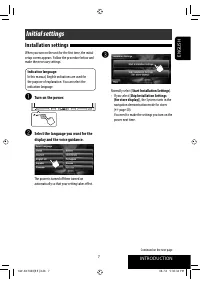
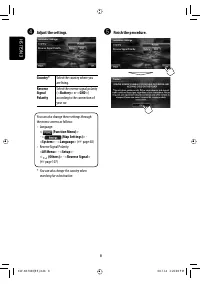
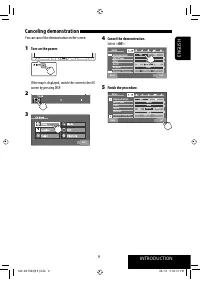
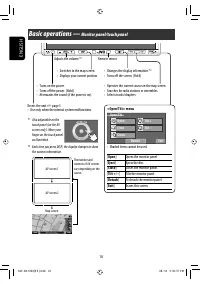
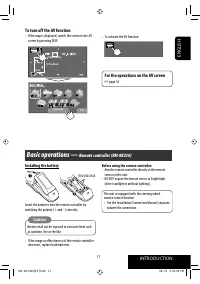
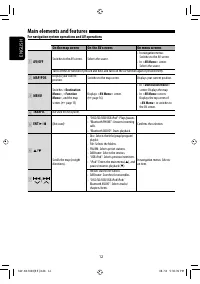
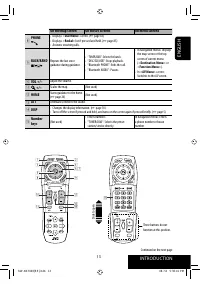
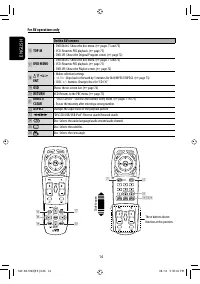
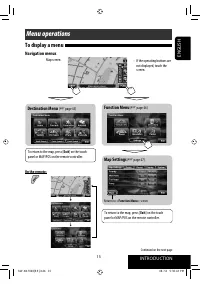
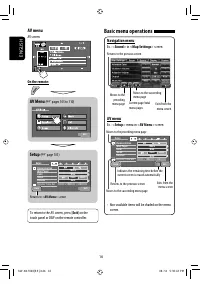
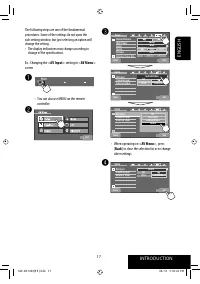
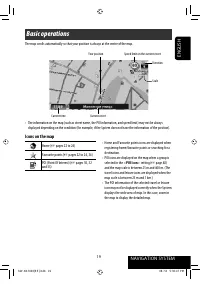
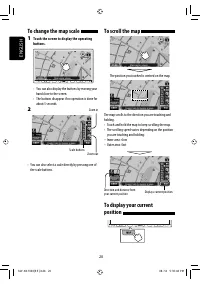
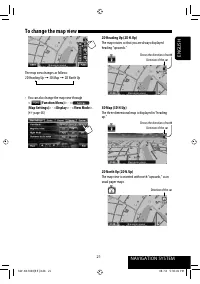
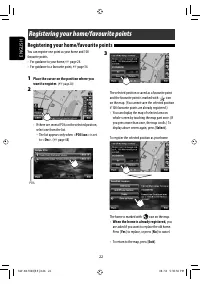
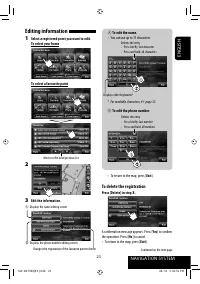
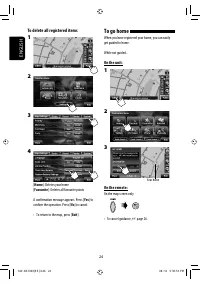
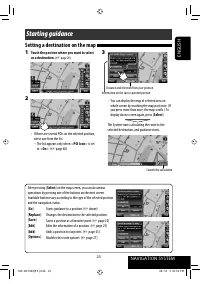
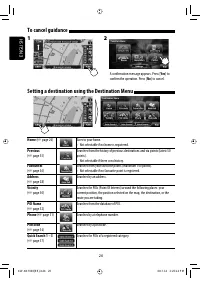
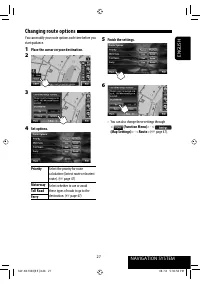
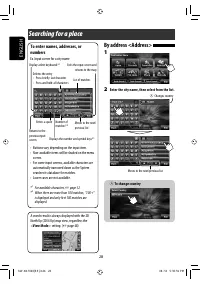
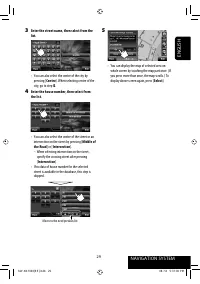
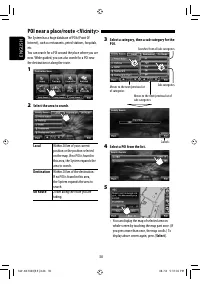
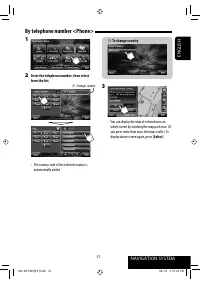
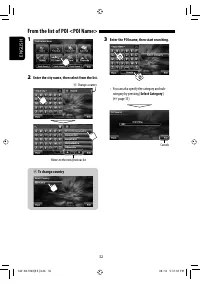
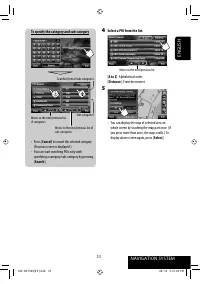
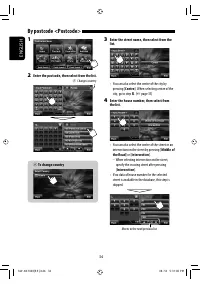
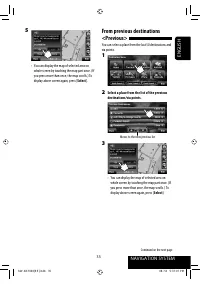
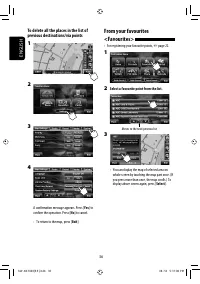
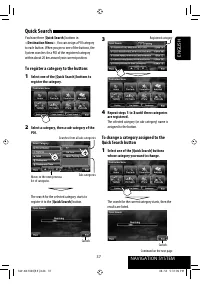
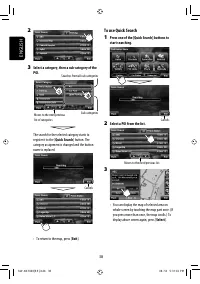
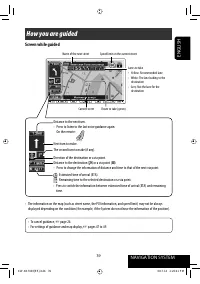
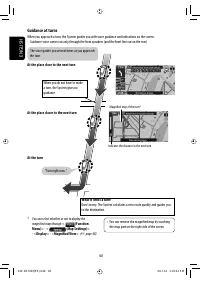
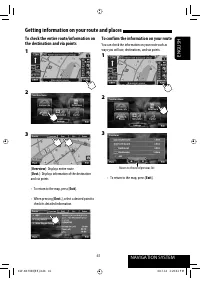
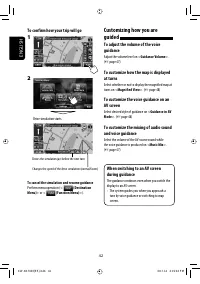
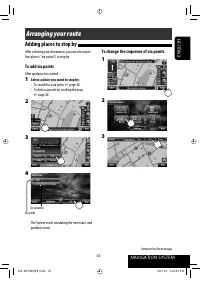
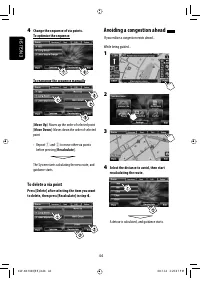
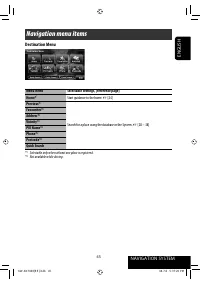
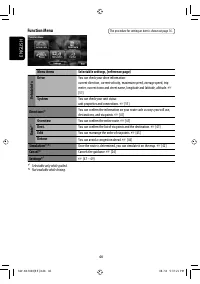
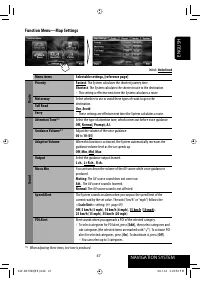
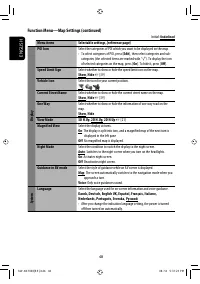
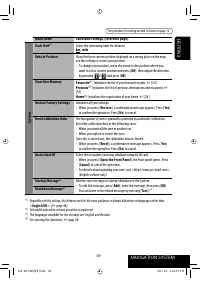
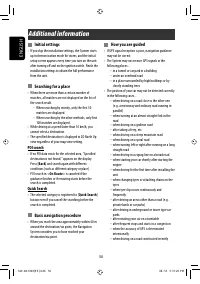
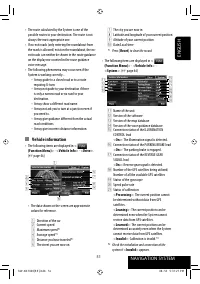
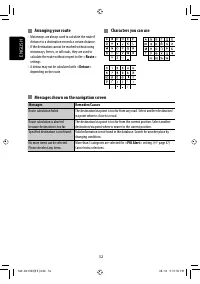
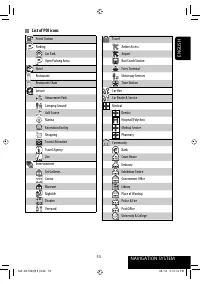
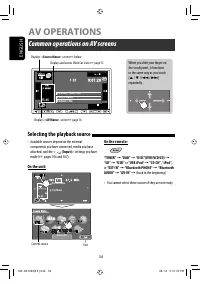
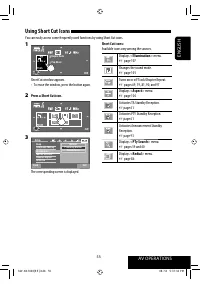
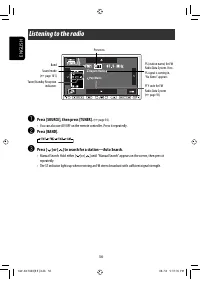
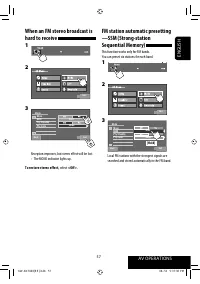
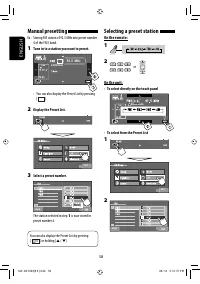
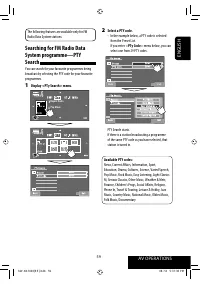
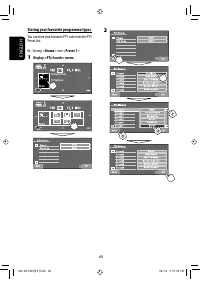
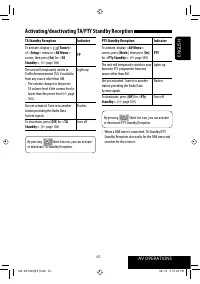
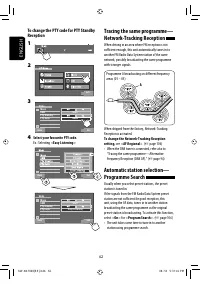
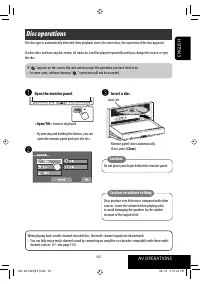

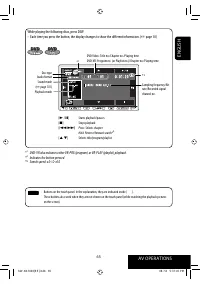
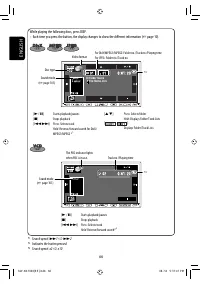
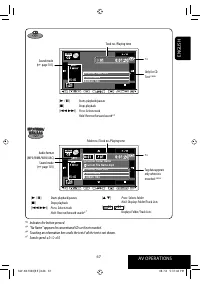
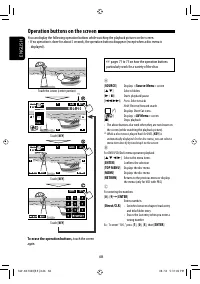
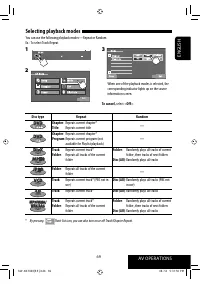
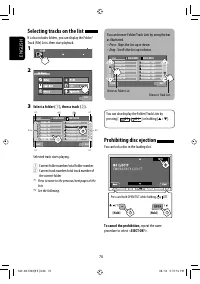
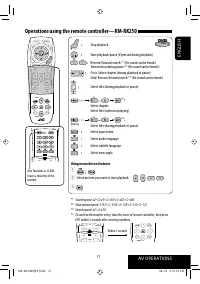
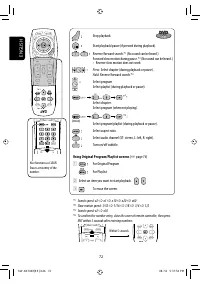
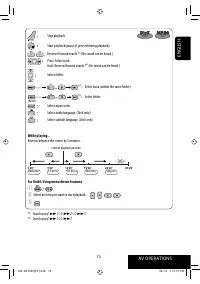
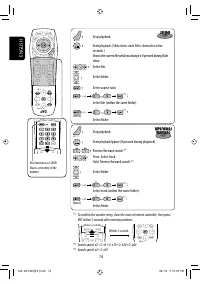
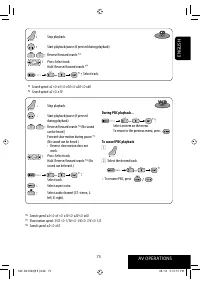
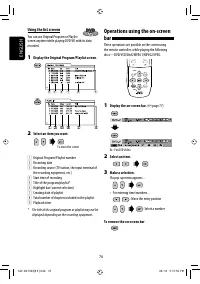
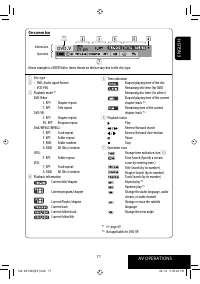
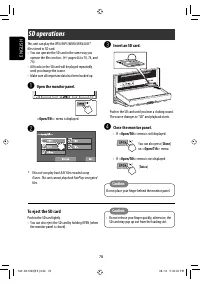
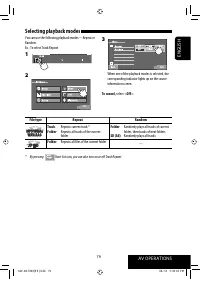
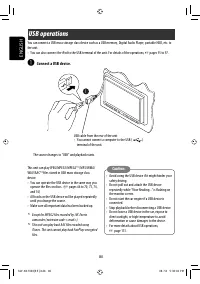
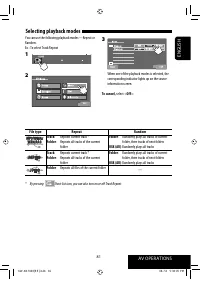
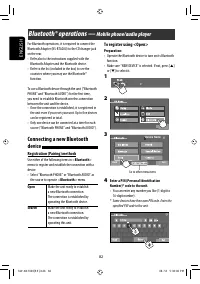
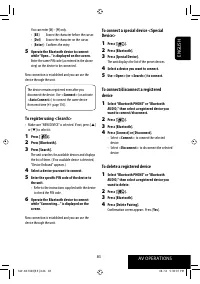
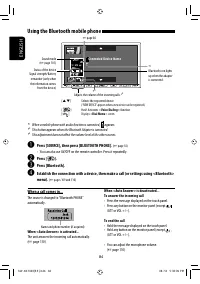
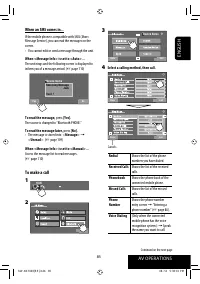
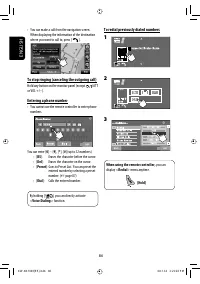
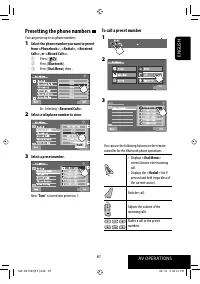
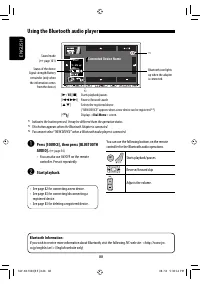
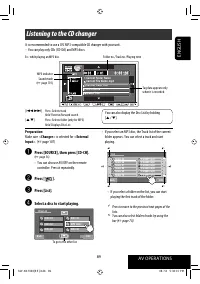
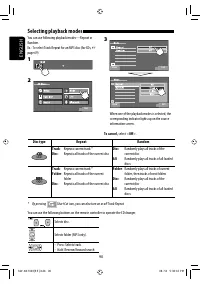
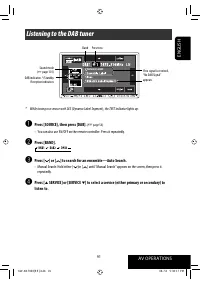
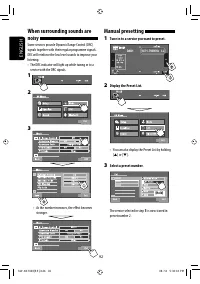
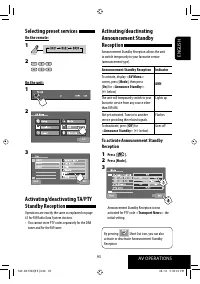
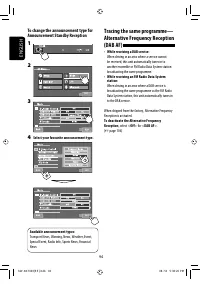
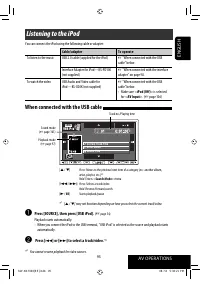
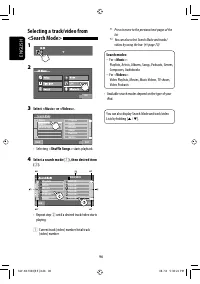
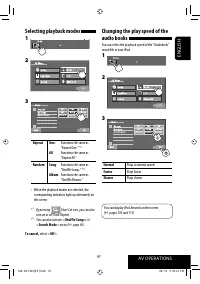
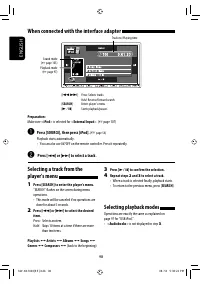
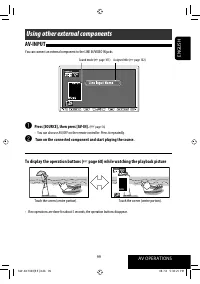
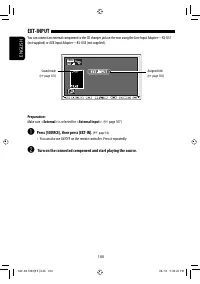
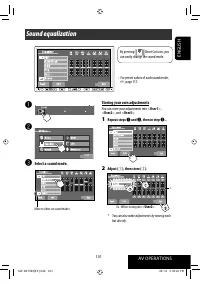
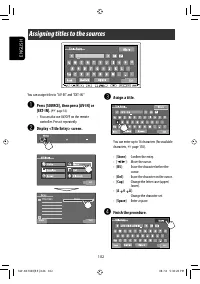
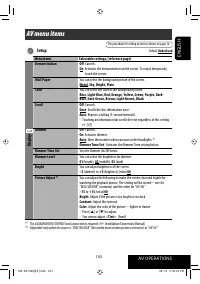
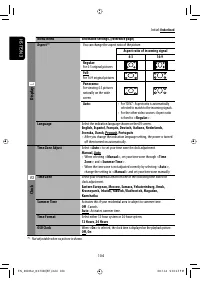
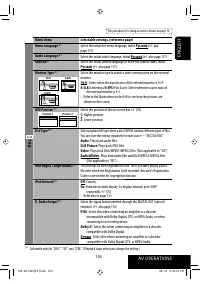
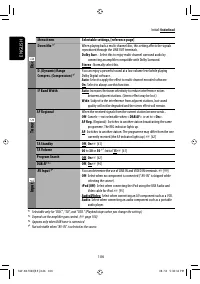
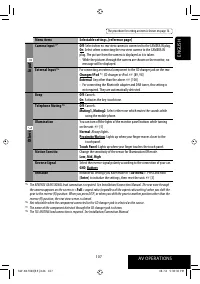
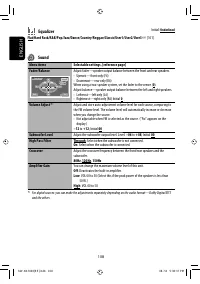
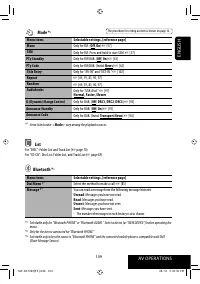
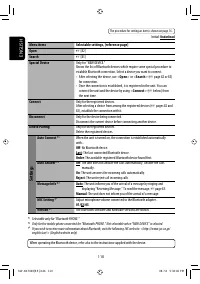
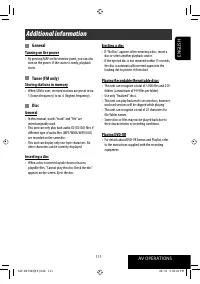
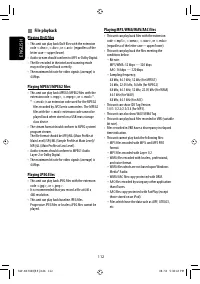
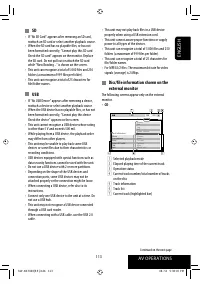
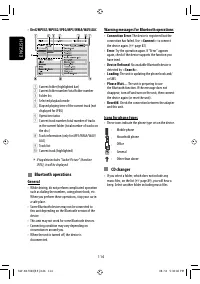
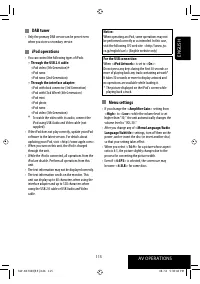
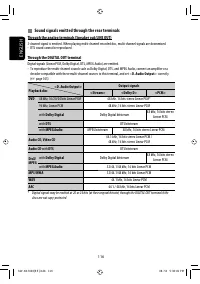
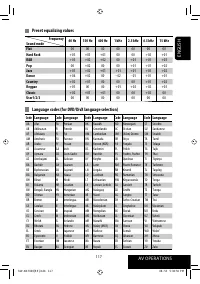
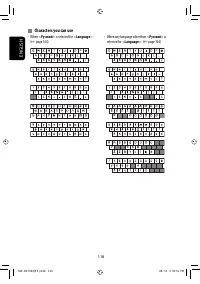
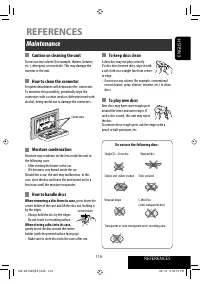
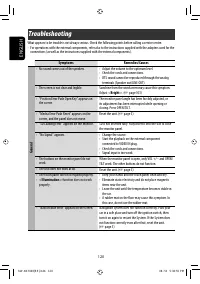
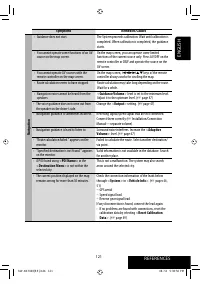
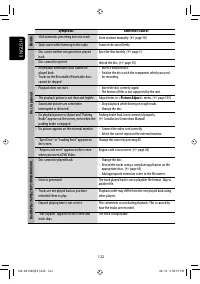
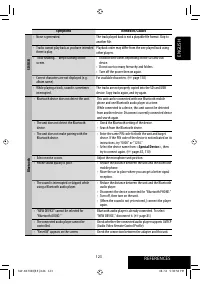
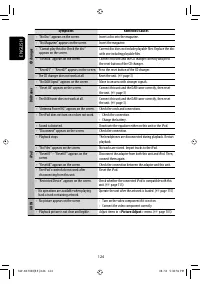
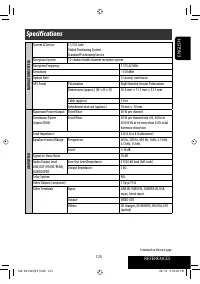

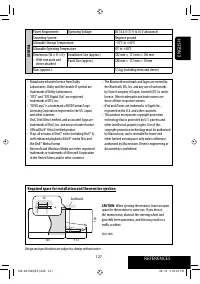
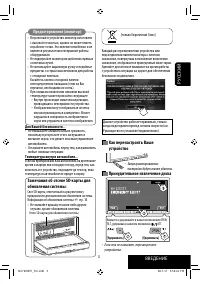
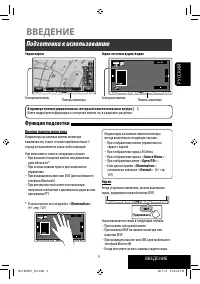
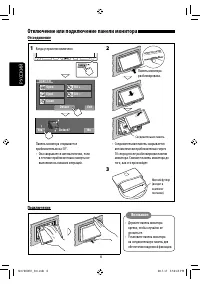
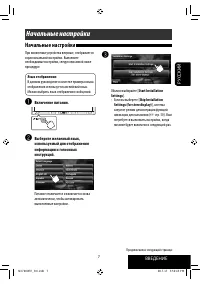
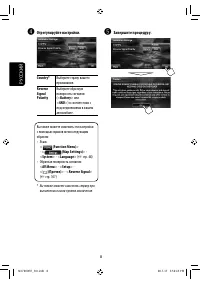
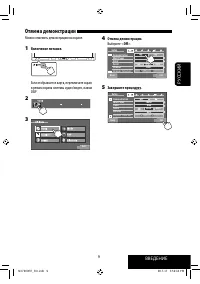
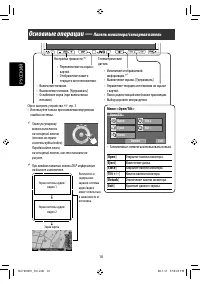
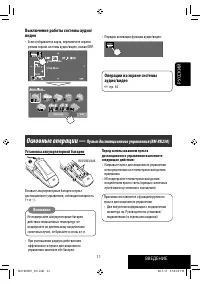


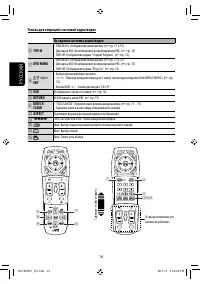
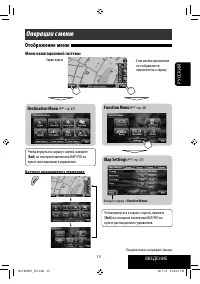
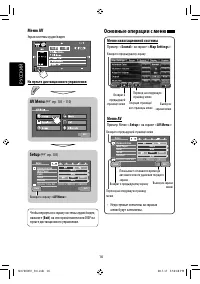
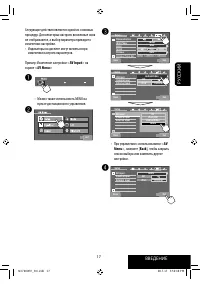
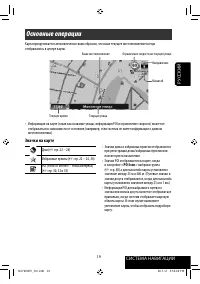
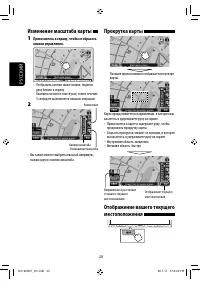
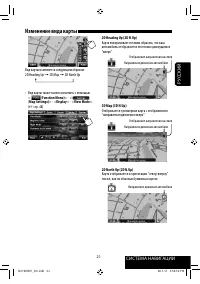
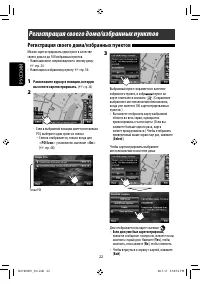
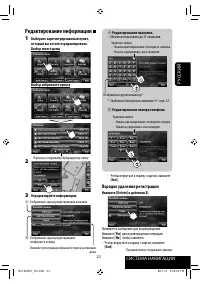
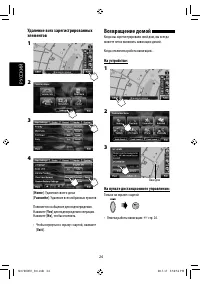
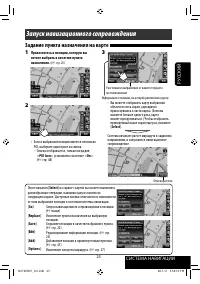
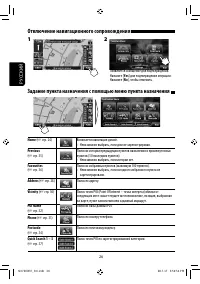
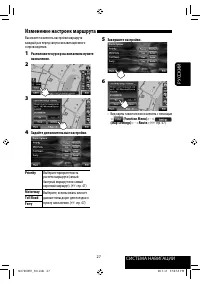
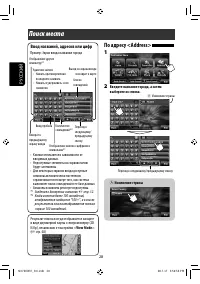
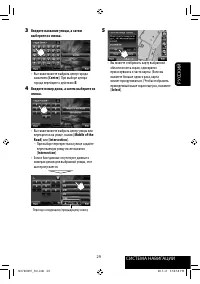
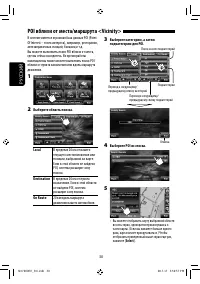
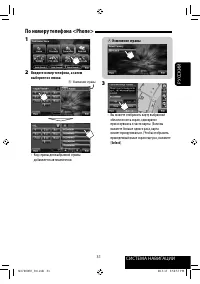
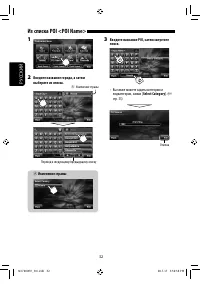
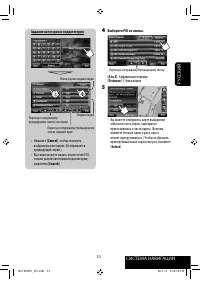
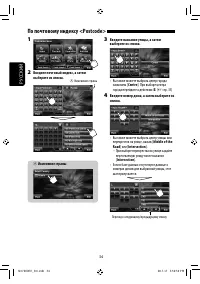
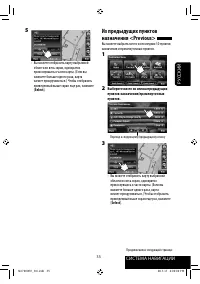
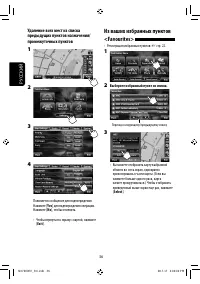

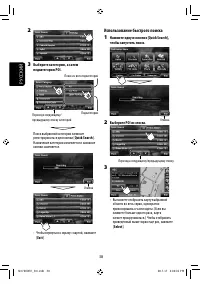
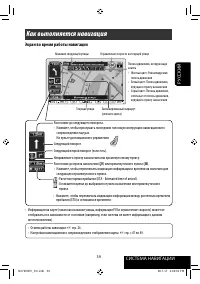
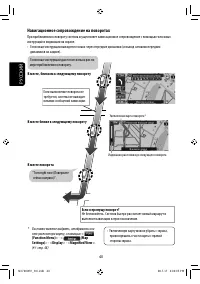
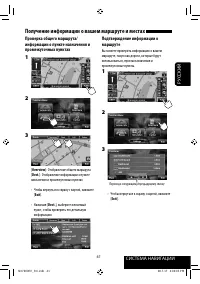
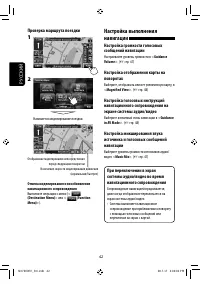
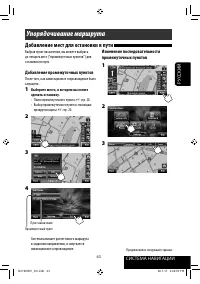
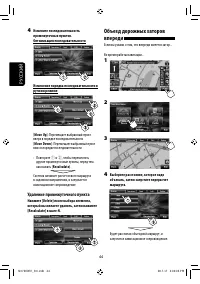
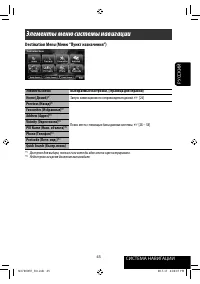
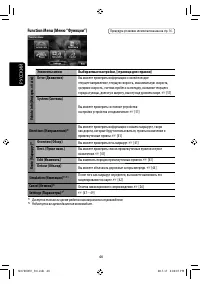
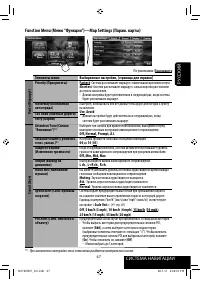
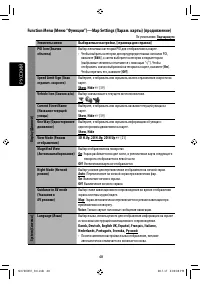
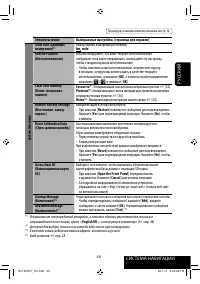
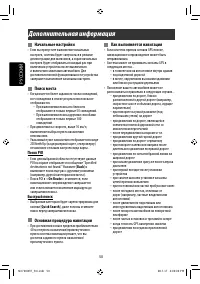
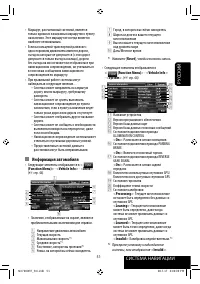
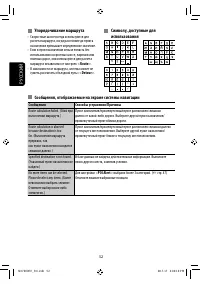
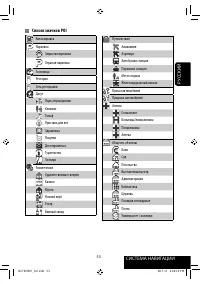
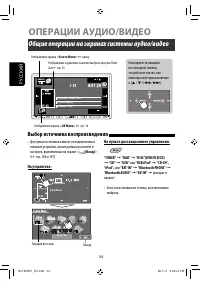
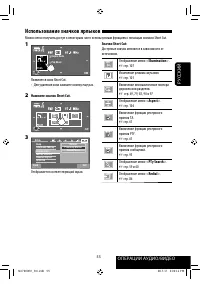
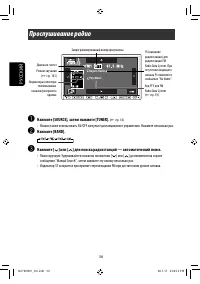
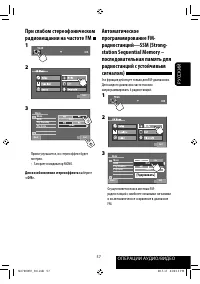
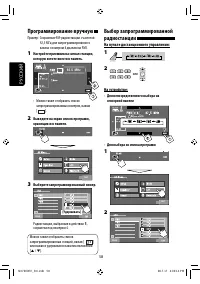
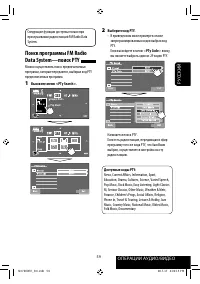
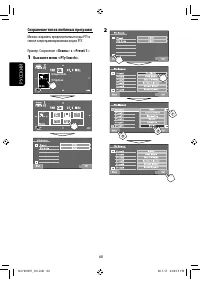
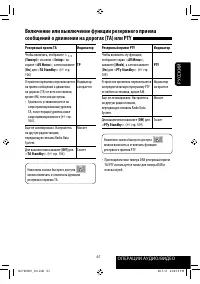
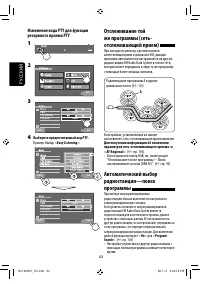
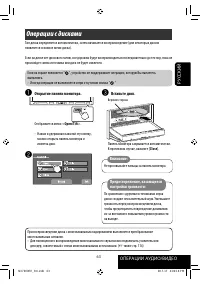
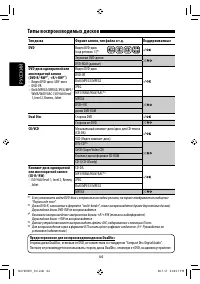
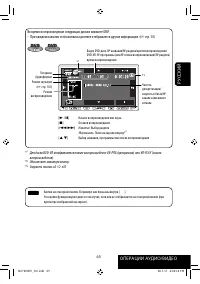
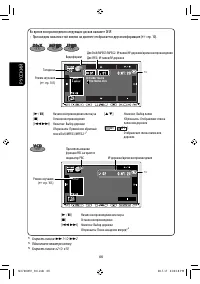
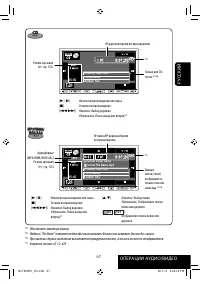
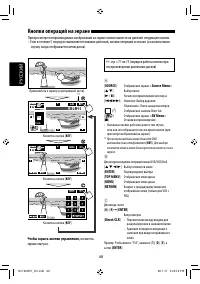

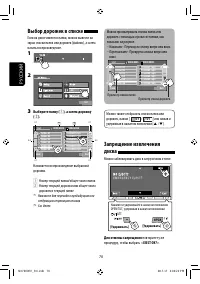
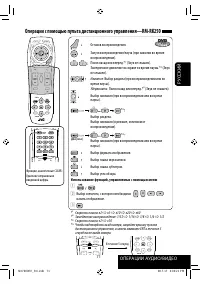
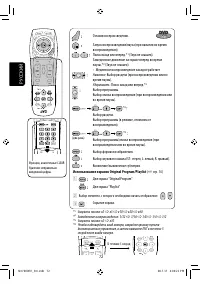
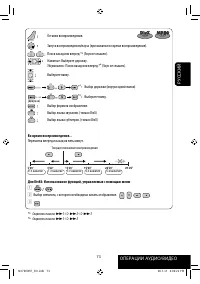
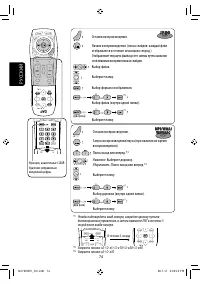
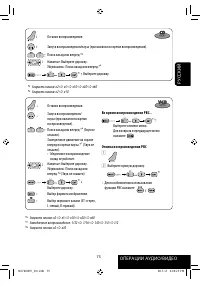
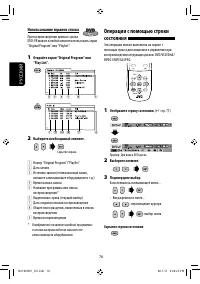
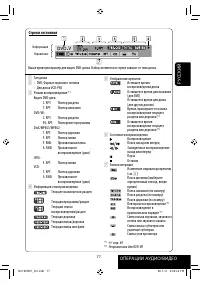
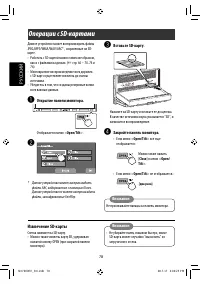
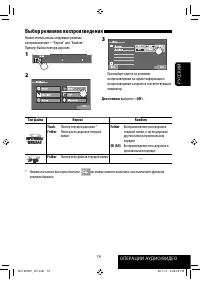


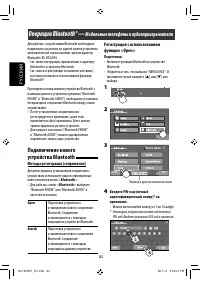
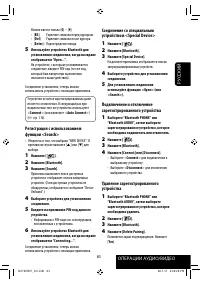
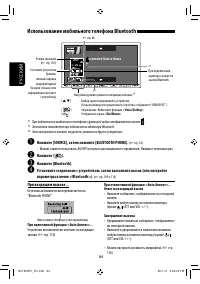
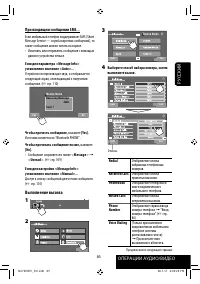
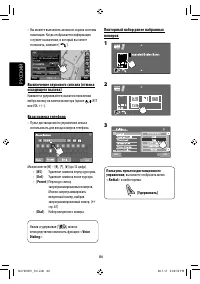
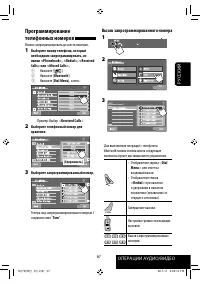
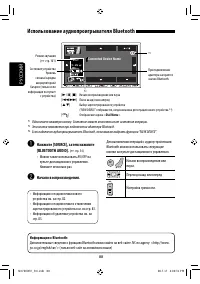
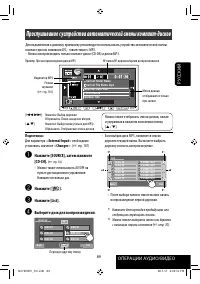
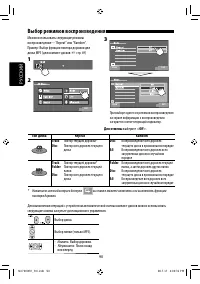
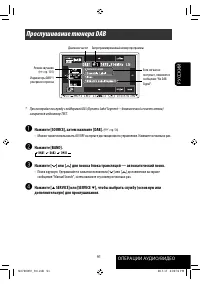
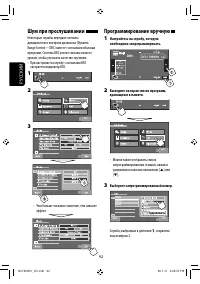
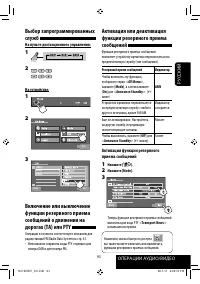
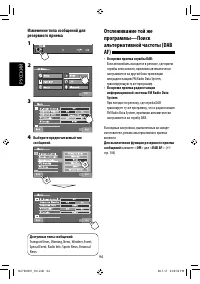
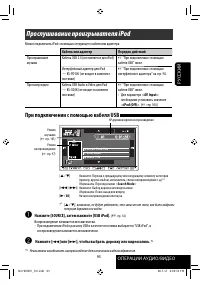
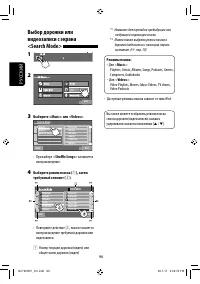
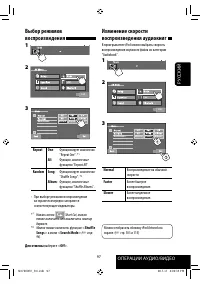
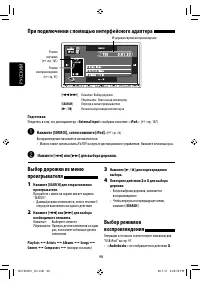
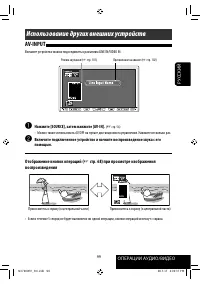
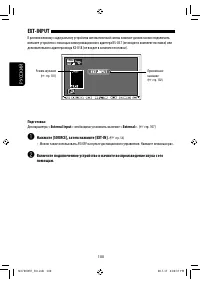
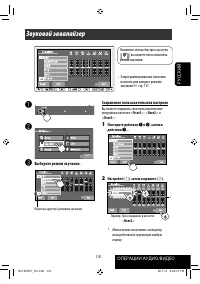
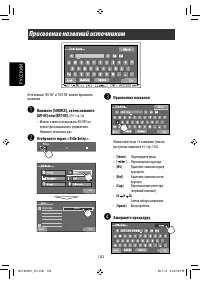
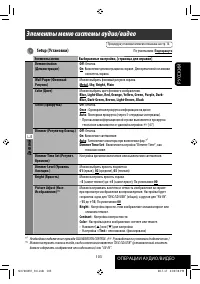
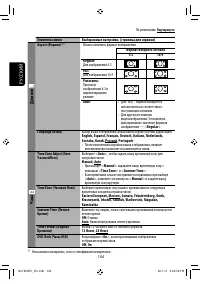
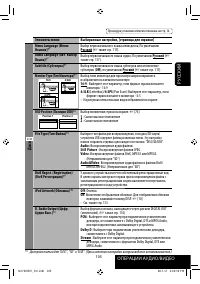
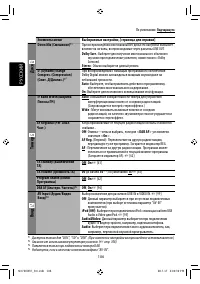
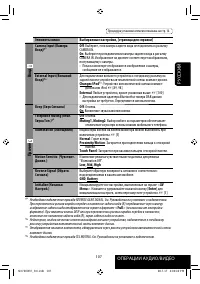
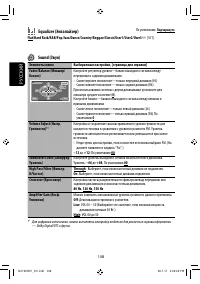
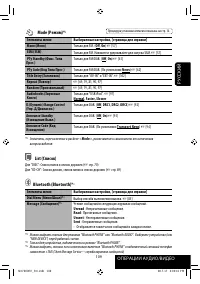
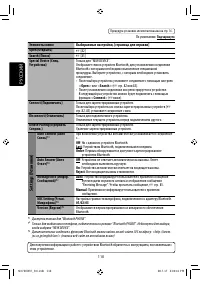
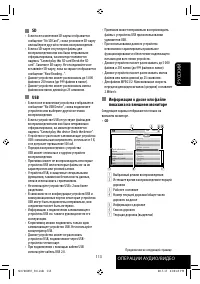
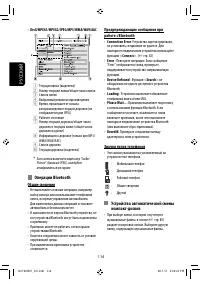
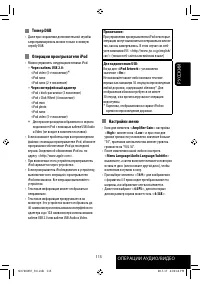
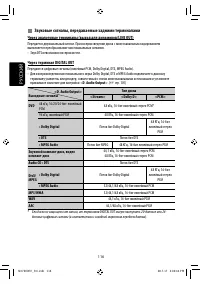
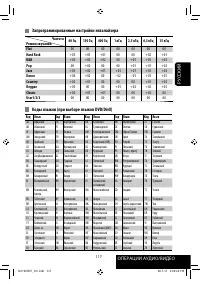

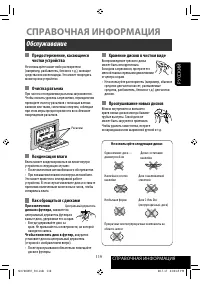
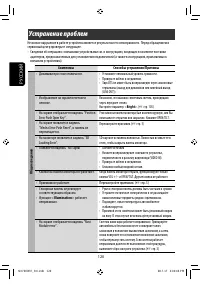
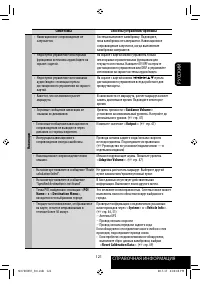
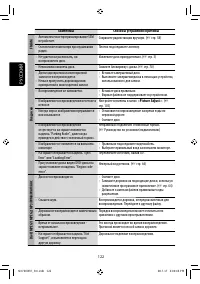
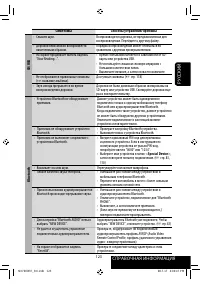
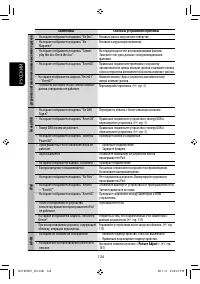
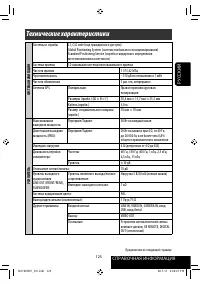
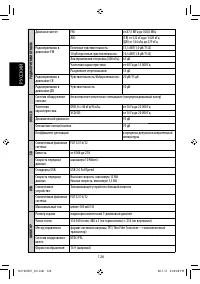
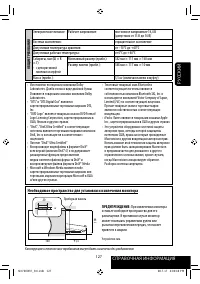



 JVC KD-AV7001
User Manual
JVC KD-AV7001
User Manual
 JVC KD-AVX1
Manual
JVC KD-AVX1
Manual
 JVC KD-AVX11
User Manual
JVC KD-AVX11
User Manual
 JVC KD-AVX12
User Manual
JVC KD-AVX12
User Manual
 JVC KD-AVX2
User Manual
JVC KD-AVX2
User Manual
 JVC KD-AVX20
User Manual
JVC KD-AVX20
User Manual
 JVC KD-AVX22
User Manual
JVC KD-AVX22
User Manual
 JVC KD-AVX33
User Manual
JVC KD-AVX33
User Manual
 JVC KD-AVX40
User Manual
JVC KD-AVX40
User Manual
 JVC KD-AVX44
User Manual
JVC KD-AVX44
User Manual
 JVC KD-AVX55
User Manual
JVC KD-AVX55
User Manual
 JVC KD-AVX77
User Manual
JVC KD-AVX77
User Manual
 JVC KD-BT1
User Manual
JVC KD-BT1
User Manual