Page 2 - How to use the MODE button; IMPORTANT FOR LASER PRODUCTS; How to reset your unit
2 How to use the MODE button If you press MODE, the unit goes into functions mode, then the number buttons and 5 / ∞ buttons work as different function buttons. Ex.: When number button 2 works as MO (monaural) button. To use these buttons for original functions again after pressing MODE, wait for 5 ...
Page 3 - CONTENTS
3 CONTENTS Thank you for purchasing a JVC product. Please read all instructions carefully before operation, to ensure your complete understanding and to obtain the best possible performance from the unit. How to reset your unit ............................... 2 How to use the MODE button ..............
Page 4 - LOCATION OF THE BUTTONS; Control panel; Display window
4 9 i o ; a 1 3 4 6 7 2 p 8 5 q w r t e y u s d f j h cv k l / x z g LOCATION OF THE BUTTONS Control panel 1 (standby/on/attenuator) button 2 SEL (select) button 3 TP PTY (traffic programme/programme type)button 4 FM/AM DAB button 5 CD CD-CH (CD changer) button 6 Display window 7 0 (eject) button 8 ...
Page 5 - Turning on the power; BASIC OPERATIONS
5 4 Adjust the sound as you want. (Seepages 27 and 28.) To drop the volume in a moment Press briefly while listening to any source. “ATT” starts flashing on the display, andthe volume level will drop in a moment.To resume the previous volume level, press thebutton briefly again.• If you turn the con...
Page 7 - Setting the clock; Set the clock system.
7 Setting the clock You can also set the clock system to either24 hours or 12 hours. 1 Press and hold SEL (select) for morethan 2 seconds so that one of thePSM items appears on the display.(PSM: see pages 29 and 30.) 2 Set the hour. 1 Select “CLOCK H” (hour) if not shown onthe display. 2 Adjust the ...
Page 8 - RADIO OPERATIONS; Listening to the radio; Start searching for a station.; Press and hold
8 RADIO OPERATIONS Listening to the radio You can use either automatic searching or manualsearching to tune in to a particular station. Searching for a station automatically:Auto search 1 Select the band (FM1 – 3, AM). Each time you press thebutton, the band changes asfollows: Note: This receiver ha...
Page 9 - Storing stations in memory; FM station automatic preset: SSM
9 3 Tune in to a station you want while“M” (manual) is still flashing. • If you release your finger from the button, the manual mode will automatically turnsoff after 5 seconds. • If you hold down the button, the frequency keeps changing (in 50 kHz intervals forFM and 9 kHz for AM—MW/LW) until youre...
Page 10 - Tuning in to a preset station; Manual preset
10 4 Repeat the above procedure to storeother stations into other presetnumbers. Notes: • A previously preset station is erased when a new station is stored in the same preset number. • Preset stations are erased when the power supply to the memory circuit is interrupted (for example,during battery ...
Page 11 - RDS OPERATIONS; What you can do with RDS; To use Network-Tracking Reception
11 RDS OPERATIONS What you can do with RDS RDS (Radio Data System) allows FM stations tosend an additional signal along with their regularprogramme signals. For example, the stationssend their station names, as well as informationabout what type of programme they broadcast,such as sports or music, e...
Page 12 - Using TA Standby Reception
12 1 Press and hold SEL (select) for morethan 2 seconds so that one of thePSM items appears on the display.(PSM: see pages 29 and 30.) 2 Select “AF-REG” (alternativefrequency/regionalization reception)if not shown on the display. 3 Select the desired mode—“AF,”“AF REG,” or “OFF.” 4 Finish the settin...
Page 13 - Using PTY Standby Reception
13 Using PTY Standby Reception PTY Standby Reception allows the unit to switchtemporarily to your favorite programme (PTY:Programme Type) from the current source(another FM station, CD, or other connectedcomponents). • PTY Standby Reception will not work if you are listening to an AM station. You ca...
Page 14 - Searching your favorite programme; To store your favorite programme types
14 Searching your favorite programme You can search any one of the PTY codes.In addition, you can store your 6 favoriteprogramme types in the number buttons.When shipped from the factory, the following6 programme types have been stored in thenumber buttons (1 to 6). To store your favorite programme ...
Page 15 - To search your favorite programme type; or
15 3 Press ¢ or 4 to start PTY search for your favorite programme. • If there is a station broadcasting a programme of the same PTY code as you selected, thatstation is tuned in. • If there is no station broadcasting a programme of the same PTY code as youselected, the station will not change. Note:...
Page 17 - PTY codes
17 PTY codes NEWS: News AFFAIRS: Topical programmes expandingon current news or affairs INFO: Programmes which impartadvice on a wide variety of topics SPORT: Sport events EDUCATE: Educational programmes DRAMA: Radio plays CULTURE: Programmes on national orregional culture SCIENCE: Programmes on nat...
Page 18 - Playing a CD; Open the control panel.; CD OPERATIONS
18 Refer “MP3 OPERATIONS” on pages 23 to 26 foroperating MP3 discs. Playing a CD 1 Open the control panel. Note on One-Touch Operation: When a CD is already in the loading slot,pressing CD CD-CH turns on the unit and startsplayback automatically. 2 Insert a CD into the loading slot. The unit turns o...
Page 19 - To stop play and eject the CD; To fast-forward or reverse the track
19 To stop play and eject the CD Press 0 . CD play stops and the control panel flips down.The CD automatically ejects from the loadingslot. The source changes to the previouslyselected source.• If you change the source, CD play also stops (without ejecting the CD).Next time you select “CD” as the so...
Page 20 - Selecting CD playback modes
20 To play back tracks repeatedly(Track Repeat Play) You can play back the current track repeatedly. 1 Press MODE to enter thefunctions mode while playing aCD. 2 Press RPT (repeat), while“MODE” is still flashing on thedisplay, so that “TRK RPT”appears on the display.Each time you press the button,tr...
Page 21 - Prohibiting disc ejection; for more than 2 seconds.; Playing a CD Text
21 Prohibiting disc ejection You can prohibit disc ejection and can lock a discin the loading slot. While pressing CD CD-CH, press and hold for more than 2 seconds. “NO EJECT” flashes on the display for about5 seconds, and the disc is locked and cannot beejected. To cancel the prohibition and unlock...
Page 22 - MP3 INTRODUCTION; Compatible with ID3 Tag; Hierarchy; ROOT
22 MP3 INTRODUCTION What is MP3? MP3 is an abbreviation of Motion Picture ExpertsGroup (or MPEG) Audio Layer 3. MP3 is simply afile format with a data compression ratio of 1:10(128 Kbps*). * Bit rate is the average number of bits that onesecond of audio data will consume. The unit used isKbps. To ge...
Page 23 - Playing an MP3 disc; MP3 OPERATIONS
23 Refer also to “CD OPERATIONS” on pages18 to 21. Playing an MP3 disc 1 Open the control panel. Note on One-Touch Operation: When a disc is already in the loading slot,pressing CD CD-CH turns on the unit and startsplayback automatically. 2 Insert an MP3 disc into the loadingslot. The unit turns on,...
Page 24 - • When “TAG DISP” is set to “TAG ON”; • When “TAG DISP” is set to “TAG OFF”; To fast-forward or reverse the file
24 To stop play and eject the disc Press 0 . Playback stops and the control panel flips down.The disc automatically ejects from the loading slot. To change the display information While playing back an MP3 file, you can changethe MP3 disc information shown on the display. Press DISP (display) repeat...
Page 25 - To go to a particular folder directly
25 To go to a particular file quickly within thecurrent folder (+10 and –10 buttons) 1 Press MODE to enter the functions modewhile playing a disc. 2 Press +10 or –10. * First time you press +10 or –10 button, the file skips to the nearest higher or lower filewith a file number of multiple ten (ex. 1...
Page 26 - To skip to the next or previous folder; Selecting MP3 playback modes
26 To skip to the next or previous folder Note: If the folder does not contain any MP3 files, it isskipped. Selecting MP3 playback modes To play back files at random(Folder Random/Disc Random Play) You can play back all files of the current folder orall files on the MP3 disc at random. 1 Press MODE ...
Page 27 - SOUND ADJUSTMENTS; Select the sound mode you want.
27 SOUND ADJUSTMENTS Selecting preset sound modes(C-EQ: custom equalizer) You can select a preset sound mode (C-EQ:custom equalizer) suitable to the music genre. • There is a time limit in doing the following procedure. If the setting is canceled before youfinish, start from step 1 again. 1 Press MO...
Page 28 - Adjusting the sound; Select the item you want to adjust.; Repeat steps
28 Adjusting the sound You can adjust the sound characteristics to yourpreference. 1 Select the item you want to adjust. Each time you press thebutton, the adjustable itemschange as follows: Indication To do: Range BAS * 1 Adjust the bass. –06 (min.) |+06 (max.) TRE * 1 Adjust the treble. –06 (min.)...
Page 29 - Basic Procedure; Adjust the PSM item selected.; OTHER MAIN FUNCTIONS
29 Changing the general settings(PSM) You can change the items listed in the tablebelow and on page 30 by using the PSM(Preferred Setting Mode) control. Basic Procedure 1 Press and hold SEL (select) for morethan 2 seconds so that one of thePSM items appears on the display.(See below and page 30.) 2 ...
Page 33 - Detaching the control panel; Unlock the control panel.; Attaching the control panel
33 Detaching the control panel You can detach the control panel when leavingthe car.When detaching or attaching the control panel,be careful not to damage the connectors on theback of the control panel and on the panelholder. Detaching the control panel Before detaching the control panel, be sure to...
Page 34 - CD CHANGER OPERATIONS; Playing discs
34 CD CHANGER OPERATIONS Playing discs Select the CD changer (CD-CH). * If you have changed “EXT IN” setting to “LINE IN”(see page 32), you cannot select the CD changer. • When the current disc is an MP3 disc: Playback starts from the first folder of thecurrent disc once file check is completed. Not...
Page 37 - Selecting the playback modes; Canceled
37 Selecting the playback modes To play back tracks/files at random(Folder Random/Disc Random/MagazineRandom Play) 1 Press MODE to enter thefunctions mode during play. 2 Press RND (random), while“MODE” is still flashing on thedisplay.Each time you press the button,the random play mode changesas foll...
Page 38 - EXTERNAL COMPONENT OPERATIONS; Playing an external component
38 EXTERNAL COMPONENT OPERATIONS Playing an external component You can connect the external component to theCD changer jack on the rear using the Line InputAdapter KS-U57 (not supplied). Preparations: • For connecting the Line Input Adapter KS-U57 and the external component, refer to the Installatio...
Page 39 - DAB TUNER OPERATIONS; Select the DAB tuner.; DAB
39 DAB TUNER OPERATIONS Tuning in to an ensemble andone of the services A typical ensemble has 6 or more programmes(services) broadcast at the same time. Aftertuning in to an ensemble, you can select aservice you want to listen to. Before you start.... Press FM/AM DAB briefly if CD, CD changer, orex...
Page 40 - Start searching for an ensemble.; To restore the FM/AM tuner; Storing DAB services in memory
40 3 Start searching for an ensemble. When an ensemble is received, searchingstops. To stop searching before an ensemble isreceived, press the same button you have pressed for searching. 4 Select a service (either primary orsecondary) you want to listen to. To change the display information whiletun...
Page 41 - Tune in to an ensemble you want.
41 3 Tune in to an ensemble you want. 4 Select a service of the ensemble youwant to listen to. 5 Press and hold the number button(in this example, 1) for more than2 seconds to store the selectedservice into the preset number youwant. 6 Repeat the above procedure to storeother DAB services into other...
Page 42 - To use Alternative Reception
42 What you can do more withDAB Tracing the same programme automatically(Alternative Reception) You can keep listening to the same programme.• While receiving a DAB service: When driving in an area where a servicecannot be received, this unit automaticallytunes in to another ensemble or FM RDSstatio...
Page 43 - Installing the battery; USING THE REMOTE CONTROLLER
43 This unit can be remotely controlled as instructedhere (with an optionally purchased remote controller) . We recommend that you use remote controller RM-RK50 or RM-RK60 with your unit.(Ex.: When you are using RM-RK60) Before using the remote controller:• Aim the remote controller directly at the ...
Page 44 - Location of the buttons
44 Location of the buttons RM-RK60 3 • Selects the preset stations (or services) while listening to the radio (or the DABtuner).Each time you press the button, the presetstation (or service) number increases, andthe selected station (or service) is tuned in. • Skips to the first file of the previous...
Page 45 - TROUBLESHOOTING; Remedies
45 TROUBLESHOOTING What appears to be trouble is not always serious. Check the following points before calling a servicecenter. Remedies Adjust it to the optimum level. Check the cords andconnections. Press the reset button on thepanel holder after detaching thecontrol panel. (The clock settingand p...
Page 48 - MAINTENANCE; Handling discs; How to handle discs; To keep discs clean
48 MAINTENANCE Center holder Handling discs This unit has been designed to reproduce CDs,CD-Rs (Recordable), CD-RWs (Rewritable), andCD Texts. • This unit is also compatible with MP3 discs. How to handle discs When removing a discfrom its case, press down the center holder of the caseand lift the di...
Page 49 - SPECIFICATIONS; AUDIO AMPLIFIER SECTION
49 SPECIFICATIONS AUDIO AMPLIFIER SECTION Maximum Power Output: Front: 50 W per channel Rear: 50 W per channel Continuous Power Output (RMS): Front: 19 W per channel into 4 Ω , 40 Hz to 20 000 Hz at no more than0.8% total harmonic distortion. Rear: 19 W per channel into 4 Ω , 40 Hz to 20 000 Hz at n...
Page 50 - Having TROUBLE with operation?; Please reset your unit; Refer to page of How to reset your unit
EN 0604KKSMDTJEIN Having TROUBLE with operation? Please reset your unit Refer to page of How to reset your unit © 2004 Victor Company of Japan, Limited Cover001B_KD-G502[B]_1.p65 22/6/04, 11:14 AM 2


 JVC KD-AV7001
User Manual
JVC KD-AV7001
User Manual
 JVC KD-AVX1
Manual
JVC KD-AVX1
Manual
 JVC KD-AVX11
User Manual
JVC KD-AVX11
User Manual
 JVC KD-AVX12
User Manual
JVC KD-AVX12
User Manual
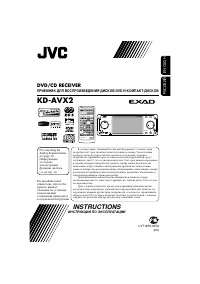 JVC KD-AVX2
User Manual
JVC KD-AVX2
User Manual
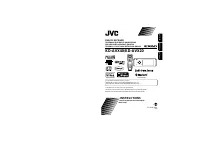 JVC KD-AVX20
User Manual
JVC KD-AVX20
User Manual
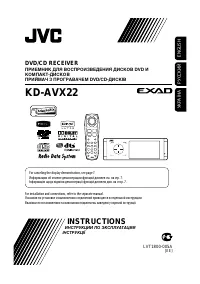 JVC KD-AVX22
User Manual
JVC KD-AVX22
User Manual
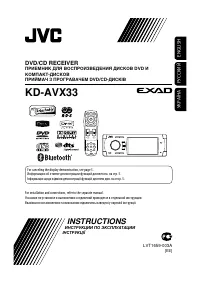 JVC KD-AVX33
User Manual
JVC KD-AVX33
User Manual
 JVC KD-AVX40
User Manual
JVC KD-AVX40
User Manual
 JVC KD-AVX44
User Manual
JVC KD-AVX44
User Manual
 JVC KD-AVX55
User Manual
JVC KD-AVX55
User Manual
 JVC KD-AVX77
User Manual
JVC KD-AVX77
User Manual
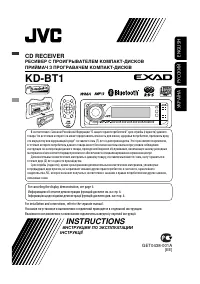 JVC KD-BT1
User Manual
JVC KD-BT1
User Manual