Page 2 - EN; SAFETY PRECAUTIONS; HAZARD, DO NOT EXPOSE
2 EN Using This Instruction Manual• All major sections and subsections are listed in the Table Of Contents on the cover.• Notes appear after most subsections. Be sure to read these as well.• Basic and advanced features/operation are separated for easier reference.It is recommended that you . . . ......
Page 4 - AUTOMATIC DEMONSTRATION; PROVIDED ACCESSORIES
4 EN • AC Adapter AP-V10EG • Remote Control Unit RM-V715U (GR-SXM607/SXM57/SX202only) • Shoulder Strap • Battery Pack BN-V11U (GR-FXM37/FX12)BN-V20U (GR-SXM607/SXM57/SXM47/SX202/SX22) • Cable Adapter (with an -IN connector) (GR-SXM607/SXM57/SXM47/SX202/SX22 only) • A/V (Audio/Video) Cable • AAA (R03...
Page 5 - How To Attach The Core Filter; How To Attach The Lens Cap
EN 5 1 2 3 How To Attach The Core Filter Attach the provided Core Filter to the provided A/V Cable, S-Video Cable and AC Adapter.The Core Filter reduces interference. 1 Release the stoppers on both ends of the CoreFilter. 2 Run the cable through the Core Filter, leavingapprox. 5 cm of cable between ...
Page 6 - GETTING STARTED; Power; CHARGING THE BATTERY PACK
6 EN 2 1 4 3 5 GETTING STARTED Power This camcorder’s 2-way power supply system lets youchoose the most appropriate source of power. Do not useprovided power supply units with other equipment. CHARGING THE BATTERY PACK 1 Make sure the battery pack is attached to thecamcorder. Hook its end to the cam...
Page 7 - USING AC POWER; USING THE BATTERY PACK
EN 7 USING AC POWER Use the AC Adapter (connect as shown in the illustration). NOTES: ● The provided AC Adapter features automatic voltageselection in the AC range from 110 V to 240 V. ● For other notes, Z pg. 44. To DC INconnector To AC outlet AC Adapter Charge markerA charge marker is provided ont...
Page 8 - Shoulder Strap Attachment
8 EN GETTING STARTED (cont.) PAUS E 1 180 ° 180 ° 2 2 3 3 2 4 3 1 A M P L A Y O FF Power ZoomLever RecordingStart/StopButton Set to “ ” or “ ”. Shoulder Strap Attachment 1 Following the illustration, thread the strap through theeyelet 1 , then fold it back and thread it through the buckle 2 . Repeat...
Page 9 - Press MENU to close the Menu Screen.; Video Out Setting; Perform steps 1 through 3 above.
EN 9 P S E A E X L C I A T M V I DEO OU T © R I TT D J DV © TE NE I A LE I R OC TLT T I M D E . EL E P O E T C T E / O U SA I T M T I M R Y MM I A L I DOO N SEE M CA M DU T R ERN E NE T EA OG O M . . M M E EN OOO F 0 O S NU FFF R 6FE U FFFE F C N A C M H © FE M T O X . O CP W UO . S SSB C Y U . A S ...
Page 10 - Recording Format Setting
10 EN © RD W S T D © NE . I – A I R EC D V PS E X ZE H EP T T MO S L U S OO L A R Y D M E EY N S E T N T G E T M H ME S5 OO TF N P0FN3U U xF 0L L © RD W STD © NE . I – A I R EC DVPS E X ZE HEP T T MO S L U S OO L A R Y D M EEY N S E T N T G E T M H ME S5 OO TF N P0FN3U U xF 0L L O O E N F X F I T S ...
Page 11 - Compatibility Between S-VHS And VHS; Regular VHS VCR
EN 11 Recording Playback NOTES about S-VHS and S-VHS ET n JVC EHG (Extra High Grade) tapes are recommended for superior results.Use S-VHS tape for storing recordings for an extended period or for recording important scenes, as itenables higher-quality recording and playback.— It is recommended to sp...
Page 12 - Tape Length Setting; Recording Mode Setting
12 EN TTTT E 3456 X 0500 I T T AP E L ENGT H T 3 0 S L E P P X I T REC MODE S P GETTING STARTED (cont.) Tape lengthindicator TAPE LENGTHMenu MENU Wheel Power Switch Tape Length Setting Set the tape length according to the length of the tapeused. 1 Perform steps 1 through 3 above. 2 Rotate MENU to se...
Page 13 - Loading/Unloading A Cassette
EN 13 Loading/Unloading A Cassette 1 Open the LCD monitor fully (models equipped withLCD monitor only). 2 Slide EJECT until the cassette holder opens. Do notuse force to open. 3 Insert or remove a cassette. When inserting, makesure the label is facing outward. 4 Press the Close button to close the c...
Page 14 - Shooting While Watching The Viewfinder; To Adjust The Brightness Of The LCD Monitor; RECORDING; Basic Recording; Power Switch Position; OFF
14 EN 180 ° 90 ° BR I GH T – – – – – – – – 6 – – – + 2 5M I N 60MIN 3MIN 2MIN MIN 59MIN 1MIN 0MIN NOTE: You should already have performed the procedures listedbelow. If not, do so before continuing. ● Power ( Z pg. 6) ● Load A Cassette ( Z pg. 13) ● Recording Mode Setting ( Z pg. 12) ● Tape Length S...
Page 15 - JOURNALISTIC SHOOTING; equipped with LCD monitor only)
EN 15 NOTES: ● If the Record-Standby mode continues for 5 minutes without performing Zoom or any other operations, thecamcorder’s power shuts off automatically. Set the Power Switch to “OFF”, and then back to “ ” or “ ” to turn the camcorder on again. ● If you are recording on a cassette from the mi...
Page 16 - Basic Features; ) To switch off the Picture Stabiliser, press
16 EN RECORDING Basic Features 1 x 5 S PAUS E RETAKE ( 2 / 3 ) Button Zoom in (T: Telephoto) Zoom out (W: Wide angle) Power Zoom Lever Zoom indicatorbar Zooming: To produce the zoom in/out effect, or an instantaneous change in image magnification.Digital circuitry extends the maximum magnification o...
Page 18 - Advanced Features; NIGHT AUTO; * Appears when the Power Switch is set to “
18 EN RECORDING Advanced Features Snapshot (GR-SXM607/SXM57/SX202 only) Use your camcorder like a regular camera and take asnapshot, or several of them in succession. 1 Set the Power Switch to “ ” or “ ”. 2 Press SNAPSHOT.If you press during Record-Standby . . . .... a still image will be recorded f...
Page 19 - FADER
EN 19 Fade/Wipe Effects These effects let you make pro-style scene transitions.Fade- or wipe-in works at recording start, and fade- orwipe-out works at recording end. 1 Set the Power Switch to “ ”. 2 Press FADE/WIPE repeatedly until the desired mode’s name and indication appear. 3 They are displayed...
Page 20 - Program AE With Special Effects; SPORTS
20 EN Program AE With Special Effects 1 Set the Power Switch to “ ”. 2 Press P.AE repeatedly until the desired mode’s nameand indication appear.They are displayed for approx. 2 seconds, then thename disappears so that only the indication remains.The mode is activated. 3 To cancel the effect, press P...
Page 21 - Digital Effects
EN 21 Digital Effects 1 Set the Power Switch to “ ”. 2 Press DIGIFECT repeatedly until the desired mode’sname and indication appear.They are displayed for approx. 2 seconds, then thename disappears so that only the indication remains.The mode is activated. 3 To cancel the effect, press DIGIFECT repe...
Page 22 - Using Menus For Detailed Adjustment
22 EN © FE T O X O CP UO S SS C Y U A S R M T E E E R M A M M E E N AA N U UU U TT OO © R D W STD © N E . I – A I R E C DVPS E X ZE HEP T T M O S L U S O O L A R Y D M EY N S E N T G E T M H ME S 5 OO TF N P 0F N 3 U U xF 0L L © RD W STD © NE . I – A I R EC DVPS E X ZE HEP T T MO S L U S OO L A R Y ...
Page 23 - CAMERA MENU; CONTINUED ON NEXT PAGE; SYSTEM MENU; MENU SCREEN EXPLANATIONS
EN 23 CAMERA MENU CONTINUED ON NEXT PAGE SYSTEM MENU This Menu Screen cannot be accessed while recording. MENU SCREEN EXPLANATIONS D. ZOOM TITLE DATE/TIMEDISP. FOCUS EXPOSURE M.W.B. : Factory-preset S.LX(GR-SXM57/SXM47/SX22/FXM37/FX12only) WIDE REC MODE Refer to “Focusing” ( Z pg. 28). Refer to “Exp...
Page 25 - DISPLAY; AUTO DATE; Instant Titles
EN 25 2 5 . 1 2 . 0 1 25. 12. 01 22 : 25 : 00 22 : 25 : 00 25. 12. 01 (DATE) (TIME) (DATE/ TIME) AUTO DATE 1 Set the Power Switch to “ ”. 2 Press MENU. The Menu Screen appears. 3 Rotate MENU to select “DATE/TIME DISP.” and pressit. The DATE/TIME DISP. Menu appears. 4 Rotate MENU to select the desire...
Page 26 - Animation; step 1 and 2 of “Animation”
26 EN RECORDING Advanced Features (cont.) O 11 1 5 F // F42 S S SS REC T I ME O 1 315 F 5 0 F MM S S II NN I N T . T I ME 11 5S S MENU Wheel Recording Start/Stop Button REC TIME Menu Display Recording timeindicator Interval timeindicator INT. TIME Menu Animation You can shoot a series of pictures, e...
Page 27 - Exposure Control; To return to the factory setting, select “AUTO” in step 4.
EN 27 Exposure Control This feature automatically adjusts the iris for the bestavailable picture quality, but you can override it and makethe adjustment manually. Manual exposure adjustment isrecommended in the following situations:• When shooting using reverse lighting or when thebackground is too ...
Page 28 - Focusing; AUTO FOCUS
28 EN Focus detection zone Focusing AUTO FOCUS The camcorder’s Full Range AF system offers continuousshooting ability from close-up to infinity. However, correctfocus may not be obtainable in the situations listed below(in these cases use manual focusing):• When two subjects overlap in the same scen...
Page 29 - White Balance Adjustment; AUTO; Manual White Balance Operation; Press MENU again to close the Menu Screen.
EN 29 Power Switch White Balance Adjustment A term that refers to the correctness of colourreproduction under various lighting. If the whitebalance is correct, all other colors will be accuratelyreproduced.The white balance is usually adjusted automatically.However, more advanced camcorder operators...
Page 30 - PLAYBACK; Basic Playback; LCD Monitor Brightness Adjustment
30 EN 1 Load a tape ( Z pg. 13). 2 Set the Power Switch to “ ”. To start playback, press 4 / 6 . • To stop playback, press 5 . • Press 2 to rewind, or 3 to fast-forward the tape during Stop mode. NOTES: ● The camcorder shuts off automatically after about5 minutes in Stop mode. To turn on again, set ...
Page 31 - Features; Counter Memory Function:
EN 31 Set to “ ”. TBC Button PLAYBACK Features COUNTER R/M Button Rewind ( 2 ) Button Fast-Forward ( 3 ) Button Play/Pause ( 4 / 6 ) Button Stop ( 5 ) Button Tracking: Eliminates noise bars that appear on-screen during playback. Factory-preset is Auto Tracking.To activate Manual Tracking:1) Press TR...
Page 32 - Connections
32 EN PLAYBACK Connections To S-VIDEO IN To S-VideoOutput Yellow toVIDEO IN TV To TV or VCR * When connecting the cables, open this cover.** Provided with GR-SXM607/SXM57/SXM47/SX202/SX22 only. Connect when the TV or VCR has an S-video input. Connector cover* VCR White toAUDIO IN S-Video cable** Yel...
Page 34 - Using The Cassette Adapter; VCR
34 EN PLAYBACK Using The Cassette Adapter Compact video cassette VCR Reels Compartment door Recording safety hole Sliding latch Cassette Adapter (optional) Use this to play back an S-VHS-C/VHS-C video cassetterecorded with this camcorder on a VHS VCR. It is fullycompatible with any S-VHS/VHS video c...
Page 35 - USING THE REMOTE CONTROL UNIT; Buttons; Functions
EN 35 USING THE REMOTE CONTROL UNIT (GR-SXM607/SXM57/SX202 only) Buttons 1 Infrared beamtransmitting window 2 ZOOM (T/W) Buttons 3 PLAY Button 4 REW Button 5 STOP Button 6 INSERT Button 7 REC TIME Button ANIM. Button 8 START/STOP Button 9 FF Button 0 PAUSE Button ! A.DUB Button @ INT. TIME ButtonSEL...
Page 37 - OR; Playback Zoom; Animation and Time-Lapse
EN 37 START/STOP INT. TIME REC. TIME ZOOM (T/W) PLAY STOP 11 M / I 2 NS Interval timeindicator Recording timeindicator Remote sensor RM-V700U (optional) OR RM-V715U Remote sensor Playback Zoom To magnify the recorded image up to 10X at any timeduring playback. NOTES: ● Use the RM-V715U remote contro...
Page 38 - Insert Editing
38 EN w M– 0 : 1 2 : 3 4 START/STOP REW PLAY STOP INSERT PAUSE Insert editingindicator Display COUNTER R/M Button Tape Counter RM-V715U Remote sensor Power Switch Insert Editing You can record a new scene onto a previously recordedtape, replacing a section of the original recording withminimal pictu...
Page 39 - Audio Dubbing
EN 39 M– 0 : 0 5 : e 2 4 0 START/STOP REW PLAY A.DUB STOP PAUSE Audio Dubbing You can record a new soundtrack on a prerecorded tape.The existing original sound is erased and replaced by thesound from the built-in microphone.Perform steps 1, 2 and 3 of the Insert Editing procedure( Z pg. 38) before c...
Page 40 - VCR CODE LIST; IMPORTANT
40 EN VCR CODE LIST 6 26 47 7 MITSUBISHI 6 76 8 NEC 3 73 8 GRUNDIG 1 43 4 HITACHI 6 66 3 PANASONIC 1 31 71 19 41 8 JVC 9 19 69 3 BLAUPUNKT AKAI 9 79 83 2 FERGUSON 1 3 ABC VCR BRANDNAME BUTTONS (A) (B) SANYO 3 63 5 SHARP 1 51 ` TOSHIBA 6 96 1 SONY 6 56 `3 93 1 THOMSON,TELEFUNKEN,SABA,NORDMENDE 9 19 6...
Page 41 - MAKE CONNECTIONS; VCR OTHER THAN TYPE
EN 41 MAKE CONNECTIONS NOTE: Set “VIDEO OUT” of the camcorder according to thesystem of the VCR you will be using ( Z pg. 9). 1 JVC VCR EQUIPPED WITH REMOTEPAUSE TERMINAL Connect the editing cable to the Remote PAUSEterminal. JVC VCR NOT EQUIPPED WITH REMOTEPAUSE TERMINAL BUT EQUIPPED WITHR.A. EDIT ...
Page 42 - SELECT SCENES
42 EN SELECT SCENES 4 Point the remote control at the camcorder’s remotesensor. Press PLAY, then press ON/OFF on the remotecontrol. The R.A. Edit counter display appears. 5 Press REW or FF to locate the beginning of the sceneyou want, then press IN/OUT to register that point.The data appears under “...
Page 43 - AUTOMATIC EDITING TO VCR; If you performed step 1
EN 43 AUTOMATIC EDITING TO VCR 9 Rewind the tape in the camcorder to the beginning ofthe scene you want to edit and press PAUSE. 10 Point the remote control towards the VCR’s infraredsensor and press VCR REC STBY, or manually engagethe VCR’s Record-Pause mode. 11 Press the Recording Start/Stop Butto...
Page 44 - I T E M S; DETAILS
44 EN I T E M S N O T E S ❍ Perform charging where the temperature is between 10°C and35°C. 20°C to 25°C is the ideal temperature range for charging. Ifthe environment is too cold, charging may be incomplete. ❍ Charging times are for a fully discharged battery pack. ❍ Charging time varies according ...
Page 46 - TROUBLESHOOTING; SYMPTOM; POWER; No power is supplied.
46 EN TROUBLESHOOTING If, after following the steps in the chart below, the problem still exists, please consult your JVC dealer. The camcorder is a microcomputer-controlled device. External noise and interference (from a TV, a radio,etc.) might prevent it from functioning properly. In such cases, f...
Page 47 - OTHER; The tape will not eject.
EN 47 SYMPTOM POSSIBLE CAUSE(S) OTHER During recording, the indications donot appear. The tape will not eject. Some functions are not available. Vertical white lines appear whenshooting a very bright object. Bright, crystal-shaped spots appear inthe LCD monitor and the viewfinder. The rear of the LC...
Page 48 - INDEX; Controls, Connectors And Indicators; y u
48 EN INDEX Controls, Connectors And Indicators I 2 1 3 5 6 7 8 9 ! 0 y u Y U T Q W E R p i @ $ # % ^ * ( & t r we q o ) @ 4
Page 50 - Indications
50 EN INDEX Indications 1 R 4 B 2 2 E 4 51 R 5 0 C 4 M /I . M I 2 G C 1 I S N S H O 2 N P 1 T N . S G 0 N – – R 1 I VP A G HA – T H S U – U T S – L S R E – A – 1 E – T E 0 C – I 1 T x – O 1 6 N : – S 4 T + M – 5 4 0 W – : 0 2B 1 + 8 1 X 7 9 0 ! @ $ % # 8 * & ^ 5 3 4 1 2 6 a b ( ) 1 Tape Remainin...
Page 51 - Warning Indications; Indications During Playback
EN 51 Warning Indications Indications Function Displays the battery remaining power. Remaining power level: high. It does not necessarilymean that the battery pack is fully charged. Remaining power level: exhausted As the battery power comes close to nil, the battery indicator blinks (battery power ...
Page 52 - Video Light; Do not use any different size of batteries from; CAUTIONS; Battery Packs
52 EN Video Light DANGER: • The video light becomes extremely hot. Do not touch it either while in operation or soon afterturning it off, otherwise serious injury may result. • Do not place the camcorder into the carrying case immediately after using the video light, since itremains extremely hot fo...
Page 53 - Cassettes; Main Unit
EN 53 Cassettes To properly use and store your cassettes, be sure toread the following cautions:1. During use . . . ... make sure the cassette bears the S-VHS-C or VHS-C mark. ... be aware that recording onto prerecorded tapes automatically erases the previously recordedvideo and audio signals. ... ...
Page 54 - For Your Maintenance; Cleaning The Camcorder; Serious malfunctioning; LCD Monitor; Be aware of the following phenomena for LCD
54 EN For Your Maintenance 1. After Use 1 Set the Power Switch to “OFF” to turn off thecamcorder. 2 Open the LCD monitor to an angle of over 60degrees. Slide EJECT to open the cassetteholder, then remove the cassette. 3 Close and lock the cassette holder by pressingthe Close button. 4 Close and lock...
Page 55 - Connectors; Optional Accessories; SPECIFICATIONS; Camcorder; General
EN 55 Viewfinder : Electronic viewfinder with 0.5" black/white CRT White balance adjustment : Auto/Manual adjustment LCD monitor : 3" diagonally measured, LCD panel/TFT active matrixsystem (GR-SXM607 only)2.5" diagonally measured, LCDpanel/TFT active matrix system(GR-SXM57/SXM47/FXM37onl...


 JVC GC-PX100
Manual
JVC GC-PX100
Manual
 JVC GR-D20
Manual
JVC GR-D20
Manual
 JVC GR-D200
User Manual
JVC GR-D200
User Manual
 JVC GR-D220
Manual
JVC GR-D220
Manual
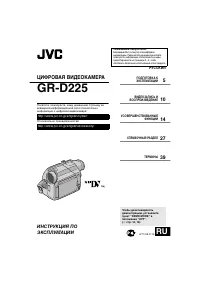 JVC GR-D225
Manual
JVC GR-D225
Manual
 JVC GR-D240
Manual
JVC GR-D240
Manual
 JVC GR-D246
User Manual
JVC GR-D246
User Manual
 JVC GR-D290
Manual
JVC GR-D290
Manual
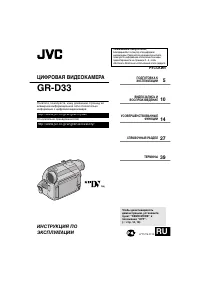 JVC GR-D33
Manual
JVC GR-D33
Manual
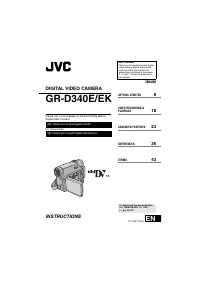 JVC GR-D340EK
User Manual
JVC GR-D340EK
User Manual
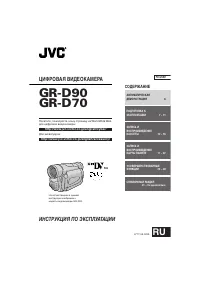 JVC GR-D70
Manual
JVC GR-D70
Manual
 JVC GR-D90
Manual
JVC GR-D90
Manual
 JVC GR-DF420
Manual
JVC GR-DF420
Manual
 JVC GR-DF470
Manual
JVC GR-DF470
Manual
 JVC GR-DF570
Manual
JVC GR-DF570
Manual