Page 2 - EN; Using This Instruction Manual; SAFETY PRECAUTIONS; HAZARD, DO NOT EXPOSE; CAUTION
2 EN This camcorder is designed to be used with NTSC-type color television signals. It cannot be used forplayback with a television of a different standard.However, live recording and LCD monitor/viewfinder playback are possible anywhere. Use theBN-V408U/V416U/V428U battery packs and, torecharge the...
Page 3 - Wall or Ceiling Mounting; ANTENNA INSTALLATION; Outdoor Antenna Grounding; IMPORTANT PRODUCT; INSTALLATION; Grounding or Polarization
EN 3 5. Ventilation Slots and openings in the cabinet are provided forventilation. To ensure reliable operation of the productand to protect it from overheating, these openings mustnot be blocked or covered.• Do not block the openings by placing the product on a bed, sofa, rug or other similar surfa...
Page 4 - USE; To avoid personal injury:; Combination; SERVICING; Damage Requiring Service
4 EN USE 1. Accessories To avoid personal injury: • Do not place this product on an unstable cart, stand, tripod, bracket or table. It may fall, causingserious injury to a child or adult, and seriousdamage to the product. • Use only with a cart, stand, tripod, bracket, or table recommended by the ma...
Page 5 - ” can be used with this unit.
EN 5 SAFETY PRECAUTIONS Do not point the lens or the viewfinder directly into the sun. This can cause eye injuries, as well aslead to the malfunctioning of internal circuitry. There is also a risk of fire or electric shock. CAUTION! The following notes concern possible physical damage to the camcord...
Page 6 - PROVIDED ACCESSORIES
6 EN • AC Power Adapter/Charger AA-V40U • DC Cord • AAA (R03) Battery x 2 (for remote control unit) • Audio/Video Cable (ø3.5 mini-plug toRCA plug) • Editing Cable PROVIDED ACCESSORIES • Shoulder Strap • Battery Pack BN-V408U • Lens Cap • Remote Control Unit RM-V715U
Page 7 - AUTOMATIC DEMONSTRATION; Available when the Power Switch is set to “; How To Attach The Lens Cap
EN 7 AUTOMATIC DEMONSTRATION Automatic Demonstration takes place when “DEMO. MODE”is set to “ON” (factory-preset). 䡲 Available when the Power Switch is set to “ ” or “ ” and no cassette is in the camcorder. 䡲 Performing any operation during the demonstration stopsthe demonstration temporarily. If no...
Page 8 - GETTING STARTED; Power; CHARGING THE BATTERY PACK; About Batteries
8 EN GETTING STARTED Power This camcorder’s 2-way power supply system lets youchoose the most appropriate source of power. Do not useprovided power supply units with other equipment. CHARGING THE BATTERY PACK 1 Make sure you unplug the camcorder’s DC cord fromthe AC Power Adapter/Charger. Plug the A...
Page 9 - USING THE BATTERY PACK; BATTERY RELEASE; Approximate recording time; USING AC POWER
EN 9 1 3 2 To DC Inputconnector To DC OUTconnector To AC outlet AC PowerAdapter/Charger DC cord ATTENTION: Before detaching the power source,make sure that the camcorder’s poweris turned off. Failure to do so can resultin a camcorder malfunction. USING THE BATTERY PACK 1 Tilt the viewfinder upward 1...
Page 10 - Grip Adjustment; Shoulder Strap Attachment
10 EN 3 1 2 PAUS E Grip Adjustment 1 Separate the Velcro strip. 2 Pass your right hand through the loop and graspthe grip. 3 Adjust so that your thumb and fingers can easilyoperate the Recording Start/Stop Button andPower Zoom Lever. Refasten the Velcro strip. Viewfinder Adjustment 1 1 Set the Power...
Page 12 - Loading/Unloading A Cassette
12 EN Loading/Unloading A Cassette The camcorder needs to be powered up to load or eject acassette. 1 Slide and hold OPEN/EJECT in the direction of the arrow then pull the cassette holder cover open until itlocks. The cassette holder opens automatically.• Do not touch internal components. 2 Insert o...
Page 13 - Recording Mode Setting
EN 13 P LA Y O FF 1 R SZ G T I D R E OOAAD E E C UO I L M C T N M N L NO AU M D YU . M R O U MM EN D M P BO R E O ED A D RE E MEN S L U P P Recording Mode Setting Set the tape recording mode depending on your preference. 1 Set the Power Switch to “ ” while pressing down the Lock Button located on th...
Page 14 - RECORDING; Basic Recording; Shooting while using the LCD monitor:
14 EN 2 5 90 min 89 min 3 min 2 min 1 min 0 min min 180 ° 90 ° BR I GH T – + P L A Y O FF RECORDING Basic Recording Power lamp Tally lamp(lights while recordingis in progress) Lock Button RecordingStart/Stop Button Tape remainingtime indicator(Approximate) (Now calculating) (Blinking) (Blinking) (Bl...
Page 15 - JOURNALISTIC SHOOTING; To turn the tally lamp off during recording,
EN 15 Self-Recording JOURNALISTIC SHOOTING In some situations, different shooting angles may providemore dramatic results. Hold the camcorder in the desiredposition and tilt the LCD monitor in the most convenientdirection. It can rotate 270° (90° downward, 180°upward). SELF-RECORDING You can shoot y...
Page 16 - Snapshot; SNAPSHOT MODE SELECTION; MODE; SNAPSHOT RECORDING; Motor Drive Mode; SNAPSHOT
16 EN P L A Y O FF F U L L RECORDING Basic Recording (cont.) Snapshot This feature lets you record still images that look likephotographs onto a tape. SNAPSHOT MODE SELECTION 1 Set the Power Switch to “ ” or “ ” while pressing down the Lock Button located on the switch. 2 Choose the appropriate Snap...
Page 18 - Zooming; Zoom In; Zoom Out
18 EN 1 0 xW T 1 xW T 1 0 xW T 20xW T 40xW T RECORDING Basic Recording (cont.) Zoom in (T: Telephoto) Zoom out (W: Wide angle) Power Zoom Lever Zoom display FEATURE: Zooming PURPOSE: To produce the zoom in/out effect, or an instantaneouschange in image magnification. OPERATION: Zoom In Slide the Pow...
Page 19 - NOTE: Recording From The Middle Of A Tape; Time Code; When a blank portion is recorded on a tape
EN 19 NOTE: Recording From The Middle Of A Tape Time Code During recording, a time code is recorded on the tape. This code is to confirm the location of the recordedscene on the tape during playback.If recording starts from a blank portion, the time code begins counting from “00:00:00”(minute:second...
Page 20 - DANGER; OFF
20 EN RECORDING Basic Recording (cont.) DANGER 䡲 The video light can becomeextremely hot. Do not touchit either while in operation orsoon after turning it off,otherwise serious injury mayresult. 䡲 Do not place the camcorder into thecarrying case immediately after using thevideo light, since it remai...
Page 21 - FOCUS; Advanced Features
EN 21 While focusing on a nearersubject While focusing on a furthersubject FEATURE: Auto Focus PURPOSE: The camcorder’s Full Range AF system offers continuous shooting ability from close-up (as close as approx.5 cm (2") to the subject) to infinity.However, correct focus may not be obtainable in ...
Page 22 - Using Menus For Detailed Adjustment; If you have selected “
22 EN 1 D T WW C R I E II A E S L DN M M T EED AU R NR MM CE UN AOUS A CD TE L RE T O ME O O N N F U F P LA Y O FF END 1 OD T C RNA I L DE T M O I TSEE C SUC / K PRR T C L NE I O A A E M D D Y NEE M D E E P N C M U 2 5 5 ’ : 03 00 J. 4 F AD WW RO FFF E II A F AAA R PPNFDDD / EED EEE W –– O RRR I SS ...
Page 23 - Menu Screen Explanations; CONTINUED ON NEXT PAGE
EN 23 Menu Screen Explanations : Factory-preset Refer to “Fade/Wipe Effects” ( 墌 pg. 26, 27). Refer to “Program AE With Special Effects” ( 墌 pg. 28). Refer to “Exposure Control” and “Iris Lock” ( 墌 pg. 29). Refer to “White Balance Adjustment” and “Manual White Balance Operation”( 墌 pg. 30). Allows y...
Page 24 - CAMERA MENU
24 EN : Factory-preset Menu Screen Explanations (cont.) RECORDING Advanced Features (cont.) DIS TELEMACRO Demonstrates certain functions such as Program AE with special effects, etc.,and can be used to confirm how these functions operate. When “DEMO.MODE” is set to “ON” and the Menu Screen is closed...
Page 26 - and
26 EN RECORDING Advanced Features (cont.) Fade/Wipe Effects These effects let you make pro-style scenetransitions. Use them to spice up the transitionfrom one scene to the next. You can also varytransitions from scene to scene. IMPORTANT: Some Fade/Wipe Effects cannot be used withcertain modes of Pr...
Page 27 - Fader And Wipe Menu; Menu
EN 27 Fader And Wipe Menu Menu Effect Fade in or out with a white screen. Fade in or out with a black screen. Fade in or out with a full-screen mosaic effect. Fade in to a color screen from a black and white screen, or fade outfrom color to black and white. Wipe in on a black screen from the upper r...
Page 28 - Program AE With Special Effects
28 EN 1/601/1001/250 1/601/1001/250 4 P . A SSV SSS E LL I O HHH / OOD F UUU E WW E F TTT F O TTT F 1 EEE E 40E RRR C xx C T HO RECORDING Advanced Features (cont.) Program AE With Special Effects 1 Set the Power Switch to “ ” while pressing down the Lock Button located on the switch. 2 Press the MEN...
Page 29 - Exposure Control; Iris Lock
EN 29 Exposure Control Manual exposure adjustment is recommended in thefollowing situations:• When shooting using reverse lighting or when thebackground is too bright. • When shooting on a reflective natural backgroundsuch as at the beach or when skiing. • When the background is overly dark or the s...
Page 30 - White Balance Adjustment; AUTO; Manual White Balance Operation
30 EN White Balance Adjustment A term that refers to the correctness of colorreproduction under various lighting. If the whitebalance is correct, all other colors will be accuratelyreproduced.The white balance is usually adjusted automatically.However, more advanced camcorder operatorscontrol this f...
Page 31 - PLAYBACK; Basic Playback; Playback Zoom
EN 31 PLAYBACK Basic Playback PL AY OFF Power Switch Rewind Button ( 2 ) Fast-Forward Button( 3 ) Play/Pause Button( 4 / 6 ) Stop Button ( 5 ) 1 Load a tape ( 墌 pg. 12). 2 Set the Power Switch to “ ” while pressing down the Lock Button located on the switch. To startplayback, press 4 / 6 . • To stop...
Page 32 - VIDEO
32 EN PLAYBACK Advanced Features PL AY OFF 1 S 1S R R O 2YE E U BNC VT N I C I U D T H M DR RO EN M MOD O O O E D D M E E ENU S SS T OO E UU R NN E DD O L R 1 OD T RNA I DE T M I TSE E SUC / PRRT C L NE I O A E M D Y NE E MEN O O U N F F Using Menus For Detailed Adjustment The following procedure ap...
Page 33 - Playback Sound
EN 33 1 2 B I T / SOUND 1 S P 4 DE P C M 2 5 5 ’ : 03 00 T C 1 2 : 3 4 : 2 4 Playback Sound During playback, the camcorder detects the sound mode in which the recording was made, and plays thesound back. Select the type of sound to accompany your playback picture. According to the menu accessexplana...
Page 34 - Basic Connections; TV; A. Connection to a TV or VCR equipped with an S-VIDEO IN and A/V input
34 EN PLAYBACK Basic Connections These are some basic types of connections. When making the connections, refer also to your VCR and TVinstruction manuals. To AV To S Audio/Video cable(provided) Connector cover* White toAUDIO L IN Red toAUDIO R IN To S-VIDEO IN To TV or VCR S-Video cable(optional) TV...
Page 36 - Advanced Connections
36 EN PLAYBACK Advanced Connections Connection To A PersonalComputer This camcorder can transfer still images to a PC with a DVconnector-equipped capture board installed. 1 Make sure the camcorder and PC are turned off. 2 Connect the camcorder to your PC using the DVcable as shown in the illustratio...
Page 38 - DUBBING; Dubbing To A VCR; VCR
38 EN DUBBING Dubbing To A VCR 1 Following the illustration, connect the camcorder andthe VCR. Also refer to pg. 34 and 35. 2 Set the camcorder’s Power Switch to “ ” while pressing down the Lock Button located on the switch,turn on the VCR’s power, and insert the appropriatecassettes in the camcorde...
Page 40 - USING THE REMOTE CONTROL UNIT
40 EN USING THE REMOTE CONTROL UNIT When using the remote control, be sure to point itat the remote sensor. The illustration shows theapproximate transmitted beam effective area forindoor use.The transmitted beam may not be effective ormay cause incorrect operation outdoors or whenthe remote sensor ...
Page 42 - PLAY; STOP
42 EN PLAYSTOP USING THE REMOTE CONTROL UNIT (cont.) FEATURE: Playback Zoom PURPOSE: To magnify the recorded image up to 25X at any timeduring playback. OPERATION: 1) Press PLAY ( 4 ) to find the scene of interest. 2) Press the Zoom Buttons ( T/W ) on the remote control. Make sure the remote control...
Page 43 - VCR CODE LIST; MBR SET; MBR SET; VCR CTL
EN 43 VCR CODE LIST VCR BRANDNAME GE 1 1 9 2 9 ` 9 4 MAGNAVOX 9 5 1 1 7 1 7 6 MITSUBISHI 6 7 6 8 NEC 3 7 3 8 PHILIPS 1 9 9 5 1 1 9 4 9 1 9 6 1 2 JVC 9 1 9 6 9 3 HITACHI 6 6 6 3 ABC BUTTONS (A) (B) VCR BRANDNAME PHILIPS 3 3 7 2 SANYO 3 6 3 5 SHARP 1 5 1 ` SONY 6 5 6 ` 3 9 3 1 TOSHIBA 6 9 6 1 ZENITH 1...
Page 44 - MAKE CONNECTIONS; ATTENTION FOR EDITING CABLE
44 EN USING THE REMOTE CONTROL UNIT (cont.) MAKE CONNECTIONS Also refer to pg. 34 and 35. 1 A JVC VCR equipped with a remote pauseconnector . . . ... connect the editing cable to the Remote PAUSE connector. A JVC VCR not equipped with a remotepause connector but equipped with an R.A.EDIT connector ....
Page 45 - SELECT SCENES
EN 45 1 2345678 – – TT I O M T – EA I – L N : C – O – D ~~~~~~~~ E O –0 U –0 T :: –0 –0 MODE PLAY CANCEL REW FF ON/OFF IN/OUT SELECT SCENES 4 Point the remote control at the camcorder’s remotesensor. Press PLAY ( 4 ) and then press ON/OFF on the remote control.The Random Assemble Editing Menu appear...
Page 46 - AUTOMATIC EDITING TO VCR; PAUSE
46 EN USING THE REMOTE CONTROL UNIT (cont.) 12345 6 78 –––––– –––––– TT I O M T 00001– EA I 07395– L N :::::: C 21335– O 58305– D ~~~~~~~~ E O 00011 1 U 28536 69 T ::::: :: 03512 33 51350 09 M ––––– O ––––– DE ––––– ––––– PAUSE VCR REC STBY ON/OFF AUTOMATIC EDITING TO VCR 11 Rewind the tape in the c...
Page 47 - For More Accurate Editing; DIAGNOSING VCR/CAMCORDER TIMING
EN 47 1 2345678 – – TT I O M T – EA I – L N : C – O – D ~~~~~~~~ E O –0 U –0 T :: –0 –0 MODE ON/OFF For More Accurate Editing Some VCRs make the transition from Record-Pause toRecord mode faster than others. Even if you begin editingfor the camcorder and the VCR at exactly the same time,you may lose...
Page 48 - BRIGHT
48 EN USING THE REMOTE CONTROL UNIT (cont.) 1 S1 S R RO 2 Y E EUB N C VTN I C I UD T H M DR R O EN MM O D O OO E DD M EE ENU + 1 . 0 ON/OFF ADJUSTMENT OF VCR/CAMCORDERTIMING 4 Point the remote control at the camcorder’s remotesensor and press ON/OFF to make the Random Assemble Editing menu disappear...
Page 49 - Audio Dubbing
EN 49 6e A.DUB PLAY PAUSE STOP Audio Dubbing The audio track can be customized only when recorded inthe 12-bit mode ( 墌 pg. 23). NOTES: ● Audio Dubbing is not possible on a tape recorded in16-bit audio, on a tape recorded in the LP mode or on ablank portion of a tape. ● To perform Audio Dubbing whil...
Page 50 - Insert Editing
50 EN PL AY OFF T C 1 2 : 3 4 6w PAUSE REW STOP INSERT START/STOP PLAY Insert Editing You can record a new scene into a previously recordedtape, replacing a section of the original recording withminimal picture distortion at the in and outpoints. Theoriginal audio remains unchanged. NOTES: ● Before ...
Page 51 - TROUBLESHOOTING
EN 51 SYMPTOM POSSIBLE CAUSES CORRECTIVE ACTION TROUBLESHOOTING 1. No power is supplied. 2. “SET DATE/TIME!”appears. 3. Recording cannot beperformed. 4. There is no picture. 5. Some functions are notavailable using the MENU/ BRIGHT wheel. 6. The focus does not adjustautomatically. 7. The cassette wi...
Page 52 - SYMPTOM; BACKLIGHT
52 EN TROUBLESHOOTING (cont.) SYMPTOM POSSIBLE CAUSES CORRECTIVE ACTION 9. The color of Snapshotlooks strange. 10. The image taken usingSnapshot is too dark. 11. Digital Zoom does notwork. 12. Program AE with specialeffects and Fade/WipeEffects do not work. 13. The Black & White Faderdoes not wo...
Page 57 - LCD Monitor/Viewfinder Indications During Recording; H T –; INDEX; Indications
EN 57 LCD Monitor/Viewfinder Indications During Recording F . 2 T A C U P T H 2 O 4 O B 3 0 T R : x O I 2 W G 5 H T – T DE P C M S + P 2 5 5 3 R 4 ’ : 5 E 46 03 C 4w 00 w * q * ^ $ ( & % ) ! # 1 2 3 * 4 * 5 7 0 8 6 * 9 @ * * Setting “ON SCREEN” to “SIMPLE” in the Menu Screen removes indications ...
Page 58 - LCD Monitor/Viewfinder Indications During Playback; I T; Warning Indications
58 EN LCD Monitor/Viewfinder Indications During Playback 1 L 2 T B C I T V 1 / O 0 S L : O U 0 U M 6 N E : D 2 1 0 DE P C M L P 2 5 5 ’ : 4 03 00 5 2 4 6 1 3 1 Displays the sound mode. ( 墌 pg. 32, 33) 2 Displays the tape speed. ( 墌 pg. 13) 3 Appears while a tape is running. 4 : Playback 3 : Fast-For...
Page 59 - TAPE END
EN 59 Indications Function Appears if a tape is not loaded when the Recording Start/Stop Button orSNAPSHOT Button is pressed while the Power Switch is set to “ ” or “ ”. Appears when the tape ends during recording or playback. ( 墌 pg. 15) Appears if a tape in another format is loaded. ● Appears when...
Page 60 - Controls, Connectors And Indicators
60 EN INDEX Controls, Connectors And Indicators PL AY OF F 1 w u y r t ) ( q 3 4 5 6 7 8 o e $ % # 2 E Q R W p ^ & * ! @ 9 0 i
Page 62 - USER MAINTENANCE; Cleaning The Camcorder; PUSH OPEN; After Use
62 EN 2 1 USER MAINTENANCE Cassette holdercover OPEN/EJECTSwitch PUSH HERE Cassette holder Cover Cleaning The Camcorder 1 To clean the exterior, wipe gently with a softcloth.Put the cloth in diluted mild soap and wring itwell to wipe off heavy dirt. Then wipe againwith a dry cloth. 2 Press PUSH OPEN...
Page 63 - Video Light; General Batter y Precautions; CAUTIONS; Battery Packs
EN 63 Video Light DANGER 䡲 The video light can become extremelyhot. Do not touch it either while inoperation or soon after turning it off,otherwise serious injury may result. 䡲 Do not place the camcorder into the carrying caseimmediately after using the video light, since itremains extremely hot for...
Page 64 - Cassettes; Be aware of the following phenomena for LCD; Main Unit; Dirty heads can cause the following problems:
64 EN CAUTIONS (cont.) Cassettes To properly use and store your cassettes, be sure toread the following cautions: 1. During use . . . .... make sure the cassette bears the Mini DV mark..... be aware that recording onto prerecorded tapes automatically erases the previouslyrecorded video and audio sig...
Page 65 - Serious malfunctioning
EN 65 This device complies with Part 15 of FCC Rules.Operation is subject to the following twoconditions:(1) This device may not cause harmfulinterference, and (2) this device must acceptany interference received, including interfer-ence that may cause undesired operation.Change or modifications not...
Page 66 - TERMS
66 EN TERMS F Fade-In/Out ........................................ 墌 pg. 26, 27 Fast-Forward The Tape .............................. 墌 pg. 31 Frame-By-Frame Playback ........................ 墌 pg. 31 G Gain Up ................................................... 墌 pg. 23 Grip Adjustment ................
Page 68 - SPECIFICATIONS; Camcorder; For General; For Digital Video Camera
68 EN SPECIFICATIONS Camcorder For General Power supply : DC 6.3 V (Using AC Power Adapter/Charger) DC 7.2 V (Using battery pack) Power consumption LCD monitor off, viewfinder on : Approx. 4.3 W LCD monitor on, viewfinder off : Approx. 5.3 W Video light : Approx. 3.5 W Dimensions (W x H x D) : 80 mm...
Page 69 - For Connectors
EN 69 For Connectors S : Y : 1 V ( p-p ) , 75 Ω , analog output C : 0.29 V ( p-p ) , 75 Ω , analog output AV Video output : 1 V ( p-p ) , 75 Ω , analog Audio output : 300 mV (rms), 1 k Ω , analog, stereo DV Input/output : 4-pin, IEEE 1394 compliant JLIP/EDIT : ø3.5 mm, 4-pole AC Power Adapter/Charge...
Page 70 - MEMO


 JVC GC-PX100
Manual
JVC GC-PX100
Manual
 JVC GR-D20
Manual
JVC GR-D20
Manual
 JVC GR-D200
User Manual
JVC GR-D200
User Manual
 JVC GR-D220
Manual
JVC GR-D220
Manual
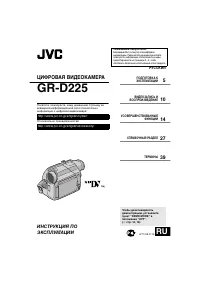 JVC GR-D225
Manual
JVC GR-D225
Manual
 JVC GR-D240
Manual
JVC GR-D240
Manual
 JVC GR-D246
User Manual
JVC GR-D246
User Manual
 JVC GR-D290
Manual
JVC GR-D290
Manual
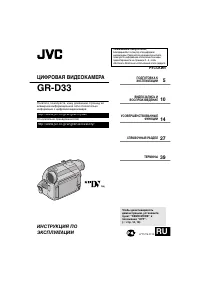 JVC GR-D33
Manual
JVC GR-D33
Manual
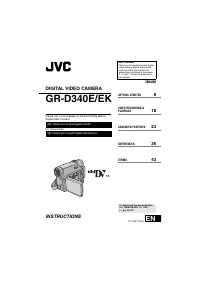 JVC GR-D340EK
User Manual
JVC GR-D340EK
User Manual
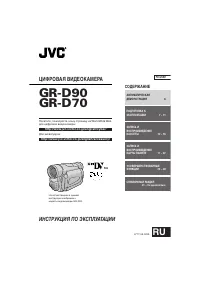 JVC GR-D70
Manual
JVC GR-D70
Manual
 JVC GR-D90
Manual
JVC GR-D90
Manual
 JVC GR-DF420
Manual
JVC GR-DF420
Manual
 JVC GR-DF470
Manual
JVC GR-DF470
Manual
 JVC GR-DF570
Manual
JVC GR-DF570
Manual