Page 2 - CONTENTS; None; ADVANCED FEATURES
EN 2 CONTENTS None ADVANCED FEATURES ............................... 20 – 22 Protecting Files .................................................. 20 Deleting Files ..................................................... 20 Dubbing Still Images Recorded On A Tape To A Memory Card ..........................
Page 3 - pgs. 3 and 4) to ensure safe use of this; SAFETY PRECAUTIONS; The apparatus shall not be exposed to dripping or splashing.; CAUTION; Caution on Replaceable lithium battery; Dispose of used battery promptly.
EN 3 NOTES: ● The rating plate (serial number plate) and safetycaution are on the bottom and/or the back of the mainunit. ● The rating information and safety caution of the ACAdapter are on its upper and lower sides. WARNING:TO REDUCE THE RISK OF FIREOR ELECTRIC SHOCK, DO NOTEXPOSE THIS APPARATUS TO...
Page 4 - IMPORTANT PRODUCT SAFETY INSTRUCTIONS
EN 4 (10) Use only with the cart, stand,tripod, bracket, or tablespecified by the manufacturer,or sold with the apparatus.When a cart is used, usecaution when moving the cart/apparatus combination toavoid injury from tip-over. (11) Unplug this apparatus during lightning storms orwhen unused for long...
Page 5 - Shoulder Strap; or; PROVIDED ACCESSORIES; Slot; Battery Pack BN-V408U; Core Filter; HOW TO ATTACH THE LENS CAP; Make sure the arrow (; Arrow
EN 5 2 3 4 1 1 NOTE: In order to maintain optimum performance of the camcorder, provided cables may be equipped with one or more corefilter. If a cable has only one core filter, the end that is closest to the filter should be connected to the camcorder. Audio/Video Cable(ø3.5 mini-plug toRCA plug) S...
Page 6 - AUTOMATIC DEMONSTRATION; Sub Menu; HOW TO ATTACH THE CORE FILTER; Take care not to damage the cable.
EN 6 Automatic Demonstration takes place when“DEMO MODE” is set to “ON” (factory-preset). 䡲 Automatic Demonstration starts when there is no operation forabout 3 minutes after the Power Switch y is set to “ ” or “ ” and no cassette is in the camcorder. 䡲 Performing any operation during the demonstrat...
Page 7 - Power; To Detach The Battery Pack:; USING THE BATTERY PACK; Approximate recording time; Charging times are for a fully discharged battery pack.; USING AC POWER; GETTING STARTED; Battery pack; ATTENTION; During charging, the camcorder cannot be operated.
EN 7 y r # Q Battery pack BN-V408U BN-V416U (optional) BN-V428U (optional) Charging time approx. 1 hr. 30 min. approx. 3 hrs. approx. 5 hrs. Power CHARGING THE BATTERY PACK 1 With the arrow on the battery pack pointing upward, push the battery pack slightly against the battery packmount # , then sli...
Page 8 - Lithium-ion is vulnerable in colder temperatures.; About Batteries; The Benefits Of Lithium-Ion Batteries; ” or “
EN 8 Grip Adjustment 1 Separate the Velcro strip. 2 Pass your right hand through the loop and grasp the grip. 3 Adjust your thumb and fingers through the grip, to easily operate the Recording Start/Stop button w and Power Switch y and Power Zoom Lever & . Be sure to fasten the Velcro strip to yo...
Page 9 - Loading/Unloading A Cassette; To Protect Valuable Recordings:
EN 9 W Shoulder Strap Attachment 1 Thread the strap through the eyelet e , then fold it back and thread it through the buckle. Repeat theprocedure to attach the other end of the strap to theother eyelet e located under the Grip Strap. Confirm the strap is not twisted. Tripod Mounting CAUTION When at...
Page 10 - wheel; Recording Mode Setting
EN 10 ● It takes a few seconds for the cassette holder to open. Donot apply force. ● There may be a delay after you open the cassette holdercover until the cassette holder opens. Do not use force. ● If you wait a few seconds and the cassette holder doesnot open, close the cassette holder cover and t...
Page 11 - Loading A Memory Card; MEMORY CARD; Picture Quality/Image Size Setting; Memory card; Display
EN 11 – RE T URN – – DSC T Y QUA L I REC S E L EC T F I NE 0 2 1 X7 4 8 6 I MAGE S I Z E y r % t Loading A Memory Card (GR-D90/D70 only) The provided memory card (GR-D90 only) is alreadyinserted in the camcorder when you receive thecamcorder. 1 Make sure the camcorder’s power is off. 2 Open the LCD ...
Page 12 - During shooting; Basic Recording; Shooting while using the LCD monitor:; To Adjust The Brightness Of The Display; VOLUME; To turn the tally lamp; When the Recording Start/Stop button
EN 12 OFF (CHARGE) PLAY w % t y r 4 180 ° 90 ° u 2 0 5m h 1 h 3 0 m 1 h 2 9 m 0 h 0 3 m 1 h 3 0 m 0 h 0 2 m (Blinking) 0 h 0 1 m (Blinking) 0 h 0 0 m (Blinking) ( ) Now calculating During shooting Basic Recording Perform the procedures listed below before continuing. ● Power ( 墌 pg. 7) ● Grip Adjust...
Page 13 - Journalistic Shooting; Zoom In; Power-Linked Operation
EN 13 TAPE RECORDING Power Switch Position : Allows you to set various recording functions using theMenus. If you want more creative capabilities than FullAuto recording, try this mode. (Full Auto): Allows you to record using NO special effects or manualadjustments. Suitable for standard recording. ...
Page 14 - TAPE RECORDING; Time Code; RECORDING FROM THE MIDDLE OF A TAPE; The time code cannot be reset.; Normal Playback; To Control The Speaker Volume:; TAPE PLAYBACK
EN 14 TAPE RECORDING Time Code During recording, a time code is recorded on the tape.This code is to confirm the location of the recordedscene on the tape during playback.If recording starts from a blank portion, the time codebegins counting from “00:00:00” (minute:second:frame).If recording starts ...
Page 15 - Blank Search; BLANK SEARCH; Speaker
EN 15 65 78 % & 4 y TAPE PLAYBACK Blank Search Helps you find where you should start recording in themiddle of a tape to avoid time code interruption( 墌 pg. 14). 1 Load a tape ( 墌 pg. 9). 2 Set the VIDEO/DSC Switch 4 to “VIDEO” (GR-D90/ D70 only), then set the Power Switch y to “PLAY” while pres...
Page 16 - Connections; DISPLAY
EN 16 ToS-VIDEO ) To AV ( Audio/Videocable(provided) White toAUDIO L IN ** Red toAUDIO R IN ** To S-VIDEO IN S-Video cable(optional) Connectorcover * Yellow toVIDEO IN*** * When connecting the cable, open this cover. ** The Audio cable is not required for watching still images only. *** Connect when...
Page 17 - SNAPSHOT
EN 17 5 1 1024 ^ y t 4 MEMORY CARD RECORDING (GR-D90 and GR-D70 only) Basic Shooting (Snapshot) You can use your camcorder as a digital still camera fortaking snapshots. Perform the procedures listed below before continuing. ● Power ( 墌 pg. 7) ● Grip Adjustment ( 墌 pg. 8) ● Viewfinder Adjustment ( 墌...
Page 18 - Pressing; INFO; gives you details on the displayed file
EN 18 Normal Playback 1 Load a memory card ( 墌 pg. 11). 2 Set the VIDEO/DSC Switch 4 to “DSC”, then set the Power Switch y to “PLAY” while pressing down the Lock Button t . • A stored image is displayed. 3 Press 3 8 to display the next image, or press 2 6 to display the previous image. To Magnify Th...
Page 19 - MEMORY CARD PLAYBACK; Viewing File Information; Removing On-Screen Display; Auto Playback; INDEX; Info Screen
EN 19 MEMORY CARD PLAYBACK (GR-D90 and GR-D70 only) Viewing File Information You can get the relevant file information by pressing the INFO button 0 during normal playback or Index playback. FOLDER : Folder name ( 墌 pg. 22) FILE : File name ( 墌 pg. 22) DATE : Date the file was made SIZE : Image size...
Page 20 - Protecting Files; If the “; TO REMOVE PROTECTION; Deleting Files; “Protecting Files”) cannot be deleted
EN 20 MENU D I S P L AY END BR I GH T PROT EC T DE L E T E DPOF NO . RE S E T FORMA T Protecting Files The Protect mode helps prevent the accidental erasureof files. 1 Load a memory card ( 墌 pg. 11). 2 Set the VIDEO/DSC Switch 4 to “DSC”, then set the Power Switch y to “PLAY” while pressing down the...
Page 21 - Setting Print Information; Continued on next page.
EN 21 Dubbing Still Images Recorded On A Tape To A Memory Card Still images can be dubbed from a tape to a memorycard. 1 Load a memory card ( 墌 pg. 11) and cassette ( 墌 pg. 9). 2 Set the VIDEO/DSC Switch 4 to “VIDEO”, then set the Power Switch y to “PLAY” while pressing down the Lock Button t . 3 Pr...
Page 22 - Making A New Folder; Folder and File names
EN 22 5 Select the number of prints by rotating the MENU/ VOLUME wheel % and press it. Repeat steps 3 through 5 for the desired number of prints. • The number of prints can be set up to 15.• To correct the number of prints, select the image again and change the number. 6 Rotate the MENU/VOLUME wheel...
Page 23 - Program AE With Special Effects; IMPORTANT
EN 23 Night-Alive Makes dark subjects or areas even brighter than theywould be under good natural lighting. Although therecorded image is not grainy, it may look as if it isstrobing due to the slow shutter speed. 1 Set the Power Switch y to “ ” while pressing down the Lock Button t located on the sw...
Page 25 - FOR RECORDING; SNAPSHOT MODE SELECTION; Auto Focus
EN 25 FOR RECORDING Snapshot (For Tape Recording) This feature lets you record still images that look likephotographs onto a tape. SNAPSHOT MODE SELECTION 1 Set the VIDEO/DSC Switch 4 to “VIDEO” (GR-D90/ D70 only), then set the Power Switch y to “ ” while pressing down the Lock Button t located on t...
Page 26 - Manual Focus; Exposure Control; Focus detection zone
EN 26 FOR RECORDING Manual Focus To obtain correct focus. 1 If you are using the viewfinder, you should already have made the necessary viewfinder adjustments( 墌 pg. 8). 2 Set the Power Switch y to “ ” while pressing down the Lock Button t located on the switch, then press FOCUS * ( 墌 pgs. 46 and 47...
Page 27 - In step; White Balance Adjustment
EN 27 Iris Lock Use this function in the following situations: • When shooting a moving subject.• When the distance to the subject changes (so its size in the LCD monitor or the viewfinder changes), suchas when the subject is backing away. • When shooting on a reflective natural background such as a...
Page 29 - MANUAL; • When shooting scenes with low-contrast backgrounds.; SYSTEM
EN 29 USING MENUS FOR DETAILED ADJUSTMENT GAIN UP OFF: Allows you to shoot dark scenes with no picture brightness adjustment. [AGC]: The overall appearance may be grainy, but the image is bright. AUTO : The shutter speed is automatically adjusted (1/30 — 1/200 sec.). Shooting a subject inlow or poor...
Page 30 - CAMERA DISPLAY
EN 30 USING MENUS FOR DETAILED ADJUSTMENT BEEP OFF: Even though not heard while shooting, shutter sound is recorded on the tape. BEEP: The beep sounds when the power is turned on or off, and at the beginning and end of recording. Alsoto activate the shutter sound effect ( 墌 pg. 17, 25). [MELODY]: In...
Page 31 - USING MENUS FOR DETAILED ADJUSTMENT; DSC; QUALITY , IMAGE SIZE; VIDEO; SOUND MODE; For Playback Menu
EN 31 USING MENUS FOR DETAILED ADJUSTMENT CLOCK ADJ. Allows you to set the current date and time ( 墌 pg. 10). DSC (GR-D90/D70 only) QUALITY , IMAGE SIZE Refer to “Picture Quality/Image Size Setting”( 墌 pg. 11). REC SELECT [ ]: When Snapshot recording is performed with the VIDEO/DSC Switch 4 set to “...
Page 32 - Frames; VIDEO DISPLAY; ON SCREEN; Playback Sound; AUDIO
EN 32 1 2 1 2 : 3 4 : 2 4 0 3 0 ’ 5 23 : 5 b i t / SOU M P C E D ND 1 4 6 L USING MENUS FOR DETAILED ADJUSTMENT ON SCREEN setting:For playback sound,tape speed and taperunning. DATE/TIME setting:For date/time. Display MinutesSeconds Frames * * 30 frames = 1 second TIME CODE setting:For time code. VI...
Page 33 - DUBBING; Dubbing To Or From A VCR; It is also possible to dub from another camcorder.
EN 33 7 4 DUBBING Dubbing To Or From A VCR To Use This Camcorder As A Player 1 Following the illustration, connect the camcorder and the VCR. Also refer to pg. 16. 2 Set the VIDEO/DSC Switch 4 to “VIDEO” (GR-D90/ D70 only), then set the camcorder’s Power Switch y to “PLAY” while pressing down the Lo...
Page 34 - Dubbing To Or From A Video Unit; occurs, turn off the power and make connections again.; To Use This Camcorder As A Recorder; To DV
EN 34 DUBBING Dubbing To Or From A Video Unit Equipped With A DV Connector (Digital Dubbing) It is also possible to copy recorded scenes from thiscamcorder onto another video unit equipped with a DVconnector. Since a digital signal is sent, there is little ifany image or sound deterioration. To Use ...
Page 35 - After; SLOW; is pressed and held, the still; to; SLOW; Playback Special Effects; Press T
EN 35 USING THE REMOTE CONTROL UNIT (GR-D90 and GR-D70 only) Slow-Motion Playback To allow slow-speed search in either direction duringtape playback. 1 To change from normal to Slow-Motion Playback, press SLOW ( 9 ) U or ( 0 ) g more than approx. 2 seconds. After approx. 5 minutes (approx. 20 second...
Page 36 - Program AE with special effects (
EN 36 Audio Dubbing The audio track can be customized only when recordedin the 12-bit mode ( 墌 pg. 28). NOTES: ● Audio Dubbing is not possible on a tape recorded in16-bit audio, on a tape recorded in the LP mode or on ablank portion of a tape. ● To perform Audio Dubbing while watching on thetelevisi...
Page 37 - SYSTEM CONNECTIONS; Connection To A Personal Computer; Refer to the instruction manuals of the PC and Software.; OR
EN 37 SYSTEM CONNECTIONS “ACCESSING FILES” appears on the LCD monitorwhile the PC is accessing data in the camcorder or thecamcorder is transferring a file to the PC. NEVER disconnect the USB cable while“ACCESSING FILES” is displayed on the LCDmonitor since this can result in product damage. OFF (CH...
Page 39 - TROUBLESHOOTING; White Balance cannot be activated.
EN 39 TROUBLESHOOTING The Black & White Fader does not work. • The Sepia or Monotone mode is activated. ¥ Turn off Sepia and Monotone ( 墌 pg. 23). Even when Slow Shutter is not selected, theimage looks like it is activated. • When shooting in the dark, the unit becomes highly sensitive to light ...
Page 41 - Temperature Range Specifications; The lower the temperature, the longer recharging takes.; Cassettes; tape to fingerprints and dust.; Memory Cards; modify or disassemble.; Terminals; AC Adapter
EN 41 CAUTIONS NOTES: ● It is normal for the battery pack to be warm aftercharging, or after use. Temperature Range Specifications Charging ................ 10°C to 35°C (50°F to 95°F)Operation ............... 0°C to 40°C (32°F to 104°F)Storage .................. –10°C to 30°C (14°F to 86°F) ● Recha...
Page 42 - CAUTIONS; LCD Monitor; Be aware of the following phenomena for LCD; Main Unit; Dirty heads can cause the following problems:
EN 42 CAUTIONS LCD Monitor 1. To prevent damage to the LCD monitor, DO NOT . . . ... push it strongly or apply any shocks.... place the camcorder with the LCD monitor on the bottom. 2. To prolong service life . . . ... avoid rubbing it with coarse cloth. 3. Be aware of the following phenomena for LC...
Page 43 - For Your Maintenance; RELEASE; ) Cleaning The Camcorder; Mold may form if the lens is left dirty.; Serious malfunctioning; How to handle a CD-ROM
EN 43 CAUTIONS For Your Maintenance 1) After Use 1. Turn off the camcorder. 2. Slide and hold OPEN/EJECT W in the direction of the arrow, then pull the cassette holder coveropen until it locks. The cassette holder opensautomatically. Remove the cassette. 3. Press “PUSH HERE” to close the cassette ho...
Page 45 - analog
EN 45 SPECIFICATIONS Camcorder General Power supply : DC 11.0 V (Using AC Adapter) DC 7.2 V (Using battery pack) Power consumption LCD monitor off, viewfinder on : Approx. 3.4 W LCD monitor on, viewfinder off : Approx. 4.7 W Dimensions(W x H x D) : 76 mm x 94 mm x 143 mm (3" x 3-3/4" x 5-11/...
Page 46 - Controls, Connectors And Indicators; Viewfinder
EN 46 INDEX Controls, Connectors And Indicators OFF (CHARGE) PLAY 9 0 2 3 4 6 w e 5 T W % ^ ( ) & * 2 3 1 4 9 5 6 7 8 w e r t p i $ y u Q # @ ! 0 q W o E R I T O U l h g Y P a f d k ; A s j Viewfinder Speaker LCD monitor Refer to this diagram while reading the instructions. Remote Control (provi...
Page 47 - • Camera Sensor; The connector; * Functions the same as each corresponding button on
EN 47 INDEX 1 • Remote Sensor (GR-D90/D70 only) The transmitted beam’s approximate effectivedistance for indoor use is 5m (16ft).The transmitted beam may not be effective or maycause incorrect operation outdoors or when theremote sensor is directly exposed to sunlight orpowerful lighting. • Camera S...
Page 48 - LCD Monitor/Viewfinder Indications
EN 48 INDEX LCD Monitor/Viewfinder Indications During Tape Recording Only During Memory Card Recording Only (GR-D90/D70 only) During Both Tape And Memory Card Recording During Tape Playback During Memory Card Playback (GR-D90/D70 only) C E R SOUND b i t 2 1 1 5 : 5 5 6 w 1 2 3 4 5 6 0 9 8 7 1h50m ! ...
Page 50 - WARNING INDICATIONS
EN 50 INDEX WARNING INDICATIONS (high) (exhausted) Displays the battery remaining power level. As thebattery power comes close to nil, the battery indicator blinks (battery power warning). When the battery power is exhausted, power turns off automatically. Appears when no tape is loaded. ( 墌 pg. 9) ...
Page 51 - Appears if a file in another format is selected.; CHECK CARD’S WRITE PROTECTION SWITCH; • Appears when you attempt to record on a SD Memory
EN 51 CARD ERROR! Appears when the camcorder does not recognize theloaded memory card. Remove the memory card onceand insert it again. Repeat these procedures until noindication appears. If the indication still appears, thememory card is corrupted. UNSUPPORTED FILE! Appears if a file in another form...
Page 52 - TERMS
EN 52 F Fade-In/Out .................................................... 墌 pg. 24 Fast-Forward The Tape .................................. 墌 pg. 14 Frame-By-Frame Playback ...................... 墌 pg. 14, 35 G Gain Up .......................................................... 墌 pg. 29 Grip Adjustmen...
Page 54 - MEMO
Page 56 - COPYRIGHT© 2002 VICTOR COMPANY OF JAPAN, LTD.; US
COPYRIGHT© 2002 VICTOR COMPANY OF JAPAN, LTD. VICTOR COMPANY OF JAPAN, LIMITED US Printed in Malaysia1102-HO-UN-PJ 1 GR-D90/70/30US EN 38-56_M 02.11.20, 7:46 PM 56


 JVC GC-PX100
Manual
JVC GC-PX100
Manual
 JVC GR-D20
Manual
JVC GR-D20
Manual
 JVC GR-D200
User Manual
JVC GR-D200
User Manual
 JVC GR-D220
Manual
JVC GR-D220
Manual
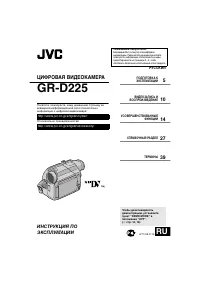 JVC GR-D225
Manual
JVC GR-D225
Manual
 JVC GR-D240
Manual
JVC GR-D240
Manual
 JVC GR-D246
User Manual
JVC GR-D246
User Manual
 JVC GR-D290
Manual
JVC GR-D290
Manual
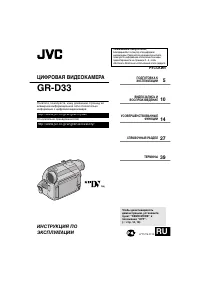 JVC GR-D33
Manual
JVC GR-D33
Manual
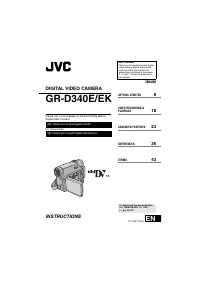 JVC GR-D340EK
User Manual
JVC GR-D340EK
User Manual
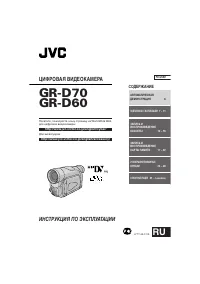 JVC GR-D90
Manual
JVC GR-D90
Manual
 JVC GR-DF420
Manual
JVC GR-DF420
Manual
 JVC GR-DF470
Manual
JVC GR-DF470
Manual
 JVC GR-DF570
Manual
JVC GR-DF570
Manual
 JVC GR-DV1800
Manual
JVC GR-DV1800
Manual