Page 2 - Table of contents
2 Dear customer! Thank you for purchasing our product. For safety, it is strongly recommended to read this manual carefully before connecting,operating and/or adjusting the product and keep the manual for reference in the future. Table of contents TABLE OF CONTENTS .....................................
Page 3 - IMPORTANT SAFEGUARDS
3 IMPORTANT SAFEGUARDS Read carefully through the manual to familiarize yours with this high-quality sound system.Disconnect the vehicle's negative battery terminal while mounting and connecting the unit.When replacing the fuse, be sure to use one with an identical amperage rating. Using a fuse with...
Page 4 - Installation/ Connections; Before installing the unit, please remove two screws on the top.; Remove the old unit from the dashboard.
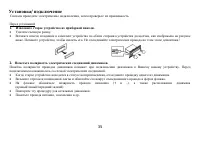
4 Installation/ Connections First complete the electrical connections, and then check them for correctness. If you are not confident working with electrical wiring,removing and reinstalling interior panels, carpeting, dashboards or other components of your vehicle, please call your dealer in orderto...
Page 5 - Installation method A
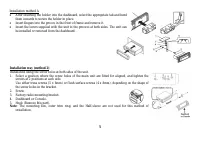
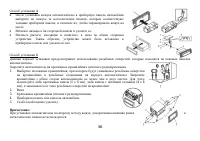
5 Installation method A After inserting the holder into the dashboard, select the appropriate tab and bendthem inwards to secure the holder in place.Insert fingers into the groove in the front of frame and remove it.Insert the levers supplied with the unit to the grooves at both sides. The unit canb...
Page 6 - Insert the left side of the control panel into the main unit (pic.
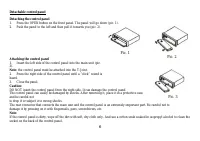
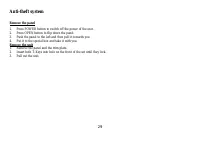
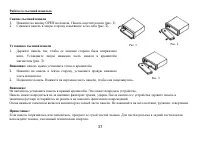
6 Pic. 1 Detachable control panel Detaching the control panel 1. Press the OPEN button on the front panel. The panel will go down (pic. 1). 2. Push the panel to the left and then pull it towards you (pic. 2). Attaching the control panel 1. Insert the left side of the control panel into the main unit...
Page 8 - Using the ISO Connector; Location
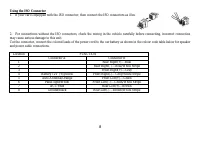
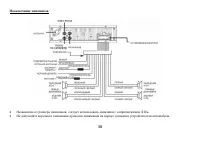
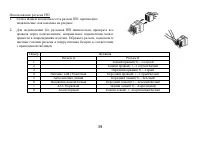
8 Using the ISO Connector 1. If your car is equipped with the ISO connector, then connect the ISO connectors as illustrated. 2. For connections without the ISO connectors, check the wiring in the vehicle carefully before connecting, incorrect connectionmay cause serious damage to this unit.Cut the c...
Page 9 - Accessories
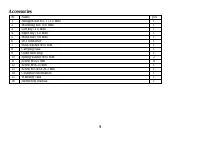
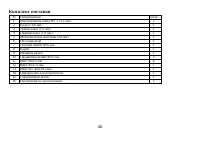
9 Accessories Name pcs 1 Hexagon nut M5 T (3.5 mm) 1 2 Mounting box (0.6 mm) 1 3 Left key (1.0 mm) 1 4 Right key (1.0 mm) 1 5 Metal bar (0.8 mm) 1 6 ISO connector 1 7 Plain washer =5 mm 1 8 Carrying case 1 9 Outer trim ring 1 10 Spring washer =5 mm 2 11 Screw 5X5 mm 4 12 Screw 5X25 mm 1 13 Screw M5 ...
Page 10 - Controls description; Front panel; Press it to remove the front panel.
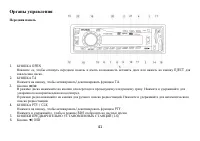
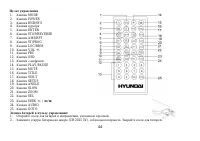
10 Controls description Front panel 1. OPEN BUTTON Press it to remove the front panel. 2. TA BUTTON In RADIO mode press it to active the TA function. 3. / buttons In Disc mode press the buttons shortly to go to previous/next track. Press and hold them to start fast backward/ forward rewind.In Radio ...
Page 12 - Press it to active the AF function.; Back of the front panel; Press the OPEN button to open the panel.
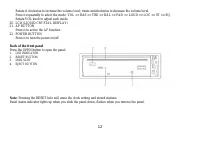
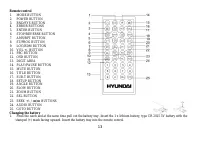
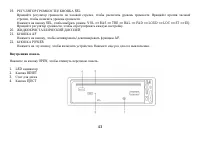
12 Rotate it clockwise to increase the volume level; rotate anticlockwise to decrease the volume level.Press it repeatedly to select the mode: VOL => BAS => TRE => BAL => FAD => LOUD => LOC => ST => EQ.Rotate VOL knob to adjust each mode. 20. LCD (LIQUID CRYSTAL DISPLAY)21. A...
Page 14 - General operations; resume the stored status you set.
14 General operations Reset the unit Operating the unit for the first time or after replacing the car battery, you must reset the unit.Press OPEN button and remove the panel, then press the RESET button to restore the unit to the original factory settings. Power button Press any button to turn the u...
Page 15 - Press the PTY/CLK button on the panel to show the time on the display.
15 Sound settings Press SEL button shortly and repeatedly to select the mode: VOL => BAS => TRE => BAL => FAD => LOUD => LOC => ST =>EQ. Rotate the VOL knob or use VOL +/- buttons to adjust each mode. VOLUME: 00, 02,......, 38, 39BASS/TREBLE: -7, -6,......, 0, +1, +2,......+6...
Page 16 - Radio operations; the following service is not available, either.; Band select; Press briefly the SEEK-/+ buttons on the RC or press briefly; Programming tuner stations
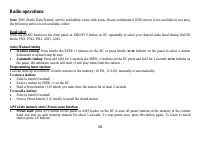
16 Radio operations Note: RDS (Radio Data System) service availability varies with areas. Please understand if RDS service is not available in you area, the following service is not available, either. Band select Press the BAND button on the front panel or BND/SYS button on RC repeatedly to select y...
Page 17 - Local/Distance control
17 Auto memory store: press APS button on the panel for more than 2 seconds to enter auto store mode. The radio will automatically store the 6 strongest available stations to the 6 preset memories of the current band. To stop auto store, press thisbutton again. Stereo/ Mono mode Press the ST/PROG bu...
Page 18 - time to switch the PTY function off.
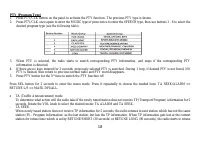
18 PTY (Program Type) 1. Press PTY/CLK button on the panel to activate the PTY function. The previous PTY type is shown.2. Press PTY/CLK once again to enter the MUSIC type or press twice to enter the SPEECH type, then use buttons 1 - 6 to select the desired program type (see the following table). 3....
Page 20 - Discs operations; Title; The following file types are supported:
20 Discs operations Disc glossaryPBC (PlayBack Control) PBC is a menu recorded on the disc with SVCD or VCD2.0 format. For the discs contained PBC, it can playback interactive softwarewith the menu displayed on TV. And if the disc contains still images, it can playback high definition of still image...
Page 24 - GOTO function
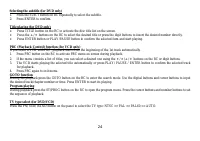
24 Selecting the subtitle (for DVD only) 1. Press the SUB-T button on RC repeatedly to select the subtitle. 2. Press ENTER to confirm. Title playing (for DVD only) Press TITLE button on the RC to activate the disc title list on the screen.Press the / buttons on the RC to select the desired title or ...
Page 25 - MP3 overview; Notes on MP3
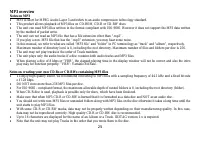
25 MP3 overview Notes on MP3 MP3 is short for MPEG Audio Layer 3 and refers to an audio compression technology standard.This product allows playback of MP3 files on CD-ROM, CD-R or CD-RW discs.The unit can read MP3 files written in the format compliant with ISO 9660. However it does not support the ...
Page 26 - System setup; Screen saver
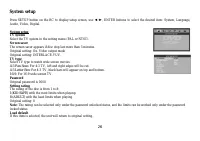
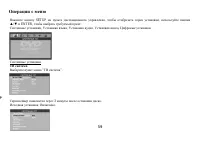
26 System setup Press SETUP button on the RC to display setup screen, use , ENTER buttons to select the desired item: System, Language, Audio, Video, Digital. System setupTV system Select the TV system in the setting menu (PAL or NTSC). Screen saver The screen saver appears if disc stop last more th...
Page 28 - Select the output mode:; LINE OUT; Select the audio channel from STEREO, MONO L, MONO R and MIX MONO.
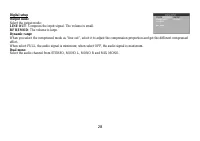
28 Digital setupOutput mode Select the output mode: LINE OUT : Compress the input signal. The volume is small. RF REMOD : The volume is large. Dynamic range When you select the compressed mode as “line out”, select it to adjust the compression proportion and get the different compressedeffect.When s...
Page 30 - Cleaning; Discs holding
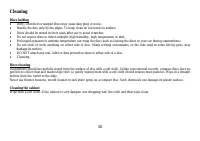
30 Cleaning Discs holding Dirty, scratched or warped discs may cause skip ping or noise.Handle the disc only by the edges. To keep clean do not touch its surface.Discs should be stored in their cases after use to avoid scratches.Do not expose discs to direct sunlight, high humidity, high temperature...
Page 31 - Troubleshooting guide; Symptom; Disc cannot be loaded.
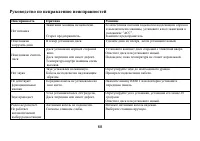
31 Troubleshooting guide Symptom Cause Solution No power. The car ignition is not on.The fuse is blown. If the power supply is properly connected tothe car accessory switch the ignition key to“ACC”.Replace the fuse. Disc cannot be loaded. Presence of disc inside the player. Remove the disc in the pl...
Page 32 - Specification; Maximum power output:
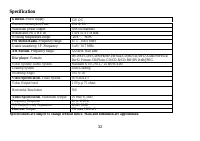
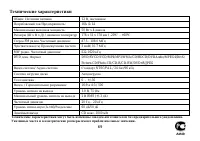
32 Specification Specifications are subject to change without notice. Mass and dimension are approximate. General. Power supply: 12V DC Current consumption/Fuse: 10A & 1A Maximum power output: 50Wx4 channels Dimensions (W x H x D) 178 x 51 x 178 mm Working temperature range: -20º - +60º FM Stere...
Page 37 - OPEN
37 1. OPEN . ( . 1). 2. ( . 2). 1. , . ( . 3). : . 2. , . 2. . , . : . . : , . . . , , . : , . , . . 3 . 1 . 2
Page 40 - ISO
40 1 M5 T (3,5 ) 1 2 (0,6 ) 1 3 (1,0 ) 1 4 (1,0 ) 1 5 (0,8 ) 1 6 ISO 1 7 =5 1 8 1 9 1 10 =5 2 11 5X5 4 12 5X25 1 13 M5 5X29,3 1 14 1 15 1 16 1
Page 45 - POWER
45 RESET ( ) OPEN. RESET, . : , , . POWER, . POWER 3 , . : , , , . , . , . VOL+/- . , MUTE, . , . MODE, : AUX => RADIO => DISK => USB => CARD , ). : USB, CARD, DISK , .
Page 54 - Intro; OSD
54 STOP STOP/REVERSE , . , . , . / , . , . 1. DVD, VCD SLOW : 1/2, 1/3, 1/4, 1/5, 1/6, 1/7, . 2. ENTER . R AMS/RPT , . , . RDM LOC/RDM , . , . Intro 10 . INT, . , . OSD . / , / , .
Page 56 - GOTO; VCD; ENTER; ENTER
56 GOTO , , . GOTO , . VCD GOTO, . , , ( ). , 18 20 00 , : 1 => 8 => 2 => 0 => 0 => 0. ENTER , . DVD GOTO, . . , 234, : 2 => 3 => 4. ENTER, . , . . ENTER, . , . , , ( ). , 18 20 00 , : 1 => 8 => 2 => 0 => 0 => 0. ENTER , . ST/PROG button . . ( DVD/VCD) PN/ SUB/ BA...
Page 59 - SETUP
Page 68 - RESET
68 . . , “ ”. . . , . . . . . . , . . . . . . RESET . 30 . . , 30 . . . . . . .