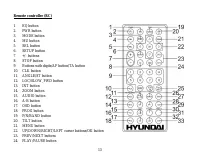
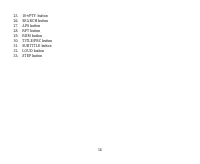
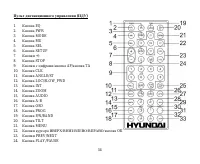
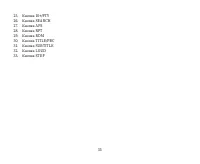
Page 2 - Table of contents
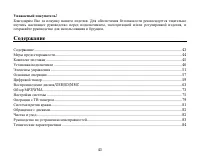
2 Dear customer! Thank you for purchasing our product. For safety, it is strongly recommended to read this manual carefullybefore connecting, operating and/or adjusting the product and keep the manual for reference in the future. Table of contents Table of contents .....................................
Page 3 - Important safeguards
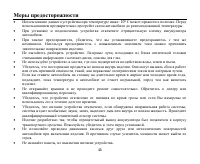
3 Important safeguards Using the device at temperature below -10º may cause the breakage of the device. Before using pleaseheat up the passenger compartment to the recommended temperature!Disconnect the vehicle's negative battery terminal while mounting and connecting the unit.When replacing the fus...
Page 4 - Accessories
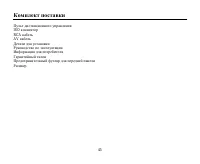
4 Accessories Remote controlISO connectorRCA cableAV-in cableMounting partsInstruction manualConsumer informationWarranty cardFront panel caseReceiver
Page 5 - Installation/connection; Installation way
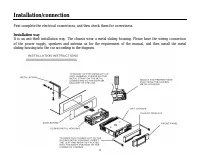
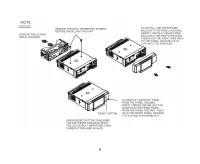
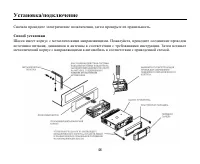
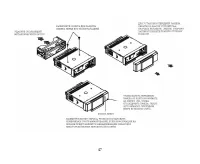
5 Installation/connection First complete the electrical connections, and then check them for correctness. Installation way It is an anti-theft installation way. The chassis wear a metal sliding housing. Please have the wiring connectionof the power supply, speakers and antenna as for the requirement...
Page 7 - Press REL button to remove the panel.; Attaching the control panel; Insert the left side of the control panel into the main unit.
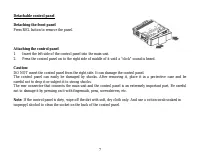
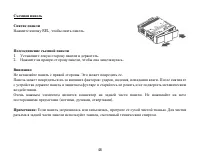
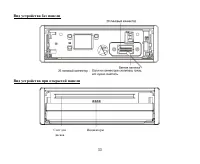
7 Detachable control panel Detaching the front panel Press REL button to remove the panel. Attaching the control panel 1. Insert the left side of the control panel into the main unit. 2. Press the control panel on to the right side of middle of it until a “click” sound is heard. Caution: DO NOT inse...
Page 8 - Electrical connection; Do not interchange the connection of the wiring!
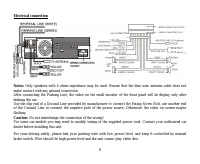
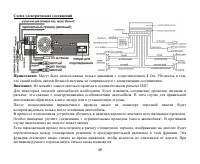
8 Electrical connection Notes: Only speakers with 4 ohms impedance may be used. Ensure that the blue auto antenna cable does not make contact with any ground connection.After connecting the Parking Line, the video on the small monitor of the front panel will be display only afterbraking the car.Use ...
Page 10 - Panel controls; Front panel; Infra red sensor
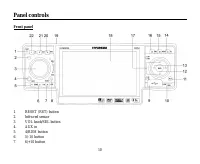
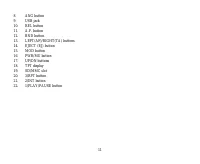
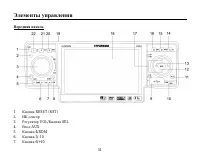
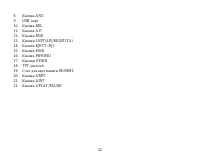
10 Panel controls Front panel 1. RESET (RST) button 2. Infra red sensor 3. VOL knob/SEL button 4. AUX in 5. 4/RDM button 6. 5/-10 button 7. 6/+10 button
Page 15 - Changing the battery; Press the catch and at the same time pull out the battery tray.
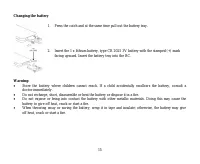
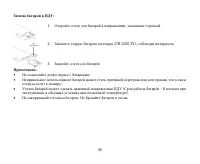
15 Changing the battery 1. Press the catch and at the same time pull out the battery tray. 2. Insert the 1 x lithium battery, type CR 2025 3V battery with the stamped (+) mark facing upward. Insert the battery tray into the RC. Warning: Store the battery where children cannot reach. If a child accid...
Page 16 - General operation; Reset the unit; the unit on it will resume the stored status, which you set.; Volume control
16 General operation Reset the unit Operating the unit for the first time or after replacing the car battery, you must reset the unit. Press RESETbutton on the panel to restore the unit to the original factory settings. Power on/off Press PWR/MU button on the panel or PWR button on the RC to turn th...
Page 17 - Clock setting; Press CLK button on the RC to show the clock on the display.; Loud mode
17 => DISC (the type of disc in the unit if there is any) => USB (if the USB device is inserted) => CARD (if theSD/ MMC card is inserted) => AUX => TV. Clock setting 1. Press CLK button on the RC to show the clock on the display. 2. Press and hold CLK button, the hour will change its ...
Page 18 - Digital tuner; Band selection
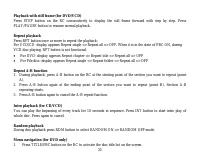
18 Digital tuner Note: RDS (Radio Data System) service availability varies with areas. Please understand if RDS service is not available in you area, the following service is not available, either. Band selection Press MOD button on the panel or MODE button on the RC to select the TUNER mode.Press P...
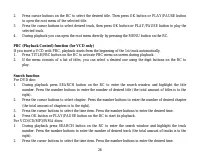
Page 26 - Search function; Press OK button or PLAY/PAUSE button on the RC to start its playback.
26 2. Press cursor buttons on the RC to select the desired title. Then press OK button or PLAY/PAUSE buttonto open the root menu of the selected title. 3. Press the cursor buttons to select desired track, then press OK button or PLAY/PAUSE button to play theselected track. 4. During playback you can...
Page 27 - Programming the playback
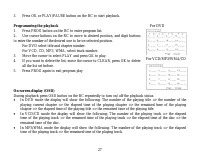
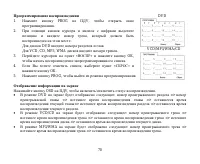
27 3. Press OK or PLAY/PAUSE button on the RC to start playback. Programming the playback For DVD 1. Press PROG button on the RC to enter program list. 2. Use cursor buttons on the RC to move to desired position, and digit buttons to enter the number of the desired one to be on selected position. Fo...
Page 28 - Selecting subtitle languages (for DVD only)
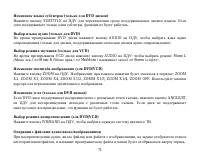
28 Selecting subtitle languages (for DVD only) During playback press SUBTITLE button on the RC repeatedly to select the language of the caption or turn offthe caption (depend on the disc used). Selecting audio languages (for DVD only) During DVD disc playback press AUDIO button on RC repeatedly to s...
Page 29 - Press OK button to playback.; ID3 function
29 Category Select 1. Use LEFT/RIGHT cursor buttons to select: AUDIO files (left icon), PICTURE files (middle icon) or VIDEO files (right icon). 2. Press OK button to confirm. Folder select 1. Use LEFT/RIGHT cursor buttons to enter folder list and use UP/DOWN cursor buttons to select desiredfolder. ...
Page 31 - Notes on creating your own CD-R or CD-RW containing MP3 files:
31 Notes on creating your own CD-R or CD-RW containing MP3 files: To enjoy high quality sound, we recommend converting to MP3 files with a sampling frequency of 44.1kHz and a fixed bit rate o f 128 kbps.Do not store more than 448 MP3 files per disc.For ISO 9660 - compliant format, the maximum allowa...
Page 32 - System setup menu; Press SETUP button on the RC to display the system setup menu.; System setup
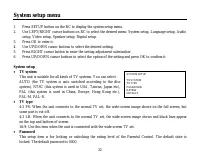
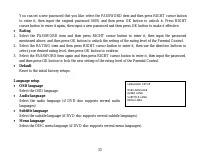
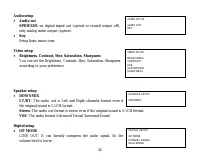
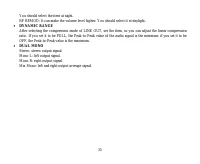
32 System setup menu 1. Press SETUP button on the RC to display the system setup menu. 2. Use LEFT/RIGHT cursor buttons on RC to select the desired menu: System setup, Language setup, Audiosetup, Video setup, Speaker setup, Digital setup. 3. Press OK to enter it. 4. Use UP/DOWN cursor buttons to sel...
Page 36 - TV Operation
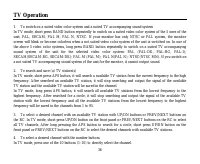
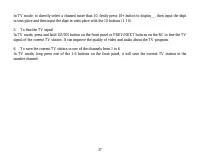
36 TV Operation 1. To switch on a suited video color system and a suited TV accompanying sound systemIn TV mode, short press BAND button repeatedly to switch on a suited video color system of the 5 ones of theunit: PAL, SECAM, PAL M, PAL N, NTSC. If your monitor has only NTSC or PAL system, the moni...
Page 38 - Remove the panel; Press PWR/MU button to turn the power off.; Remove the unit
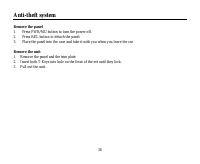
38 Anti-theft system Remove the panel 1. Press PWR/MU button to turn the power off. 2. Press REL button to detach the panel. 3. Place the panel into the case and take it with you when you leave the car. Remove the unit 1. Remove the panel and the trim plate.2. Insert both T-Keys into hole on the fro...
Page 39 - Handling discs; Cleaning
39 Handling discs Dirty, scratched or warped discs may cause skip ping or noise.Handle the disc only by the edges. To keep clean do not touch its surface.Discs should be stored in their cases after use to avoid scratches.Do not expose discs to direct sunlight, high humidity, high temperature or dust...
Page 40 - Troubleshooting guide; Symptom
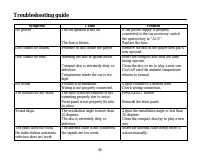
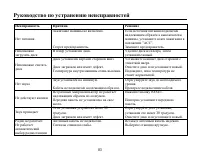
40 Troubleshooting guide Symptom Cause Solution No power The car ignition is not on. The fuse is blown. If the power supply is properlyconnected to the car accessory switchthe ignition key to “ACC”.Replace the fuse. Disc cannot be loaded. Presence of disc inside the player. Remove the disc in the pl...
Page 41 - Specification; General; Maximum power output:; TFT display; AM section; Preset memory stations:; Audio specification
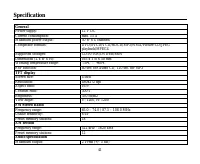
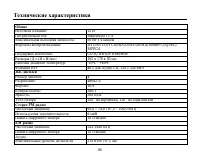
41 Specification General Power supply: 12 V DC Current consumption: max. 15 A Maximum power output: 50 W x 4 channels Compatible formats: DVD/SVCD/VCD/HDCD/MP3/WMA/Picture-CD/JPEGplayback/MPEG4 Supported storages: CD-R/-RW/DVD±R/±RW Dimensions (L x W x H): 165 x 178 x 50 mm Working temperature range...
Page 42 - Separation; Line out; Color system
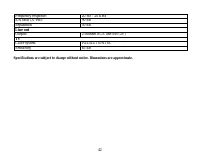
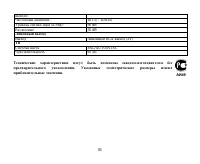
42 Frequency response: 20 Hz - 20 KHz S/N ratio (A-vtd): 90 dB Separation 50 dB Line out Output: 2 channel RCA line-out (2V) TV Color system PAL/AUTO/NTSC Sensitivity 65 dB Specifications are subject to change without notice. Dimensions are approximate.
Page 50 - ISO
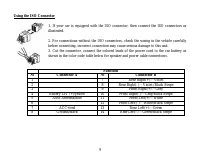
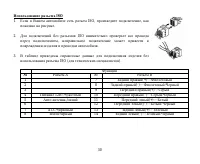
50 ISO 1. ISO, , . 2. ISO , . 3. ISO ( ). A B 1 7 (+)--- 2 8 (-)--- 3 9 (+)--- 4 12 (+)/ 10 (-)--- 5 / 11 (+)--- 6 12 ((-)--- 7 ACC+/ 13 (+)--- 8 14 (-)---
Page 60 - LOCAL; LOC; RDS
60 : - ( ). - (1-6). : APS A.P. , 5 . . , APS. : APS A.P. 2 , 6 : 1~6. , APS. ANGLE/ST , : Mono ( ), Stereo ( ). LOCAL 1. LOC , LOCAL. 2. LOCAL , ( ). LOCAL , . RDS : PI, PS, TP, PTY, TA, AF. PI: .
Page 61 - PTY
61 PS: – . TP: – , . TA: – . AF: – , . AF ( ) , , . . AF, AF. AF , RDS . , . RDS , AF. PTY 1. PTY , PTY. 2. VOL +/- , : NEWS, AFFAIRS, INFO, SPORT, EDUCATE, DRAMA, CULTURE, SCIENCE, VARIED,WEATHER, FINANCE, CHILDREN, SOCIAL, RELIGION, PHONE IN, TRAVEL, LEISURE,DOCUMENT, PTY NONE, POP M, ROCK M, EASY...
Page 69 - VCD
69 PBC ( ) ( VCD ) VCD PBC, 1- . 1. TITLE/PBC , . 2. , . DVD : 1. SEARCH , . , . ( ) 2. , . , ( ). 3. , . , . 4. OK PLAY/PAUSE , . VCD/CD/MP3/WMA : 1. SEARCH , . , . ). 2. , . , . 3. OK PLAY/PAUSE , .
Page 72 - OK
72 . 1. , : ( ), ( ) ( ). 2. OK . 1. , , , . 2. . 1. , , , . 2. . : PLAY/PAUSE, . PROG, . . : STOP, . ID3 ID3 1.0. MP3/WMA ID3, . ID3 . ID3 , , , .
Page 75 - SETUP
75 1. SETUP , . 2. , : , , , , , . 3. , . 4. , . 5. , . 6. , , OK, . . AUTO ( , ), NTSC ( , , .), PAL ( , , .), PAL-M, PAL-N. . 4:3 PS: , , . 4:3 LB: , , . 16:9: , . . . – 0000. . . .
Page 81 - REL
Page 84 - ESP; FM
84 : 12 : 15 : 50 4 : DVD/SVCD/VCD/HDCD/MP3/WMA/Picture-CD/JPEG/MPEG4 : CD-R/-RW/DVD±R/±RW ( )/ : 165 x 178 x 50 : -10º - +60º ESP 40 CD, 120 3 : 4” : 480x272 : 16:9 : 300:1 : 350 2 120° , 120° FM : 65,0 – 74,0 / 87,5 – 108,0 : 6 18 AM : 522-1620 12 2 RMS (+/-3 )