Page 2 - HP company notices
HP company notices Copyright and License THE INFORMATION CONTAINED HEREIN IS SUBJECT TO CHANGE WITHOUT NOTICE. ALL RIGHTS RESERVED. REPRODUCTION, ADAPTATION, OR TRANSLATION OF THIS MATERIAL IS PROHIBITED WITHOUT PRIOR WRITTEN PERMISSION OF HP, EXCEPT AS ALLOWED UNDER THE COPYRIGHT LAWS. THE ONLY WAR...
Page 3 - Table of contents
Table of contents 1 Get started ............................................................................................................................................................................. 1 Printer views ................................................................................
Page 7 - Printer views; Printer front views
Get started 1 Learn about printer parts, control panel features, and other printer functionalities. Printer views Printer parts and their descriptions. Printer front views NOTE: The printer images and details may vary depending on your printer model. Table 1-1 Printer front view Feature Description ...
Page 8 - Printer inner view
Printer rear view Table 1-2 Printer rear view Feature Description 11 USB port 12 Power connection Printer inner view Table 1-3 Printer inner view Feature Description 1 Ink tanks There are four ink tanks. Each tank contains a different colored ink: black, cyan, magenta, and yellow. 2 Tank caps The in...
Page 10 - Control panel features
Control panel features The control panel has buttons for direct interaction and lights to indicate printer status, errors, and more. NOTE: The printer images and details may vary depending on your printer model. Figure 1-1 USB-only models (left) and Wi-Fi models (right) Table 1-4 Overview of buttons...
Page 11 - Control panel display icons
Table 1-4 Overview of buttons and lights (continued) Feature Button Description 3 Black Copy button Start a black-and-white copy job. To increase the number of copies, press and hold the button or press it multiple times. Copying starts 2 seconds after the last button press. 4 ID Copy button The ID ...
Page 13 - Perform common tasks from the printer control panel
Table 1-5 Control panel display icons (continued) Feature Icon Description 4 Document icon Photo icon ● Blank Document icon: Indicates the status of paper in the input tray or any related issues (including out of paper, paper jam, and so on). ● Document icon with horizontal lines: Indicates the stat...
Page 15 - Print reports from the printer control panel
Table 1-7 Common tasks on the printer control panel (continued) Task Instructions Turn Wi-Fi Direct on or off 1. Press and hold the Information button for 5 seconds until the control panel buttons light up. 2. Press the Wi-Fi button and the Resume button at the same time. See Print without connectin...
Page 16 - Change printer settings
Place the printer in support mode to print other reports. 1. Press and hold the Information button for 5 seconds until the control panel buttons light up. 2. See the following instructions to print the desired report. Table 1-9 Print reports Printer report Description How to print (must be in suppor...
Page 17 - Find the default printer password or PIN
2. Select your printer, and then click or tap Printer Settings. 3. Select the desired option and make the necessary changes. The embedded web server (EWS) (Wi-Fi models) 1. Open EWS. See Access and use EWS . 2. Search for a setting. Or click the desired function or tab, and then select a setting fro...
Page 18 - Use the HP Smart app to print, scan, and manage; Install HP Smart and open the app
● If you are using the HP Smart app instead of the printer software, see Use the HP Smart app to print, scan, and manage . ● Each device must have the app or software installed in order to print. ● If you are using Windows 7, Service Pack 1 (SP1) is required to install HP printer software. Do the fo...
Page 19 - Get more information about HP Smart
● macOS: From the Launchpad, select HP Smart. 3. If prompted, create an HP account and register the printer. 4. Connect your printer wirelessly using HP Smart. See Connect your printer to a Wi-Fi network using HP Smart (Wi-Fi models) . If prompted for a password, enter the default PIN available from...
Page 20 - Connect your printer; Connect your printer to a Wi-Fi network using HP Smart (Wi-Fi
Connect your printer 2 Learn about different ways to connect your printer. Before you begin (Wi-Fi models) Ensure the following: ● Your Wi-Fi network is set up and working properly. ● Wi-Fi capability of the printer is turned on. Press the Wi-Fi button to turn it on. For Wi-Fi status, see Wi-Fi stat...
Page 21 - Connect your printer to a Wi-Fi network using HP printer software; Connect your printer to a Wi-Fi network using Wi-Fi Protected
2. If your printer Wi-Fi was previously turned off, press the Wi-Fi button to turn it on. For Wi-Fi status, see Wi-Fi status, light, and icons (Wi-Fi models) . 3. Make sure the printer is in Wi-Fi setup mode. The Wi-Fi light should blink blue. If not, restore the printer network settings. See Restor...
Page 22 - Connect your printer using a USB cable
2. From the printer control panel, press and hold the Wi-Fi button for at least 3 seconds to start WPS. 3. Press the WPS button on your router. NOTE: Be sure to press the WPS button on the router within 2 minutes. 4. Open the HP Smart app on your computer or mobile device. If prompted, create or sig...
Page 23 - Load media; Load paper
Load media 3 Learn how to load paper and change settings. Load paper Take note of the following before you begin. NOTE: ● Do not load paper while the printer is printing. ● If there is other paper in the input tray, remove the paper before loading a different paper type or size. ● For a complete lis...
Page 26 - Load envelopes
Load envelopes 1. Raise the input tray. 2. Slide the paper-width guide to the left. 3. Insert one or more envelopes into the far-right side of the input tray, and slide the stack down until it stops. The side to be printed on should face up. 20 Chapter 3 Load media
Page 28 - Load original
4. Slide the paper-width guide to the right against the stack of envelopes until it stops. 5. Pull out the output tray extender. Load original Learn how to load an original on the scanner glass. 1. Lift the scanner lid. 22 Chapter 3 Load media
Page 29 - Change paper settings from the embedded web server (Wi-Fi
2. Load the original print-side down on the scanner glass (aligned to the indicated corner). 3. Close the scanner lid. Change paper settings from the embedded web server (Wi-Fi models) To prevent issues, change the paper settings to match the paper loaded in the input tray. Change paper settings fro...
Page 30 - Paper basics; Recommended papers for printing
NOTE: For your security, some settings in the embedded web server (EWS) are password-protected. Enter the password if prompted. See Access and use EWS . 1. Open EWS. See Access and use EWS . 2. Click the Settings tab. 3. From the left menu, click Preferences. 4. Click Tray and Paper Management, and ...
Page 31 - Order HP paper supplies
HP Photo Value Packs conveniently package original HP ink cartridges and HP Advanced Photo Paper to save you time and take the guesswork out of printing affordable, lab-quality photos with your HP printer. Original HP inks and HP Advanced Photo Paper have been designed to work together so your photo...
Page 32 - Print from a Windows computer
Print 4 Learn how to print from your computer or mobile device. This printer is designed to work with the HP Smart app, a software application that makes it easy to print, scan, and manage your printer from a smartphone, laptop, desktop computer, or other devices. You can print and manage the printe...
Page 33 - Print while connected to same Wi-Fi network; Change Wi-Fi Direct security settings
You can also print directly from your mobile devices using AirPrint (iOS) or HP Print Service Plugin (Android): ● iOS: Devices running iOS 4.2 or later have AirPrint pre-installed. ● Android: Download the HP Print Service Plugin from the Google Play Store or your favorite app store, and then enable ...
Page 34 - Copy from the printer
Copy, Scan, and Mobile Fax 5 Learn how to use the copy, scan, and mobile fax features. Before you begin, see Tips for successful scanning and copying . If you encounter issues, see Copy and scan issues . Copy from the printer All documents are copied in normal quality print mode. You cannot change t...
Page 37 - Scan using HP printer software; Scan a document or photo to a file or email (Windows)
Scan using the HP Smart app (iOS, Android, Windows 10, and macOS) You can use the HP Smart app to scan documents or photos from the printer's scanner, and you can also scan using your device camera. HP Smart includes editing tools that allow you to adjust the scanned image before saving or sharing. ...
Page 38 - Enable Webscan
3. Click the More link in the top right corner of the HP Scan dialog. The detailed settings pane appears on the right. The left column summarizes the current settings for each section. The right column allows you to change the settings in the highlighted section. 4. Click each section at the left of...
Page 39 - Scan using Webscan; Tips for successful scanning and copying
4. Select the option to enable Webscan. 5. Click Apply. Scan using Webscan Scanning using Webscan offers basic scan options. For additional scan options or functionality, scan from the HP printer software. 1. Place the original print-side down on the scanner glass (aligned to the corner with an icon...
Page 41 - Configure your printer
Configure your printer 6 Learn how to configure your printer using the embedded web server (EWS). Use the embedded web server (EWS) to manage printing functions from your computer. NOTE: EWS is only available for network printers. ● View printer status information ● Check the information and status ...
Page 43 - Configure IP network settings; View or change network settings; Assign or change the system password
2. In the HP Printer Assistant, select Print tab. 3. Select Printer Home Page (EWS). Configure IP network settings Use the following sections to configure the printer network settings. If prompted for a password, enter the PIN available from a label on the printer. See Find the default printer passw...
Page 44 - Remove Web Services using EWS
4. Click Password Settings. 5. Make the necessary changes, and then click Apply. NOTE: Make note of the password and store it in a safe place. Use Web Services (Wi-Fi models) Web Services is enabled during printer setup. You can remove it from the printer home page or embedded web server (EWS). NOTE...
Page 45 - Manage ink supplies; Check ink levels
Manage ink supplies 7 Refill ink tanks and order ink supplies. Check ink levels Ink levels are visible from the ink tanks on the front of the printer. If you are using the HP Smart app, the estimated ink levels of the selected printer are displayed on the Home screen. You can also check the printer ...
Page 49 - Order ink supplies
7. Close the front door of the printer. Order ink supplies Before ordering ink bottles, visually check the labels on the ink bottles to locate the ink bottle numbers. You can also find this information from a label on the printer. See Find the default printer password or PIN . To order original HP s...
Page 51 - Solve a problem; Update the printer; Download from the HP support website
Solve a problem 8 Solve common printer problems. You can also get help from the HP Smart app and printer control panel: ● Printer control panel: See Interpret error codes, lights, and icons . ● HP Smart: Provides alerts for printer issues ( jams and other problems), links to help content, and option...
Page 52 - Error codes; Error E3
1. Open EWS. See Access and use EWS . 2. Click the Tools tab. 3. From the left menu, click Printer Updates, and then select Firmware Updates. 4. Select the desired options, and then click Apply. Interpret error codes, lights, and icons Understand error codes, control panel lights, and display icons,...
Page 53 - Error E4; Error E5
5. Press the Resume button to continue printing or press the Cancel button . 6. If the problem persists, turn the printer off and on again, or contact HP. Error E4 There is a paper jam. Clear the jam. See Jams and paper-feed issues . CAUTION: Do not open the printhead cover. Error E5 The scanner is ...
Page 54 - Error E8; Error E9; Power button light; Document icon and paper errors
Error E8 A fatal error has occurred. Turn the printer off, and then on again. If the problem persists, contact HP. Error E9 A firmware or printer update error has occurred. Turn the printer off, and then on again. If this does not solve the problem, download the latest printer firmware. Visit the HP...
Page 56 - Printhead alignment icon
Cause Solution One of the following might have occurred: ● One or both printheads are missing. ● One or both printheads are installed incorrectly. ● One or both printheads still have an orange plug or plastic tape on them. ● One or both printheads are incompatible or damaged. ● Make sure both printh...
Page 59 - Possible jam locations
Table 8-1 Wi-Fi status, light, and icons (continued) Wi-Fi light Wi-Fi icons Wi-Fi status Blinks Wi-Fi signal bars cycle. The printer is in Wi-Fi setup mode or is trying to connect to a Wi-Fi network. ● A blinking Wi-Fi light indicates that the printer is not connected to a network or is trying to c...
Page 60 - Remove jammed paper
Table 8-2 Jam locations Feature Description 1 Input tray 2 Output tray 3 Printhead access area 4 Bottom of the printer Remove jammed paper Look in all areas where jams can occur and remove any jammed paper or foreign objects found. CAUTION: ● Do not use sharp objects, such as tweezers or needle-nose...
Page 62 - Printhead access area
2. Pull the paper gently out of the output tray. Printhead access area Open the front door, look inside, and remove any jammed paper. 1. Press the Cancel button to cancel printing. If this does not clear the error, complete the following steps to clear the jam manually. 2. Close the output tray exte...
Page 64 - Bottom of the printer
5. Make sure the printhead cover is properly closed. NOTE: After you have set up the printer, do not open the printhead cover unless instructed. 6. Close the front door. 7. Open the output tray extender. Bottom of the printer Open the bottom access door and remove any jammed paper. NOTE: Follow the ...
Page 68 - Clean the paper-pick rollers manually
11. Open the front door. 12. Close the printhead cover, and then close the front door. 13. Connect the power cord, and then turn on the printer. Clean the paper-pick rollers manually Clean the paper-pick rollers to help prevent paper feed issues, such as no paper pick, paper jams, and print skew. 1....
Page 69 - Solve paper-feed problems
4. If necessary, raise the input tray, or remove any paper from the input tray. 5. Lift and hold the input tray shield. CAUTION: Do not remove the input tray shield. It can prevent debris from falling into the paper path and causing jams or other problems. 6. Look down through the open input tray an...
Page 70 - Learn how to avoid jams and paper-feed issues
– Clean the paper rollers. ● Pages are skewing – Load paper into the printer only when it is not printing. – Make sure the cover at the bottom of the printer is properly closed after clearing paper jams. ● Multiple pages are being picked up – Make sure the input tray is not overloaded with paper. – ...
Page 71 - Verify that the printheads are installed properly
3. If the problem persists, contact HP . Verify that the printheads are installed properly Take note of the following before you begin. NOTE: ● The instructions here are only applicable in this section. After you have set up the printer, do not open the printhead cover unless instructed. ● Handle pr...
Page 73 - Clean printhead contacts
d. Insert the printhead into the slot until it clicks into place. e. Close the printhead cover. Make sure it is properly closed to avoid problems such as carriage jams. 4. Close the front door. Clean printhead contacts Take note of the following before you begin. NOTE: ● Open the printhead cover and...
Page 77 - Printing issues
8. Close the front door. 9. If the error message persists, turn the printer off, and then on. Printing issues Troubleshoot printing issues. ● Use the HP Print and Scan Doctor to help diagnose and fix issues automatically. NOTE: This tool is for the Windows operating system, and is only available in ...
Page 79 - Fix print quality issues; Print a print quality diagnostics page (Windows)
c. On the Printer menu, click Cancel all documents or Purge Print Document, and then click Yes to confirm. d. If there are still documents in the queue, restart the computer and try printing again after the computer has restarted. e. Check the print queue again to make sure it is clear, and then try...
Page 80 - Align and clean printheads
Understand the print quality diagnostics page 1. Review the black, cyan, magenta, and yellow boxes along with the other content on the diagnostics page. 2. If the diagnostic page shows steaks or missing portions of the color and black boxes, then automatically clean the printheads. See Align and cle...
Page 81 - Clean printer from the printer software (Windows); Tips for working with ink and printheads
● Align printheads: Aligning the printheads can improve print quality. If you notice misaligned colors or lines in your printouts or on the print quality diagnostics page, you should perform an alignment. ● Clean printheads: If your prints are streaked or have incorrect or missing colors, the printh...
Page 82 - Copy and scan issues; Fix network connection issues
● To protect the printheads from drying out, always turn the printer off using the Power button, and wait until the Power button light goes out. ● Do not open or untape printheads until you are ready to install them, as this can lead to print quality issues. Leaving tape on the printheads reduces in...
Page 83 - Fix Wi-Fi Direct connection issues; Restore printer factory defaults from the control panel
● Restore network settings and reconnect the printer. See Restore original factory defaults and settings . ● Print and check the wireless network test report and network configuration page to assist in diagnosing network connection issues. See Print reports from the printer control panel . ● Ensure ...
Page 85 - Printer hardware issues; Printer maintenance; Clean the scanner glass
Printer hardware issues Troubleshoot printer hardware issues. Close all covers and doors ● Make sure the tank caps, printhead cover, and front door are properly closed. The printer shuts down unexpectedly ● Check the power and power connections. ● Make sure the printer's power cord is connected firm...
Page 87 - Clean the scanner lid sensor
● Do not spray the glass cleaner directly on the scanner glass. If too much glass cleaner is applied, the cleaner could leak under the scanner glass and damage the scanner. 3. Close the scanner lid, and turn on the printer. Clean the scanner lid sensor If you encounter problem with copying or scanni...
Page 88 - Clean the exterior; HP support; Contact HP
Clean the exterior WARNING! Before cleaning the printer, turn the printer off by pressing the Power button , and unplugging the power cord from the electrical socket. Use a soft, damp, lint-free cloth to wipe dust, smudges, and stains off of the case. Keep fluids away from the interior of the printe...
Page 89 - Register printer; Additional warranty options
Register printer By taking just a few quick minutes to register, you can enjoy quicker service, more efficient support, and product support alerts. If you did not register your printer while installing the software, you can register now at register.hp.com . Additional warranty options Extended servi...
Page 90 - Power Management; Energy Save Mode or Sleep mode
HP EcoSolutions (HP and the Environment) 9 For more detailed information about environmental guidelines that HP follows during the manufacturing process, see Environmental product stewardship program . For more information about HP's environmental initiatives, visit HP EcoSolutions . Power Managemen...
Page 91 - Quiet Mode
Quiet Mode Quiet Mode slows down printing to reduce overall noise without affecting print quality. The feature only works when printing on plain paper with normal print quality. ● To reduce printing noise, turn on Quiet Mode. To print at normal speed, turn off the feature. ● The feature is off by de...
Page 92 - Technical information; Specifications
Technical information A The information contained herein is subject to change without notice. Some statements might not be applicable for your printer or all countries/regions. Specifications For more information about the product specifications (including acoustic information, print resolutions, sy...
Page 93 - Regulatory Model Number
Paper weights ● Plain Paper: 60 to 90 grams per square meter (16 to 24 lb). ● Envelopes: 75 to 90 grams per square meter (20 to 24 lb). ● Cards: Up to 200 grams per square meter (110-lb index maximum). ● Photo Paper: Up to 300 grams per square meter (80 lb). Print specifications ● Print speeds vary ...
Page 95 - Visual display workplaces statement for Germany; Products with wireless functionality
同梱された電源コードは、他の製品では使用出来ません。 Visual display workplaces statement for Germany GS-Erklärung (Deutschland) Das Gerät ist nicht für die Benutzung im unmittelbaren Gesichtsfeld am Bildschirmarbeitsplatz vorgesehen. Um störende Reflexionen am Bildschirmarbeitsplatz zu vermeiden, darf dieses Produkt nicht im...
Page 96 - Exposure to radio frequency radiation
Wireless functionality in Europe For products with 802.11 b/g/n or Bluetooth radio: ● Radio frequency band: 2400-2483.5 MHz, with transmit power of 20 dBm (100 mW) or less. Exposure to radio frequency radiation CAUTION: The radiated output power of this device is far below the FCC radio frequency ex...
Page 97 - Notice to users in Mexico
Notice to users in Japan この機器は技術基準適合証明又は工事設計認証を受けた無線設備を搭載しています。 Notice to users in Taiwan Region 取得審驗證明之低功率射頻器材,非經核准,公司、商號或使用者均不得擅自變 更頻率、加大功率或變更 原設計之特性及功能。低功率射頻器材之使用不得影響 飛航安全及干擾合法通信;經發現有干擾現象時, 應立即停用,並改善至無干擾 時方得繼續使用。前述合法通信,指依電信管理法規定作業之無線電通信。 低功 率射頻器材須忍受合法通信或工業、科學及醫療用電波輻射性電機設備之干擾。 Notice to users in T...
Page 98 - Accessibility; Environmental product stewardship program; HP tips for reducing environmental impact
Notice to users in Ukraine Повідомлення для користувачів в Україні Використовуйте лише шнур та адаптер живлення (за наявності), надані компанією HP. Table A-1 Notice to users in Ukraine Використана технологія Діапазони частот радіосигналів Максимальна потужність передавання WLAN Wi-Fi 802.11x (2,4 Г...
Page 99 - Paper
● Save paper by printing on both sides of the page. ● Conserve energy by choosing ENERGY STAR ® certified HP products. ● Lower your carbon footprint-all HP printers include power management settings that help you control energy use. ● Discover more ways HP and our customers are reducing environmenta...
Page 100 - Waste disposal for Brazil; Chemical substances
Power consumption HP printing and imaging equipment marked with the ENERGY STAR® logo is certified by the U.S. Environmental Protection Agency. The following mark will appear on ENERGY STAR certified imaging products: Additional ENERGY STAR certified imaging product model information is listed at: w...
Page 103 - Restriction on hazardous substances statement (Turkey); EPEAT; China Energy Label for Printer
Restriction of hazardous substance (India) This product, as well as its related consumables and spares, complies with the reduction in hazardous substances provisions of the "India E-waste (Management and Handling) Rule 2016." It does not contain lead, mercury, hexavalent chromium, polybromi...


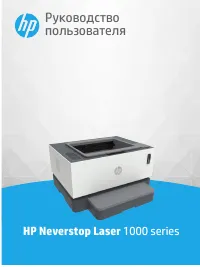 HP 1000
Manual
HP 1000
Manual
 HP 1015
Manual
HP 1015
Manual
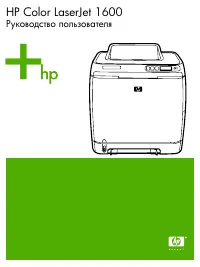 HP Color LaserJet 1600
User Manual
HP Color LaserJet 1600
User Manual
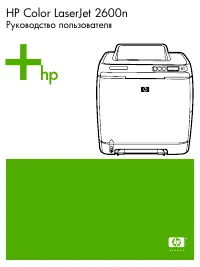 HP Color LaserJet 2600n
User Manual
HP Color LaserJet 2600n
User Manual
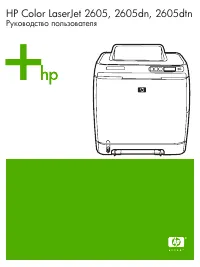 HP Color LaserJet 2605(dn)(dtn)
User Manual
HP Color LaserJet 2605(dn)(dtn)
User Manual
 HP Color LaserJet 2700(n)
User Manual
HP Color LaserJet 2700(n)
User Manual
 HP Color LaserJet 3000 (dn) (dtn) (n)
User Manual
HP Color LaserJet 3000 (dn) (dtn) (n)
User Manual
 HP Color LaserJet 3500 (n)
User Manual
HP Color LaserJet 3500 (n)
User Manual
 HP Color LaserJet 3550
User Manual
HP Color LaserJet 3550
User Manual
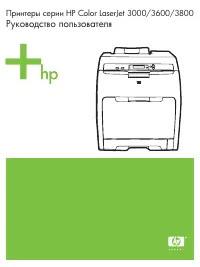 HP Color LaserJet 3600 (dn) (n)
User Manual
HP Color LaserJet 3600 (dn) (n)
User Manual
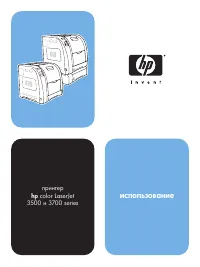 HP Color LaserJet 3700
User Manual
HP Color LaserJet 3700
User Manual
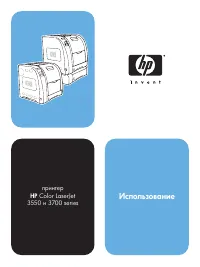 HP Color LaserJet 3700 (d) (dn) (dtn) (n)
User Manual
HP Color LaserJet 3700 (d) (dn) (dtn) (n)
User Manual
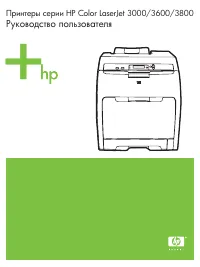 HP Color LaserJet 3800 (dn) (dtn) (n)
User Manual
HP Color LaserJet 3800 (dn) (dtn) (n)
User Manual
 HP Color LaserJet 4650(dn)(dtn)(n)(hdn)
User Manual
HP Color LaserJet 4650(dn)(dtn)(n)(hdn)
User Manual
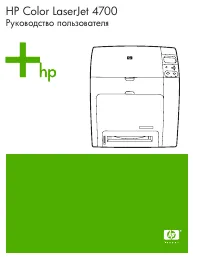 HP Color LaserJet 4700(dn)(dtn)(n)(ph+)
User Manual
HP Color LaserJet 4700(dn)(dtn)(n)(ph+)
User Manual
 HP Color LaserJet 5500(dn)(dtn)(n)(hdn)
User Manual
HP Color LaserJet 5500(dn)(dtn)(n)(hdn)
User Manual
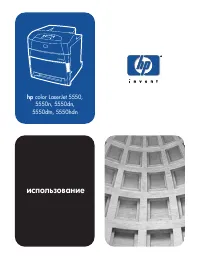 HP Color LaserJet 5550(dn)(dtn)(n)(hdn)
User Manual
HP Color LaserJet 5550(dn)(dtn)(n)(hdn)
User Manual
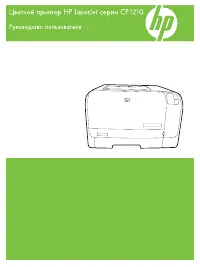 HP Color LaserJet CP1210
User Manual
HP Color LaserJet CP1210
User Manual
 HP Color LaserJet CP1215
User Manual
HP Color LaserJet CP1215
User Manual
 HP Color LaserJet CP1510
User Manual
HP Color LaserJet CP1510
User Manual