Page 2 - Configuration; Troubleshooting; Table of Contents
2 D-Link DWA-140 User Manual Table of Contents Product Overview ........................................................ 3 Package Contents ................................................... 3 System Requirements ............................................. 3 Introduction ............................
Page 3 - System Requirements; Product Overview; Package Contents
3 D-Link DWA-140 User Manual Section 1 - Product Overview • D-Link DWA-140 RangeBooster N ™ USB Adapter • Cradle • Manual and Warranty on CD • D-Link Wireless Connection Manager on CD • Quick Installation Guide System Requirements • A computer or laptop with an available USB 2.0 port • Windows Vista...
Page 4 - Introduction
4 D-Link DWA-140 User Manual Section 1 - Product Overview Introduction The DWA-140 RangeBooster N ™ USB Adapter is a convenient wireless connectivity solution for desktop or notebook PCs. Instead of stringing Ethernet cables to your PC or dismantling your desktop computer case, the DWA-140 can enabl...
Page 5 - Features
5 D-Link DWA-140 User Manual Section 1 - Product Overview Features • Compact size for placement anywhere. • Convenience of Plug & Play installation. • Fully 802.11g compatible. • Draft 802.11n compliant. • Powered by the USB port; no external power source required. • USB 2.0 standard * . • You c...
Page 6 - Hardware Overview; WPS Button; USB Port
6 D-Link DWA-140 User Manual Section 1 - Product Overview Hardware Overview WPS Button P r e s s t h e W P S b u t t o n t o automatically connect to a WPS-enabled wireless router or access point and establish connectivity. Refer to page 19. USB Port Used to connect the DWA-140 to your computer.
Page 7 - Getting Started; Installation; Remove Existing Installations; Start; Start
7 D-Link DWA-140 User Manual Section 2 - Installation Getting Started Installation This section will walk you through the installation process. If you have a built-in wireless adapter, please disable it in device manager before installing your D-Link adapter. Also, if you have previously installed a...
Page 8 - Disable Other Wireless Adapters; My Computer
8 D-Link DWA-140 User Manual Section 2 - Installation Disable Other Wireless Adapters Most newer laptops may include a built-in wireless adapter. To prevent any conflicts with the D-Link wireless adapter, it is recommended to disable the wireless adapter (as well as any unused Ethernet adapters). Fr...
Page 9 - Yes; Enable
9 D-Link DWA-140 User Manual Section 2 - Installation Click Yes to disable the adapter. The adapter is now disabled. When disabled, a red X will be displayed. Disabling the adapter will not remove the drivers. If you would like to use the adapter, simply right-click it and select Enable .
Page 10 - Wireless Installation Considerations
10 D-Link DWA-140 User Manual Section 2 - Installation Wireless Installation Considerations The D-Link wireless adapter lets you access your network using a wireless connection from virtually anywhere within the operating range of your wireless network. Keep in mind, however, that the number, thickn...
Page 11 - Adapter Installation
11 D-Link DWA-140 User Manual Section 2 - Installation Warning: Do NOT install the DWA-140 USB Adapter into your computer before installing the driver software from the D-Link CD. Turn on the computer and Insert the D-Link DWA-140 Driver CD in the CD-ROM drive. If the CD Autorun function does not au...
Page 12 - Browse
12 D-Link DWA-140 User Manual Section 2 - Installation The InstallShield Wizard window will appear. By default setup will install to the default location: C:\Program Files\D-Link\DWA-140 , where C: represents the drive letter of your hard drive. To install to a different location click Browse and sp...
Page 13 - Cancel; Next
13 D-Link DWA-140 User Manual Section 2 - Installation The Wireless Connection Wizard will now appear. If you want to manually connect to a wireless network, refer to page 15. The following instructions will connect you to a wireless network using Wi-Fi Protected Setup (WPS). Insert the adapter into...
Page 15 - Manually
15 D-Link DWA-140 User Manual Section 2 - Installation To manually connect to your wireless network, select Manually connect to a wireless network and then click Next . Click Next Click the Scan button to display a list of wireless networks (site survey). Click on the network name (SSID) and click N...
Page 16 - Finish
16 D-Link DWA-140 User Manual Section 2 - Installation Click Finish to continue. If you are prompted to reboot your computer, select Yes, I want to restart my computer now . Click Finish When this screen appears, you are successfully connected to your wireless network. Click Next to complete your se...
Page 17 - D-Link Wireless Connection Manager; Wireless Connection
17 D-Link DWA-140 User Manual Section 3 - Configuration Configuration This section will show you how to configure your new D-Link wireless adapter using the D-Link Utility as well as the Windows ® XP Zero Configuration Utility. D-Link Wireless Connection Manager The D-Link DWA-140 uses the Wireless ...
Page 18 - Wireless Networks; Connect
18 D-Link DWA-140 User Manual Section 3 - Configuration Wireless Networks The SSID (Service Set Identifier) is the name of the wireless network. Displays the MAC address of the wireless device. Displays the Link Quality of the wireless connection. If there is a “lock” icon, this means the wireless n...
Page 19 - Push Button Configuration
19 D-Link DWA-140 User Manual Section 3 - Configuration Wi-Fi Protected Setup (WPS) Wi-Fi Protected Setup (WPS) System is designed for easy setup of security-enabled Wi-Fi networks. It is recommended to have the access point or wireless router nearby during setup. For more information on WPS, visit ...
Page 20 - Push Button
20 D-Link DWA-140 User Manual Section 3 - Configuration Push Button 1. To connect to your network, press the WPS button on the adapter and hold for two seconds until the wizard screen appears. 2. Press the WPS button located on your access point or router to continue. This screen will appear once yo...
Page 23 - My Wireless Networks
23 D-Link DWA-140 User Manual Section 3 - Configuration My Wireless Networks The My Wireless Networks page will allow you to create, edit, and delete wireless network profiles. Every time you connect to a network using the Wireless Networks page, a profile will automatically be created. New Button: ...
Page 25 - Modify Profile; Modify
25 D-Link DWA-140 User Manual Section 3 - Configuration Modify Profile You may edit an existing profile by selecting the profile and clicking the Modify button from the My Wireless Networks page. Profile Name: SSID: Enter a name for your profile (e.g. Home, Office, Coffee Shop). Displays the SSID of...
Page 26 - Support
26 D-Link DWA-140 User Manual Section 3 - Configuration Support If you need help, click the Support button. A panel will appear to the right of the utility which will display information about the utility.
Page 27 - About
27 D-Link DWA-140 User Manual Section 3 - Configuration The About screen gives you information about the Firmware and Utility Versions of the DWA-140. About
Page 28 - Connect to a Wireless Network; Using Windows Vista; Connect to a; Networking Basics
28 D-Link DWA-140 User Manual Section 3 - Configuration Connect to a Wireless Network Using Windows Vista ® Windows Vista ® users may use the built-in wireless utility. If you are using another company’s utility or Windows ® 2000, please refer to the user manual of your wireless adapter for help wit...
Page 30 - Using Windows; View Available
30 D-Link DWA-140 User Manual Section 3 - Configuration Connect to a Wireless Network Using Windows ® XP Windows ® XP users may use the built-in wireless utility (Zero Configuration Utility). The following instructions are for Service Pack 2 users. If you are using another company’s utility or Windo...
Page 31 - Wireless Security
31 D-Link DWA-140 User Manual Section 4 - Wireless Security Wireless Security This section will show you the different levels of security you can use to protect your data from intruders. The DWA-140 offers the following types of security: • WPA2 (Wi-Fi Protected Access 2) • WPA2-PSK (Pre-Shared Key)...
Page 32 - Configure WPA/WPA2 Passphrase; Using the D-Link Wireless Connection Manager
32 D-Link DWA-140 User Manual Section 4 - Wireless Security Configure WPA/WPA2 Passphrase Using the D-Link Wireless Connection Manager It is recommended to enable WPA-PSK on your wireless router or access point before configuring your wireless adapter. If you are joining an existing network, you wil...
Page 33 - TKIP
33 D-Link DWA-140 User Manual Section 4 - Wireless Security It is recommended to enable WPA-PSK on your wireless router or access point before configuring your wireless adapter. Make sure you enter the passphrase exactly the same on all wireless devices. 1. Open the Wireless Connection Manager by do...
Page 34 - Connect to a network
34 D-Link DWA-140 User Manual Section 4 - Wireless Security Configure WPA/WPA2 Passphrase Using Windows Vista ® It is recommended to enable wireless security (WPA/WPA2) on your wireless router or access point before configuring your wireless adapter. If you are joining an existing network, you will ...
Page 36 - Using the Windows; View Available
36 D-Link DWA-140 User Manual Section 4 - Wireless Security Configure WPA/WPA2 Passphrase Using the Windows ® XP Utility It is recommended to enable WPA-PSK on your wireless router or access point before configuring your wireless adapter. If you are joining an existing network, you will need to know...
Page 37 - Wireless Network Connection
37 D-Link DWA-140 User Manual Section 4 - Wireless Security 3. The Wireless Network Connection box will appear. Enter the WPA-PSK passphrase and click Connect . It may take 20-30 seconds to connect to the wireless network. If the connection fails, please verify that the WPA-PSK settings are correct....
Page 38 - Advanced Config; User Certificate
38 D-Link DWA-140 User Manual Section 4 - Wireless Security Configure WPA/WPA2 (RADIUS) Using the D-Link Wireless Connection Manager WPA and WPA2 are for advanced users who are familiar with using a RADIUS server and setting up certificates. 1. Open the Wireless Connection Manager by double-clicking...
Page 39 - How do I know if my adapter is installed properly?
39 D-Link DWA-140 User Manual Section 5 - Troubleshooting 1. How do I know if my adapter is installed properly? Select the Hardware Tab. Troubleshooting This chapter provides solutions to problems that can occur during the installation and operation of the DWA-140. Read the following descriptions if...
Page 40 - Properties
40 D-Link DWA-140 User Manual Section 5 - Troubleshooting Click the + sign next to Network Adapters. Right-click on D-Link DWA-140 USB Adapter. Select Properties to check that the drivers are installed properly. Look under Device Status to check that the device is working properly. Click OK to conti...
Page 41 - The computer does not recognize the DWA-140 Wireless Adapter.; Infrastructure; SSID
41 D-Link DWA-140 User Manual Section 5 - Troubleshooting Make sure that the DWA-140 Wireless Adapter is properly seated in the computer’s USB port. If Windows does not detect the hardware upon insertion of the adapter, make sure to completely remove drivers that were previously loaded. 2. The compu...
Page 42 - Network Connection; WLAN
42 D-Link DWA-140 User Manual Section 5 - Troubleshooting Check that the Network Connection for the wireless client is configured properly. Select AP (Infrastructure) when connecting to an access point. Double-click on the WLAN icon in the taskbar > click on Configuration to change the settings f...
Page 43 - Wireless Basics
43 D-Link DWA-140 User Manual Appendix A - Wireless Basics D-Link wireless products are based on industry standards to provide easy-to-use and compatible high-speed wireless connectivity within your home, business or public access wireless networks. Strictly adhering to the IEEE standard, the D-Link...
Page 44 - How does wireless work?
44 D-Link DWA-140 User Manual Appendix A - Wireless Basics What is Wireless? Wireless or Wi-Fi technology is another way of connecting your computer to the network without using wires. Wi-Fi uses radio frequency to connect wirelessly, so you have the freedom to connect computers anywhere in your hom...
Page 45 - Home
45 D-Link DWA-140 User Manual Appendix A - Wireless Basics Wireless Personal Area Network (WPAN) Bluetooth is the industry standard wireless technology used for WPAN. Bluetooth devices in WPAN operate in a range up to 30 feet away. Compared to WLAN the speed and wireless operation range are both les...
Page 46 - Where is wireless used?; Tips; Centralize your router or Access Point; Eliminate Interference
46 D-Link DWA-140 User Manual Appendix A - Wireless Basics Where is wireless used? Wireless technology is expanding everywhere not just at home or office. People like the freedom of mobility and it’s becoming so popular that more and more public facilities now provide wireless access to attract peop...
Page 47 - Security; Wireless Modes
47 D-Link DWA-140 User Manual Appendix A - Wireless Basics Security Don’t let you next-door neighbors or intruders connect to your wireless network. Secure your wireless network by turning on the WPA or WEP security feature on the router. Refer to product manual for detail information on how to set ...
Page 48 - Networking Basics; Check your IP address; Windows Vista
48 D-Link DWA-140 User Manual Appendix B - Networking Basics Networking Basics Check your IP address After you install your new D-Link wireless adapter and have established a wireless connection, by default, the TCP/IP settings should be set to obtain an IP address from a DHCP server (i.e. router) a...
Page 49 - Statically Assign an IP address
49 D-Link DWA-140 User Manual Appendix B - Networking Basics Statically Assign an IP address If you are not using a DHCP capable gateway/router, or you need to assign a static IP address, please follow the steps below: Windows ® XP/2000 Users • Windows ® XP - Click on Start > Control Panel . Make...
Page 51 - Technical Specifications
51 D-Link DWA-140 User Manual Appendix C - Technical Specifications Technical Specifications SYSTEM REQUIREMENTS • Windows Vista / XP SP2 or 2000 SP4 • CD-ROM drive • 20MB hard disk space • Available USB port STANDARDS • IEEE 802.11n (draft) • IEEE 802.11g • IEEE 802.11b • USB 2.0 FREQUENCY RANGE • ...


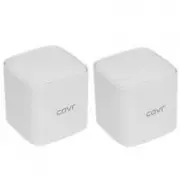 D-Link COVR-1102
User Manual
D-Link COVR-1102
User Manual
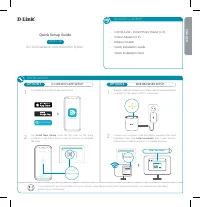 D-Link COVR-1102 AC1200
User Manual
D-Link COVR-1102 AC1200
User Manual
 D-Link DAP -2310
Manual
D-Link DAP -2310
Manual
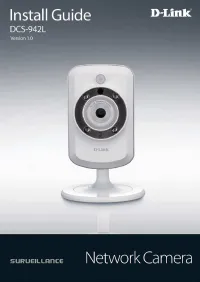 D-Link DCS-942L
Manual
D-Link DCS-942L
Manual
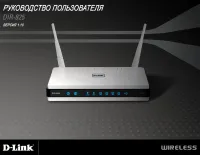 D-Link DIR-825
Manual
D-Link DIR-825
Manual
 D-Link DSL-G804V
User Manual
D-Link DSL-G804V
User Manual
 D-Link DSR-250N
Manual
D-Link DSR-250N
Manual
 D-Link DVG-N5402SP
User Manual
D-Link DVG-N5402SP
User Manual
 D-Link DWA-125
User Manual
D-Link DWA-125
User Manual
 D-Link DWA-547
Manual
D-Link DWA-547
Manual
 D-Link DWA-643
Manual
D-Link DWA-643
Manual
 D-Link DWL-G650+
Manual
D-Link DWL-G650+
Manual
 D-Link DWL-G680
Manual
D-Link DWL-G680
Manual
 D-Link DWL-2100AP
Manual
D-Link DWL-2100AP
Manual
 D-Link DAP -2690
Manual
D-Link DAP -2690
Manual
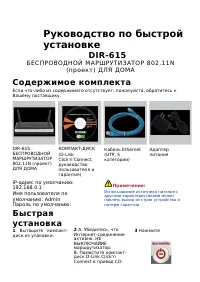 D-Link DIR-615
Manual
D-Link DIR-615
Manual
 D-Link DIR-632
Manual
D-Link DIR-632
Manual
 D-Link DWA-160
Manual
D-Link DWA-160
Manual
 D-Link DWL-3200AP
Manual
D-Link DWL-3200AP
Manual
 D-Link DSR-250
Manual
D-Link DSR-250
Manual