Page 2 - Manual Overview
D-Link reserves the right to revise this publication and to make changes in the content hereof without obligation to notify any person or organization of such revisions or changes. Information in this document may become obsolete as our services and websites develop and change. Please refer to the w...
Page 3 - Table of Contents
3 D-Link DCS-942L User Manual Table of Contents Product Overview .............................................................. 5 Package Contents ......................................................................... 5System Requirements .............................................................
Page 5 - System Requirements; Product Overview; Package Contents
5 D-Link DCS-942L User Manual Section 1 - Product Overview • DCS-942L Enhanced Wireless N Day/Night Cloud Camera• CAT5 Ethernet Cable• Power Adapter• Manual and Software on CD• Quick Install Guide• Mounting Kit Note: Using a power supply with a different voltage than the one included with your produ...
Page 6 - Introduction
6 D-Link DCS-942L User Manual Section 1 - Product Overview Introduction Congratulations on your purchase of the DCS-942L Enhanced Wireless N Day/Night Cloud Camera. The DCS-942L is a versatile and unique solution for your small office or home. Unlike a standard webcam, the DCS-942L is a complete sys...
Page 7 - Features
7 D-Link DCS-942L User Manual Section 1 - Product Overview Simple to Use The DCS-942L is a stand-alone system with a built-in CPU, requiring no special hardware or software such as PC frame grabber cards. The DCS-942L supports both ActiveX mode for Internet Explorer and Java mode for other browsers ...
Page 8 - Hardware Overview; Front View
8 D-Link DCS-942L User Manual Section 1 - Product Overview Hardware Overview Front View Camera Lens Microphone IR LEDs Light Sensor PIR Sensor
Page 9 - Rear View
9 D-Link DCS-942L User Manual Section 1 - Product Overview Rear View Power Receptor Ethernet Port Reset WPS LED WPS Button Camera Stand Power and Link LED Audio Out Jack Side View microSD Slot
Page 10 - Installation; There are three ways to set up your camera:; Zero Configuration Setup; your camera. Refer to “Zero Configuration Setup” on page 12.; Camera Installation Wizard; Installation” on page 17.
10 D-Link DCS-942L User Manual Section 2 - Installation Installation There are three ways to set up your camera: Zero Configuration Setup : If you have a mydlink-enabled router (D-Link cloud router), this is the easiest way to set up your camera. Refer to “Zero Configuration Setup” on page 12. Camer...
Page 11 - Wireless Installation Considerations
11 D-Link DCS-942L User Manual Section 2 - Installation Wireless Installation Considerations The D-Link Wireless Network Camera lets you access your network using a wireless connection from anywhere within the operating range of your wireless network. However, the number, thickness and location of w...
Page 12 - If you have a mydlink-enabled Cloud Router; camera from the website (; Connect the Ethernet Cable and Power Cable; adapter cable into the camera at this time.; Plug in the External Power Adapter; Plug the power adapter in to a wall outlet.
12 D-Link DCS-942L User Manual Section 2 - Installation Zero Configuration Setup If you have a mydlink-enabled Cloud Router , you can take advantage of Zero Configuration Setup. Zero Configuration automatically configures your camera’s settings for you, and adds the camera to your mydlink account au...
Page 13 - Check Your mydlink Account; and display a; Yes; to add the camera
13 D-Link DCS-942L User Manual Section 2 - Installation DCS-942L Check Your mydlink Account From any computer with an Internet connection, open a web browser and login to your mydlink account. The mydlink page will check for new devices and display a New device Found! pop-up notification in the bott...
Page 14 - where you will see a screen similar to the following.; Note; : If you see a white haze when viewing in night vision mode, the
14 D-Link DCS-942L User Manual Section 2 - Installation Zero Configuration will navigate to the mydlink Live View tab for your camera where you will see a screen similar to the following. If you wish to connect your camera to your router wirelessly, you can simply disconnect the Ethernet cable and m...
Page 15 - Camera Setup Wizard; Windows Users
15 D-Link DCS-942L User Manual Section 2 - Installation Camera Setup Wizard Windows Users If you do not have a CD-ROM drive, or the CD is missing, please download the Setup Wizard from http://www.mydlink.com/support Insert the Installation CD-ROM into your computer’s optical drive to start the autor...
Page 16 - Mac Users
16 D-Link DCS-942L User Manual Section 2 - Installation Mac Users Insert the Installation CD-ROM into your computer’s optical drive. On the desktop, open your CD drive and double-click on the SetupWizard file. After about 20-30 seconds, the Setup Wizard will open, which will guide you step-by-step t...
Page 17 - Manual Installation; power adapter cable into the camera at this time.; Configure Your Camera
17 D-Link DCS-942L User Manual Section 2 - Installation Manual Installation If you wish to set up your camera without using the Camera Setup Wizard, please follow these steps. Note : In order to use the mydlink features of this product, you will need to go through the Camera Setup Wizard or Zero Con...
Page 18 - WPS - Push Button Setup
18 D-Link DCS-942L User Manual Section 2 - Installation WPS - Push Button Setup To create a WPS connection: Step 1 Press and hold the WPS button for three seconds. The blue WPS status LED above the button will blink. Step 2 Press the WPS button on your router within 60 seconds. The WPS button is usu...
Page 19 - Mounting the Camera
19 D-Link DCS-942L User Manual Section 2 - Installation Mounting the Camera To mount your camera on a wall or ceiling, please follow the steps below. It is recommended that you configure the camera before mounting. Step 1 The camera needs to be removed to expose the holes in the mounting base. Unscr...
Page 20 - mydlink; your camera from the; Support; section of the mydlink website and check the; User
20 D-Link DCS-942L User Manual Section 2 - Installation mydlink After registering your camera with a mydlink account in the Camera Installation Wizard, you will be able to remotely access your camera from the www.mydlink.com website. After signing in to your mydlink account, you will see a screen si...
Page 21 - Configuration; Accessing the Web Configuration Utility
21 D-Link DCS-942L User Manual Section 3 - Configuration Configuration Accessing the Web Configuration Utility After completing the Camera Installation Wizard, you are ready to use your camera. The camera’s built-in Web configuration utility is designed to allow you to easily access and configure yo...
Page 22 - Live Video
22 D-Link DCS-942L User Manual Section 3 - Configuration Live Video The Live Video page lets you view the live video stream from your camera. Please make sure that you have the latest version of Java installed on your computer to ensure proper operation when viewing the video in Java mode. The Java ...
Page 24 - Setup; Wizard
24 D-Link DCS-942L User Manual Section 3 - Configuration Setup Wizard You may choose to configure your network by using the Internet Connection Setup Wizard that includes step-by-step instructions. Please refer to “Internet Connection Setup Wizard” on page 25 for more details. If you would rather ma...
Page 25 - Internet Connection Setup Wizard
25 D-Link DCS-942L User Manual Section 3 - Configuration Internet Connection Setup Wizard This wizard will guide you through a step-by-step process to configure your new D-Link Camera and connect the camera to the Internet. Click Next to continue. Select how the camera will connect to the Internet. ...
Page 28 - Motion Detection Setup Wizard
28 D-Link DCS-942L User Manual Section 3 - Configuration Motion Detection Setup Wizard This wizard will guide you through a step-by-step process to configure the motion detection feature of your new D-Link Camera Click Next to continue. Enabling the Video Motion option will allow your camera to use ...
Page 32 - Network
32 D-Link DCS-942L User Manual Section 3 - Configuration Network This section allows you to configure your network settings. Select this connection if you have a DHCP server running on your network and would like a dynamic IP address to be updated to your camera automatically. You may obtain a stati...
Page 34 - Wireless Setup
34 D-Link DCS-942L User Manual Section 3 - Configuration Wireless Setup This section allows you to set up and configure the wireless settings on your camera. This is the Service Set Identifier, an identifier for your wireless network. The drop down menu lists all the wireless networks that the camer...
Page 35 - Dynamic DNS
35 D-Link DCS-942L User Manual Section 3 - Configuration Dynamic DNS DDNS allows you to access your camera using a domain name instead of an IP address. To do this, you will need to have an account with one of the DDNS services listed in the drop-down box on this page. Check this box to enable the D...
Page 36 - Image Setup
36 D-Link DCS-942L User Manual Section 3 - Configuration Image Setup This section allows you to configure the image settings for your camera. Allows you to adjust the brightness level. Allows you to adjust the contrast level. Horizontally flip the video. This setting adjusts the light sensitivity of...
Page 37 - Audio and Video
37 D-Link DCS-942L User Manual Section 3 - Configuration Audio and Video This section allows you to configure the audio and video settings for your camera. Video Profile: Encode Type: Resolution: FPS: Encode Method: bps: JPEG Quality: RTSP URL: There are four individual profiles that can be configur...
Page 39 - Time and Date
39 D-Link DCS-942L User Manual Section 3 - Configuration Time and Date This section allows you to configure the settings of the internal system clock for your camera. Time Zone: Enable Daylight Saving: Synchronize NTP Server: Set the Date and Time Manually: Select the time zone for your region from ...
Page 40 - Video Clip
40 D-Link DCS-942L User Manual Section 3 - Configuration Video Clip Video Clip allows you to send video clips via FTP or e-mail when a trigger is activated. Video Clip: Trigger By: Video Clip Type: Target: Check this box to enable the Video Clip function. Select whether to record when triggered by M...
Page 41 - Snapshot
41 D-Link DCS-942L User Manual Section 3 - Configuration Snapshot The snapshot feature lets you send image snapshots via FTP or e-mail when a trigger is activated. Snapshot: Trigger By: Snapshot Type: Target: Check this box to enable the Snapshot function. Select whether to record when triggered by ...
Page 42 - IP Filter
42 D-Link DCS-942L User Manual Section 3 - Configuration IP Filter The IP Filter is a feature used to allow or deny certain IP addresses when accessing the DCS-942L. Access List Filtering: Filter Type: IPv4 Filter List: IPv6 Filter List: Add New Filter. Administrator IP Address. Check this box to en...
Page 43 - HTTPS Setup
43 D-Link DCS-942L User Manual Section 3 - Configuration HTTPS Setup HTTPS Setup is used to add encryption to the HTTP connection, making it more secure and less susceptible to unauthorized use. HTTPS Secure Connection: Connection Type: Create and Install Certificate Method: Certificate Information:...
Page 45 - Motion Detection
45 D-Link DCS-942L User Manual Section 3 - Configuration Motion Detection Motion detection enables the camera to monitor the video feed for movement. Enable Video Motion: Enable PIR: Sensitivity: Drawing Mode: Clear: Refresh Image: Select this box to enable the motion detection feature of your camer...
Page 46 - Sound Detection
46 D-Link DCS-942L User Manual Section 3 - Configuration Sound Detection Motion detection enables the camera to monitor the environment for loud sounds. You may set the volume threshold used to determine whether sound was detected or not. If this option is selected, the trigger by option under SD Re...
Page 47 - SD Management
47 D-Link DCS-942L User Manual Section 3 - Configuration SD Management This menu option lets you browse and manage the recorded files which are stored in the microSD card. Format SD Card: Delete: Name: Size: Refresh: Files per page: Pages: Click this icon to automatically format the microSD card and...
Page 48 - Maintenance; Admin
48 D-Link DCS-942L User Manual Section 3 - Configuration Maintenance Admin This section allows you to change the administrator’s password and configure the server settings for your camera. You can also manage the user account(s) that access your camera. To change your password, enter your current pa...
Page 49 - System
49 D-Link DCS-942L User Manual Section 3 - Configuration System This section allows you to save and restore your configuration, restore the factory settings, and/or restart the camera. Save To Local Hard Drive: Load From Local Hard Drive: Restore To Factory Default: Reboot The Device: Schedule Devic...
Page 50 - Firmware Upgrade
50 D-Link DCS-942L User Manual Section 3 - Configuration Firmware Upgrade Your current firmware version and date will be displayed on your screen. You may go to the D-Link Support Page to check for the latest firmware versions available. To upgrade your firmware, please download and save the latest ...
Page 51 - Status; Device Info
51 D-Link DCS-942L User Manual Section 3 - Configuration Status Device Info This section displays information about your camera and its current network and wireless status.
Page 52 - Log
52 D-Link DCS-942L User Manual Section 3 - Configuration Log The system log records camera events that have occurred.
Page 53 - Wireless Security
53 D-Link DCS-942L User Manual Section 4 - Security Wireless Security This section will show you the different levels of security you can use to protect your data from intruders. The DCS-942L offers the following types of security: • WPA2-PSK (Pre-Shared Key)• WPA-PSK (Pre-Shared Key)• WEP (Wired Eq...
Page 55 - Configuring the DCS-942L with a Router
55 D-Link DCS-942L User Manual Section 4 - Security D-Link’s DCS-942L is a versatile and cost effective Network Camera offering both video and audio monitoring. It can also serve as a powerful surveillance system in security applications. The DCS-942L can be used with any wired or 802.11n/g wireless...
Page 61 - Troubleshooting
61 D-Link DCS-942L User Manual Section 5 - Troubleshooting Troubleshooting This chapter provides solutions to problems that can occur during the installation and operation of the DCS-942L.Read the following descriptions if you are having problems. (The examples below are illustrated in Windows Vista...
Page 63 - Wireless Basics
63 D-Link DCS-942L User Manual Appendix A - Wireless Basics D-Link wireless products are based on industry standards to provide easy-to-use and compatible high-speed wireless* connectivity within your home, business or public access wireless networks. Strictly adhering to the IEEE standard, the D-Li...
Page 66 - Where is wireless used?
66 D-Link DCS-942L User Manual Appendix A - Wireless Basics Where is wireless used? Wireless technology is expanding everywhere not just at home or office. People like the freedom of mobility and it’s becoming so popular that more and more public facilities now provide wireless access to attract peo...
Page 67 - Wireless Modes
67 D-Link DCS-942L User Manual Appendix A - Wireless Basics There are basically two modes of networking: • Infrastructure – All wireless clients will connect to an access point or wireless router. • Ad-Hoc – Directly connecting to another computer, for peer-to-peer communication, using wireless netw...
Page 68 - Networking Basics; Check your IP address
68 D-Link DCS-942L User Manual Appendix B - Networking Basics Networking Basics Check your IP address After you install your new D-Link adapter, by default, the TCP/IP settings should be set to obtain an IP address from a DHCP server (i.e. wireless router) automatically. To verify your IP address, p...
Page 69 - Statically Assign an IP Address
69 D-Link DCS-942L User Manual Appendix B - Networking Basics Statically Assign an IP Address If you are not using a DHCP capable gateway/router, or you need to assign a static IP address, please follow the steps below: Step 1 Windows ® Vista - Click on Start > Control Panel > Network and Inte...
Page 70 - Technical Specifications
70 D-Link DCS-942L User Manual Appendix C - Technical Specifications Technical Specifications SYSTEM REQUIREMENTS • Microsoft Windows® 8/7/Vista, or Mac with OS X 10.6 or higher • PC with 1.3 GHz or above and at least 128 MB RAM • Internet Explorer 7, Firefox 12, Safari 6, or Chrome 20 or higher ver...


 D-Link COVR-1102 User Manual
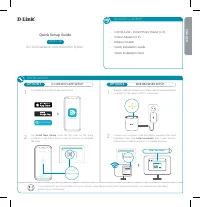 D-Link COVR-1102 AC1200 User Manual
 D-Link DAP -2310 Manual
 D-Link DIR-615 Manual
 D-Link DIR-632 Manual
 D-Link DIR-825 Manual
 D-Link DSR-250 Manual
 D-Link DSR-250N Manual
 D-Link DWA-125 User Manual
 D-Link DWA-140 Manual
 D-Link DWA-160 Manual
 D-Link DWA-547 Manual
 D-Link DWL-2100AP Manual
 D-Link DWL-3200AP Manual
 D-Link DWL-G650+ Manual
 D-Link DWL-G680 Manual
 D-Link DWR-921 Manual

