Page 2 - Manual Revisions
2 D-Link DAP-1350 User Manual D-Link reserves the right to revise this publication and to make changes in the content hereof without obligation to notify any person or organization of such revisions or changes. Manual Revisions Trademarks D-Link and the D-Link logo are trademarks or registered trade...
Page 3 - Table of Contents
3 D-Link DAP-1350 User Manual Table of Contents Manual Revisions .................................................... 2Trademarks ............................................................. 2 Product Overview ........................................................ 6 Package Contents ................
Page 6 - Product Overview; Package Contents
6 D-Link DAP-1350 User Manual Section 1 - Product Overview Product Overview Note: Using a power supply with a different voltage rating than the one included with the DAP-1350 will cause damage and void the warranty for this product. D-Link DAP-1350 Wireless N Pocket Router /Access Point Power Adapte...
Page 7 - System Requirements
7 D-Link DAP-1350 User Manual Section 1 - Product Overview Network Requirements • An Ethernet-based Cable or DSL modem (router mode only) • IEEE 802.11n or 802.11g wireless clients (router or AP mode) • IEEE 802.11n or 802.11g wireless AP or router (client mode) • 10/100/1000 Ethernet Web-based Conf...
Page 8 - Introduction
8 D-Link DAP-1350 User Manual Section 1 - Product Overview Introduction D-Link, an industry leader in networking, introduces the new D-Link DAP-1350 Wireless N Range Extender. With the ability to transfer files with a maximum wireless signal rate of up to 300Mbps*, the DAP-1350 gives you high-speed ...
Page 10 - Features
10 D-Link DAP-1350 User Manual Section 1 - Product Overview • Faster Wireless Networking - The DAP-1350 provides up to 300Mbps* wireless connection with other 802.11n wireless clients. This capability allows users to participate in real-time activities online, such as video streaming, online gaming,...
Page 11 - Hardware Overview; Connections
11 D-Link DAP-1350 User Manual Section 1 - Product Overview Hardware Overview Connections Mode Selector Select from one of the three modes: AP (top) - Access Point (AP) Mode CL (middle) - Wireless Client Mode RT (bottom) - Router Mode Power Receptor Receptor for the supplied power adapter. LAN/WAN P...
Page 12 - Side; Bottom
12 D-Link DAP-1350 User Manual Section 1 - Product Overview Hardware Overview Side USB Port The USB port is used to connect USB devices such as a printer to share on your network. Bottom WPS Button/LED Press to start the WPS process. You will have 120 seconds to start the WPS process on another wire...
Page 13 - LEDs
13 D-Link DAP-1350 User Manual Section 1 - Product Overview Hardware Overview LEDs Power LED A solid light indicates a proper connection to the power supply. Wireless LED A solid light indicates that the wireless segment is ready. This LED blinks during wireless data transmission. LAN/WAN LED A soli...
Page 14 - Installation; Operation Modes
14 D-Link DAP-1350 User Manual Section 2 - Installation Installation Please configure the DAP-1350 by following the Install Guide poster. The next few pages will explain the different operational modes you can use. Operation Modes Depending on how you want to use your DAP-1350 will determine which m...
Page 15 - Access Point Mode
15 D-Link DAP-1350 User Manual Section 2 - Installation Access Point Mode In the Access Point mode, the DAP-1350 acts as a central connection point for any computer (client) that has a 802.11n or backward-compatible 802.11b/g wireless network interface and is within range of the AP. Clients must use...
Page 16 - Wireless Client Mode
16 D-Link DAP-1350 User Manual Section 2 - Installation Wireless Client Mode In the Wireless Client mode, the DAP-1350 acts as a wireless network adapter for your Ethernet-enabled device (such as a game console or a laptop). Connect your Ethernet-enabled device to the AP using an Ethernet cable. The...
Page 17 - Router Mode
17 D-Link DAP-1350 User Manual Section 2 - Installation Router Mode In the Router mode, the DAP-1350 connects to a broadband modem. In this mode, the DAP-1350 also acts as a router for wireless clients on your network and provides NAT (Network Address Translation) and a DHCP server to generate IP ad...
Page 18 - Wireless Installation Considerations
18 D-Link DAP-1350 User Manual Section 2 - Installation Wireless Installation Considerations The D-Link wireless access point lets you access your network using a wireless connection from virtually anywhere within the operating range of your wireless network. Keep in mind, however, that the number, ...
Page 19 - Configuration
19 D-Link DAP-1350 User Manual Section 3 - Configuration Configuration This section will show you how to configure your new D-Link wireless access point using the web-based configuration utility. Access Point Mode If you wish to change the default settings or optimize the performance of the DAP-1350...
Page 20 - Wireless Setup Wizard
20 D-Link DAP-1350 User Manual Section 3 - Configuration Click Launch Wireless Setup Wizard to configure your access point and skip to the next page. To set up your wireless network, click Add Wireless Device With WPS and skip to page 24. If you want to enter your settings without running the wizard...
Page 25 - Add Wireless Device With WPS
25 D-Link DAP-1350 User Manual Section 3 - Configuration This Wizard is designed to assist you in your wireless network setup. It will guide you through step-by-step instructions on how to set up your wireless network and how to make it secure. Select PIN to use your PIN number from your wireless de...
Page 27 - Wireless Setup
27 D-Link DAP-1350 User Manual Section 3 - Configuration Enable Wireless: Wireless Mode: Wireless Network Name: Enable Auto Channel Scan: Wireless Channel: 802.11 Mode: Check the box to enable the wireless function. If you do not want to use wireless, uncheck the box to disable all the wireless func...
Page 29 - LAN Setup
29 D-Link DAP-1350 User Manual Section 3 - Configuration LAN Setup This section will allow you to change the local network settings of the access point and to configure the DHCP settings. LAN Connection Type: Device Name: Use the drop-down menu to select Dynamic IP (DHCP) to automatically obtain an ...
Page 31 - MAC Address Filter
31 D-Link DAP-1350 User Manual Section 3 - Configuration MAC Address Filter Select Enable or Disable from the drop-down menu. Enter the MAC address you would like to filter. To find the MAC address on a computer, please refer to the Networking Basics section in this manual. Click Save Settings to ac...
Page 32 - Advanced Wireless
32 D-Link DAP-1350 User Manual Section 3 - Configuration Advanced Wireless Transmit Power: Beacon Period: DTIM Interval: RTS Threshold: Fragmentation Threshold: WMM Enable: Short GI: Sets the transmit power of the antennas. Note: Transmit power is regulated by international standard. Users are forbi...
Page 33 - User Limit
33 D-Link DAP-1350 User Manual Section 3 - Configuration User Limit Check the Enable User Limit box to enable this feature. Enter the maximum number of clients, between 1 and 32. Click Save Settings to save and activate the new changes. Enable User Limit: User Limit: Save Settings: Enter the maximum...
Page 34 - Admin
34 D-Link DAP-1350 User Manual Section 3 - Configuration Password: Verify Password: Enable Graphical Authentication: Enter a new password for the Administrator Login Name. The administrator can make changes to the settings. Enter the same password that you entered in the previous textbox in order to...
Page 35 - System
35 D-Link DAP-1350 User Manual Section 3 - Configuration Save to Local Hard Drive: Upload from Local Hard Drive: Restore to Factory Default: Reboot the Device: Use this option to save the current access point configuration settings to a file on the hard disk of the computer you are using. Click the ...
Page 36 - Firmware; Language Pack
36 D-Link DAP-1350 User Manual Section 3 - Configuration Browse: Upload: After you have downloaded the new firmware, click Browse to locate the firmware update on your hard drive. Click Upload to complete the firmware upgrade. Once you have a firmware update on your computer, use this option to brow...
Page 37 - Time
37 D-Link DAP-1350 User Manual Section 3 - Configuration Time Zone: Daylight Saving: Enable NTP Server: NTP Server Used: Date and Time: Select the Time Zone from the drop-down menu. To select Daylight Saving time manually, click the Enable Daylight Saving check box. Next use the drop-down menu to se...
Page 38 - Schedules
38 D-Link DAP-1350 User Manual Section 3 - Configuration Enter a name for your new schedule. Select a day, a range of days, or All Week to include every day. Check All Days or enter a start and end time for your schedule. Select On or Off from the drop-down menu. Click Add to save your schedule. You...
Page 39 - Device Info
39 D-Link DAP-1350 User Manual Section 3 - Configuration General: LAN: Wireless LAN: Displays the access point’s time and firmware version. Displays the MAC address and the private (local) IP settings for the access point. Displays the wireless MAC address and your wireless settings such as SSID and...
Page 40 - Logs
40 D-Link DAP-1350 User Manual Section 3 - Configuration Logs The DAP-1350 keeps a running log of events and activities occurring on the AP. If the AP is rebooted, the logs are automatically cleared. You can save the log files under Log Settings. Log Options: First Page: Last Page: Previous: Next: C...
Page 41 - Statistics
41 D-Link DAP-1350 User Manual Section 3 - Configuration Statistics The DAP-1350 keeps statistics of the traffic that passes through it. You can view the amount of packets that pass through the LAN and wireless portions of the network. The traffic counter will reset if the access point is rebooted.
Page 42 - Wireless
42 D-Link DAP-1350 User Manual Section 3 - Configuration Wireless The wireless section allows you to view the wireless clients that are connected to your wireless access point. Connection Time: MAC Address: Displays the amount of time the wireless client has been connected to the access point. The E...
Page 43 - Help
43 D-Link DAP-1350 User Manual Section 3 - Configuration Help
Page 51 - Manual Wireless Setup
51 D-Link DAP-1350 User Manual Section 3 - Configuration Manual Wireless Setup Wireless Mode: Site Survey: Wireless Type: Wireless Network Name: Wireless Channel: 802.11 Mode: Channel Width: Transmission Rate: Wireless MAC Clone: Wireless Security Mode: WPS: Wireless Client Mode is selected. Click S...
Page 52 - LAN Settings
52 D-Link DAP-1350 User Manual Section 3 - Configuration LAN Settings This section will allow you to change the local network settings of the access point and to configure the DHCP settings. LAN Connection Type: IP Address: Subnet Mask: Default Gateway: Device Name: Use the drop-down menu to select ...
Page 53 - Logout
53 D-Link DAP-1350 User Manual Section 3 - Configuration Logout This section will allow you to change the local network settings of the access point and to configure the DHCP settings.
Page 64 - Setup Wizard
64 D-Link DAP-1350 User Manual Section 3 - Configuration Click Launch Internet Connection Setup Wizard to begin. If you want to enter your settings without running the wizard, click Manual Internet Configuration Setup and skip to page 65. Setup Wizard Click Next to continue. Create a new password an...
Page 67 - Internet Setup
67 D-Link DAP-1350 User Manual Section 3 - Configuration Internet Setup If you opt to set up your Internet connection manually, you will be redirected to a WAN page that allows you to select your Internet type and enter the correct configuration parameters. Select your Internet connection type using...
Page 70 - PPPoE
70 D-Link DAP-1350 User Manual Section 3 - Configuration PPPoE Select PPPoE (Point-to-Point Protocol over Ethernet) if your ISP uses a PPPoE connection. Your ISP will provide you with a username and password. This option is typically used for DSL services. Make sure to remove your PPPoE software fro...
Page 71 - PPTP
71 D-Link DAP-1350 User Manual Section 3 - Configuration PPTP Choose PPTP (Point-to-Point Tunneling Protocol) if your ISP uses a PPTP connection. Your ISP will provide you with a username and password. This option is typically used for DSL services. PPTP IP Address: PPTP Subnet Mask: PPTP Server IP ...
Page 73 - G Mobile Connection
73 D-Link DAP-1350 User Manual Section 3 - Configuration 3G Mobile Connection Choose USB3G if you want to connect your router to the Internet through a compatible D-Link 3G USB adapter. Plug in your USB 3G adapter to the DAP-1350’s USB port, then select USB3G from the drop down box and click on Save...
Page 79 - Add Wireless Device with WPS Wizard
79 D-Link DAP-1350 User Manual Section 3 - Configuration From the Setup > Wireless Settings screen, click Add Wireless Device with WPS . Add Wireless Device with WPS Wizard PIN: Select this option to use PIN method. In order to use this method you must know the wireless client’s 8 digit PIN and c...
Page 80 - Wireless Settings
80 D-Link DAP-1350 User Manual Section 3 - Configuration Wireless Settings Enable Wireless: Wireless Network Name: Wireless Mode: Enable Auto Channel Scan: Wireless Channel: Transmission Rate: Channel Width: Visibility Status: Wireless Security Mode: Select this to turn the Wi-Fi module on and off. ...
Page 81 - Network Settings
81 D-Link DAP-1350 User Manual Section 3 - Configuration Network Settings Enter the IP address of the router. The default IP address is 192.168.0.1. If you change the IP address, once you click Apply , you will need to enter the new IP address in your browser to get back into the configuration utili...
Page 82 - DHCP Server Settings
82 D-Link DAP-1350 User Manual Section 3 - Configuration Check this box to enable the DHCP server on your router. Uncheck to disable this function. Enter the starting and ending IP addresses for the DHCP server’s IP assignment. Note: If you statically (manually) assign IP addresses to your computers...
Page 83 - DHCP Reservation
83 D-Link DAP-1350 User Manual Section 3 - Configuration DHCP Reservation If you want a computer or device to always have the same IP address assigned, you can create a DHCP reservation. The router will assign the IP address only to that computer or device. Note: This IP address must be within the D...
Page 84 - USB Settings
84 D-Link DAP-1350 User Manual Section 3 - Configuration USB Settings Use this section to configure your USB port. Share Port will be selected. Note: If using the SharePort option, users will need to install the SharePort Utility into the computers to share the USB device through the router. Please ...
Page 85 - Virtual Server
85 D-Link DAP-1350 User Manual Section 3 - Configuration The DAP-1350 can be configured as a virtual server so that remote users accessing Web or FTP services via the public IP address can be automatically redirected to local servers in the LAN (Local Area Network). The DAP-1350 firewall feature fil...
Page 87 - Application Rules
87 D-Link DAP-1350 User Manual Section 3 - Configuration Application Rules Enter a name for the rule. You may select a pre-defined application from the drop-down menu and click << . This is the port used to trigger the application. It can be either a single port or a range of ports. Select the...
Page 89 - Website Filters
89 D-Link DAP-1350 User Manual Section 3 - Configuration Enter the keywords or URLs that you want to block (or allow). Any URL with the keyword in it will be blocked. Website URL/ Domain: Website Filters are used to deny LAN computers from accessing specific web sites by the URL or domain. A URL is ...
Page 90 - Firewall Settings
90 D-Link DAP-1350 User Manual Section 3 - Configuration SPI (Stateful Packet Inspection, also known as dynamic packet filtering) helps to prevent cyber attacks by tracking more state per session. It validates that the traffic passing through the session conforms to the protocol. Select one of the f...
Page 91 - Advanced Wireless Settings
91 D-Link DAP-1350 User Manual Section 3 - Configuration Set the transmit power of the antennas. Note: Transmit power is regulated by international standard. Users are forbidden to change its maximum limit. Beacons are packets sent by an Access Point to synchronize a wireless network. Specify a valu...
Page 92 - Wi-Fi Protected Setup
92 D-Link DAP-1350 User Manual Section 3 - Configuration Enable the Wi-Fi Protected Setup feature. Locking the wireless security settings prevents the settings from being changed by the Wi-Fi Protected Setup feature of the router. Devices can still be added to the network using Wi-Fi Protected Setup...
Page 94 - UPnP Settings
94 D-Link DAP-1350 User Manual Section 3 - Configuration To use the Universal Plug and Play (UPnP ™ ) feature click on Enabled . UPnP provides compatibility with networking equipment, software and peripherals. UPnP Settings: UPnP Settings
Page 95 - Guest Zone
95 D-Link DAP-1350 User Manual Section 3 - Configuration Guest Zone Check to enable the Guest Zone feature. The schedule of time when the Guest Zone will be active. The schedule may be set to Always, which will allow the particular service to always be enabled. You can create your own times in the T...
Page 96 - DMZ
96 D-Link DAP-1350 User Manual Section 3 - Configuration DMZ Check this box to enable DMZ. Enter the IP address of the computer you would like to open all ports to. You can select a computer from the Computer Name drop-down menu and click << to enter the computer name into the DMZ Host IP Addr...
Page 97 - Administrator Settings
97 D-Link DAP-1350 User Manual Section 3 - Configuration Enter a new password for the Administrator Login Name. The administrator can make changes to the settings. Enter the new password for the User login. If you login as the User, you can only see the settings, but cannot change them. Enter a name...
Page 98 - Time Settings
98 D-Link DAP-1350 User Manual Section 3 - Configuration Time Settings Select the Time Zone from the drop-down menu. To select Daylight Saving time manually, select enabled or disabled, and enter a start date and an end date for daylight saving time. NTP is short for Network Time Protocol. NTP synch...
Page 99 - SysLog
99 D-Link DAP-1350 User Manual Section 3 - Configuration SysLog The Broadband Router keeps a running log of events and activities occurring on the Router. You may send these logs to a SysLog server on your network. Enable Logging to SysLog Server: SysLog Server IP Address: Check this box to send the...
Page 100 - System Settings
100 D-Link DAP-1350 User Manual Section 3 - Configuration Use this option to save the current router configuration settings to a file on the hard disk of the computer you are using. First, click the Save button. You will then see a file dialog, where you can select a location and file name for the s...
Page 101 - Firmware Update
101 D-Link DAP-1350 User Manual Section 3 - Configuration Click on Check Online Now for Latest Firmware Version to find out if there is an updated firmware; if so, download the new firmware to your hard drive. After you have downloaded the new firmware, click Browse to locate the firmware update on ...
Page 103 - Device Information
103 D-Link DAP-1350 User Manual Section 3 - Configuration This page displays the current information for the DAP-1350. It will display the LAN, WAN (Internet), and Wireless information. If your Internet connection is set up for a Dynamic IP address then a Release button and a Renew button will be di...
Page 107 - Internet Sessions
107 D-Link DAP-1350 User Manual Section 3 - Configuration Internet Sessions The Internet Sessions page displays full details of active Internet sessions through your router. An Internet session is a conversation between a program or application on a LAN-side computer and a program or application on ...
Page 110 - Wireless Security
110 D-Link DAP-1350 User Manual Section 4 - Security Wireless Security This section will show you the different levels of security you can use to protect your data from intruders. The DAP-1350 offers the following types of security: • WPA2 (Wi-Fi Protected Access 2) • WPA2-PSK (Pre-Shared Key) • WPA...
Page 112 - Configure WEP
112 D-Link DAP-1350 User Manual Section 4 - Security Configure WEP It is recommended to enable encryption on your wireless access point before your wireless network adapters. Please establish wireless connectivity before enabling encryption. Your wireless signal may degrade when enabling encryption ...
Page 113 - Configure WPA/WPA2 Personal
113 D-Link DAP-1350 User Manual Section 4 - Security Configure WPA/WPA2 Personal It is recommended to enable encryption on your wireless access point before your wireless network adapters. Please establish wireless connectivity before enabling encryption. Your wireless signal may degrade when enabli...
Page 114 - Configure WPA/WPA2 Enterprise
114 D-Link DAP-1350 User Manual Section 4 - Security It is recommended to enable encryption on your wireless access point before your wireless network adapters. Please establish wireless connectivity before enabling encryption. Your wireless signal may degrade when enabling encryption due to the add...
Page 115 - Connect to a Wireless Network
115 D-Link DAP-1350 User Manual Section 4 - Security Using Windows ® 7 It is recommended to enable wireless security (WPA/WPA2) on your wireless router or access point before configuring your wireless adapter. If you are joining an existing network, you will need to know the security key or passphra...
Page 118 - Using Windows Vista
118 D-Link DAP-1350 User Manual Section 5 - Connecting to a Wireless Network Connect to a Wireless Network Using Windows Vista ® Windows Vista ® users may use the convenient, built-in wireless utility. Follow these instructions: From the Start menu, go to Control Panel, and then click on Network and...
Page 127 - Troubleshooting
127 D-Link DAP-1350 User Manual Section 6 - Troubleshooting Troubleshooting This chapter provides solutions to problems that can occur during the installation and operation of the DAP-1350. Read the following descriptions if you are having problems. (The examples below are illustrated in Windows ® X...
Page 131 - Wireless Basics
131 D-Link DAP-1350 User Manual Appendix A - Wireless Basics D-Link wireless products are based on industry standards to provide easy-to-use and compatible high-speed wireless connectivity within your home, business or public access wireless networks. Strictly adhering to the IEEE standard, the D-Li...
Page 134 - Where is wireless used?; Tips
134 D-Link DAP-1350 User Manual Appendix A - Wireless Basics Where is wireless used? Wireless technology is expanding everywhere not just at home or office. People like the freedom of mobility and it’s becoming so popular that more and more public facilities now provide wireless access to attract pe...
Page 135 - Wireless Modes
135 D-Link DAP-1350 User Manual Appendix A - Wireless Basics Security Don’t let your next-door neighbors or intruders connect to your wireless network. Secure your wireless network by turning on the WPA or WEP security feature on the access point. Refer to product manual for detail information on ho...
Page 136 - Networking Basics; Check your IP address
136 D-Link DAP-1350 User Manual Appendix B - Networking Basics Networking Basics Check your IP address After you install your new D-Link adapter, by default, the TCP/IP settings should be set to obtain an IP address from a DHCP server (i.e. wireless router) automatically. To verify your IP address, ...
Page 137 - Statically Assign an IP address
137 D-Link DAP-1350 User Manual Appendix B - Networking Basics Statically Assign an IP address If you are not using a DHCP capable gateway/access point, or you need to assign a static IP address, please follow the steps below: Step 1 Windows Vista ® - Click on Start > Control Panel > Network a...
Page 138 - Technical Specifications
138 D-Link DAP-1350 User Manual Appendix C - Technical Specifications Technical Specifications Standards • IEEE 802.11n • IEEE 802.11g • IEEE 802.3 • IEEE 802.3u Security • Wi-Fi Protected Access (WPA, WPA2) ® • Wi-Fi Protected Setup ™ (WPS) - WPS Push Button - PIN Interface Type • 1 10/100 LAN/WAN ...


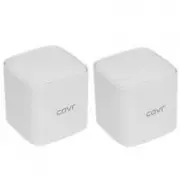 D-Link COVR-1102
User Manual
D-Link COVR-1102
User Manual
 D-Link COVR-1102 AC1200
User Manual
D-Link COVR-1102 AC1200
User Manual
 D-Link DAP -2310
Manual
D-Link DAP -2310
Manual
 D-Link DCS-942L
Manual
D-Link DCS-942L
Manual
 D-Link DGL-3420
Manual
D-Link DGL-3420
Manual
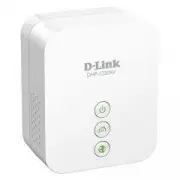 D-Link DHP-1220AV/A1A
User Manual
D-Link DHP-1220AV/A1A
User Manual
 D-Link DIR-330
Manual
D-Link DIR-330
Manual
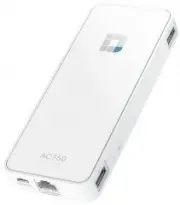 D-Link DIR-510L/RU/A1A
User Manual
D-Link DIR-510L/RU/A1A
User Manual
 D-Link DIR-620
User Manual
D-Link DIR-620
User Manual
 D-Link DIR-636L 802.11nk (DIR-636L)
User Manual
D-Link DIR-636L 802.11nk (DIR-636L)
User Manual
 D-Link DIR-825
Manual
D-Link DIR-825
Manual
 D-Link DIR-860L 802.11ac
User Manual
D-Link DIR-860L 802.11ac
User Manual
 D-Link DSL-G804V
User Manual
D-Link DSL-G804V
User Manual
 D-Link DSR-1000
Manual
D-Link DSR-1000
Manual
 D-Link DSR-250N
Manual
D-Link DSR-250N
Manual
 D-Link DVG-5402SP_B1
User Manual
D-Link DVG-5402SP_B1
User Manual
 D-Link DVG-N5402SP
User Manual
D-Link DVG-N5402SP
User Manual
 D-Link DWA-125
User Manual
D-Link DWA-125
User Manual
 D-Link DWA-547
Manual
D-Link DWA-547
Manual