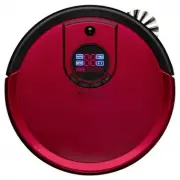
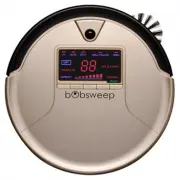
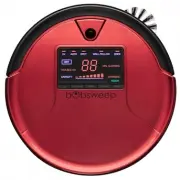
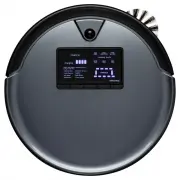
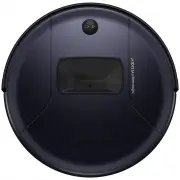
Page 2 - Bob Pro; O W N E R ’ S M A N U A L
Bob Pro O W N E R ’ S M A N U A L Model SJP110020 Manual Version 2019.1
Page 3 - Congratulations; your service. To see Bob at his best, please read the Quick Start
Congratulations ! Congratulations on your new intelligent floor cleaner! Bob is now at your service. To see Bob at his best, please read the Quick Start Guide and this manual thoroughly. Welcome to the bObsweep family and Happy Sweeping! If you have any questions or concerns, feel free to contact ou...
Page 5 - Declaration of Conformity; Warranty
Declaration of Conformity This device complies with Part 15 of the FCC rules. Operation is subject to the following two conditions: (1) this device may not cause harmful interference, and (2) this device must accept any interference received, including interference that may cause undesired operation...
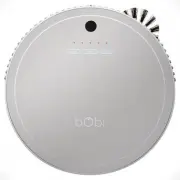
Page 6 - Table of; Contents
Table of Contents Charging 18. Charging Station 20. Charging Bob Remote Control 24. Remote Buttons 26. Syncing the Remote 28. Navigating Bob 30 Cleaning Schedule 32. Setting Current Time 34. Setting Cleaning Schedule 36 Parts and Maintenance 38. Dustbin 42. Filters 44. Main Brush 46. Side Brush 48. ...
Page 7 - Getting Started
Getting Started 6 Box Contents 8 Bob’s Anatomy 10 Get to Know Bob 12 Get Bob Started Let’s start at the very beginning. We’ll walk you through the basics and help you get Bob started for the very first time. 4
Page 8 - Quick Start; Getting; Box Contents
1 Charging Station 2 Charging Adapter 3 Remote Control 4 Spare Filters 5 Cleaning Tool Quick Start Getting Started Box Contents 1 2 3 4 5 9 6 7 8 10 6 Side Brush Screws (2) 7 Phillips Head Screwdriver 8 Spare Side Brushes (2) 9 Owner’s Manual, Quick Start Guide, and Warranty Card 10 Bob Pro Box Cont...
Page 9 - Bob’s Anatomy
Top View Bottom View Quick Start Getting Started Bob’s Anatomy Charging Plates Battery Main Brush Left Wheel Dustbin Side Brushes Front Wheel Bumper Cover Button Cover Right Wheel Edge Sensors Bob’s Anatomy 8 7
Page 10 - Should I pick up Bob?; Get to Know Bob; Navigating Difficult Obstacles; Unique Furniture
Who is Bob? Bob is an autonomous robotic vacuum cleaner, at your service! He can vacuum and sweep all the same time — and at the end of his cleaning session, he automatically returns to his station for a power nap. Set Bob to clean on a schedule and he’ll clean on his own even when you’re not around...
Page 12 - OR
Step 2: Click and Go! Once Bob is fully charged, he is ready to clean! Quick Start Getting Started Get Bob Started: Bob will be ready to clean in just 2 easy steps. Quick Tip: If Bob is left idling for 5 minutes, he will enter standby mode to conserve his battery When in standby mode, Bob is paused....
Page 13 - Charging
Charging 18 Charging Station 20 Charging Bob Bob automatically returns to his charging station when low on battery. To maximize Bob’s chance of finding his station, it’s best to place it in an easily accessible location with plenty of space around it. 16
Page 14 - Charging Station
Quick Start Charging Station Bob will automatically return to his charging station when low on battery. To maximize Bob’s chance of finding his station, place it in an easily accessible location with plenty of space around it. 1. Position the charging station against a wall on a hard, flat surface. ...
Page 15 - Charging Bob
Quick Start Charging Charging Bob Charging Bob on the Charging Station To charge Bob, place him on his charging station with the metal plates on his underside sitting on top of the nodes on his station. Make sure the station is plugged in. Bob will chirp once and slowly blink his cover button to let...
Page 17 - Remote; Remote Buttons
Remote Buttons Quick Start Remote Control Remote Buttons 1 Start / Stop Starts or pauses Bob’s movements. 2 Navigational Butons Guide Bob forward, backward, right, or left. 3 Auto Puts Bob on his default setting (Robot mode). 4 Wall Track™ Sends Bob to clean along walls and corners. 5 Set Current Ti...
Page 18 - Syncing the Remote
Quick Start Remote Control Syncing the Remote Syncing the Remote If Bob is not responding to his remote, he may need to be synced to it. You will only need to do this once. Make sure the remote has a working pair of batteries before proceeding. Parts You’ll Need: Remote Control AAA Batteries x2 (not...
Page 19 - Navigating Bob
Quick Start Remote Control Syncing the Remote Bob’s edge sensors are located along his front, not along his back. Do not reverse Bob towards edges, as he will fall. Navigating Bob Hold down the navigational buttons to control Bob’s movements. Quick Tip: Bob can be manually controlled only while he i...
Page 20 - Setting the Current Time
Cleaning Schedule 32 Setting the Current Time 34 Setting the Cleaning Schedule Bob can be programmed to clean every day at the time of your choice through his remote control. 30
Page 21 - Cleaning
Quick Start Cleaning Schedule Setting the Current Time Setting the Current Time Bob can be programmed to clean every day at the time of your choice through his remote control. To set Bob’s cleaning schedule, you must first set the current time on his remote. Make sure the remote is synced and has a ...
Page 22 - Setting the Cleaning Schedule
Quick Start Cleaning Schedule Setting the Cleaning Schedule Setting the Cleaning Schedule After setting the time on Bob’s remote, you may set his cleaning schedule. 1. Press the button on the remote. The hour digits will start flashing. 2. Use the the and buttons to move between minutes and hours. U...
Page 24 - Parts; Dustbin; Emptying Bob’s Dustbin
Quick Start Parts and Maintenance Dustbin Dustbin To maximize Bob’s efficiency, it is best to empty his dustbin about once a week, or about once every 6 cleaning cycles. Emptying Bob’s Dustbin 1. Push down the tab on Bob’s back and slide the dustbin out. 2. Lift the tab to open the dustbin. 3. Dump ...
Page 25 - Washing Bob’s Dustbin
Quick Start Parts and Maintenance Dustbin Dustbin Bob’s dustbin can be washed once you remove his filters. Washing Bob’s Dustbin 1. Push down the tab on Bob’s back and slide the dustbin out. 2. Lift the tab to open the dustbin. Lift the filter tray out, using the tabs for leverage. 3. Remove the fil...
Page 26 - Filters; Cleaning Bob’s Filters
Quick Start Parts and Maintenance Filters Filter Frame High-Efficiency Filter For fine particles Electrostatic Filter For smaller particles Filters To maximize Bob’s efficiency, it is best to clean his filters about once a week and replace them about once every 6 months. Three filters are located in...
Page 27 - Main Brush; Cleaning Bob’s Main Brush
Quick Start Parts and Maintenance Main Brush Main Brush To maximize Bob’s efficiency, it is best to clean his main brush about once a week. Cleaning Bob’s Main Brush 1. Push in the tabs on the main brush frame and lift. 2. Use Bob’s cleaning tool to clean the main brush and the notches inside Bob wh...
Page 28 - Side Brush; Cleaning Bob’s Side Brush
Quick Start Parts and Maintenance Side Brush Side Brush To maximize Bob’s efficiency, it is best to clean his side brush about once a week. Parts You’ll Need: Screwdriver Cleaning Tool 1. Remove the screw on the side brush. 3. When done, replace the side brushes and screws. 2. Use the cleaning tool ...
Page 29 - Battery; Replacing Bob’s Battery
Quick Start Parts and Maintenance Battery Battery Bob’s battery has a 2-year warranty. Replacement batteries can be purchased at bobsweep.com/shop. 1. Pinch the orange tabs on the battery inward and lift the battery out. 3. Slide the new battery into Bob and apply pressure until it clicks into place...
Page 30 - Sensors; Cleaning Bob’s Sensors
Quick Start Parts and Maintenance Sensors Sensors To maximize Bob’s efficiency, it is best to clean his sensors about once a week. Bob’s wall sensors are located along his bumper; his edge sensors are located along the front of his underside. 1. Wipe the wall and edge sensors using a soft cloth slig...
Page 31 - Wheels; Cleaning Bob’s Wheels
Quick Start Parts and Maintenance Wheels Wheels To maximize Bob’s efficiency, it is best to clean his wheels about once a week. 1. Clean the left or right wheels using compressed air or the cleaning tool. Cleaning Bob’s Wheels Parts You’ll Need: Compressed Air Cleaning Tool (not included) 52 51
Page 32 - Troubleshooting
Troubleshooting 56 Left Wheel 58 Right Wheel 60 Wheel Sensors 62 Front Wheel 64 Edge Sensors 66 Low Battery When Bob encounters an issue, he communicates it through a series of red light flashes. He will beep once, flash a set number of times, pause, and then beep again before restarting the cycle. ...
Page 33 - Left Wheel; Troubleshooting: Left Wheel
Red Light Flashes: Left Wheel If Bob stops working and flashes a red light 2 times between beeps, then his left wheel may be congested. Quick Start Troubleshooting Troubleshooting: Left Wheel What to do: Clean the left wheel using compressed air or the cleaning tool. 2 Parts You’ll Need: Compressed ...
Page 34 - Right Wheel; Troubleshooting: Right Wheel
Red Light Flashes: Right Wheel If Bob stops working and flashes a red light 3 times between beeps, then his right wheel may be congested. Quick Start Troubleshooting Troubleshooting: Right Wheel Parts You’ll Need: Compressed Air Cleaning Tool (not included) What to do: Clean the right wheel using co...
Page 35 - Wheel Sensors; Troubleshooting: Wheel Sensors
Red Light Flashes: Wheel Sensors If Bob stops working and flashes a red light 4 times between beeps, then his wheel sensors may be off the floor Quick Start Troubleshooting Troubleshooting: Wheel Sensors What to do: Make sure Bob’s wheels are not suspended in the air and can reach the floor evenly. ...
Page 36 - Front Wheel; Troubleshooting: Front Wheel
Red Light Flashes: Front Wheel If Bob stops working and flashes a red light 5 times between beeps, then his front wheel may be congested. Quick Start Troubleshooting Troubleshooting: Front Wheel What to do: Grip the wheel assembly with your hand and pull up. You may use a screwdriver for leverage if...
Page 37 - Edge Sensors; Troubleshooting: Edge Sensors
Red Light Flashes: Edge Sensors If Bob stops working and flashes a red light 6 times between beeps, then his edge sensors may be dirty. Quick Start Troubleshooting Troubleshooting: Edge Sensors What to do: Wipe the edge sensors using a soft cloth slightly dampened with cold water or alcohol. Keep Bo...
Page 38 - Low Battery; Troubleshooting: Low Battery
Red Light Flashes: Low Battery If Bob stops working and flashes a red light 7 times between beeps, then his battery power is below 2%. Quick Start Troubleshooting Troubleshooting: Low Battery What to do: Place Bob on his charging station with the metal plates on his underside sitting on top of the n...
Page 39 - Touch Sensors; Troubleshooting: Touch Sensors
Red Light Flashes: Touch Sensors If Bob stops working and flashes a red light 8 times between beeps, then his bumper may be congested. Quick Start Troubleshooting Troubleshooting: Touch Sensors Parts You’ll Need: Compressed Air (not included) What to do: Clean the inside of the bumper using compress...
Page 40 - Troubleshooting: Main Brush
Red Light Flashes: Main Brush If Bob stops working and flashes a red light 9 times between beeps, then his main brush may be congested. Quick Start Troubleshooting Troubleshooting: Main Brush Parts You’ll Need: Cleaning Tool What to do: Push in the tabs on the main brush frame and lift. Use Bob’s cl...
Page 41 - Troubleshooting: Side Brush
Red Light Flashes: Side Brush If Bob stops working and flashes a red light 10 times between beeps, then his main brush may be congested. Quick Start Troubleshooting Troubleshooting: Side Brush What to do: Remove the screw on each side brush. Use the cleaning tool to clean the side brushes and the br...
Page 42 - Wall Sensors; Troubleshooting: Wall Sensors
Red Light Flashes: Wall Sensors If Bob stops working and flashes a red light 11 times between beeps, then his wall sensors may be dirty. Quick Start Troubleshooting Troubleshooting: Wall Sensors What to do: Wipe the wall sensors using a soft cloth slightly dampened with cold water or alcohol. Bob’s ...
Page 43 - Vacuum Motor; Troubleshooting: Vacuum Motor
Red Light Flashes: Vacuum Motor If Bob stops working and flashes a red light 12 times between beeps, then his vacuum motor is having an issue. Quick Start Troubleshooting Troubleshooting: Vacuum Motor Parts You’ll Need: Compressed Air (not included) What to do: Remove Bob’s dustbin and clean the ins...
Page 44 - Power System; Troubleshooting: Power System
Red Light Flashes: Power System If Bob stops working and flashes a red light 14 times between beeps, then his power system is having an issue. Quick Start Troubleshooting Troubleshooting: Power System What to do: Remove Bob’s battery by pinching the tabs on the battery and pulling up. Unplug the bat...