Page 2 - First Edition
Copyright © 2011 ASUSTeK Computer Inc. All Rights Reserved. No part of this manual, including the products and software described in it, may be reproduced, transmitted, transcribed, stored in a retrieval system, or translated into any language in any form or by any means, except documentation kept b...
Page 3 - Table of contents; Knowing your wireless router; Upgrading the firmware; Installing the utilities
Table of contents About this guide .................................................................................... 4 Chapter 1: Knowing your wireless router Package contents .................................................................................. 7System requirements ....................
Page 4 - ASUS Wireless Router.; How this guide is organized; This guide contains the following parts:; • Chapter 1: Knowing your wireless router; modes of the ASUS Wireless Router.; • Chapter 3: Configuring the network clients; work with your ASUS Wireless Router.; • Chapter 4: Configuring the advanced settings; Troubleshooting
Table of contents About this guide This user guide contains information that you need to install and configure the ASUS Wireless Router. How this guide is organized This guide contains the following parts: • Chapter 1: Knowing your wireless router This chapter provides information on the package con...
Page 5 - Conventions used in this guide
5 • Chapter 6: Troubleshooting This chapter provides you with a troubleshooting guide for solving common problems you may encounter when using the ASUS Wireless Router. • Appendices This chapter provides you with the regulatory Notices and Safety Statements. Conventions used in this guide WARNING : ...
Page 7 - Package contents; Check the following items in your ASUS Wireless Router package.; System requirements; Knowing your
7 Chapter 1: Knowing your wireless router RT-N1E Package contents Check the following items in your ASUS Wireless Router package. RT-N1E Wireless Router x1 Power adapter x1 Support CD (manual, utilities) x1 RJ5 cable x1 Quick Start Guide x1 Note : If any of the items is damaged or missing, contact y...
Page 8 - Status indicators; LED; by the Federal Communications Commission.; Hardware features; Top panel
8 RT-N1E Chapter 1: Knowing your wireless router Status indicators LED Status Indication Power Off No power On System ready WLAN Off No power On Wireless system ready Flashing Transmitting or receiving data (wireless) WPS Flashing constantly WPS processingFlashing once System reset to default settin...
Page 9 - Rear panel; Item; Press this button for more than five seconds to reset the system to; Power switch
9 Chapter 1: Knowing your wireless router RT-N1E Rear panel Item Description 1 Reset button Press this button for more than five seconds to reset the system to its factory default settings. 2 Power switch Press this button to turn the power on/off. 3 Power (DC-In) port Insert the AC adapter into thi...
Page 10 - Bottom panel; Use the mounting hooks to mount your router on concrete or; Air vents; These vents provide ventilation to your router.
10 RT-N1E Chapter 1: Knowing your wireless router Bottom panel Item Description 1 Mounting hooks Use the mounting hooks to mount your router on concrete or wooden surfaces using two round head screws. 2 Air vents These vents provide ventilation to your router. Note: For details on mounting your rout...
Page 11 - Mounting options; To mount the ASUS Wireless Router:; Look on the underside for the two mounting hooks.
11 Chapter 1: Knowing your wireless router RT-N1E Mounting options Out of the box, the ASUS Wireless Router is designed to sit on a raised flat surface like a file cabinet or book shelf. The unit may also be converted for mounting to a wall or ceiling. To mount the ASUS Wireless Router: 1. Look on t...
Page 13 - Getting started; Setting up the wireless router; Using QIS with auto-detection; connection type is; Dynamic IP; necessary information for your ISP connection type.
1 Chapter : Setting up the hardware RT-N1E 2 Getting started Setting up the wireless router The ASUS Wireless Router includes a web graphics user interface (web GUI) that allows you to configure the wireless router using your web browser on your computer. Note: For details on configuring your wirele...
Page 14 - network name; and; network key; for a secure wireless network.; Finish
1 RT-N1E Chapter : Setting up the hardware . Internet connection setup is done. Notes: • If QIS does not detect your Internet connection type, click Skip to manual setting and manually configure your connection settings. • If QIS does not automatically launch, key in http://192.168.1.1 in your web b...
Page 15 - Using QIS without auto-detection; from the navigation menu. Select your connection type from these
15 Chapter : Setting up the hardware RT-N1E Using QIS without auto-detection To use QIS without auto-detection: 1. In your web browser, key in http://192.168.1.1 . Click QIS from the navigation menu. Select your connection type from these types of ISP services: Automatic IP , PPPoE , Static IP , PPT...
Page 17 - Accessing the wireless router; Setting an IP address for wired or wireless clients; the same subnet as the ASUS Wireless Router.; Configuring the
17 Chapter 3: Configuring the clients RT-N12E Accessing the wireless router Setting an IP address for wired or wireless clients To access the ASUS Wireless Router, you must have the correct TCP/IP settings on your wired or wireless clients. Ensure that the clients’ IP addresses are within the same s...
Page 18 - Windows
18 RT-N12E Chapter 3: Configuring the clients Windows ® 2000 1. Click Start > Control Panel > Network and Dial-up Connection . Right-click Local Area Connection then click Properties . . Select Internet Protocol (TCP/IP) , then click Properties . . Select Obtain an IP address automatically if ...
Page 21 - Managing bandwidth with QoS; From the left navigation menu, click
1 Chapter 4: Configuring via the web GUI RT-N12E 4 Configuring the advanced settings Managing bandwidth with QoS QoS enables you to set the bandwidth priority and manage the network traffic. To set up the bandwidth priority: 1. From the left navigation menu, click Advanced Setting > WAN > QoS ...
Page 22 - Setting up the operation mode; these two operation modes:; Setting up the wireless router in IP Sharing mode; and click
RT-N12E Chapter 4: Configuring via the web GUI Setting up the operation mode The Operation Mode page allows you to set up your wireless router into any of these two operation modes: IP Sharing mode or Access Point mode . Setting up the wireless router in IP Sharing mode In the IP Sharing mode, the w...
Page 23 - and key in the necessary information for your ISP connection type.; Setting up the wireless router in Access Point mode
Chapter 4: Configuring via the web GUI RT-N12E . Click Next and key in the necessary information for your ISP connection type. Important: Obtain the necessary information about your Internet connection type from your ISP. Setting up the wireless router in Access Point mode In the Access Point mode, ...
Page 24 - OS Support; XP SP
RT-N12E Chapter 4: Configuring via the web GUI Setting up the Wi-Fi Protected Setup (WPS) WPS (Wi-Fi Protected Setup) allows you to set up a secure and protected wireless network easily. Note: • Ensure that you use a wireless LAN adapter with WPS function. • Windows ® operating systems and wireless ...
Page 25 - . Press the WPS button on the wireless LAN card and click; Start PBC
5 Chapter 4: Configuring via the web GUI RT-N12E . Press the WPS button on the wireless LAN card and click Start PBC . You may also choose to key in the wireless LAN card’s PIN code, then click Start PIN . Note: Refer to the documentation that came with the wireless LAN card for the wireless LAN car...
Page 26 - To upgrade the firmware:; from the navigation menu at the left side of your
RT-N12E Chapter 4: Configuring via the web GUI Upgrading the firmware Note: Download the latest firmware from the ASUS website at http://www.asus.com. To upgrade the firmware: 1. Click Advanced Setting from the navigation menu at the left side of your screen. . Under the Administration menu, click F...
Page 29 - Installing; To install the ASUS WLAN Utilities in Microsoft; To install the utilities:
9 Chapter 5: Installing the utilities RT-N1E 5 Installing the utilities . Click Next. Installing the utilities The support CD contains the utilities for configuring the ASUS Wireless Router. To install the ASUS WLAN Utilities in Microsoft ® Windows, insert the support CD in the CD drive. If Autorun ...
Page 30 - Next
0 RT-N1E Chapter 5: Installing the utilities . Click Next to accept the default destination folder or click Browse to specify another path. . Click Next to accept the default program folder or enter another name. 5. Click Finish when setup is completed.
Page 31 - Device Discovery; and enables you to configure the device.; Configure; to access the main page configure the wireless router.
1 Chapter 5: Installing the utilities RT-N1E Device Discovery Device Discovery is an ASUS WLAN utility that detects an ASUS wireless router and enables you to configure the device. To launch the Device Discovery utility: From your computer’s desktop, click Start > All Programs > ASUS Utility &...
Page 32 - takes about three to four minutes.; RT-N12E Wireless Router > Firmware Restoration
RT-N1E Chapter 5: Installing the utilities Firmware Restoration Firmware Restoration is used on an ASUS Wireless Router that failed during its firmware upgrading process. It uploads the firmware that you specify. The process takes about three to four minutes. Note: This is not a firmware upgrade uti...
Page 33 - Problem; Cannot find the router:; for more than five seconds.
Chapter : Troubleshooting RT-N1E 6 Troubleshooting Troubleshooting This troubleshooting guide provides solutions to some common problems that you may encounter while installing or using the ASUS Wireless Router. These problems require simple troubleshooting that you can perform by yourself. Contact ...
Page 34 - wireless router and re-configure the settings.
RT-N1E Chapter : Troubleshooting Problem Action Cannot access the Internet via wireless LAN adapter. • Move the router closer to the wireless client.• Check whether the wireless adapter is connected to the correct wireless router. • Check whether the wireless channel in use conforms to the channels ...
Page 35 - of the wireless router for more than five; Uploading settings; Check the router’s operation mode.
5 Chapter : Troubleshooting RT-N1E Problem Action How to restore the system to its default settings? • Press the Restore button at the rear panel of the wireless router for more than five seconds. • Refer to the section Restoring/Saving/ Uploading settings in Chapter of this user manual. The followi...
Page 37 - Notices; ASUS Recycling/Takeback Services; for the detailed recycling information in different regions.; REACH; substances in our products at ASUS REACH website at; Federal Communications Commission Statement; may cause undesired operation.; Appendices
7 Appendices RT-N1E Notices ASUS Recycling/Takeback Services ASUS recycling and takeback programs come from our commitment to the highest standards for protecting our environment. We believe in providing solutions for you to be able to responsibly recycle our products, batteries, other components, a...
Page 38 - Prohibition of Co-location; with any other antenna or transmitter.; Safety Information; Essential requirements – Article; CE Mark Warning; interference that may cause undesired operation of the device.”
8 RT-N1E Appendices Prohibition of Co-location This device and its antenna(s) must not be co-located or operating in conjunction with any other antenna or transmitter. Safety Information To maintain compliance with FCC’s RF exposure guidelines, this equipment should be installed and operated with mi...
Page 39 - GNU General Public License; Licensing information; document, but changing it is not allowed.; Preamble; terms so they know their rights.
9 Appendices RT-N1E GNU General Public License Licensing information This product includes copyrighted third-party software licensed under the terms of the GNU General Public License. Please see The GNU General Public License for the exact terms and conditions of this license. We include a copy of t...
Page 40 - reflect on the original authors’ reputations.
0 RT-N1E Appendices Also, for each author’s protection and ours, we want to make certain that everyone understands that there is no warranty for this free software. If the software is modified by someone else and passed on, we want its recipients to know that what they have is not the original, so t...
Page 41 - provided that you also do one of the following:
1 Appendices RT-N1E c) If the modified program normally reads commands interactively when run, you must cause it, when started running for such interactive use in the most ordinary way, to print or display an announcement including an appropriate copyright notice and a notice that there is no warran...
Page 42 - accompanies the executable.
RT-N1E Appendices operating system on which the executable runs, unless that component itself accompanies the executable. If distribution of executable or object code is made by offering access to copy from a designated place, then offering equivalent access to copy the source code from the same pla...
Page 43 - NO WARRANTY
Appendices RT-N1E system, which is implemented by public license practices. Many people have made generous contributions to the wide range of software distributed through that system in reliance on consistent application of that system; it is up to the author/donor to decide if he or she is willing ...
Page 44 - NCC Warning
RT-N1E Appendices 1 IN NO EVENT UNLESS REQUIRED BY APPLICABLE LAW OR AGREED TO IN WRITING WILL ANY COPYRIGHT HOLDER, OR ANY OTHER PARTY WHO MAY MODIFY AND/OR REDISTRIBUTE THE PROGRAM AS PERMITTED ABOVE, BE LIABLE TO YOU FOR DAMAGES, INCLUDING ANY GENERAL, SPECIAL, INCIDENTAL OR CONSEQUENTIAL DAMAGES...
Page 45 - ASUS Contact Information; Technical Support
5 Appendices RT-N1E ASUS Contact Information ASUSTeK COMPUTER INC. (Asia Pacific) Address 15 Li-Te Road, Peitou, Taipei, Taiwan 1159 Website www.asus.com.tw Technical Support Telephone +88897 Support Fax +88890798 Online support support.asus.com ASUS COMPUTER INTERNATIONAL (America) Address 800 Corp...
Page 46 - ASUSTeK Computer Inc.; EEE Yönetmeliğine Uygundur.
RT-N1E Appendices Manufacturer: ASUSTeK Computer Inc. Tel: +88--89-7 Address: No. 150, LI-TE RD., PEITOU, TAIPEI 11, TAIWAN Authorised representative in Europe: ASUS Computer GmbH Address: HARKORT STR. 1-, 0880 RATINGEN, GERMANY Authorised distributors in Turkey: BOGAZICI BIL GISAYAR SAN. VE TIC. A....





 Asus CUV4X User Manual
 Asus CUV4X-D User Manual
 Asus D2X User Manual
 Asus DRW-24B3ST/BLK/G Manual
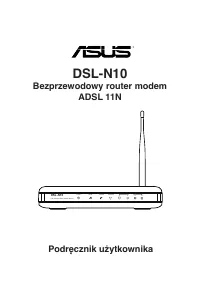 Asus DSL-N10 User Manual
 Asus DSL-N10E User Manual
 Asus DSL-N12U User Manual
 Asus DSL-N16U User Manual
 Asus DSL-N55U User Manual
 Asus E35M1-I User Manual
 Asus E35M1-I DELUXE User Manual
 Asus E35M1-M PRO User Manual