Page 2 - English; Installation requirements
2 ASUS Xonar D2X Quick Installation Guide English 1.1 Installation requirements To ensure a successful installation of the Xonar D2X audio card, your computer must meet the following requirements:• One PCI Express .0 (or higher) compatible slot for the audio card• One available 4-pin power cable fro...
Page 3 - Card installation
3 ASUS Xonar D2X Quick Installation Guide English 1.2 Card installation To install the Xonar D2X audio card:. Touch the metal back or side panel of the computer to avoid static electricity.2. Power OFF the computer, the monitor, and all other peripheral devices connected to your computer. 3. Unplug ...
Page 4 - Driver installation; Installing the Audio Card Driver
4 ASUS Xonar D2X Quick Installation Guide English After installing the Xonar D2X audio card on your computer, you need to install the device driver that enables the Xonar D2X audio card to work with Windows operating system. If you have already installed the ASUS Xonar D2X audio card, the Found New ...
Page 5 - Connecting speakers; LED color definition
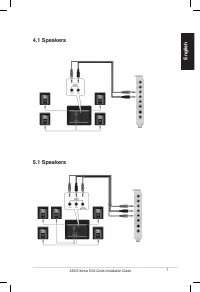
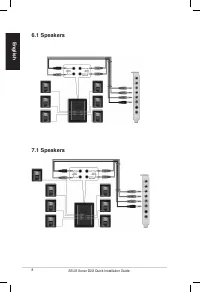
5 ASUS Xonar D2X Quick Installation Guide English 1.4 Connecting speakers For Analog Spakers2 Speakers This audio card comes with LEDs in different colors that defines each port. MIC In Red Line In Front Out Side SurroundCenter & Subwoofer Back Surround SPDIF In SPDIF Out Blue Green Orange White...
Page 6 - Speakers
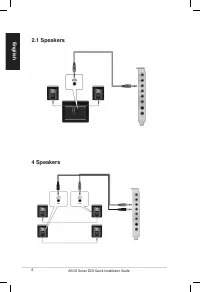
6 ASUS Xonar D2X Quick Installation Guide English 4 Speakers 2.1 Speakers
Page 9 - SPDIF In
9 ASUS Xonar D2X Quick Installation Guide English SPDIF In You can also use a coaxial cable for a S/PDIF digital connection. Just plug the coaxial RCA male connector to the S/PDIF-In combo jack and connect the other end into the coaxial S/PDIF output on the player. Plug the optical TOSLINK adaptor i...
Page 10 - Connecting Line-In audio sources
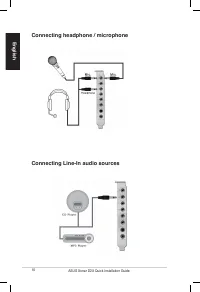
0 ASUS Xonar D2X Quick Installation Guide English Connecting Line-In audio sources Connecting headphone / microphone
Page 11 - Français; Xonar D2X; Carte son; Guide d’installation rapide
ASUS Xonar D2X - Guide d’installation rapide Français Xonar D2X Carte son Guide d’installation rapide
Page 12 - Configuration requise
2 ASUS Xonar D2X - Guide d’installation rapide Français 1.1 Configuration requise Avant d’installer la carte son Xonar D2X, assurez-vous que votre ordinateur puisse satisfaire aux critères suivants:• PC avec un slot PCI Express .0 (ou supérieur) disponible pour la carte son• Un câble d’alimentation ...
Page 13 - Installation de la carte
3 ASUS Xonar D2X - Guide d’installation rapide Français 1.2 Installation de la carte Pour installer la carte son Xonar D2X:. Touchez une des parties métalliques de votre châssis pour vous décharger de l’électricité statique. 2. Eteignez l’ordinateur, le moniteur, ainsi que tous les autres périphériq...
Page 14 - Installation des pilotes; Installer le pilote de la carte son
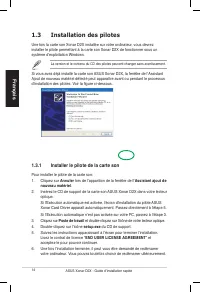
4 ASUS Xonar D2X - Guide d’installation rapide Français Une fois la carte son Xonar D2X installée sur votre ordinateur, vous devrez installer le pilote permettant à la carte son Xonar D2X de fonctionner sous un système d’exploitation Windows. Si vous avez déjà installé la carte son ASUS Xonar D2X, l...
Page 15 - Connexion des haut-parleurs; Connexion de haut-parleurs analogiques
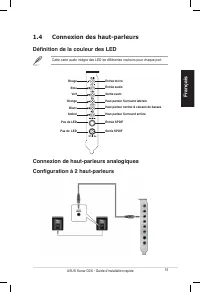
5 ASUS Xonar D2X - Guide d’installation rapide Français 1.4 Connexion des haut-parleurs Connexion de haut-parleurs analogiques Configuration à 2 haut-parleurs Cette carte audio intègre des LED de différentes couleurs pour chaque port. Entrée micro Rouge Entrée audio Sortie avant Haut-parleur Surroun...
Page 16 - Configuration à 4 haut-parleurs
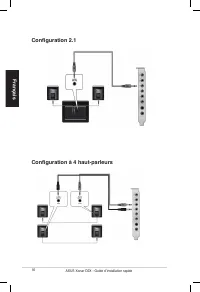
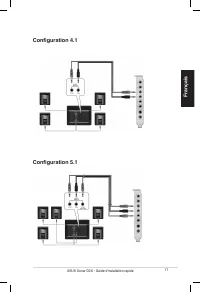
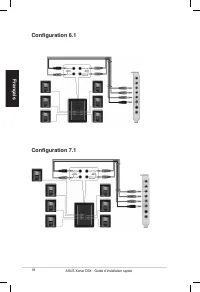
6 ASUS Xonar D2X - Guide d’installation rapide Français Configuration à 4 haut-parleurs Configuration 2.1
Page 19 - Configuration de haut-parleurs numériques; Entrée SPDIF
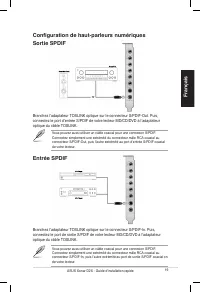
9 ASUS Xonar D2X - Guide d’installation rapide Français Vous pouvez aussi utiliser un câble coaxial pour une connexion S/PDIF. Connectez simplement une extrémité du connecteur mâle RCA coaxial au connecteur S/PDIF-In, puis l’autre extrémité au port de sortie S/PDIF coaxial on de votre lecteur. Branc...
Page 20 - Connexion de sources audio entrantes
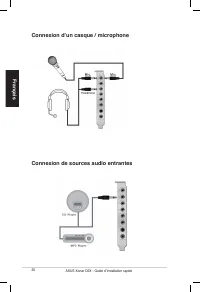
20 ASUS Xonar D2X - Guide d’installation rapide Français Connexion de sources audio entrantes Connexion d’un casque / microphone
Page 21 - Deutsch; Schnellinstallationsanleitung
2 ASUS Xonar D2X Schnellinstallationsanleitung Deutsch Xonar D2X Audio-Karte Schnellinstallationsanleitung
Page 22 - Installationsanforderungen
22 ASUS Xonar D2X Schnellinstallationsanleitung Deutsch 1.1 Installationsanforderungen Um eine erfolgreiche Installation der Xonar D2X Audio-Karte sicherzustellen muss Ihr Computer die folgenden Vorraussetzungen erfüllen:• x PCI Express .0 (oder höher) kompatibler Steckplatz für die Audio-Karte• x v...
Page 23 - Karteneinbau
23 ASUS Xonar D2X Schnellinstallationsanleitung Deutsch 1.2 Karteneinbau So bauen Sie die Xonar D2X Audio-Karte ein:. Berühren Sie die metallene Rückseite des Computers, um statische Aufladungen zu vermeiden. 2. Schalten Sie die Computer, den Monitor und alle Peripheriegeräte, die mit dem Computer v...
Page 24 - Treiberinstallation; Installation der Audio-Kartentreiber
24 ASUS Xonar D2X Schnellinstallationsanleitung Deutsch Nach dem Einbau der Xonar D2X Audio-Karte in Ihren Computer müssen Sie die Gerätetreiber installieren, damit die Xonar D2X Audio-Karte mit dem Windows- Betriebssystem zusammenarbeiten kann. Wenn Sie die ASUS Xonar D2X Audio-Karte schon eingebau...
Page 25 - Anschluß der Lautsprecher; Definition der LED-Farben
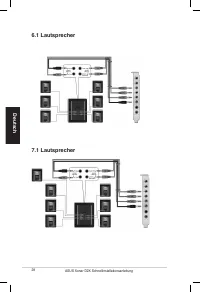
25 ASUS Xonar D2X Schnellinstallationsanleitung Deutsch 1.4 Anschluß der Lautsprecher Für Analoglautsprecher2 Lautsprecher Diese Audio-Karte ist mit LEDs verschiedener Farben ausgerüstet, um jeden Anschluß zu markieren. Mikrofoneingang Rot Line In Front-Ausgang Surround seitlichMitte & Subwoofer...
Page 26 - Lautsprecher
26 ASUS Xonar D2X Schnellinstallationsanleitung Deutsch 4 Lautsprecher 2.1 Lautsprecher
Page 30 - Anschluß von Kopfhörern/Mikrofon
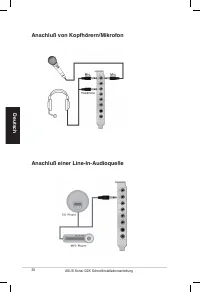
30 ASUS Xonar D2X Schnellinstallationsanleitung Deutsch Anschluß einer Line-In-Audioquelle Anschluß von Kopfhörern/Mikrofon
Page 31 - Italiano; Scheda audio; Guida all’installazione rapida
3 Guida all’installazione rapida di ASUS Xonar D2X Italiano Xonar D2X Scheda audio Guida all’installazione rapida
Page 32 - Requisiti per l’installazione
32 Guida all’installazione rapida di ASUS Xonar D2X Italiano 1.1 Requisiti per l’installazione Per assicurare la corretta installazione della scheda audio Xonar D2X, il computer deve soddisfare i seguenti requisiti:• Un alloggio compatibile PCI Express .0 (o superiore) per la scheda audio• Un cavo d...
Page 33 - Installazione della scheda
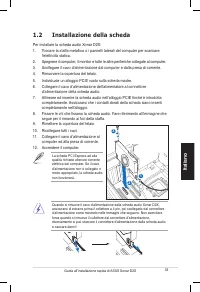
33 Guida all’installazione rapida di ASUS Xonar D2X Italiano 1.2 Installazione della scheda Per installare la scheda audio Xonar D2X:. Toccare la staffa metallica o i pannelli laterali del computer per scaricare l’elettricità statica. 2. Spegnere il computer, il monitor e tutte le altre periferiche ...
Page 34 - Installazione del driver; Installazione del driver scheda audio
34 Guida all’installazione rapida di ASUS Xonar D2X Italiano Dopo avere installato la stazione la scheda audio Xonar D2X sul computer, è necessario installare il driver periferica che abilita la scheda audio Xonar D2X a funzionare insieme al sistema operativo Windows. Se la scheda audio Xonar D2X è ...
Page 35 - Collegamento delle casse; Definizione dei colori del LED
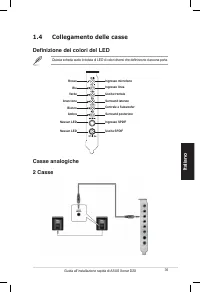
35 Guida all’installazione rapida di ASUS Xonar D2X Italiano 1.4 Collegamento delle casse Casse analogiche2 Casse Questa scheda audio è dotata di LED di colori diversi che definiscono ciascuna porta. Ingresso microfono Rosso Ingresso linea Uscita frontale Surround lateraleCentrale e Subwoofer Surrou...
Page 36 - Casse
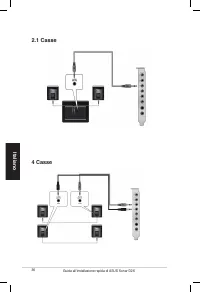
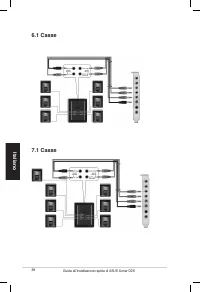
36 Guida all’installazione rapida di ASUS Xonar D2X Italiano 4 Casse 2.1 Casse
Page 39 - Ingresso SPDIF
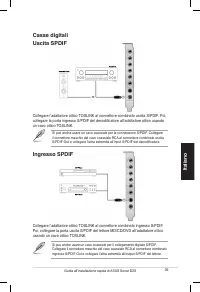
39 Guida all’installazione rapida di ASUS Xonar D2X Italiano Si può anche usare un cavo coassiale per il collegamento digitale S/PDIF. Collegare il connettore maschio del cavo coassiale RCA al connettore combinato ingresso S/PDIF-Out e collegare l’altra estremità all’output S/PDIF del lettore. Colle...
Page 40 - Collegamento delle origini audio Ingresso linea
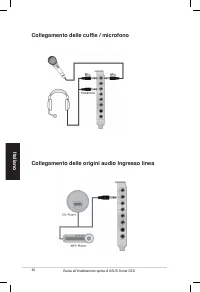
40 Guida all’installazione rapida di ASUS Xonar D2X Italiano Collegamento delle origini audio Ingresso linea Collegamento delle cuffie / microfono
Page 41 - Español; Tarjeta de audio; Guía de instalación rápida
4 ASUS Xonar D2X - Guía de instalación rápida Español Xonar D2X Tarjeta de audio Guía de instalación rápida
Page 42 - Requisitos de instalación
42 ASUS Xonar D2X - Guía de instalación rápida Español 1.1 Requisitos de instalación Para garantizar la instalación correcta de la tarjeta de audio Xonar D2X, su PC debe cumplir los siguientes requisitos:• Tener una ranura compatible con PCI Express .0 (o superior) para la tarjeta de audio • Dispone...
Page 43 - Instalación de la tarjeta
43 ASUS Xonar D2X - Guía de instalación rápida Español 1.2 Instalación de la tarjeta Para instalar la tarjeta de audio Xonar D2X: . Toque el panel posterior o lateral metálico del equipo para descargar la electricidad estática. 2. APAGUE el equipo, el monitor y todos los dispositivos periféricos con...
Page 44 - Instalación del controlador; Instalar el controlador de la tarjeta de audio
44 ASUS Xonar D2X - Guía de instalación rápida Español Después de instalar la tarjeta de audio Xonar D2X en el equipo, es necesario instalar el controlador del dispositivo que habilita a dicha tarjeta para trabajar con el sistema operativo Windows. Si ya ha instalado la tarjeta de audio ASUS Xonar D...
Page 45 - Conectar los altavoces; Definición de los colores de los LED
45 ASUS Xonar D2X - Guía de instalación rápida Español 1.4 Conectar los altavoces Para altavoces analógicos2 altavoces Esta tarjeta de audio cuenta con varios LED de diferentes colores que definen el estado de cada puerto. Entrada de micrófono Rojo Entrada de línea Salida frontal Envolvente lateral ...
Page 46 - altavoces
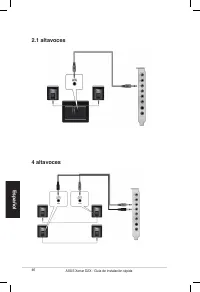
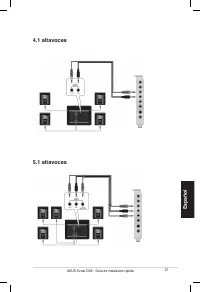
46 ASUS Xonar D2X - Guía de instalación rápida Español 4 altavoces 2.1 altavoces
Page 49 - Entrada SPDIF
49 ASUS Xonar D2X - Guía de instalación rápida Español También puede usar un cable coaxial para una conexión digital S/PDIF. Simplemente enchufe el conector macho RCA coaxial en el conector combinado Entrada S/PDIF y el otro extremo en la salida S/PDIF coaxial del reproductor. Enchufe el adaptador T...
Page 50 - Conectar las fuentes de audio a la Entrada de línea
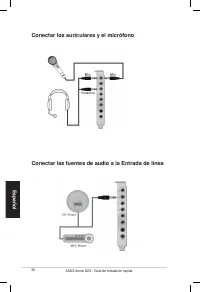
50 ASUS Xonar D2X - Guía de instalación rápida Español Conectar las fuentes de audio a la Entrada de línea Conectar los auriculares y el micrófono
Page 51 - Português; Placa de áudio; Guia de instalação rápida
5 Guia de instalação da placa de áudio Xonar D2X da ASUS Português Xonar D2X Placa de áudio Guia de instalação rápida
Page 52 - Requisitos para a instalação
52 Guia de instalação da placa de áudio Xonar D2X da ASUS Português 1.1 Requisitos para a instalação Para garantir uma correcta instalação da placa de áudio Xonar D2X, o seu computador deve satisfazer os seguintes requisitos:• Uma ranhura PCI Express .0 (ou acima) compatível para a placa de áudio• U...
Page 53 - Instalação da placa
53 Guia de instalação da placa de áudio Xonar D2X da ASUS Português 1.2 Instalação da placa Para instalar a placa de áudio Xonar D2X da ASUS: . Toque na parte metálica traseira ou no painel lateral do computador para evitar a electricidade estática. 2. Desligue o computador, o monitor e todos os out...
Page 54 - Instalação do controlador; Instalação do controlador da placa de áudio
54 Guia de instalação da placa de áudio Xonar D2X da ASUS Português Após a instalação da placa de áudio Xonar D2X no computador, tem de instalar o controlador que permite à placa Xonar D2X funcionar no sistema operativo Windows. Caso tenha já instalado a placa de áudio Xonar D2X da ASUS, a janela As...
Page 55 - Ligação dos altifalantes; Cores dos LEDs
55 Guia de instalação da placa de áudio Xonar D2X da ASUS Português 1.4 Ligação dos altifalantes Altifalantes analógicosAltifalantes de canal 2 Esta placa de áudio inclui LEDs de diferentes cores conforme a porta. Entrada do microfone Vermelho Entrada de linha Saída frontal Som envolventeCentral e a...
Page 56 - Altifalantes de canal 4
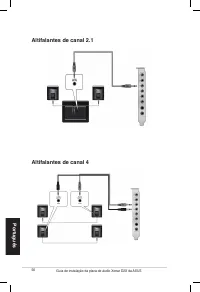
56 Guia de instalação da placa de áudio Xonar D2X da ASUS Português Altifalantes de canal 4 Altifalantes de canal 2.1
Page 57 - Altifalantes de canal 5.1
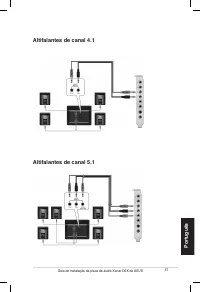
57 Guia de instalação da placa de áudio Xonar D2X da ASUS Português Altifalantes de canal 5.1 Altifalantes de canal 4.1
Page 58 - Altifalantes de canal 7.1
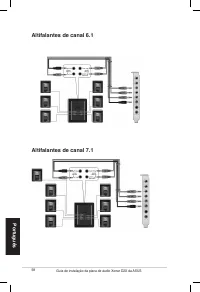
58 Guia de instalação da placa de áudio Xonar D2X da ASUS Português Altifalantes de canal 7.1 Altifalantes de canal 6.1
Page 60 - Ligação das origens de entrada de áudio
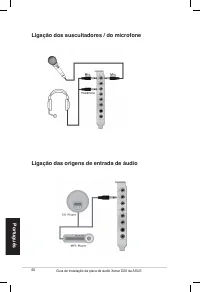
60 Guia de instalação da placa de áudio Xonar D2X da ASUS Português Ligação das origens de entrada de áudio Ligação dos auscultadores / do microfone
Page 61 - Русский; Аудиокарта; Руководство
6 ASUS Xonar D2X руководство по установке Русский Xonar D2X Аудиокарта Руководство по установке
Page 62 - Требования для установки
62 ASUS Xonar D2X руководство по установке Русский 1.1 Требования для установки Для успешной установки аудиокарты Xonar D2, ваш компьютер должен соответствовать следующим требованиям: • Один свободный слот PCI Express 1.0 (или выше)• Один свободный 4-контактный кабель питания от блока питания ПК• Mi...
Page 63 - Установка карты
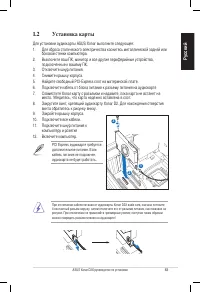
63 ASUS Xonar D2X руководство по установке Русский 1.2 Установка карты Для установки аудиокарты ASUS Xonar выполните следующее:1. Для сброса статического электричества коснитесь металлической задней или боковой стенки компьютера. 2. Выключите ваш ПК, монитор и все другие периферийные устройства, под...
Page 64 - Установка драйверов; Установка драйверов аудиокарты
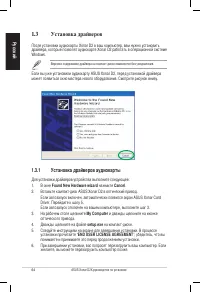
64 ASUS Xonar D2X руководство по установке Русский После установки аудиокарты Xonar D2 в ваш компьютер, вам нужно установить драйвера, которые позволят аудиокарте Xonar D2 работать в операционной системе Windows. Если вы уже установили аудиокарту ASUS Xonar D2, перед установкой драйвера может появит...
Page 65 - Подключение; колонок; Цветовая маркировка
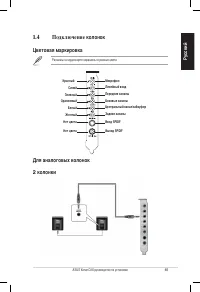
65 ASUS Xonar D2X руководство по установке Русский 1.4 Подключение колонок Для аналоговых колонок 2 колонки Разъемы на аудиокарте окрашены в разные цвета Mикрофон Красный Линейный вход Передние каналы Боковые каналыЦентральный канал/сабвуфер Задние каналы Вход SPDIF Выход SPDIF Синий Зеленый Оранжев...
Page 66 - колонки
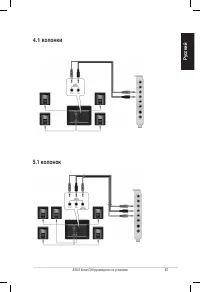
66 ASUS Xonar D2X руководство по установке Русский 4 колонки 2.1 колонки
Page 67 - колонки
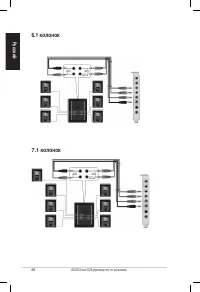
67 ASUS Xonar D2X руководство по установке Русский 5.1 колонок 4.1 колонки
Page 69 - Цифровые подключения; SPDIF Out
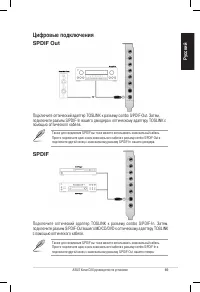
69 ASUS Xonar D2X руководство по установке Русский SPDIF In Также для соединения S/PDIF вы тоже можете использовать коаксиальный кабель. Просто подключите один конец коаксиального кабеля к разъему combo S/PDIF-In и подключите другой конец к коаксиальному разъему S/PDIF-Out вашего плеера. Подключите ...
Page 70 - Подключение аудио источников к линейному входу
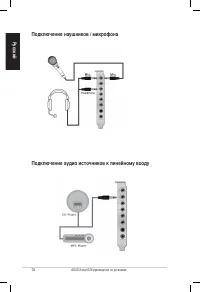
70 ASUS Xonar D2X руководство по установке Русский Подключение аудио источников к линейному входу Подключение наушников / микрофона