Page 3 - AUSTRALIA ONLY; International call charges apply)
AUSTRALIA ONLY Our goods come with guarantees that cannot be excluded under the Australian Consumer Law. You are entitled to a replacement or refund for a major failure and compensation for any other reasonably foreseeable loss or damage caused by our goods. You are also entitled to have the goods r...
Page 4 - Contents; Chapter 1 Introduction
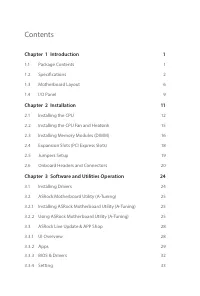
Contents Chapter 1 Introduction 1 1.1 Package Contents 1 1.2 Specifications 2 1.3 Motherboard Layout 6 1.4 I/O Panel 9 Chapter 2 Installation 11 2.1 Installing the CPU 12 2.2 Installing the CPU Fan and Heatsink 15 2.3 Installing Memory Modules (DIMM) 16 2.4 Expansion Slots (PCI Express Slots) 18 2.5...
Page 5 - Chapter 4 UEFI SETUP UTILITY; Advanced Mode
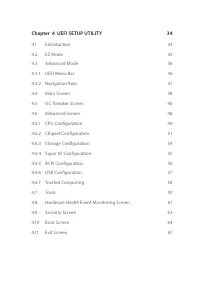
Chapter 4 UEFI SETUP UTILITY 34 4.1 Introduction 34 4.2 EZ Mode 35 4.3 Advanced Mode 36 4.3.1 UEFI Menu Bar 36 4.3.2 Navigation Keys 37 4.4 Main Screen 38 4.5 OC Tweaker Screen 40 4.6 Advanced Screen 48 4.6.1 CPU Configuration 49 4.6.2 Chipset Configuration 51 4.6.3 Storage Configuration 54 4.6.4 Su...
Page 6 - English; Package Contents; x I/O Panel Shield
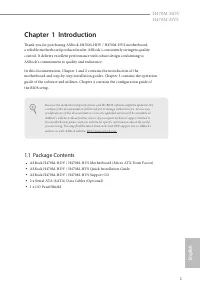
English 1 H470M-HDV H470M-HVS Chapter 1 Introduction Thank you for purchasing ASRock H470M-HDV / H470M-HVS motherboard, a reliable motherboard produced under ASRock’s consistently stringent quality control. It delivers excellent performance with robust design conforming to ASRock’s commitment to qua...
Page 7 - Platform; Chipset; Graphics
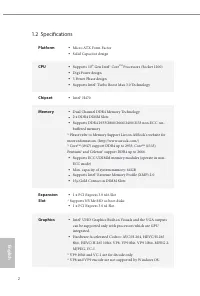
English 2 1.2 Specifications Platform • Micro ATX Form Factor • Solid Capacitor design CPU • Supports 10 th Gen Intel® Core TM Processors (Socket 1200) • Digi Power design • 5 Power Phase design • Supports Intel® Turbo Boost Max 3.0 Technology Chipset • Intel® H470 Memory • Dual Channel DDR4 Memory ...
Page 8 - Supports Triple Monitor; Audio; Supports Surge Protection; LAN
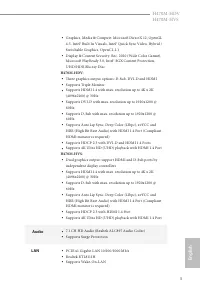
English 3 H470M-HDV H470M-HVS • Graphics, Media & Compute: Microsoft DirectX 12, OpenGL 4.5, Intel® Built In Visuals, Intel® Quick Sync Video, Hybrid / Switchable Graphics, OpenCL 2.1 • Display & Content Security: Rec. 2020 (Wide Color Gamut), Microsoft PlayReady 3.0, Intel® SGX Content Prot...
Page 9 - Storage
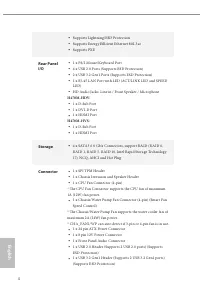
English 4 • Supports Lightning/ESD Protection • Supports Energy Efficient Ethernet 802.3az • Supports PXE Rear Panel I/O • 1 x PS/2 Mouse/Keyboard Port • 4 x USB 2.0 Ports (Supports ESD Protection) • 2 x USB 3.2 Gen1 Ports (Supports ESD Protection) • 1 x RJ-45 LAN Port with LED (ACT/LINK LED and SPE...
Page 10 - AMI UEFI Legal BIOS with multilingual GUI support; OS; Microsoft® Windows® 10 64-bit
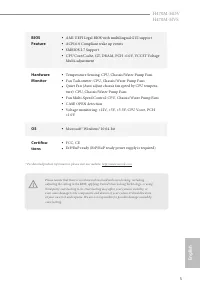
English 5 H470M-HDV H470M-HVS BIOS Feature • AMI UEFI Legal BIOS with multilingual GUI support • ACPI 6.0 Compliant wake up events • SMBIOS 2.7 Support • CPU Core/Cache, GT, DRAM, PCH +1.0V, VCCST Voltage Multi-adjustment Hardware Monitor • Temperature Sensing: CPU, Chassis/Water Pump Fans • Fan Tac...
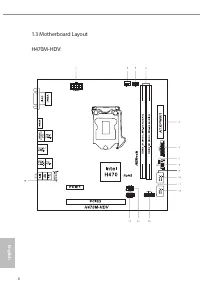
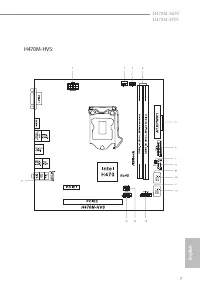
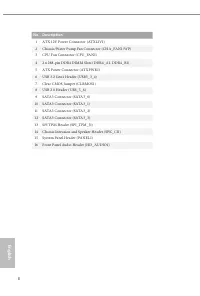
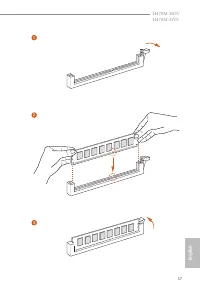
Page 11 - Motherboard Layout
Page 14 - HDMI Port
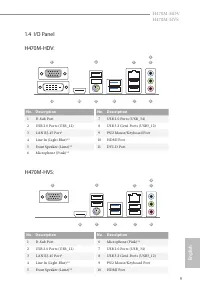
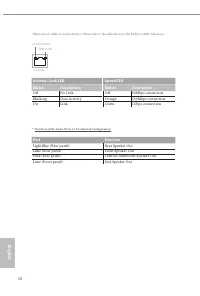
English 9 H470M-HDV H470M-HVS 1.4 I/O Panel No. Description No. Description 1 D-Sub Port 7 USB 2.0 Ports (USB_34) 2 USB 2.0 Ports (USB_12) 8 USB 3.2 Gen1 Ports (USB3_12) 3 LAN RJ-45 Port* 9 PS/2 Mouse/Keyboard Port 4 Line In (Light Blue)** 10 HDMI Port 5 Front Speaker (Lime)** 11 DVI-D Port 6 Microp...
Page 16 - Pre-installation Precautions; Hold components by the edges and do not touch the ICs.; Chapter 2 Installation
English 11 H470M-HDV H470M-HVS This is a Micro ATX form factor motherboard. Before you install the motherboard, study the configuration of your chassis to ensure that the motherboard fits into it. Pre-installation Precautions Take note of the following precautions before you install motherboard comp...
Page 17 - Installing the CPU
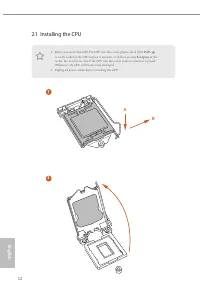
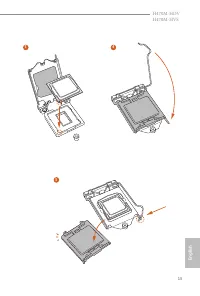
English 12 2.1 Installing the CPU 1. Before you insert the 1200-Pin CPU into the socket, please check if the PnP cap is on the socket, if the CPU surface is unclean, or if there are any bent pins in the socket. Do not force to insert the CPU into the socket if above situation is found. Otherwise, th...
Page 20 - Installing the CPU Fan and Heatsink
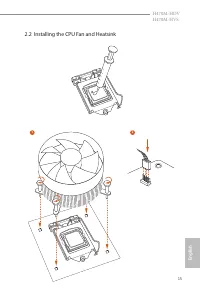
English 15 H470M-HDV H470M-HVS 2.2 Installing the CPU Fan and Heatsink 1 2 CPU_F AN
Page 23 - There are 2 PCI Express slots on the motherboard.
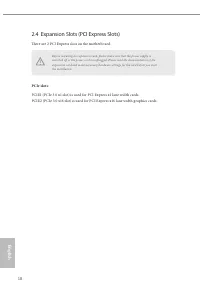
English 18 2.4 Expansion Slots (PCI Express Slots) There are 2 PCI Express slots on the motherboard. PCIe slots: PCIE1 (PCIe 3.0 x1 slot) is used for PCI Express x1 lane width cards. PCIE2 (PCIe 3.0 x16 slot) is used for PCI Express x16 lane width graphics cards. Before installing an expansion card,...
Page 25 - Onboard Headers and Connectors
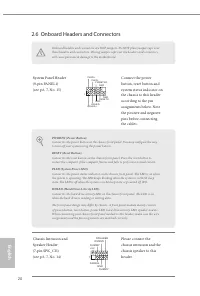
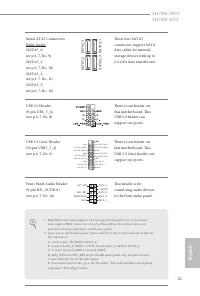
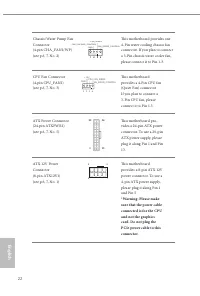
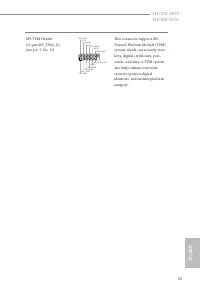
English 20 2.6 Onboard Headers and Connectors System Panel Header(9-pin PANEL1)(see p.6, 7, No. 15) Connect the power button, reset button and system status indicator on the chassis to this header according to the pin assignments below. Note the positive and negative pins before connecting the cable...
Page 29 - Chapter 3 Software and Utilities Operation; Installing Drivers; Running The Support CD; Install All; or follow the order from top to; Utilities Menu
English 24 Chapter 3 Software and Utilities Operation 3.1 Installing Drivers The Support CD that comes with the motherboard contains necessary drivers and useful utilities that enhance the motherboard’s features. Running The Support CD To begin using the support CD, insert the CD into your CD-ROM dr...
Page 30 - Operation Mode; Choose an operation mode for your computer.
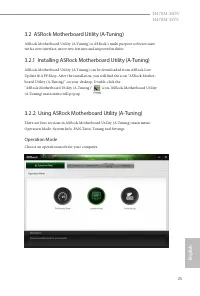
English 25 H470M-HDV H470M-HVS 3.2 ASRock Motherboard Utility (A-Tuning) ASRock Motherboard Utility (A-Tuning) is ASRock’s multi purpose software suite with a new interface, more new features and improved utilities. 3.2.1 Installing ASRock Motherboard Utility (A-Tuning) ASRock Motherboard Utility (A...
Page 31 - System Info
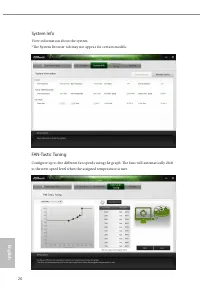
English 26 System Info View information about the system. *The System Browser tab may not appear for certain models. FAN-Tastic Tuning Configure up to five different fan speeds using the graph. The fans will automatically shift to the next speed level when the assigned temperature is met.
Page 32 - Settings
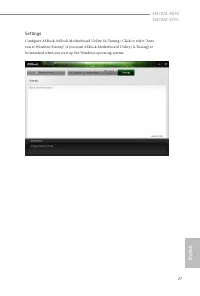
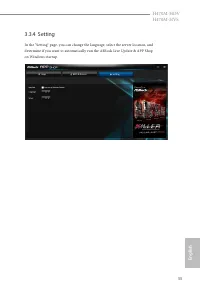
English 27 H470M-HDV H470M-HVS Settings Configure ASRock ASRock Motherboard Utility (A-Tuning). Click to select "Auto run at Windows Startup" if you want ASRock Motherboard Utility (A-Tuning) to be launched when you start up the Windows operating system.
Page 33 - Category Panel
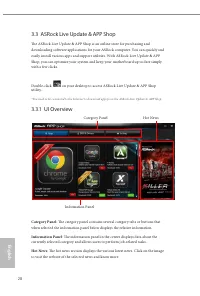
English 28 3.3 ASRock Live Update & APP Shop The ASRock Live Update & APP Shop is an online store for purchasing and downloading software applications for your ASRock computer. You can quickly and easily install various apps and support utilities. With ASRock Live Update & APP Shop, you ...
Page 34 - Installing an App; Step 1
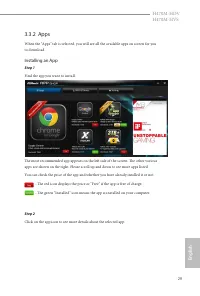
English 29 H470M-HDV H470M-HVS 3.3.2 Apps When the "Apps" tab is selected, you will see all the available apps on screen for you to download. Installing an App Step 1 Find the app you want to install. The most recommended app appears on the left side of the screen. The other various apps are...
Page 35 - Step 3
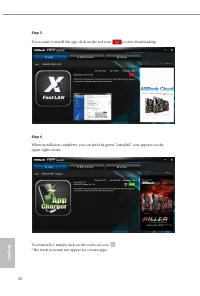
English 30 Step 3 If you want to install the app, click on the red icon to start downloading. Step 4 When installation completes, you can find the green "Installed" icon appears on the upper right corner. To uninstall it, simply click on the trash can icon . *The trash icon may not appear fo...
Page 36 - Upgrading an App; appears below the installed app icon.
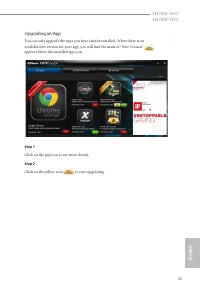
English 31 H470M-HDV H470M-HVS Upgrading an App You can only upgrade the apps you have already installed. When there is an available new version for your app, you will find the mark of "New Version" appears below the installed app icon. Step 1 Click on the app icon to see more details. Step ...
Page 37 - Installing BIOS or Drivers
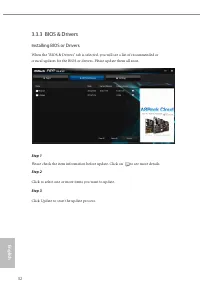
English 32 3.3.3 BIOS & Drivers Installing BIOS or Drivers When the "BIOS & Drivers" tab is selected, you will see a list of recommended or critical updates for the BIOS or drivers. Please update them all soon. Step 1 Please check the item information before update. Click on to see m...
Page 40 - Function
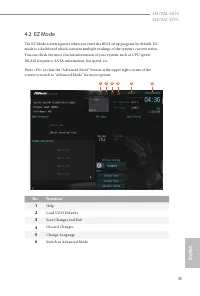
English 35 H470M-HDV H470M-HVS 4.2 EZ Mode The EZ Mode screen appears when you enter the BIOS setup program by default. EZ mode is a dashboard which contains multiple readings of the system’s current status. You can check the most crucial information of your system, such as CPU speed, DRAM frequency...
Page 44 - My Favorite
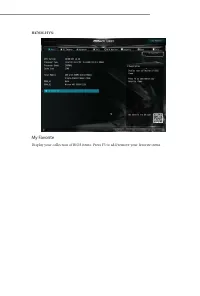
H470M-HVS: My Favorite Display your collection of BIOS items. Press F5 to add/remove your favorite items.
Page 45 - OC Tweaker Screen; In the OC Tweaker screen, you can set up overclocking features.; CPU Configuration
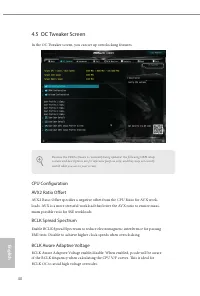
English 40 4.5 OC Tweaker Screen In the OC Tweaker screen, you can set up overclocking features. CPU Configuration AVX2 Ratio Offset AVX2 Ratio Offset specifies a negative offset from the CPU Ratio for AVX work-loads. AVX is a more stressful workload that lower the AVX ratio to ensure maxi-mum possi...
Page 46 - Configure the FCLK Frequency.
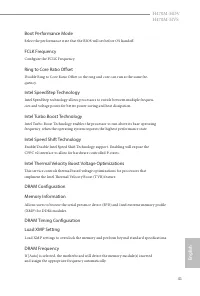
English 41 H470M-HDV H470M-HVS Boot Performance Mode Select the performance state that the BIOS will set before OS handoff. FCLK Frequency Configure the FCLK Frequency. Ring to Core Ratio Offset Disable Ring to Core Ratio Offset so the ring and core can run at the same fre-quency. Intel SpeedStep Te...
Page 47 - Primary Timing
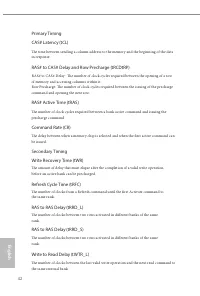
English 42 Primary Timing CAS# Latency (tCL) The time between sending a column address to the memory and the beginning of the data in response. RAS# to CAS# Delay and Row Precharge (tRCDtRP) RAS# to CAS# Delay : The number of clock cycles required between the opening of a row of memory and accessing...
Page 48 - Third Timing
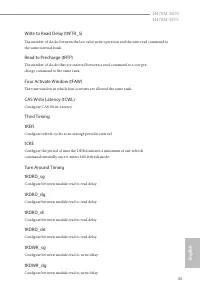
English 43 H470M-HDV H470M-HVS Write to Read Delay (tWTR_S) The number of clocks between the last valid write operation and the next read command to the same internal bank. Read to Precharge (tRTP) The number of clocks that are inserted between a read command to a row pre-charge command to the same ...
Page 49 - Round Trip Timing
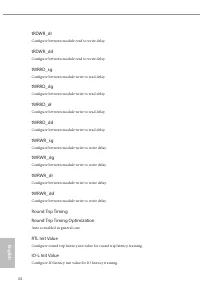
English 44 tRDWR_dr Configure between module read to write delay. tRDWR_dd Configure between module read to write delay. tWRRD_sg Configure between module write to read delay. tWRRD_dg Configure between module write to read delay. tWRRD_dr Configure between module write to read delay. tWRRD_dd Confi...
Page 50 - ODT Setting
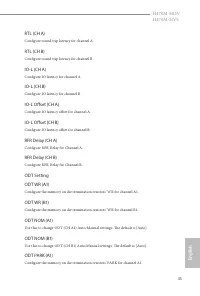
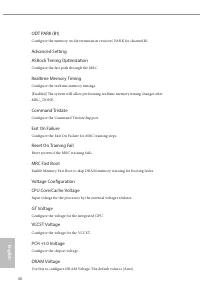
English 45 H470M-HDV H470M-HVS RTL (CH A) Configure round trip latency for channel A. RTL (CH B) Configure round trip latency for channel B. IO-L (CH A) Configure IO latency for channel A. IO-L (CH B) Configure IO latency for channel B. IO-L Offset (CH A) Configure IO latency offset for channel A. I...
Page 52 - Save User Default; Load previously saved user defaults.; Save User UEFI Setup Profile to Disk; You can load previous saved profile from the disk.
English 47 H470M-HDV H470M-HVS Save User Default Type a profile name and press enter to save your settings as user default. Load User Default Load previously saved user defaults. Save User UEFI Setup Profile to Disk It helps you to save current UEFI settings as an user profile to disk. Load User UEF...
Page 53 - Select the default mode when entering the UEFI setup utility.; Active Page on Entry; Select the default page when entering the UEFI setup utility.; Full HD UEFI
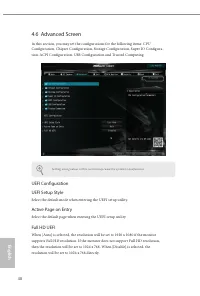
English 48 4.6 Advanced Screen In this section, you may set the configurations for the following items: CPU Configuration, Chipset Configuration, Storage Configuration, Super IO Configura-tion, ACPI Configuration, USB Configuration and Trusted Computing. UEFI ConfigurationUEFI Setup Style Select the...
Page 54 - Select the number of cores to enable in each processor package.
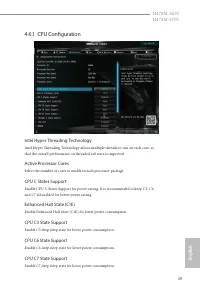
English 49 H470M-HDV H470M-HVS 4.6.1 CPU Configuration Intel Hyper Threading Technology Intel Hyper Threading Technology allows multiple threads to run on each core, so that the overall performance on threaded software is improved. Active Processor Cores Select the number of cores to enable in each ...
Page 55 - Package C State Support; This item allows you to disable or enable the CFG Lock.; Intel Virtualization Technology
English 50 Package C State Support Enable CPU, PCIe, Memory, Graphics C State Support for power saving. CFG Lock This item allows you to disable or enable the CFG Lock. C6DRAM Enable/Disable moving of DRAM contents to PRM memory when CPU is in C6 state. Intel Virtualization Technology Intel Virtuali...
Page 56 - Primary Graphics Adapter; Select a primary VGA.; Above 4G Decoding; Select the link speed for PCIE1.
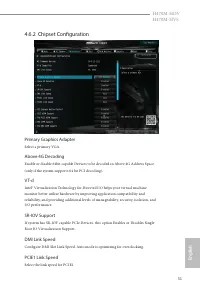
English 51 H470M-HDV H470M-HVS 4.6.2 Chipset Configuration Primary Graphics Adapter Select a primary VGA. Above 4G Decoding Enable or disable 64bit capable Devices to be decoded in Above 4G Address Space (only if the system supports 64 bit PCI decoding). VT-d Intel® Virtualization Technology for Dir...
Page 57 - Select the link speed for PCIE2.
English 52 PCIE2 Link Speed Select the link speed for PCIE2. PCI Express Native Control Select Enable for enhanced PCI Express power saving in OS. PCIE ASPM Support This option enables/disables the ASPM support for all CPU downstream devices. PCH PCIE ASPM Support This option enables/disables the AS...
Page 58 - Deep Sleep
English 53 H470M-HDV H470M-HVS Deep Sleep Configure deep sleep mode for power saving when the computer is shut down. Restore on AC/Power Loss Select the power state after a power failure. If [Power Off ] is selected, the power will remain off when the power recovers. If [Power On] is selected, the s...
Page 59 - SATA Mode Selection; AHCI: Supports new features that improve performance.; SATA Aggressive Link Power Management
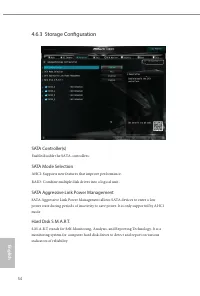
English 54 4.6.3 Storage Configuration SATA Controller(s) Enable/disable the SATA controllers. SATA Mode Selection AHCI: Supports new features that improve performance. RAID: Combine multiple disk drives into a logical unit. SATA Aggressive Link Power Management SATA Aggressive Link Power Management...
Page 60 - Enable the PS2 Y-Cable or set this option to Auto.
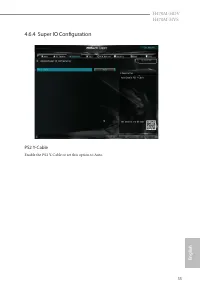
English 55 H470M-HDV H470M-HVS 4.6.4 Super IO Configuration PS2 Y-Cable Enable the PS2 Y-Cable or set this option to Auto.
Page 61 - Suspend to RAM; Allow the system to be waked up by an USB mouse.
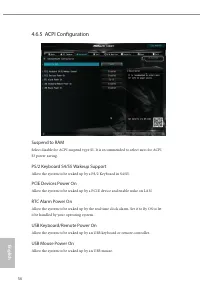
English 56 4.6.5 ACPI Configuration Suspend to RAM Select disable for ACPI suspend type S1. It is recommended to select auto for ACPI S3 power saving. PS/2 Keyboard S4/S5 Wakeup Support Allow the system to be waked up by a PS/2 Keyboard in S4/S5. PCIE Devices Power On Allow the system to be waked up...
Page 62 - Legacy USB Support
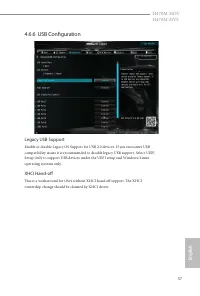
English 57 H470M-HDV H470M-HVS 4.6.6 USB Configuration Legacy USB Support Enable or disable Legacy OS Support for USB 2.0 devices. If you encounter USB compatibility issues it is recommended to disable legacy USB support. Select UEFI Setup Only to support USB devices under the UEFI setup and Windows...
Page 63 - Security Device Support; Enable or disable BIOS support for security device.
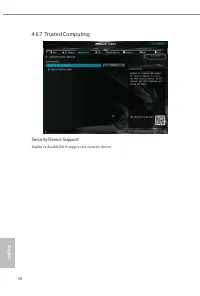
English 58 4.6.7 Trusted Computing Security Device Support Enable or disable BIOS support for security device.
Page 64 - UEFI Tech Service; All the SSD's listed that supports Secure Erase function.; Instant Flash; pen drive before using this function.
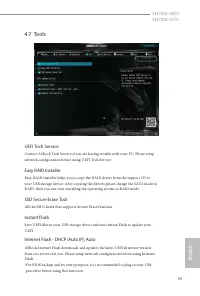
English 59 H470M-HDV H470M-HVS 4.7 Tools UEFI Tech Service Contact ASRock Tech Service if you are having trouble with your PC. Please setup network configuration before using UEFI Tech Service. Easy RAID Installer Easy RAID Installer helps you to copy the RAID driver from the support CD to your USB ...
Page 65 - Network Configuration; Enable or disable sound effects in the setup utility.; UEFI Download Server; Select a server to download the UEFI firmware.
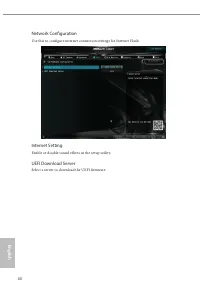
English 60 Network Configuration Use this to configure internet connection settings for Internet Flash. Internet Setting Enable or disable sound effects in the setup utility. UEFI Download Server Select a server to download the UEFI firmware.
Page 66 - Hardware Health Event Monitoring Screen; Fan Tuning; Measure Fan Min Duty Cycle.; CPU Fan 1 Setting; Set the value of CPU Fan Step Up.; CPU Fan 1 Step Down; Set the value of CPU Fan Step Down.
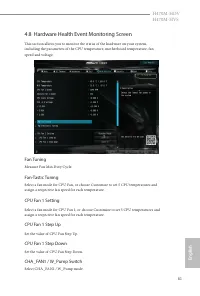
English 61 H470M-HDV H470M-HVS 4.8 Hardware Health Event Monitoring Screen This section allows you to monitor the status of the hardware on your system, including the parameters of the CPU temperature, motherboard temperature, fan speed and voltage. Fan Tuning Measure Fan Min Duty Cycle. Fan-Tastic ...
Page 67 - Select PWM mode or DC mode for CHA_FAN1.
English 62 Chassis Fan 1 Control Mode Select PWM mode or DC mode for CHA_FAN1. Chassis Fan 1 Setting Select a fan mode for CHA_FAN1, or choose Customize to set 5 CPU temperatures and assign a respective fan speed for each temperature. Chassis Fan 1 Temp Source Select a fan temperature source for Cha...
Page 68 - Supervisor Password; Use this item to enable or disable support for Secure Boot.
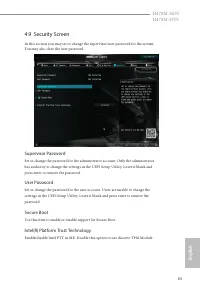
English 63 H470M-HDV H470M-HVS 4.9 Security Screen In this section you may set or change the supervisor/user password for the system. You may also clear the user password. Supervisor Password Set or change the password for the administrator account. Only the administrator has authority to change the...
Page 69 - Fast Boot; Allow the system to be waked up by the onboard LAN.; Setup Prompt Timeout; Configure the number of seconds to wait for the setup hot key.; Boot Beep
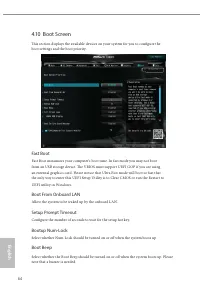
English 64 4.10 Boot Screen This section displays the available devices on your system for you to configure the boot settings and the boot priority. Fast Boot Fast Boot minimizes your computer's boot time. In fast mode you may not boot from an USB storage device. The VBIOS must support UEFI GOP if y...
Page 70 - Full Screen Logo
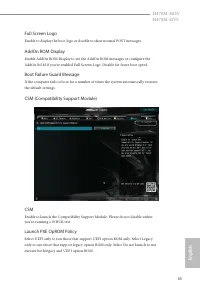
English 65 H470M-HDV H470M-HVS Full Screen Logo Enable to display the boot logo or disable to show normal POST messages. AddOn ROM Display Enable AddOn ROM Display to see the AddOn ROM messages or configure the AddOn ROM if you've enabled Full Screen Logo. Disable for faster boot speed. Boot Failure...
Page 71 - Launch Storage OpROM Policy
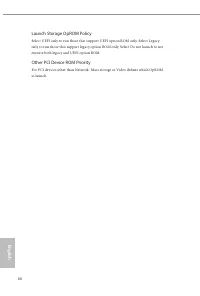
English 66 Launch Storage OpROM Policy Select UEFI only to run those that support UEFI option ROM only. Select Legacy only to run those that support legacy option ROM only. Select Do not launch to not execute both legacy and UEFI option ROM. Other PCI Device ROM Priority For PCI devices other than N...
Page 72 - Save Changes and Exit; Copy shellx64.efi to the root directory to launch EFI Shell.
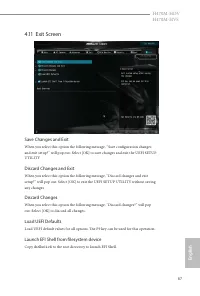
English 67 H470M-HDV H470M-HVS 4.11 Exit Screen Save Changes and Exit When you select this option the following message, “Save configuration changes and exit setup?” will pop out. Select [OK] to save changes and exit the UEFI SETUP UTILITY. Discard Changes and Exit When you select this option the fo...
Page 73 - Contact Information; ASRock Incorporation; The Netherlands
Contact Information If you need to contact ASRock or want to know more about ASRock, you’re welcome to visit ASRock’s website at http://www.asrock.com; or you may contact your dealer for further information. For technical questions, please submit a support request form at http://www.asrock.com/suppo...
Page 74 - DECLARATION OF CONFORMITY; Responsible Party Name:; Product Name : Motherboard; Supplementary Information:
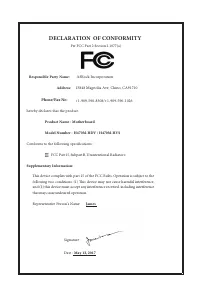
DECLARATION OF CONFORMITY Per FCC Part 2 Section 2.1077(a) Responsible Party Name: ASRock Incorporation Address: 13848 Magnolia Ave, Chino, CA91710 +1-909-590-8308/+1-909-590-1026 Phone/Fax No: hereby declares that the product Product Name : Motherboard Model Number : Conforms to the following speci...
Page 75 - EU Declaration of Conformity; For the following equipment:; Motherboard
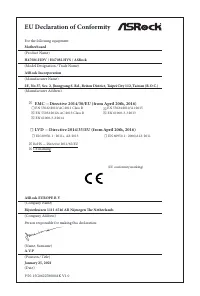
EU Declaration of Conformity For the following equipment: Motherboard (Product Name) H470M-HDV / H470M-HVS / ASRock (Model Designation / Trade Name) ASRock Incorporation (Manufacturer Name) 2F., No.37, Sec. 2, Jhongyang S. Rd., Beitou District, Taipei City 112, Taiwan (R.O.C.) (Manufacturer Address)...



 Asrock B660M-HDV User Manual
 Asrock B660M Pro RS User Manual
 Asrock B760 User Manual
 Asrock H310 User Manual
 Asrock H310CM-DVS User Manual
 Asrock H310CM-HDV User Manual
 Asrock H470M-HDV User Manual
 Asrock H470M-HVS User Manual
 Asrock H510M-HDV User Manual
 Asrock H510M-HVS User Manual
 Asrock H610 User Manual
 Asrock H610M-HDV User Manual
 Asrock H610M-HVS User Manual
 Asrock H610M-ITX/ac User Manual
 Asrock H670M Pro RS User Manual