Page 2 - Magic Trackpad
Page 3 - Quick Start; Your wireless Apple Magic Trackpad uses Bluetooth; Updating Your Software; To update to the latest version of Mac OS X, choose Apple (
2 English Quick Start Your wireless Apple Magic Trackpad uses Bluetooth ® technology to connect to your Mac and comes with two AA batteries installed. Read these instructions to update your software, learn about the indicator light, pair and use your trackpad, and replace the batteries. Updating You...
Page 4 - About the Indicator Light; Turning on Your Trackpad
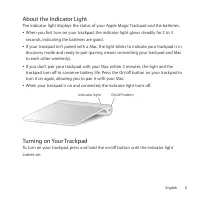
3 English About the Indicator Light The indicator light displays the status of your Apple Magic Trackpad and the batteries. Â When you first turn on your trackpad, the indicator light glows steadily for 2 to 3 seconds, indicating the batteries are good. Â If your trackpad isn’t paired with a Mac, th...
Page 5 - Pairing Your Apple Magic Trackpad; To pair your trackpad:; Click “Set Up Bluetooth Trackpad ...” in the lower-right corner.; Removing a Pairing; To pair with a different Mac:; Select your trackpad in the Bluetooth preferences pane.
4 English Pairing Your Apple Magic Trackpad To use your Apple Magic Trackpad with your Mac, you first pair them so they can comunicate wirelessly. To pair your trackpad: 1 Choose Apple ( K ) > System Preferences, and then click Trackpad. 2 Click “Set Up Bluetooth Trackpad …” in the lower-right co...
Page 6 - Using Your Apple Magic Trackpad; System Preferences, and then click Trackpad.; Here are some ways to use your Apple Magic Trackpad:; Drag two fingers up, down, or sideways to scroll in an active window.
5 English Using Your Apple Magic Trackpad Your Apple Magic Trackpad has a Multi-Touch surface for moving the pointer and performing gestures. To set up gestures and set other options, choose Apple ( K ) > System Preferences, and then click Trackpad. Position your Apple Magic Trackpad on a firm le...
Page 7 - Renaming Your Apple Magic Trackpad; To rename your trackpad:; Select your trackpad in the Bluetooth pane of System Preferences.; Changing the Batteries; To change the batteries:; Use a coin to remove the battery compartment cover.
6 English Renaming Your Apple Magic Trackpad Your Mac automatically gives your Apple Magic Trackpad a unique name the first time you pair it. You can rename it in Bluetooth preferences. To rename your trackpad: 1 Choose Apple ( K ) > System Preferences, and then click Bluetooth. 2 Select your tra...
Page 8 - Insert the batteries into the battery compartment as shown here.; Replace the battery compartment cover.; Battery Level Indicator; To check the battery level, choose Apple (
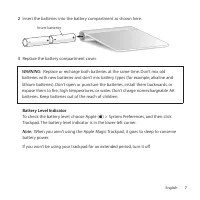
7 English 2 Insert the batteries into the battery compartment as shown here. Insert batteries 3 Replace the battery compartment cover. WARNING: Replace or recharge both batteries at the same time. Don’t mix old batteries with new batteries and don’t mix battery types (for example, alkaline and lith...
Page 9 - Cleaning
8 English Cleaning To clean the outside of your trackpad, use a lint-free cloth. Don’t get moisture in any openings or use aerosol sprays, solvents, or abrasives. Ergonomics When using your Apple Magic Trackpad, it’s important to find a comfortable posture, change your position often, and take frequ...
Page 10 - Inicio rápido; para conectarse al Mac.; Actualización del software
9 Español Inicio rápido El Apple Magic Trackpad inalámbrico incluye dos pilas AA ya instaladas y utiliza la tecnología Bluetooth ® para conectarse al Mac. Lea estas instrucciones para actualizar el software, obtener información acerca del indicador luminoso, enlazar y usar el trackpad, y sustituir l...
Page 11 - Acerca del indicador luminoso; Cómo encender el trackpad
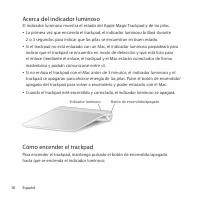
10 Español Acerca del indicador luminoso El indicador luminoso muestra el estado del Apple Magic Trackpad y de las pilas. Â La primera vez que encienda el trackpad, el indicador luminoso brillará durante 2 o 3 segundos para indicar que las pilas se encuentran en buen estado. Â Si el trackpad no está...
Page 12 - Cómo enlazar el Apple Magic Trackpad; Para enlazar el trackpad:; Pulse el botón de encendido/apagado del trackpad para encenderlo.; Cómo eliminar un enlace; Para enlazarlo con otro Mac:; Seleccione el trackpad en el panel de preferencias Bluetooth.
11 Español Cómo enlazar el Apple Magic Trackpad Para poder usar el Apple Magic Trackpad con el Mac, primero es necesario enlazarlos de manera que puedan comunicarse de forma inalámbrica. Para enlazar el trackpad: 1 Seleccione Apple ( K ) > Preferencias del Sistema y, a continuación, haga clic en ...
Page 13 - Uso del Apple Magic Trackpad; Estas son algunas maneras de usar el Apple Magic Trackpad:
12 Español Uso del Apple Magic Trackpad El Apple Magic Trackpad incorpora una superficie Multi-Touch para desplazar el puntero y realizar gestos. Para configurar gestos y definir otras opciones, seleccione Apple ( K ) > Preferencias del Sistema y haga clic en Trackpad. Coloque el Apple Magic Trac...
Page 14 - Cómo cambiar el nombre del Apple Magic Trackpad; Para cambiar el nombre del trackpad:; Escriba un nombre y haga clic en Aceptar.
13 Español Para obtener más información, consulte el panel de preferencias Trackpad o seleccione Ayuda > “Ayuda Mac” y busque “trackpad”. Cómo cambiar el nombre del Apple Magic Trackpad El Mac asigna automáticamente un nombre único al Apple Magic Trackpad la primera vez que se establece el enlace...
Page 15 - Cambio de pilas; Deshágase de las pilas de conformidad con las leyes y directrices; Para cambiar las pilas:; Vuelva a colocar la tapa del compartimento de las pilas.
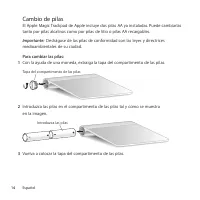
14 Español Cambio de pilas El Apple Magic Trackpad de Apple incluye dos pilas AA ya instaladas. Puede cambiarlas tanto por pilas alcalinas como por pilas de litio o pilas AA recargables. Importante: Deshágase de las pilas de conformidad con las leyes y directrices medioambientales de su ciudad. Pa...
Page 16 - Cambie o recargue las dos pilas a la vez. No mezcle pilas nuevas con; Indicador de nivel de carga de las pilas; Si desea comprobar el nivel de carga de las pilas, seleccione Apple (
15 Español ADVERTENCIA: Cambie o recargue las dos pilas a la vez. No mezcle pilas nuevas con viejas ni tipos de pilas distintos (por ejemplo, no mezcle pilas alcalinas con pilas de litio). No abra ni perfore las pilas, no las instale del revés ni las exponga a fuego, altas temperaturas o agua. No i...
Page 17 - Limpieza
16 Español Limpieza Para limpiar el exterior del trackpad, utilice un paño que no suelte pelusa. Procure que no entre humedad en las aberturas ni utilice aerosoles, disolventes o productos abrasivos. Ergonomía A la hora de usar el Apple Magic Trackpad, es importante encontrar una postura cómoda, cam...
Page 18 - Начало работы; . В трекпаде установлены два аккумулятора; Обновление программного обеспечения; Для обновления Mac OS X выберите в строке меню Apple (
17 Русский Начало работы В беспроводном трекпаде Apple Magic Trackpad для подключения к компьютеру Mac используется технология Bluetooth ® . В трекпаде установлены два аккумулятора AA. Ознакомьтесь с приведенными ниже инструкциями по обновлению ПО и информацией об индикаторе, создании пары и исполь...
Page 19 - Об индикаторе; После включения трекпада и создания пары индикатор выключается.; Включение трекпада
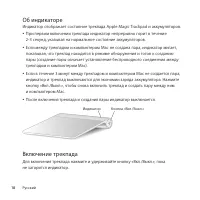
18 Русский Об индикаторе Индикатор отображает состояние трекпада Apple Magic Trackpad и аккумуляторов. Â При первом включении трекпада индикатор непрерывно горит в течение 2-3 секунд, указывая на нормальное состояние аккумуляторов. Â Если между трекпадом и компьютером Mac не создана пара, индикатор...
Page 20 - Создание пары с трекпадом Apple Magic Trackpad; Для создания пары с трекпадом выполните следующие действия.; Нажмите кнопку «Настроить трекпад Bluetooth...» в правом нижнем углу.; Разрыв пары; Выберите трекпад на панели настроек Bluetooth.
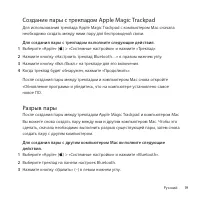
19 Русский Создание пары с трекпадом Apple Magic Trackpad Для использования трекпада Apple Magic Trackpad с компьютером Mac сначала необходимо создать между ними пару для беспроводной связи. Для создания пары с трекпадом выполните следующие действия. 1 Выберите «Apple» ( K ) > «Системные настрой...
Page 21 - Использование трекпада Apple Magic Trackpad
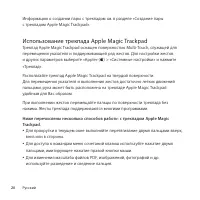
20 Русский Информацию о создании пары с трекпадом см. в разделе «Создание пары с трекпадом Apple Magic Trackpad». Использование трекпада Apple Magic Trackpad Трекпад Apple Magic Trackpad оснащен поверхностью Multi-Touch, служащей для перемещения указателя и поддерживающей ряд жестов. Для настройки ...
Page 22 - Изменение имени трекпада Apple Magic Trackpad; Для изменения имени трекпада выполните следующие действия.; Введите имя и нажмите «OK».
21 Русский Â Для поворота фотографий, страниц и других объектов используйте поворот двумя пальцами. Â Для быстрого перехода по страницам документа, перехода к следующей или предыдущей фотографии и других подобных действий используйте жест смахивания тремя пальцами. Â Для отображения Переключателя п...
Page 23 - Замена аккумуляторов; утилизируйте аккумуляторы в соответствии с местными законами; Для замены аккумуляторов выполните следующие действия.; Снимите крышку отсека аккумуляторов с помощью монеты.; Закройте отсек аккумуляторов крышкой.
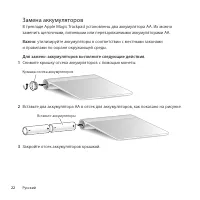
22 Русский Замена аккумуляторов В трекпаде Apple Magic Trackpad установлены два аккумулятора AA. Их можно заменить щелочными, литиевыми или перезаряжаемыми аккумуляторами AA. Важно: утилизируйте аккумуляторы в соответствии с местными законами и правилами по охране окружающей среды. Для замены аккум...
Page 24 - Заменяйте и заряжайте оба аккумулятора одновременно.; Индикатор уровня заряда аккумуляторов; Для проверки уровня заряда аккумуляторов выберите «Apple» (; Очистка
23 Русский ПРЕДУПРЕЖДЕНИЕ. Заменяйте и заряжайте оба аккумулятора одновременно. Не используйте старые аккумуляторы вместе с новыми, а также аккумуляторы различных типов (например, не используйте щелочные и литиевые аккумуляторы одновременно). Не открывайте и не прокалывайте аккумуляторы, не устана...
Page 25 - Эргономика
24 Русский Эргономика При использовании трекпада Apple Magic Trackpad важно найти удобное положение; старайтесь регулярно менять позицию и чаще делать перерывы в работе. Информацию об эргономике, здоровье и правилах безопасности Вы найдете на странице веб-сайта, посвященной эргономике: www.apple.co...
Page 26 - Szybki start; Uaktualnianie oprogramowania; ) > Uaktualnienia, po czym postępować zgodnie ze wskazówkami
25 Polski Szybki start Do gładzika Apple Magic Trackpad dołączone są dwie baterie AA („paluszki”). Urządzenie łączy się z Makiem przy użyciu technologii Bluetooth ® . Przeczytaj niniejszą instrukcję, aby dowiedzieć się, jak uaktualnić oprogramowanie, poznać funkcje lampki wskaźnika, połączyć gładzik...
Page 27 - Lampka wskaźnika; Włączanie gładzika
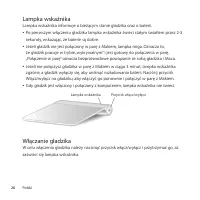
26 Polski Lampka wskaźnika Lampka wskaźnika informuje o bieżącym stanie gładzika oraz o baterii. Â Po pierwszym włączeniu gładzika lampka wskaźnika świeci stałym światłem przez 2-3 sekundy, wskazując, że baterie są dobre. Â Jeżeli gładzik nie jest połączony w parę z Makiem, lampka miga. Oznacza to, ...
Page 28 - Łączenie gładzika Apple Magic Trackpad w parę; Połączenie gładzika w parę z komputerem:; Odwoływanie połączenia w parę; Połączenie w parę z innym Makiem:; Wybierz z menu Apple (
27 Polski Łączenie gładzika Apple Magic Trackpad w parę Apple Magic Trackpad musi zostać połączony w parę z Makiem, co pozwoli urządzeniom komunikować się ze sobą bezprzewodowo. Połączenie gładzika w parę z komputerem: 1 Wybierz z menu Apple ( K ) > Preferencje systemowe, po czym kliknij w Gładzi...
Page 29 - Korzystanie z gładzika Apple Magic Trackpad; Oto sposoby korzystania z gładzika Apple Magic Trackpad:; Obracaj dwoma palcami zdjęcia, strony i inne rzeczy.
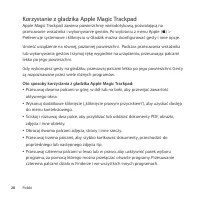
28 Polski Korzystanie z gładzika Apple Magic Trackpad Apple Magic Trackpad zawiera powierzchnię wielodotykową, pozwalającą na przesuwanie wskaźnika i wykonywanie gestów. Po wybraniu z menu Apple ( K ) > Preferencje systemowe i kliknięciu w Gładzik można skonfigurować gesty i inne opcje. Umieść ur...
Page 30 - Zmiana nazwy gładzika Apple Magic Trackpad; Zmiana nazwy gładzika:; Wymiana baterii
29 Polski  Przesuwaj czterema palcami w górę lub w dół, aby pokazać biurko lub wyświetlić wszystkie okna w Exposé. Jeżeli chcesz dowiedzieć się więcej, zajrzyj do okna preferencji gładzika lub wybierz z menu Pomoc > Pomoc Macintosha i wyszukaj hasło „gładzik”. Zmiana nazwy gładzika Apple Magic T...
Page 31 - Włóż baterie do komory baterii, tak jak na poniższej ilustracji.; Zamknij komorę baterii.
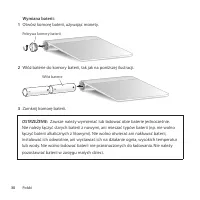
30 Polski Wymiana baterii: 1 Otwórz komorę baterii, używając monety. Pokrywa komory baterii 2 Włóż baterie do komory baterii, tak jak na poniższej ilustracji. Włóż baterie 3 Zamknij komorę baterii. OSTRZEŻENIE: Zawsze należy wymieniać lub ładować obie baterie jednocześnie. Nie należy łączyć starych...
Page 32 - Wskaźnik poziomu baterii; Chcąc sprawdzić poziom baterii, należy wybrać z menu Apple (; Czyszczenie
31 Polski Wskaźnik poziomu baterii Chcąc sprawdzić poziom baterii, należy wybrać z menu Apple ( K ) > Preferencje systemowe, po czym kliknąć w Gładzik. Poziom baterii widoczny jest w lewym dolnym rogu okna. Uwaga: Gdy gładzik Apple Magic Trackpad nie jest używany przez jakiś czas, zostaje autom...
Page 33 - Informacje dodatkowe
32 Polski Informacje dodatkowe Jeżeli chcesz dowiedzieć się więcej o gładziku Apple Magic Trackpad, otwórz Pomoc Macintosha i wyszukaj hasło „gładzik”. Pomoc, informacje o sposobach rozwiązywania problemów, fora dyskusyjne oraz najnowsze pakiety oprogramowania Apple do pobrania znajdziesz pod adrese...
Page 35 - Regulatory Compliance Information
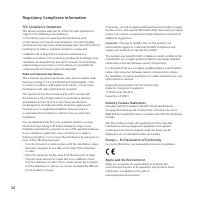
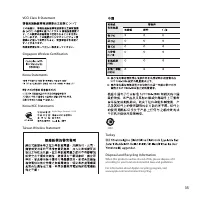
34 Regulatory Compliance Information FCC Compliance Statement This device complies with part 15 of the FCC rules. Operation is subject to the following two conditions: (1) This device may not cause harmful interference, and (2) this device must accept any interference received, including interferenc...
Page 39 - СТАРАЕТСЯ ДЛЯ МЕНЯ; Игровые
СТАРАЕТСЯ ДЛЯ МЕНЯ Игровые манипуляторы Игровая мышка 3D-очки и передатчики Игровая гарнитура Игры Игровая поверхность








 Apple 2 Manual
 Apple 3.5 Manual
 Apple 6 Manual
 Apple 7 Manual
 Apple 10.6 Manual
 Apple 17-INCH Manual
 Apple 17-inch MacBook Pro Manual
 Apple 20 Manual
 Apple 23 Manual
 Apple 145 Manual
 Apple 150 Manual
 Apple 160 Manual
 Apple 200 Series Manual
 Apple 250 Manual
 Apple 280 Manual
 Apple 520 Manual
 Apple 1705 Display Manual