Sony ZSPS55B - User Manual
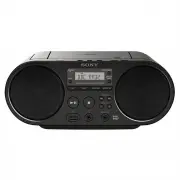
A user manual for Sony’s Personal Audio System outlines essential operation and connectivity features. The guide covers core functionalities like power management, multi-source audio playback (CDs, MP3/WMA files, USB drives), radio tuning, and sleep timer settings. It also addresses setup adjustments–such as favorite station presets–and troubleshooting common issues while providing technical details on supported formats, input/output compatibility, and power specifications.


4-576-951-
12(1)
Personal Audio System
Operating Instructions
©2015 Sony Corporation Printed in China
ZS-PS55B
*
and VOL +
have a tactile dot.
The unit is not disconnected from the AC power
source (mains) as long as it is connected to the wall
outlet, even if the unit itself has been turned off.
Do not install the appliance in a confined space,
such as a bookcase or built-in cabinet.
Excessive sound pressure from earphones and
headphones can cause hearing loss.
Do not expose the batteries (battery pack or
batteries installed) to excessive heat such as
sunshine, fire or the like for a long time.
The nameplate is located on the bottom exterior.
Basic Operations
Before using the unit
To turn the power on or off
Press OPERATE (or POWER)
. You can also turn on
the power of this unit using the direct power-on
function (below).
In this manual, operations are mainly explained
using the direct power-on function.
To use the direct power-on function
Press CD
, USB
, DAB/FM
, AUDIO IN
or
FAVORITE RADIO STATIONS (1-3)
while the unit is
turned off. The power turns on with the relevant
function selected.
To adjust the volume
Press VOL + or
.
To listen through headphones
Connect headphones to the
(headphones) jack
.
Playing a music disc
1
Press CD
to turn on the CD function.
2
Press PUSH OPEN/CLOSE
, place a disc in
the CD compartment and then close the
compartment cover.
Label side up
The disc is loaded and the disc information
appears on the display.
To
Do this
Find a point in a
track/file
(fast forward/
rewind)
Hold down
or
during playback, and release the
button at the desired point.
When locating a point while
paused, press
to start
playback after the desired point
is found.
* In program play mode, playback starts from the first
programmed track/file.
Tip
To cancel the Resume Play, press
while the CD is
stopped.
Note
Resume Play is cancelled in the following cases:
When you open the CD compartment.
When you turn off the power.
Example of folder structure and playing order
The playing order of the folders and files is as
follows. However, the playing order may differ from
the original order on the disc, depending on the
recording method used.
Folder
MP3/WMA file
Notes on MP3/WMA discs
When a disc is loaded, the unit reads all the files on that
disc. During this time, “READING” is flashing. If there are
many folders or non-MP3/WMA files on the disc, it may
take a long time for play to begin or for the next MP3/
WMA file to start to play.
We recommend that non-MP3/WMA files or unnecessary
folders are excluded when creating MP3/WMA discs.
During playback, audio files other than MP3 and WMA
files are skipped even if those files are included in a folder.
The audio formats supported by this unit are as follows:
MP3: File extension “.mp3”
WMA: File extension “.wma”
Note that even if the file name has the correct file
extension but the actual file was created in a different
audio format, this unit may produce noise or may
malfunction.
MP3 PRO format is not supported.
WMA files encoded in WMA DRM, WMA Lossless and
WMA PRO formats cannot be played back.
This unit cannot play audio files on a disc in the following
cases:
When the total number of audio files exceeds 999.
When the total number of folders on a single disc
exceeds 256 (including the “ROOT” folder).
When the directory level (folder depths) exceeds 8
(including the “ROOT” folder).
Folder names can be displayed with up to 32 characters,
including quotation marks.
File names can be displayed with up to 32 characters,
including quotation marks and file extensions.
Characters and symbols that cannot be displayed by the
unit will appear as “_”.
This unit conforms to version 1.0, 1.1, 2.2, 2.3 and 2.4 of the
ID3 tag format for MP3 files and the WMA tag format
defined by the ASF specification (Advanced Systems
Format) for WMA files. When a file has the ID3 or WMA tag
information, the song title, artist name, and album name
will be displayed. If a file does not have the tag
information, the unit displays as follows:
File name instead of the song title.
“NO ARTIST” message instead of the artist name.
“NO ALBUM” message instead of the album name.
ID3 and WMA tag information can be displayed up to 64
characters.
Audio CD
Total number of tracks
Total playing time
MP3/WMA disc
Total number of folders*
* If MP3/WMA files are present only in the root directory
(“ROOT” folder), “1FLDR” appears on the display.
3
Press
to start playback.
Track number or MP3/WMA
file number
Playing time
When you play an MP3/WMA disc, the folder
name*
1
and song title are displayed before the
playing time*
2
appears.
*
1
If MP3/WMA files are present only in the root directory,
“ROOT” appears on the display.
*
2
If the playing time is longer than 100 minutes, “--:--”
appears on the display.
Other operations
To
Do this
Pause playback
Press
. To return to
playback, press the button
again.
Stop playback
Press
. When you press
after playback is stopped,
playback starts from the point
where you stopped playback
(Resume Play)*.
Select a folder
on an MP3/WMA
disc
Press + or
.
Select a track/
file
Press
or
. You can
skip tracks/files one by one.
WARNING
To reduce the risk of fire, do not cover the ventilation
opening of the appliance with newspapers,
tablecloths, curtains, etc. Do not expose the
appliance to naked flame sources (for example,
lighted candles).
To reduce the risk of fire or electric shock, do not
expose this apparatus to dripping or splashing, and
do not place objects filled with liquids, such as
vases, on the apparatus.
As the main plug is used to disconnect the unit from
the mains, connect the unit to an easily accessible
AC outlet. Should you notice an abnormality in the
unit, disconnect the main plug from the AC outlet
immediately.
Power Sources
Connect the AC power cord
, or insert six R14 (size C) batteries (not supplied) into the battery compartment
.
To a wall outlet
To AC IN
AC power cord (supplied)
Rear
Notes
When using the radio on batteries and the battery power drops to a certain level, the OPR/BATT indicator
dims or power of
the radio may go off during playback. If this happens, replace all the batteries with new ones. Even after the OPR/BATT indicator
becomes dim, you can use the radio function for some time, although you cannot use the CD player. Before you replace the
batteries, be sure to remove any CD and disconnect any USB devices or optional components from the unit.
To use the unit on batteries, disconnect the AC power cord from the unit and the wall outlet.
In standby mode with the AC power cord connected, “STANDBY” appears on the display.
To use the power-management function (European models only)
This unit is equipped with an automatic standby function. With this function, the unit enters standby mode
automatically after about 15 minutes if there is no operation or audio signal output.
To turn standby mode on or off, press VOL
while holding down TUNE +
. Each time you press the buttons,
“AUTO STANDBY ON” or “AUTO STANDBY OFF” appears on the display.
Notes
The displayed content starts flashing on the display about 2 minutes before entering standby mode.
The automatic standby function is not available with the FM function.
In the DAB function, if “NOSIGNAL” or “OFF-AIR” remains displayed for 15 minutes, the unit enters standby mode automatically.
Listening to music on a USB device
You can listen to audio files stored on a USB device
(a digital music player or USB storage media).
Audio files in MP3, WMA and AAC formats* can be
played on this unit.
* Files with copyright protection (Digital Rights
Management) cannot be played on this unit.
Compatible USB devices
Compatibility requirements for the USB devices are
as follows. Before using a device with this unit,
check that it meets the requirements.
Compliance with USB 2.0 (Full Speed)
Supports Mass Storage mode*
* Mass Storage mode is a mode that allows a USB device to
become accessible to a host device, enabling file
transfers. Most USB devices support Mass Storage mode.
1
Connect the USB device to the
(USB) port
.
2
Press USB
to turn on the USB function.
The volume label is displayed once, then the total
number of folders appears on the display.
Total number of folders
3
Press
to start playback.
The folder name and song title are displayed, and
then the file number and playing time appear.
File number
Playing time*
* If the playing time is longer than 100 minutes, “--:--”
appears on the display.
Other operations
To
Do this
Pause playback
Press
. To return to
playback, press the button
again*
1
.
Stop playback
Press
. When you press
after playback is stopped,
playback starts from the point
where you stopped playback
(Resume Play)*
2
.
Select a folder
Press + or
.
Select a file
Press
or
. You can
skip files one by one.
To skip files continuously, hold
down
or
and
release the button at the desired
file.
Find a point in a
file
(fast forward/
rewind)
Hold down
or
during playback, and release the
button at the desired point.
When locating a point while
paused, press
to start
playback after the desired point
is found.
*
1
When playing a VBR MP3/WMA/AAC file, playback may
restart from a different point.
*
2
In program play mode, playback starts from the first
programmed file.
Note
When removing a USB device, hold down
until
“NO DEV” appears, and then turn off the unit or switch to
other functions beforehand. Removing the USB device
without performing these steps may corrupt the data on the
USB device or damage the device itself.
Example of folder structure and playing order
The playing order of the folders and files is as
follows. However, the playing order may differ from
the original order on the USB device, depending on
the recording method used.
Folder
USB device
MP3/WMA/AAC file
Notes on the USB device
It may take a long time before playback starts when:
the folder structure is complex.
the USB device is close to capacity.
When a USB device is connected, the unit reads all the
files on the device. If there are many folders or files on the
device, it may take a long time for the unit to finish
reading them.
Do not connect a USB device to the unit through a USB
hub.
With some connected USB devices, after an operation is
performed, there may be a delay before it is performed by
this unit.
This unit may not support all the functions provided with
a connected USB device.
Do not save non-MP3/WMA/AAC files or unnecessary
folders to a USB device that contains MP3/WMA/AAC files.
During playback, audio files other than MP3, WMA and
AAC files are skipped even if those files are included in a
folder.
The audio formats supported by this unit are as follows:
MP3: file extension “.mp3”
WMA: file extension “.wma”
AAC: file extension “.m4a,” “.3gp” and “.mp4”
Note that even if the file name has the correct file
extension but the actual file was created in a different
audio format, this unit may produce noise or may
malfunction.
MP3 PRO format is not supported.
WMA files encoded in WMA DRM, WMA Lossless and
WMA PRO formats cannot be played back.
AAC files encoded in copyright-protected AAC format
cannot be played back.
This unit supports the AAC-LC (AAC Low Complexity)
profile.
This unit cannot play audio files on a USB device in the
following cases:
When the total number of audio files in a single folder
exceeds 999.
When the total number of audio files on a single USB
device exceeds 5,000.
When the total number of folders on a single USB
device exceeds 256 (including the “ROOT” folder).
When the directory level (folder depths) exceeds 8
(including the “ROOT” folder).
These numbers may vary depending on the file and folder
structure.
Compatibility with all encoding/writing software is not
guaranteed. If audio files on the USB device were
originally encoded with incompatible software, those files
may produce noise or interrupted sound, or may not be
played back at all.
Folder names can be displayed with up to 32 characters,
including quotation marks.
File names can be displayed with up to 32 characters,
including quotation marks and file extensions.
Characters and symbols that cannot be displayed by the
unit will appear as “_”.
This unit conforms to version 1.0, 1.1, 2.2, 2.3 and 2.4 of the
ID3 tag format for MP3 files, the WMA tag format defined
by the ASF specification (Advanced Systems Format) for
WMA files, and the AAC tag format for AAC files.
When a file has the ID3, WMA or AAC tag information, the
song title, artist name, and album name will be displayed.
If a file does not have the tag information, the unit
displays as follows:
File name instead of the song title.
“NO ARTIST” message instead of the artist name.
“NO ALBUM” message instead of the album name.
ID3, WMA and AAC tag information can be displayed up to
64 characters.
Listening to the radio
1
Press DAB/FM
repeatedly to turn on the
radio function and select the “DAB” or “FM”
band.
Reception of DAB/DAB+ radio station
When you press DAB/FM
for the first time
after you purchase the unit, DAB auto tune
starts automatically and creates a list of
available services. During DAB auto tune, the
progress indicator flashes on the display. Do
not press any buttons during DAB auto tune.
Scanning will be interrupted and the service
list may not be created properly.
2
Perform tuning.
For tuning to a DAB/DAB+ station
Press TUNE + or
repeatedly to tune to the
desired station.
“SC” flashes on the display when the selected
primary station has a secondary service. Press
TUNE + or
to tune to the secondary service.
“SC” lights up when a secondary service is
received.
For tuning to an FM station
Hold down TUNE + or
until the frequency
digits begin to change on the display.
The unit automatically scans the radio
frequencies and stops when it finds a clear
station.
If you cannot tune to a station using automatic
tuning mode, press TUNE + or
repeatedly to
change the frequency step by step.
When an FM stereo broadcast is received, “ST”
lights up on the display.
Note
The unit of frequency of tuned stations is MHz.
Notes on DAB/DAB+ stations
When tuning to a DAB/DAB+ station, it may take a few
seconds before you hear any sound.
Primary service is automatically received when secondary
service ends.
This tuner does not support data services.
To make low sounds clear for DAB/DAB+
reception
The DRC (Dynamic range control) function makes
low sounds clear even when you turn the volume
down.
Check that the DAB/DAB+ station you are listening
to conforms to DRC.
1
Hold down PLAY/FM MODE
until “DRC x”
appears on the display.
2
Press TUNE + or
to select “2,” “1” (default
setting) or “0.5.”
To turn off the DRC function, select “0.”
3
Press ENTER
.
To run the DAB auto tune manually
If you have moved to another area, perform the DAB
auto tune manually and re-register the contents of
broadcasts.
Hold down DAB/FM
until “INITIAL” and “SCAN?”
appear alternately on the display, and then press
ENTER
.
Scanning begins. Depending on the DAB/DAB+
services available in your area, scanning may take a
few minutes.
When scanning is complete, a list of available
services is created.
Notes
If your country or region does not support DAB/DAB+
broadcasts, “NOSIGNAL” appears on the display.
The currently stored list of available services will be
cleared once the DAB auto tune process has started.
To improve radio reception
Use the radio in a place where
radio signals can be easily
received such as near a window.
Also, adjust the antenna for good
reception.
Adjust the antenna to
improve FM reception. If the
stereo FM reception is noisy,
press FM MODE
repeatedly
until “MONO” appears on the
display. You will lose the
stereo effect, but the
reception will be improved.
If the reception problem still persists, try changing
the installation location.
Avoid places such as the following:
Between buildings
Nearby mobile
phones, electrical
appliances
On steel desks
or tables
Presetting stations to FAVORITE
RADIO STATIONS
You can preset up to three favorite stations to
FAVORITE RADIO STATIONS (1-3) buttons. Assign one
DAB or FM program for each button.
1
Press DAB/FM
repeatedly to turn on the
radio function and select the band “DAB” or
“FM.”
2
Tune to the station you want to preset.
3
Press and hold the desired FAVORITE RADIO
STATIONS (–SET) (1-3) button
until you hear
a beep.
The tuned station is preset to the selected button
of FAVORITE RADIO STATIONS (1-3) and the same
number as that of the button will light up on the
display.
(Example: Presetting FM 87.50 MHz to number
)
To change the preset station
Repeat steps 1 to 3.
The preset station on the button will be replaced by
the new one.
Listening to preset stations with
FAVORITE RADIO STATIONS
Press the desired FAVORITE RADIO STATIONS (1-3)
button
.
Note
To prevent the preset from being changed by mistake, do
not hold down the button. If doing so, the preset on the
button will be replaced by the currently tuned station.
For customers in Europe
Notice for customers: the following
information is only applicable to
equipment sold in countries applying EU
directives
This product has been manufactured by or on behalf
of Sony Corporation, 1-7-1 Konan Minato-ku Tokyo,
108-0075 Japan. Inquiries related to product
compliance based on European Union legislation
shall be addressed to the authorized representative,
Sony Belgium, bijkantoor van Sony Europe Limited,
Da Vincilaan 7-D1, 1935 Zaventem, Belgium. For any
service or guarantee matters, please refer to the
addresses provided in the separate service or
guarantee documents.
Disposal of waste batteries and electrical
and electronic equipment (applicable in
the European Union and other European
countries with separate collection
systems)
This symbol on the product, the battery
or on the packaging indicates that the
product and the battery shall not be
treated as household waste. On certain
batteries this symbol might be used in
combination with a chemical symbol.
The chemical symbols for mercury (Hg) or lead (Pb)
are added if the battery contains more than
0.0005% mercury or 0.004% lead. By ensuring these
products and batteries are disposed of correctly, you
will help prevent potentially negative consequences
for the environment and human health which could
otherwise be caused by inappropriate waste
handling. The recycling of the materials will help to
conserve natural resources.
In case of products that for safety, performance or
data integrity reasons require a permanent
connection with an incorporated battery, this battery
should be replaced by qualified service staff only. To
ensure that the battery and the electrical and
electronic equipment will be treated properly, hand
over these products at end-of-life to the applicable
collection point for the recycling of electrical and
electronic equipment. For all other batteries, please
view the section on how to remove the battery from
the product safely. Hand the battery over to the
applicable collection point for the recycling of waste
batteries. For more detailed information about
recycling of this product or battery, please contact
your local Civic Office, your household waste
disposal service or the shop where you purchased
the product or battery.
Personal Audio System is designed to be used
for playing back music sources on CDs or USB
devices and listening to radio stations.
"Loading the manual" means you need to wait until the file loads and becomes available for online reading. Some manuals are very large, and the time they take to appear depends on your internet speed.
Was this manual helpful?
About this manual
- Brand
- Sony
- Model
- ZSPS55B
- Document type
- User Manual
- Category
- Portable Audio Player
- Language(s)
- English
- Pages
- 2
- File size
- 183.1 KB
- Format
Ask a question
Related manuals
More Sony Portable Audio Players models

Other Sony appliances
- Sony 2 Manual
 Sony 3 Manual
 Sony 4-138-358-42(1) Manual
 Sony 4-153-621-13(1) Manual
 Sony 4-165-489-11(1) Manual
 Sony 4-170-060-12(1) Manual
 Sony 4-170-539-11(1) Manual
 Sony 4-175-274-11(1) Manual
 Sony 4-180-179-14(1) Manual
- Sony 6 Manual
- Sony 7 Manual
 Sony 9 Manual
 Sony 16 Manual
 Sony 16-50mm Manual
 Sony 16mm F/2.8 Manual
 Sony 27 Manual
 Sony 32BX320 Manual
- Sony 32CX520 Manual
 Sony 32EX400 Manual