Sony GTKN1BT - User Manual
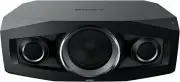
Sony GTKN1BT Sound System – User Manual, read for free online in PDF format. We hope this helps you resolve any issues you may have. If you have further questions, please contact us through the contact form.


GTK-N1BT (GB) 4-471-163-
11
(2)
WARNING
To reduce the risk of fire, do not cover the
ventilation opening of the appliance with
newspapers, tablecloths, curtains, etc. Do not
expose the appliance to naked flame sources (for
example, lighted candles).
To reduce the risk of fire or electric shock, do not
expose this appliance to dripping or splashing,
and do not place objects filled with liquids, such
as vases, on the appliance.
Do not install the appliance in a confined space,
such as a bookcase or built-in cabinet.
As the main plug is used to disconnect the unit
from the mains, connect the unit to an easily
accessible AC outlet. Should you notice an
abnormality in the unit, disconnect the main plug
from the AC outlet immediately.
The unit is not disconnected from the mains as
long as it is connected to the AC outlet, even if the
unit itself has been turned off.
Do not expose batteries or appliances with
battery-installed to excessive heat, such as
sunshine and fire.
This equipment has been tested and found to
comply with the limits set out in the EMC Directive
using a connection cable shorter than 3 meters.
Notice for customers: the following
information is only applicable to
equipment sold in countries applying
EU directives.
This product has been manufactured by or on
behalf of Sony Corporation, 1-7-1 Konan Minato-
ku Tokyo, 108-0075 Japan. Inquiries related to
product compliance based on European Union
legislation shall be addressed to the authorized
representative, Sony Deutschland GmbH,
Hedelfinger Strasse 61, 70327 Stuttgart, Germany.
For any service or guarantee matters, please refer
to the addresses provided in the separate service
or guarantee documents.
Hereby, Sony Corp., declares that this equipment
is in compliance with the essential requirements
and other relevant provisions of Directive 1999/5/
EC.
For details, please access the following URL:
http://www.compliance.sony.de/
For customers in Australia and New
Zealand
This equipment should be installed and operated
with at least 20 cm and more between the
radiator and person’s body (excluding extremities:
hands, wrists, feet and ankles).
Disposal of Old Electrical &
Electronic Equipment
(Applicable in the European
Union and other European
countries with separate
collection systems)
This symbol on the product or on its packaging
indicates that this product shall not be treated as
household waste. Instead it shall be handed over
to the applicable collection point for the recycling
of electrical and electronic equipment. By
ensuring this product is disposed of correctly, you
will help prevent potential negative consequences
for the environment and human health, which
could otherwise be caused by inappropriate
waste handling of this product. The recycling of
materials will help to conserve natural resources.
For more detailed information about recycling of
this product, please contact your local Civic Office,
your household waste disposal service or the
shop where you purchased the product.
Disposal of waste batteries
(applicable in the European
Union and other European
countries with separate
collection systems)
This symbol on the battery or on the packaging
indicates that the battery provided with this
product shall not be treated as household waste.
On certain batteries this symbol might be used
in combination with a chemical symbol. The
chemical symbols for mercury (Hg) or lead (Pb)
are added if the battery contains more than
0.0005% mercury or 0.004% lead.
By ensuring these batteries are disposed of
correctly, you will help prevent potentially
negative consequences for the environment
and human health which could otherwise be
caused by inappropriate waste handling of the
battery. The recycling of the materials will help to
conserve natural resources.
In case of products that for safety, performance
or data integrity reasons require a permanent
connection with an incorporated battery, this
battery should be replaced by qualified service
staff only. To ensure that the battery will be
treated properly, hand over the product at end-
of-life to the applicable collection point for the
recycling of electrical and electronic equipment.
For all other batteries, please view the section
on how to remove the battery from the product
safely. Hand the battery over to the applicable
collection point for the recycling of waste
batteries.
For more detailed information about recycling
of this product or battery, please contact your
local Civic Office, your household waste disposal
service or the shop where you purchased the
product.
Operations
Getting Started
Location of Controls
Unit (Front)
Unit (Right side when installed
horizontally)
Note
Headphone output is not available as this system does not
have a headphone jack.
Remote
This manual mainly explains operations using
the remote, but the same operations can also be
performed using the buttons on the unit having
the same or similar names.
Using the BLUETOOTH function
You can listen to music from your “WALKMAN” or
BLUETOOTH device over a wireless connection.
Before using the BLUETOOTH function, perform
pairing to register your BLUETOOTH device.
The system supports registration and connection
of the BLUETOOTH device and NFC, which enables
data communication by just touching a specified
location. For details on NFC, see “Connecting by
one-touch action (NFC).”
What is pairing?
The BLUETOOTH devices to be connected must
be registered with each other beforehand. Pairing
is an operation of registering two devices. Once a
pairing operation is performed, it does not have
to be performed again. In the following cases,
however, a pairing operation must be performed
again:
ˎ
Pairing information was erased when the
BLUETOOTH device was repaired.
ˎ
You attempt to pair the system with more than
10 BLUETOOTH devices. This system can pair
with up to 9 BLUETOOTH devices. If you pair
another BLUETOOTH device after pairing with 9
devices was performed, pairing information of
the device that was connected with the system
first is overwritten with that of the new device.
ˎ
Pairing registration information of this system is
erased from the connected device.
ˎ
If you initialize the system or erase the
pairing history with the system, all the pairing
information will be erased.
About the BLUETOOTH indicator
The BLUETOOTH indicator in the center of the
BLUETOOTH button
allows checking the
BLUETOOTH status.
System status
Indicator status
The system is in
BLUETOOTH Standby
(when the system is on).
Flash slowly in blue.
During BLUETOOTH
pairing
Flash quickly in blue.
The system is
attempting to connect
with a BLUETOOTH
device.
Flash in blue.
The system has
established in
connection with a
BLUETOOTH device.
Lit in blue.
Enabling reception of AAC codec
You can receive data in AAC codec format from a
BLUETOOTH device. To enable reception, set up
using the option menu.
1
Press BLUETOOTH FUNCTION
on the remote
or press BLUETOOTH
on the unit until “BT
AUDIO” appears in the display
.
2
Press OPTIONS
to display the setting menu.
3
Press
/
repeatedly to select “BT AAC,”
then press
.
4
Press
/
repeatedly to select “ON” or
“OFF,” then press
.
ON:
to enable reception in AAC codec format
OFF:
to receive in SBC or aptX codec format
Notes
ˎ
If you initiate setup during BLUETOOTH connection, the
connection is cut.
ˎ
When using an Apple product, update it to the latest
software version. For details on updating, refer to the
operation manual supplied with your Apple product.
ˎ
If sound is interrupted during reception in AAC codec
format, set the BT AAC menu to “OFF.”
Pairing this system with a BLUETOOTH
device
BLUETOOTH device
such as a “WALKMAN”
1
Place the BLUETOOTH device to be connected
within 1 meter from the system.
2
Press BLUETOOTH FUNCTION
on the remote
or press BLUETOOTH
on the unit until “BT
AUDIO” appears in the display
.
ˎ
The BLUETOOTH indicator
flashes slowly
in blue.
ˎ
If the system has been automatically
connected with the BLUETOOTH device in
the past, press BLUETOOTH
on the unit
to cancel the connection so that “BT AUDIO”
appears in the display
.
3
Press and hold BLUETOOTH
on the unit for
2 seconds or longer.
The BLUETOOTH indicator
flashes quickly in
blue and “PAIRING” flashes in the display
.
The system is in Pairing mode.
4
Perform the pairing operation on the
BLUETOOTH device and search for this system
with the BLUETOOTH device.
When searching has finished, a list of the
devices found may appear on the BLUETOOTH
device display.
ˎ
This system appears as “SONY:GTK-N1BT.” If it
does not appear, perform the procedure from
step 1 again.
ˎ
When establishing connection with this
system, select the audio profile (A2DP, AVRCP)
on the BLUETOOTH device.
ˎ
If the BLUETOOTH device does not support
AVRCP (Audio Video Remote Control Profile),
you cannot perform playback or other
operations with the system.
ˎ
For details on operations of the BLUETOOTH
device to be connected, refer to the operation
manual supplied with your BLUETOOTH
device.
5
Select “SONY:GTK-N1BT” in the display of the
BLUETOOTH device.
If prompted to enter a passkey on the
BLUETOOTH device, enter “0000.”
6
Operate the BLUETOOTH device and perform
BLUETOOTH connection.
When pairing is completed and connection
with the BLUETOOTH device is established
correctly, the display
changes to “BT AUDIO”
from “PAIRING” and the BLUETOOTH indicator
flashes slowly in blue.
ˎ
Depending on the type of BLUETOOTH device,
connection may start automatically after
pairing is completed.
Notes
ˎ
“Passkey” may be called “Passcode,” “PIN code,” “PIN
number” or “Password,” etc., depending on the device.
ˎ
The pairing standby status of the system is cancelled after
about 5 minutes. If pairing is not successful, perform the
procedure from step 1.
ˎ
If you want to pair with several BLUETOOTH devices,
perform the procedure from steps 1 to 6 individually for
each BLUETOOTH device.
Tip
You can perform a pairing operation or attempt to make a
BLUETOOTH connection with another BLUETOOTH device
while the BLUETOOTH connection is established with one
BLUETOOTH device. The currently established BLUETOOTH
connection is cancelled when BLUETOOTH connection with
another device is successfully established.
To erase the pairing registration
information
1
Press BLUETOOTH FUNCTION
on the remote
or press BLUETOOTH
on the unit until “BT
AUDIO” appears in the display
.
When the system is connected with a
BLUETOOTH device, the device name set for the
connected BLUETOOTH device appears in the
display
of the system. Press BLUETOOTH
on the unit to cancel the connection with that
BLUETOOTH device then display “BT AUDIO.”
2
Press CLEAR
.
“DEL LINK” flashes.
3
Press
.
“COMPLETE” appears and all the pairing
information is erased.
Notes
ˎ
If you erase the pairing information, you cannot make a
BLUETOOTH connection unless pairing is performed. In
order to connect with a BLUETOOTH device after performing
this operation, you must enter the passkey again.
ˎ
If you erase the pairing information, the BLUETOOTH
Standby mode setting is set to off.
Connecting by one-touch action (NFC)
NFC enables data communication by just touching
your device to a specified location.
Compatible smartphones are those equipped
with the NFC function (compatible operating
system: Android version 2.3.3 or later with the
exception of Android 3.x).
Check the website below for information on
compatible devices.
For customers in Europe:
http://support.sony-europe.com/
For customers in Latin America:
http://www.sony-latin.com/index.crp
For customers in other countries/regions:
http://www.sony-asia.com/support
Preparation on your smartphone (Android)
An NFC-compliant application must be installed
on your smartphone. If not installed, you can
download “NFC Easy Connect” from Google Play.
ˎ
In some countries and regions, NFC-compliant
application may not be downloaded.
ˎ
For some smartphones, this function may
be available without downloading “NFC Easy
Connect.” In this case, the operation and
specifications of the smartphone may be
different from the description in this manual.
1
Install the application.
If you access using 2D Code
Use the 2D Code Reader application.
To wall outlet
FM lead antenna (Extend
it horizontally.)
Power
Connect the power cord
to a wall outlet.
The demonstration appears in the display
. When you press
, the system turns on and the
demonstration automatically ends.
If the supplied adaptor on the plug does not fit your wall outlet, detach it from the plug (only for models
equipped with an adaptor).
Antenna
When inserting the connector of FM lead antenna
, make sure to insert it in the correct orientation.
Find a location and an orientation that provide good reception when you set up the antenna.
Keep the antenna away from the power cord to avoid picking up noise.
AUDIO IN (external input) jack
Connect optional external equipment using an audio connecting cable (not supplied).
USB port
Connect an iPod/iPhone or USB device using a USB cable (not supplied).
Installing the system
The system can be installed either vertically or horizontally. Select the installation style based on your
preferences.
Horizontal installation
Vertical installation
Using the remote
Insert the two R6 (size AA) batteries (supplied), matching the polarities shown below.
Notes on using the remote
ˎ
With normal use, the batteries should last for about 6 months.
ˎ
Do not mix an old battery with a new one or mix different types of batteries.
ˎ
If you do not use the remote for a long period of time, remove the batteries to avoid damage from battery leakage and corrosion.
Setting the clock
1
Press
to turn on the system.
2
Press TIMER MENU
to select the clock set mode.
If “PLAY SET” flashes, press
/
repeatedly to select “CLOCK,” and then press (enter)
.
3
Press
/
repeatedly to set the hour, then press
.
4
Use the same procedure to set the minutes.
Note
The clock settings are reset when you disconnect the power cord or if a power failure occurs.
To display the clock when the system is off
Press DISPLAY
. The clock is displayed for about 8 seconds.
License and Trademark Notice
ˎ
iPhone, iPod, iPod classic, iPod nano, and iPod
touch are trademarks of Apple Inc., registered in
the U.S. and other countries.
ˎ
MPEG Layer-3 audio coding technology and
patents licensed from Fraunhofer IIS and
Thomson.
ˎ
Windows Media is either a registered trademark
or trademark of Microsoft Corporation in the
United States and/or other countries.
ˎ
The BLUETOOTH® word mark and logos are
registered trademarks owned by BLUETOOTH
SIG, Inc. and any use of such marks by Sony
Corporation is under license. Other trademarks
and trade names are those of their respective
owners.
ˎ
The N Mark is a trademark or registered
trademark of NFC Forum, Inc. in the United
States and in other countries.
ˎ
© 2012 CSR plc and its group companies.
The aptX® mark and the aptX logo are trade
marks of CSR plc or one of its group companies
and may be registered in one or more
jurisdictions.
ˎ
Android is a trademark of Google Inc.
ˎ
This product is protected by certain intellectual
property rights of Microsoft Corporation. Use or
distribution of such technology outside of this
product is prohibited without a license from
Microsoft or an authorized Microsoft subsidiary.
ˎ
The system names and product names indicated
in this manual are generally the trademarks or
registered trademarks of the manufacturer. ™
and ® marks are omitted in this manual.
4-471-163-
11
(2)
Personal Audio System
©2013 Sony Corporation Printed in China
GTK-N1BT
Operating Instructions
GB
If the application is not found at the website
above, search “NFC Easy Connect” on Google
Play and install it.
2
Set your smartphone to enable NFC function.
For details, refer to the user’s guide supplied
with your smartphone.
About the “NFC Easy Connect” application
This is a free application especially used for
Android. Search the internet for detailed
information on “NFC Easy Connect” and download
the application.
ˎ
In some countries and regions, NFC-compliant
application may not be downloaded.
Making a connection with your
smartphone by one-touch action
Just touch your smartphone to the system. The
system is turned on automatically, and pairing
and BLUETOOTH connection are established.
1
Start the “NFC Easy Connect” application on
your smartphone.
Check that the application display appears.
2
Touch your smartphone to the unit.
Touch the smartphone to the N-Mark
on the
unit and maintain contact until the smartphone
vibrates.
Complete the connection with your
smartphone, following the instructions on the
screen.
Refer to the user’s guide of your smartphone
for the part of your smartphone used touch
contact.
ˎ
To disconnect the established connection, touch
your smartphone to the N-Mark
on the unit.
ˎ
When you touch an NFC-compliant smartphone
to the unit while another BLUETOOTH device
is connected with this system, the BLUETOOTH
device is disconnected and the system is
connected with the smartphone.
ˎ
If you touch the smartphone connected with this
system to another NFC-compliant BLUETOOTH
headset or speaker, the smartphone is
disconnected from the system and connected
with the touched BLUETOOTH device.
Listening to music through a
BLUETOOTH connection
You can operate a BLUETOOTH device by
connecting the system and a BLUETOOTH device
using AVRCP.
Check the following before playing music:
ˎ
The BLUETOOTH function of the BLUETOOTH
device is enabled.
ˎ
Pairing has been completed.
1
Press BLUETOOTH FUNCTION
on the
remote or press BLUETOOTH
on the unit
until “BT AUDIO” appears in the display
.
2
Establish BLUETOOTH connection with the
BLUETOOTH device.
Once the connection is established, “LINKED”
appears in the display
then the BLUETOOTH
device name set with the BLUETOOTH device
appears.
If the BLUETOOTH device has been connected
with this system in the past, it may be
connected automatically with no user
operation required.
3
Press
on the remote or
on the
unit to start playback.
Depending on the BLUETOOTH device, you may
have to press
or
twice.
Depending on the BLUETOOTH device, you
may have to start up the AV software of the
BLUETOOTH device beforehand.
4
Press VOLUME +/
on the remote or turn
the volume dial
on the unit to adjust the
volume.
Other operations
To
Do the following:
Pause playback
Press
on the remote or
on the unit.*
Stop playback
Press
.
Select a folder
Press
+/
(
+/
on the unit).
Select a file
Press
/
.
Find a point in
a file
Hold down
/
(or
/
on the unit)
during playback and release
the button at the desired point.
* Depending on the BLUETOOTH device, you may have to
press
on the unit twice.
Note
These operations may not be available for certain
BLUETOOTH devices. In addition, the actual operations may
differ depending on the connected BLUETOOTH device.
To check the address of a connected
BLUETOOTH device
Press DISPLAY
while the BLUETOOTH device
name set on the connected BLUETOOTH device is
shown in the display
. The BLUETOOTH device
address appears in two installments on the
system display for 8 seconds.
To cancel the connection with a
BLUETOOTH device
Press BLUETOOTH
on the unit. “UNLINKED”
appears in the display
.
Depending on the BLUETOOTH device, the
connection may be cancelled automatically when
you stop playback.
Setting the BLUETOOTH Standby
mode
When BLUETOOTH Standby mode is enabled,
the system enters Wait mode for BLUETOOTH
connection even when the system is turned off.
If the system receives a playback command from
the connected BLUETOOTH device, it turns on and
music is played back. The BLUETOOTH Standby
mode is disabled by default.
1
Press BLUETOOTH FUNCTION
on the remote
or press BLUETOOTH
on the unit until “BT
AUDIO” appears in the display
.
2
Press OPTIONS
to display the setting menu.
3
Press
/
repeatedly to select “BT STBY,”
then press
.
4
Press
/
repeatedly to select “ON” or
“OFF,” then press
.
5
Press
/
to turn off the system.
When “BT STBY” is set to “ON,” the system turns
on and you can listen to music by activating
BLUETOOTH on the connected component.
App Remote via BLUETOOTH
wireless technology (Android
phone)
Downloading the “App Remote” application from
Google Play is required for Android phone.
If the application is downloaded to an Android
phone connected to the unit, the following
features are available:
—Operate the unit to launch and control
compatible applications on Android phone.
—Operate Android phone with simple finger
gestures to control the source of the unit.
—Display detailed source information (song title,
artist name, album art, etc.) on Android phone.
—Read out incoming text messages/SMS
automatically.
Available operations differ depending on the
application. For details on available applications,
visit the support site below:
For customers in Europe:
http://support.sony-europe.com/
For customers in Latin America:
http://www.sony-latin.com/index.crp
For customers in other countries/regions:
http://www.sony-asia.com/support
To install the application
If you access using 2D Code
Use the 2D Code Reader application.
If the application is not found at the website
above, search for “App Remote” on Google Play
and install it.
Notes
The “App Remote” application via the BLUETOOTH
function is only available for Android phones with Android
2.2, 2.3, 4.0 or 4.1 installed.
Automatic reading of the SMS function is only available
for Android phones with TTS Engine installed.
Two-way music control with Android
phone
Before connecting the mobile device, turn down
the volume of the unit.
1
Connect this unit and the mobile device via
the BLUETOOTH function.
2
Start up the “App Remote” application.
If the function of the unit does not appear on
the application, press and hold BLUETOOTH
on the unit for more than 2 seconds.
Some playback operations of the unit can be
controlled by the mobile device. For details on
the operations on the mobile device, see the
help of the application.
"Loading the manual" means you need to wait until the file loads and becomes available for online reading. Some manuals are very large, and the time they take to appear depends on your internet speed.