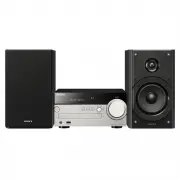
Page 2 - WARNING
2 GB To reduce the risk of fire, do not cover the ventilation opening of the appliance with newspapers, tablecloths, curtains, etc.Do not expose the appliance to naked flame sources (for example, lighted candles). To reduce the risk of fire or electric shock, do not expose this appliance to dripping...
Page 3 - Note on DualDiscs
3 GB battery should be replaced by qualified service staff only. To ensure that the battery and the electrical and electronic equipment will be treated properly, hand over these products at end-of-life to the applicable collection point for the recycling of electrical and electronic equipment. For a...
Page 4 - Documents provided
4 GB Documents provided Operating Instructions (this document) Explains important safety information, BLUETOOTH connection method, troubleshooting, etc. Wi-Fi Startup Guide (separate document) Explains how to listen to music stored in your computer or other device over your Wi-Fi network. Help Guide...
Page 5 - Table of Contents
5 GB Table of Contents Before operating this system..................................................................3 Documents provided ............................................................................. 4 Getting started Location and function of controls....................................
Page 6 - Listening to music with connected components; Pairing the system with a BLUETOOTH device and listening to; Listening to music via a Wi-Fi network; Listening to the same music from the multiple speakers; Additional information
6 GB Listening to music with connected components Playing back the music of connected components.............................. 21 Playing a component connected to the OPTICAL IN jack ..................... 21 Playing a component connected to the LINE IN jack ........................... 21 Listening t...
Page 8 - Location and function of controls; Note; Getting started
8 GB Location and function of controls Note This manual mainly explains operations using the remote, but the same operations can also be performed using the buttons on the unit having the same or similar names. Unit (front) / (power) button Use to turn the power on or off. Standby indicato...
Page 9 - Remote; buttons
9 GB Gett ing s ta rte d (USB FRONT) port Connect a USB device (page 18). (headphones) jack Use to connect headphones. Remote / (power) button Use to turn the power on or off. / /ENTER button Press / to select an item, then press ENTER to enter.Use / to select a folder (a...
Page 10 - Wireless LAN antenna
10 GB Unit (back) SPEAKERS L/R (left/right) connectors Connect each speaker as illustrated below. Note Connect the speaker cords while the system is turned off. Wireless LAN antenna If you use the wireless network function, set the antenna as shown in the illustration. LINE IN (external inpu...
Page 11 - LAN connector
11 GB Gett ing s ta rte d Note Find a location and an orientation that provide good reception, and then fix the antennas to a stable surface (window, wall, etc.). Keep the antennas away from the unit, power cord and other AV components to avoid picking noise. Secure the end of the FM lead ante...
Page 12 - Controlling devices on your home network; About SongPal
12 GB What you can do with SongPal SongPal is an application for controlling Sony audio devices which are compatible with SongPal using your smartphone/iPhone. Search for SongPal on Google Play™ or the App Store, and download it. Downloading this application on your smartphone/iPhone provides the fo...
Page 13 - To eject the CD; Listening to a CD
13 GB Li st e n in g to a CD Playing a CD-DA/MP3 disc 1 Press FUNCTION to select “CD.” 2 Press (open/close) to open the disc tray. 3 Set a disc on the disc tray with the label side (printed side) facing up. 4 Press (open/close) to close the disc tray. 5 Press (play/pause). Playback starts.The ...
Page 14 - Playmode; Repeat
14 GB You can select the following play modes. Playmode * Only during MP3 disc playback. When playing back a CD (CD-DA), this mode will operate in the same way as normal playback or shuffle playback. Repeat Note on playing MP3 discs Do not save unnecessary folders or files on a disc that has MP3 f...
Page 15 - When using an MP3 disc, press; To cancel program play
15 GB Li st e n in g to a CD Creating your own program (Program Play) Plays the programmed track or file in a CD. 1 Select “Program” in step 5 of “To change the play mode” (page 13), then press ENTER. 2 When using an MP3 disc, press / to select the folder containing the tracks or files that you ...
Page 16 - Manual tuning; Listening to the radio
16 GB Tuning in a radio station 1 Press FUNCTION to select “TUNER FM” or “TUNER AM” (CMT-SX7), or “DAB” or “TUNER FM” (CMT-SX7B). 2 Press and hold / until the frequency indication in the display window starts changing, then release the button. Tuning stops automatically when a radio station is t...
Page 17 - To tune in to a preset radio station
17 GB L is te n in g to the r a dio Presetting radio stations You can preset your desired radio stations. 1 Tune in the desired station, then press MENU. 2 Press / to select “Tuner Menu,” then press ENTER. To preset an AM station, select “AM Preset Memory” and follow step 4 (CMT-SX7 only). 3 Pre...
Page 18 - Connect a USB device to the; Listening to a file on a USB device
18 GB Playing a file on a USB device You can play audio files stored on a USB device such as WALKMAN® or digital media player, on this system by connecting a USB device to the system.The (USB REAR) port on the rear of the unit can be connected with a computer, WALKMAN® or Xperia which is compatibl...
Page 19 - Playable audio formats
19 GB Li st enin g t o a file on a U S B d e v ic e To listen to High-Resolution Audio from your computer, install the dedicated driver* 2 to your computer. * 2 For Mac OS, a driver is not required. 1 Download the driver from the website below; For customers in Europe: http://www.sony.eu/support For...
Page 26 - Method for using computer
26 GB Selecting the method of network connection If you connect this system to a network, you can enjoy this system in various ways. Depending on your network environment, setting up methods are different. Select the appropriate connecting method for your network environment from below. Tip For se...
Page 29 - Tap the Connect icon (
29 GB L is te n in g to mu sic v ia a Wi- F i netwo rk Listening to an Internet music service (Spotify) “Spotify” gives you instant access to millions of songs. The “Spotify Connect” feature lets you select music on the Spotify App and stream it on the system. To use “Spotify Connect” feature, you n...
Page 31 - If; Adjusting the sound; To use the Clear Audio+ function
31 GB A d d it ional i n fo rmat io n Setting the wireless signal ON/OFF When the unit is turned on, you can control a wireless network or BLUETOOTH signal. The default setting is on. 1 Turn on the unit. 2 If flashes in the display window, press and hold BACK and of the unit. 3 After “RF Off” (wir...
Page 32 - Setting the clock; Using the timers; To cancel the Sleep Timer; Play Timer; Setting the Sleep Timer
32 GB Setting the clock 1 Press / to turn on the system. 2 Press MENU. 3 Press / to select “Timer Menu,” then press ENTER. If “Play Setting” is displayed, press / to select “Clock Setting,” then press ENTER. 4 Press / to set the hour, then press ENTER. 5 Press / to set the minute...
Page 33 - To check the setting
33 GB A d d it ional i n fo rmat io n 1 Prepare the sound source. 2 Press MENU. 3 Press / to select “Timer Menu,” then press ENTER. 4 Press / to select “Play Setting,” then press ENTER. The start time flashes in the display window. 5 Press / to select time, then press ENTER. Follow the s...
Page 36 - When “UPDATE” is displayed
36 GB 9 When “Complete” appears, press / to turn off the power, then press / again to turn on. If the network connection is not reliable, the update may fail before it completes.When “Cannot Download” and “Push POWER” appear alternately, the software update has failed. In this condition, the...
Page 37 - Troubleshooting; If the standby indicator flashes in red; General
37 GB Tro u ble shoo ti n g Troubleshooting If a problem occurs while operating the system, follow the steps described below before consulting your nearest Sony dealer. If an error message appears, be sure to make a note of the contents for reference. 1 Check to see if the problem is listed in this ...
Page 38 - BLUETOOTH
38 GB Move the remote closer to the system. Replace the new batteries. “Locked” appears in the display window and the disc cannot be removed from the disc tray. Consult your nearest Sony dealer or local authorized Sony service facility. The disc or file will not play. The disc has not been f...
Page 39 - USB device
39 GB Tro u ble shoo ti n g There is no sound. Make sure the iPhone/iPad/iPod is connected securely to the (USB FRONT) port. Stop playback and connect the iPhone/iPad/iPod to the system. Make sure the iPhone/iPad/iPod is updated with the latest software. If not, update the iPhone/iPad/iPod b...
Page 40 - Tuner
40 GB Other characters appear as “_.” The USB device is not recognized. Turn off the system and reconnect the USB device, then turn on the system. An incompatible USB device may be connected. The USB device does not work properly. Refer to the operating manual supplied with the USB device for ...
Page 41 - Music Services
41 GB Tro u ble shoo ti n g The system cannot connect to the network using WPS. Set up your network after searching the access point using the access point scan. You cannot connect to a network using WPS when your access point is set to WEP. Update the firmware of the wireless LAN router/acces...
Page 42 - Messages
42 GB The sound is interrupted during playback. The server is overloaded. Quit all running applications. This unit cannot be operated. Update the software version of the iPhone/iPad/iPod touch or iTunes to the latest version. To reset the system to factory settings If the system still does not o...
Page 44 - Precautions; Precautions/Specifications
44 GB Precautions Discs that this system CAN play Audio CD-DA discs CD-R/CD-RW (audio data of CD-DA tracks and MP3 files) Discs that this system CANNOT play CD-ROM CD-R/CD-RW other than those recorded in music CD format or format conforming to ISO9660 Level 1/Level 2, Joliet CD-R/CD-RW rec...
Page 47 - Supported BLUETOOTH version and profiles; Effective communication range
47 GB P re c a u ti o n s / Spe c if icatio ns BLUETOOTH wireless technology BLUETOOTH wireless technology is a short-range wireless technology linking digital devices, such as personal computers and digital still cameras. Using the BLUETOOTH wireless technology, you can operate the units involved w...
Page 48 - Specifications; Amplifier section; Section for USB port; Transfer speed
48 GB BLUETOOTH devices connected with this system must comply with the BLUETOOTH specification prescribed by the BLUETOOTH SIG, Inc., and must be certified to comply. However, even when a device complies with the BLUETOOTH specification, there may be cases where the characteristics or specificati...
Page 49 - Laser Diode Properties:; Tuner section
49 GB P re c a u ti o n s / Spe c if icatio ns (USB REAR) port You can connect a compatible device such as a PC, etc., to this unit using a USB cable (not supplied). Supported format* 1 PCM: 44.1/48/88.2/96/176.4/192 kHz (16/24/32 bit)DSD (DSF/DSDIFF): 2.8 MHz (1 bit) * 1 Compatibility with all en...
Page 50 - Network section
50 GB * 1 Frequencies are displayed to two decimal places on this system. Speaker section Speaker system: 2-way speaker system, Bass ReflexWoofer: 100 mm, cone typeTweeter: 27 mm, Balanced soft dome type Rated impedance: 6 ohms Dimensions (W/H/D): Approx. 145 mm x 245 mm x 225 mm Mass: Approx. 3.5 k...
Page 51 - Supplied accessories:
51 GB P re c a u ti o n s / Spe c if icatio ns WEP 64 bit, WEP 128 bitWPA/WPA2-PSK (AES)WPA/WPA2-PSK (TKIP) Compatible formats: PCM 192 kHz/24 bit, DSD 2.8 MHz/1 bitDSD (DSF, DSDIFF), LPCM (WAV, AIFF), FLAC, ALAC, MP3, AAC, WMA General Power requirements: Latin America models (except for Argentina m...