Samsung VL550 - User Manual
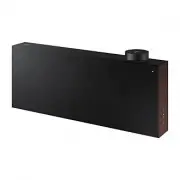
Samsung VL550 Wireless Speaker – User Manual, read for free online in PDF format. We hope this helps you resolve any issues you may have. If you have further questions, please contact us through the contact form.


Table of Contents:
- Page 2 – Regulatory Compliance Statements; CAUTION; WARNING; Safety Information
- Page 3 – Wiring the Main Power Supply Plug (UK Only); IMPORTANT NOTICE; THE LETTER E OR BY THE EARTH SYMBOL; Safety precautions; Power Supply Precautions; Do not overload outlets or extension cords.
- Page 4 – Installation Precautions; A damaged cord may cause a fire and poses a risk of electric shock.; Usage Precautions; the power cord, and then contact a Samsung dealer or service centre.
- Page 5 – Cleaning Precautions
- Page 6 – Contents; Connecting between the Dial
- Page 7 – Getting Started; Checking the Components; AC/DC Adapter until you hear a
- Page 8 – Product Overview; Bluetooth; Touch and drag the touch wheel clockwise to
- Page 9 – Play / Pause and Skip features are not available in; Mute / unmute feature can be used with the
- Page 10 – Rear of the Speaker; Connect the power cord to the AC/DC adapter.; RESET; button is for troubleshooting.
- Page 11 – Using Dial Controller; Top of the Dial Controller; to play the next music.
- Page 13 – Bottom of the Dial Controller; Charge your Dial Controller before turning the power on.; RESET Button; Connect the Micro USB cable to charge the Dial Controller.; CONNECT; Try connecting to a Speaker.
- Page 14 – Connecting between the Dial Controller and Speaker; * Before use of the Dial Controller
- Page 15 – * First time connection; Press the; button on the right side of the speaker for 5 seconds or more.; Mobile device; Only Step 2 is required when reconnecting to mobile devices.; Connecting to Bluetooth
- Page 17 – Spotify Premium users can enjoy music by using the Spotify app.; * Deleting a device from SmartThings app; next to
- Page 18 – Connecting an external device via the AUX cable; button on the right side of the speaker to switch to; AUX; Connect the; AUX Cable; Connecting to an External Device
- Page 19 – Using mobile device voice recognition; Dedicated functions in Bluetooth mode; Listening to music; Additional Functions
- Page 20 – To connect a mobile device, please see; Press and hold the
- Page 21 – Using via Wi-Fi connection; Functions upon Wi-Fi connection; Using 2 units - Audio Group; SmartThings; app to connect and enjoy 2 speakers as a; Audio Group
- Page 22 – app to connect and enjoy two speakers as a; Stereo
- Page 24 – Connecting with a Samsung Smart TV; Expert Settings
- Page 25 – Connecting an Amazon product; Connect and use with an Amazon product (Amazon Echo)
- Page 27 – To play the next song
- Page 28 – mount the Speaker on.; Considerations for purchasing; Do not install in a place with high temperature or humidity.; Wall-Mount Components; Wall Fixing Screw; Installing the Wall Mount
- Page 29 – Fix the; and then adjust the
- Page 30 – * Removing the Wall Mount; Lift the main unit up until the
- Page 31 – Appendix; Troubleshooting; area may be exposed to
- Page 32 – See “Connecting to an External
- Page 33 – GHz Wi-Fi network and having this
- Page 34 – Wi-Fi max transmitter power
- Page 35 – 0 seconds or more to enable Wi-Fi again.; 0 seconds or more to enable Bluetooth again.
- Page 36 – Additional Information; About the Network Connection; Copyright
- Page 37 – operated in all EU countries.; [Correct disposal of batteries in this product]; or lead above the reference levels in EC Directive 2006/66.; Correct Disposal of This Product; household waste at the end of their working life.
- Page 39 – Contact SAMSUNG WORLD WIDE; SAMSUNG customer care centre listed for your country.
FULL MANUAL
"Loading the manual" means you need to wait until the file loads and becomes available for online reading. Some manuals are very large, and the time they take to appear depends on your internet speed.
Was this manual helpful?
About this manual
- Brand
- Samsung
- Model
- VL550
- Document type
- User Manual
- Category
- Wireless Speaker
- Language(s)
- English
- Pages
- 44
- File size
- 23.4 MB
- Format
Summary
A Regulatory Compliance Statements CAUTION RISK OF ELECTRIC SHOCK. DO NOT OPEN. This symbol indicates that high voltage is present inside. It is dangerous to make any kind of contact with any internal part of this product. CAUTION: TO REDUCE THE RISK OF ELECTRIC SHOCK, DO NOT REMOVE THE COVER (OR BA...
❚ Wiring the Main Power Supply Plug (UK Only) IMPORTANT NOTICE The mains lead on this equipment is supplied with a moulded plug incorporating a fuse. The value of the fuse is indicated on the pin face of the plug and if it requires replacing, a fuse approved to BS1362 of the same rating must be used...
❚ Installation Precautions • Do not install the product near equipment or objects that generate heat or produce fire (candles, mosquito coils, heaters, radiators, etc.). Do not install in direct sunlight. • When moving the product, turn off the power and disconnect all cords (include the power cord)...
Ask a question
Related manuals
More Samsung Wireless Speakers models


Other Samsung appliances
 Samsung 2 Manual
- Samsung 3 Manual
 Samsung 3.5" hard disk drives Manual
 Samsung 4 Manual
 Samsung 4 CHANNEL DVR Manual
- Samsung 4g Manual
- Samsung 4G LTE SMARTPHONE Manual
 Samsung 5 Manual
- Samsung 8.9 Manual
- Samsung 10.1 Manual
 Samsung 14F2, 14F3, 14H4, 14H5, 14S1, 14S4, 14V5, 3366, 15K2, 15K5, 15K8, 15K9, 20F3, 20H4, 20H5, 20S1, 20S4, 20S5, 20V5, 5038, 21A3, 21A6, 21A7, 21A8, 21B6, 21D8, 21F3, 21F5, 21H4, 21H5, 21K2, 21K3, 21K5, 21K9, 21S1, 21S4, 21V5 Manual
 Samsung 14F2, 14F3, 14H4, 14H5, 14S1, 14V5, 3366, 15K2, 15K5, 15K8, 15K9, 15K10, 15M16, 17A11, 17K10, 20F3, 20H4, 20H5, 20S1, 20S4, 20S5, 20V5, 5038, 21A3, 21A6, 21A7, 21A8, 21B6, 21D8, 21F3, 21F5, 21H4, 21H5, 21K2, 21K3, 21K5, 21K9, 21K10, 21M16, 21S1, 21S4, 21V Manual
 Samsung 21-1840 Manual
- Samsung 21S Manual
 Samsung 21Z50 Manual
 Samsung 25A6, 29A5, 29A6, 29A7, 29K3, 29K5, 29K10, 29M6, 29U2, 29Z4, 34A7, 34Z4 Manual
 Samsung 25A6, 29A5, 29A6, 29A7, 29K3, 29K5, 29M6, 29U2, 34A7 Manual