Page 2 - Table of Contents; Getting started
2 Table of Contents Getting started 3 About the Galaxy Buds3 / Galaxy Buds3 Pro 4 Device layout and functions7 Replacing ear tips (Galaxy Buds3 Pro) 8 Charging the battery15 Indicator lights identification Using the earbuds 18 Connecting the earbuds to a mobile device 22 Wearing the earbuds24 Using ...
Page 3 - About the Galaxy Buds3 / Galaxy Buds3 Pro
3 Getting started About the Galaxy Buds3 / Galaxy Buds3 Pro Galaxy Buds3 / Galaxy Buds3 Pro (hereafter, Galaxy Buds) are wireless earbuds which allow you to listen to music or answer incoming calls after connecting them to your mobile device even while doing other activities, such as working out. Do...
Page 4 - Device layout and functions; Earbud
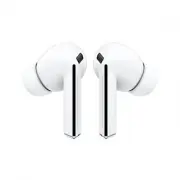
Getting started 4 Device layout and functions Earbud ▶ Galaxy Buds3 : Microphone Touch-sensitive sensor Microphone Swipe area Pinch area Charging contacts Speaker / Microphone
Page 6 - Charging case
Getting started 6 Charging case Charging contacts (right) Charging case battery indicator light Charging contacts (left) Charger port (USB Type-C) Connect button Wireless charging coil • Use the device in a place without magnetic interference for the device to operate normally. • Your device and som...
Page 7 - Replacing ear tips
Getting started 7 If you use the earbuds when they are broken, there may be a risk of injury. Use the earbuds only after they have been repaired at a Samsung Service Centre or an authorised service centre. • If foreign materials are placed on the touch-sensitive sensor, they may cause the sensor to ...
Page 8 - Charging the battery
Getting started 8 2 Select the ear tips that fit your ears. 3 Align the protruding part on the speaker of the earbud with the groove of the ear tip and push it in until it clicks into place. Charging the battery Fully charge the battery before using the earbuds for the first time or when they have b...
Page 9 - Wired charging
Getting started 9 Wired charging 1 Open the charging case. 2 Check the direction of each earbud and correctly insert them into their corresponding slots in the charging case. R L 3 Close the charging case.
Page 10 - Wireless charging
Getting started 10 4 Connect the USB cable to the charger and then plug the USB cable into the charger port. 5 Plug the charger into an electric socket.The batteries of the earbuds and the charging case are charged simultaneously. 6 After fully charging, disconnect the charging case from the charger...
Page 11 - Charging by Wireless power sharing
Getting started 11 4 Place the centre of the wireless charging coil on the back of the charging case on the centre of the wireless charger. Wireless charging may not work smoothly depending on the type of accessory or cover. For stable wireless charging, it is recommended to separate the cover or ac...
Page 13 - Checking the battery level; Reducing the battery consumption
Getting started 13 Checking the battery level Connect the earbuds to your mobile device, open the Galaxy Wearable app on your mobile device, and check the battery status of the earbuds and the charging case. Refer to Connecting the earbuds to a mobile device for more information. When the remaining ...
Page 15 - Indicator lights identification; Checking the status of the earbuds; Using the blade lights
Getting started 15 Indicator lights identification The blade lights and the charging case battery indicator light display the status of your earbuds and the charging case. Blade lights (Galaxy Buds3 Pro) Checking the status of the earbuds You can check the status of the earbuds through the blade lig...
Page 16 - Charging case battery indicator light
Getting started 16 2 Select the desired lighting style of the blade lights under Select lighting style . • Blinking : The blade lights will blink. • Fade in and out : The blade lights will gradually turn on and dim. • Steady : The blade lights will stay on. If you pinch and hold both earbuds while n...
Page 18 - Using the earbuds; Before the connection; Connecting the earbuds to a Samsung mobile device for the
18 Using the earbuds Connecting the earbuds to a mobile device Before the connection • Charge the charging case sufficiently. • The Galaxy Wearable app must be installed on your mobile device. If the app is not installed on your mobile device, download the app from Galaxy Store or Play Store . • You...
Page 21 - Connecting the earbuds to a non-Samsung mobile device
Using the earbuds 21 Connecting the earbuds to a non-Samsung mobile device that also uses the Android OS (or, the connection pop-up window does not appear) If you connect to a non-Samsung mobile device that also uses the Android OS, some of the features of the earbuds may not be available and the ea...
Page 22 - Precautions for using Bluetooth; Wearing the earbuds
Using the earbuds 22 Precautions for using Bluetooth • To avoid problems when connecting your earbuds to another device, place the devices close to each other. • Ensure that your earbuds and the other Bluetooth device are within the maximum Bluetooth connection range (10 m). The distance may vary de...
Page 24 - Using the earbud by gestures; Introduction
Using the earbuds 24 Using the earbud by gestures Introduction Pinch or swipe the earbuds to play or stop music or answer or decline calls. You can also set the earbuds to perform other actions by pinching or swiping them. The following term, gesture areas, includes both the pinch area and the swipe...
Page 25 - Understanding gestures
Using the earbuds 25 Understanding gestures Single pinch • Play or pause track. • Answer or end a call. • Stop using the Read notifications aloud feature. • Stop using the Voice detect or Siren detect feature. Double pinch • Play next track. Triple pinch • Play previous track. ‒ If you pinch the ear...
Page 26 - Setting a pinch and hold feature
Using the earbuds 26 If the earbuds do not connect to a mobile device, the connection pop-up window does not appear, or your mobile device cannot find the earbuds, store them in the charging case and press the Connect button for more than 3 seconds to enter Bluetooth pairing mode manually. When Blue...
Page 27 - Using the noise controls modes; Activating from the earbuds
Using the earbuds 27 Using the noise controls modes Introduction ▶ Galaxy Buds3 : Turn on the Active noise cancelling feature to reduce the volume of sounds around you. Use it when you want to avoid distractions, such as when listening to music. ▶ Galaxy Buds3 Pro : There are three noise controls mo...
Page 28 - Activating from the Galaxy Wearable app
Using the earbuds 28 Activating from the Galaxy Wearable app ▶ Galaxy Buds3 : Open the Galaxy Wearable app on your mobile device and tap the Active noise cancelling switch to turn it on. ▶ Galaxy Buds3 Pro : Open the Galaxy Wearable app on your mobile device and tap Ambient sound , Adaptive , or Act...
Page 29 - Auto switching to ambient sound
Using the earbuds 29 Auto switching to ambient sound (Galaxy Buds3 Pro) In certain situations, such as when having a conversation or talking on the phone while wearing the earbuds, the earbuds will detect it and automatically turn on Ambient sound mode, which allows you to concentrate on the surroun...
Page 30 - Listening to music; Playing or pausing the track; Using the equaliser
Using the earbuds 30 Listening to music Listen to music saved in your mobile device by connecting the earbuds to the mobile device. You can stream music played from the connected mobile device.On your mobile device, open a music player app and play music. Playing or pausing the track Pinch the earbu...
Page 31 - Using call features; Answering or declining a call; Bixby
Using the earbuds 31 Using call features When wearing the earbuds while they are connected to a mobile device, you can answer and control calls from the connected mobile device. If you are not notified of the incoming call’s phone number or the name saved in your contacts through voice notification,...
Page 32 - Starting Bixby; Waking up Bixby using your voice; Communicating by typing text
Using the earbuds 32 Starting Bixby Make sure you set a pinch and hold feature for opening Bixby and pinch and hold the earbud. Using Bixby Pinch and hold the earbud and say what you want. Alternatively, say the wake-up phrase and say what you want.For example, while pinching and holding the earbud,...
Page 33 - Galaxy Wearable app
33 Galaxy Wearable app Introduction You can check the Galaxy Buds’ remaining battery and configure the settings with the Galaxy Wearable app.Open the Galaxy Wearable app on your mobile device. To search for settings by entering keywords, tap . You can also search for settings by selecting a tag unde...
Page 34 - Managing devices connections; Connecting and disconnecting the earbuds
Galaxy Wearable app 34 Managing devices connections You can manage various device connections, such as checking your wearable devices connected to your mobile device or connecting a new device with the Galaxy Wearable app. Managing connected devices Tap on the Galaxy Wearable screen of your mobile d...
Page 36 - Configuring settings for the Galaxy Buds
Galaxy Wearable app 36 Configuring settings for the Galaxy Buds Introduction Check the status of the Galaxy Buds that are connected to your mobile device and configure their settings.Open the Galaxy Wearable app on your mobile device. Some features, such as the noise controls modes or Bixby voice wa...
Page 37 - Sound quality and effects
Galaxy Wearable app 37 Sound quality and effects You can configure the sound quality and sound effects of the earbuds.On the Galaxy Wearable screen on your mobile device, tap Sound quality and effects . Sound effects • 360 audio : Provides 360-degree surround sound for an immersive environment while...
Page 38 - Earbud controls
Galaxy Wearable app 38 • Advanced quality options ‒ Ultra high quality (UHQ) audio : Experience audio quality close to the original sound with a sample rate of up to 96 kHz. Some features may not be available when this feature is active. ‒ Super wide band speech : Provides clear call quality with 16...
Page 39 - Earbuds settings; Samsung account
Galaxy Wearable app 39 Earbuds settings Check information related to the earbuds and change various settings.On the Galaxy Wearable screen of your mobile device, tap Earbuds settings . Samsung account Sign in to your Samsung account and manage it.On the Galaxy Wearable screen of your mobile device, ...
Page 40 - Read notifications aloud; Seamless earbud connection
Galaxy Wearable app 40 Read notifications aloud You will receive notifications from the mobile device’s apps through the earbuds.On the Galaxy Wearable screen of your mobile device, tap Earbuds settings → Read notifications aloud . • : You can search for apps to receive notifications from. • Read al...
Page 41 - Labs
Galaxy Wearable app 41 • Make sure to calibrate the earbuds so that they can accurately recognise your movements. Do not move your body, such as by sitting or standing during calibration. • If someone else uses your earbuds, or if the earbuds’ motion recognition feature is not accurate, calibrate th...
Page 42 - Earbuds software update
Galaxy Wearable app 42 • Hearing enhancements for Ambient sound : Set the sound to suit your hearing and preferences. (Galaxy Buds3 Pro) ‒ Ambient sound volume : Adjust the left and right ambient sound volumes by dragging the left and right adjustment bars. ‒ Boost voices in front of you : Makes voi...
Page 44 - Usage notices; Precautions for using the device
44 Usage notices Precautions for using the device Please read this guide when using the device to ensure safe and proper use. • Descriptions are based on the device’s default settings. • Some content may differ from your device depending on the region, service provider, model specifications, or devi...
Page 45 - Instructional icons; Notes on package contents and accessories
Usage notices 45 Instructional icons Warning : situations that could cause injury to yourself or others Caution : situations that could cause damage to your device or other equipment Notice : notes, usage tips, or additional information Notes on package contents and accessories Refer to the quick st...
Page 46 - Maintaining water and dust resistance
Usage notices 46 Maintaining water and dust resistance Your device is water- and dust-resistant and meets the following international standards. The charging case is not water-resistant. • IP57 water resistance rating certification: According to the requirements of the IEC 60529 standard, it was tes...
Page 47 - Precautions for using the earbuds
Usage notices 47 Precautions for using the earbuds • Excessive exposure to loud sounds can cause hearing damage. • Using the earbuds while walking may distract your attention and cause an accident. • Always turn the volume down before using the earbuds and use only the minimum volume setting necessa...
Page 48 - Cleaning and managing the Galaxy Buds; Basic maintenance; Cleaning the microphone hole, speaker, and air duct
Usage notices 48 Cleaning and managing the Galaxy Buds Basic maintenance • Use a soft, dry cloth to clean the earbuds after use. • Keep the earbuds dry. Prevent liquid from contacting or entering the earbuds. • Clean the earbuds regularly to prevent earwax or debris from building up in the microphon...
Page 49 - Cleaning the charging contacts; Cleaning the earbuds and charging case
Usage notices 49 ▶ Galaxy Buds3 Pro : Speaker Microphone hole Air duct Do not use anything sharp or excessive force while removing earwax or debris. The microphone hole, speaker, and air duct may be damaged. Cleaning the charging contacts If the battery does not charge properly, wipe the charging co...
Page 50 - Restarting the earbuds
Usage notices 50 Restarting the earbuds If the earbuds’ gesture feature malfunctions or becomes unresponsive, and the earbuds do not work properly, restart the earbuds.To restart the earbuds, insert the earbuds into their corresponding slots in the charging case, which is not discharged, close the c...
Page 51 - Appendix; Troubleshooting; Your earbuds do not work; Another Bluetooth device cannot locate your earbuds
51 Appendix Troubleshooting Before contacting a Samsung Service Centre or an authorised service centre, please attempt the following solutions. Some situations may not apply to your Galaxy Buds.You can also use Samsung Members to solve any problems you might encounter while using your device. Your e...
Page 52 - A Bluetooth connection is not made or your earbuds and the mobile; The battery does not charge properly (For Samsung-approved
Appendix 52 A Bluetooth connection is not made or your earbuds and the mobile device are disconnected • Ensure there are no obstacles, such as walls or electrical equipment, between the devices. • Ensure that the latest version of the Galaxy Wearable app is installed on the mobile device. If the Gal...
Page 55 - Removing the battery
Appendix 55 Removing the battery • To remove the battery, contact an authorised service centre. To obtain battery removal instructions, please visit www.samsung.com/global/ecodesign_energy . • For your safety, you must not attempt to remove the battery. If the battery is not properly removed, it may...
Page 56 - Copyright; Trademarks
Copyright Copyright © 2024 Samsung Electronics Co., Ltd.This guide is protected under international copyright laws.No part of this guide may be reproduced, distributed, translated, or transmitted in any form or by any means, electronic or mechanical, including photocopying, recording, or storing in ...


 Samsung SM-P905 Manual
 Samsung SM-R390 User Manual
 Samsung SM-R530 User Manual
 Samsung SM-S721B/DS User Manual
 Samsung SM-S931B/DS User Manual
 Samsung SM-S936B/DS User Manual
 Samsung SM-S938B/DS User Manual
 Samsung SM-T260 User Manual
 Samsung SM-X216B User Manual