Page 2 - Remote Control and Peripherals
Contents Contents Screen Sharing (Smart View) with your Mobile Device 30 Using the Tap View 30 Enabling the Tap View Switching between external devices connected to the product 31 Editing the name and icon of an external device 32 Enabling the Auto Source Switch+ 32 Using additional functions Connec...
Page 4 - Precautions and Notes
Using the Auto Protection Time and Energy Saving Functions 84 Setting the Auto Protection Time 84 Reducing the energy consumption of the product Updating the Software 85 Updating through the Internet 85 Updating through a USB device 85 Updating the product automatically 85 Security updates informati...
Page 6 - Before Using the Product; Safety Precautions; Electricity and Safety; Warning
- 6 - Before Using the Product Safety Precautions Warning A serious or fatal injury may result if instructions are not followed. Caution Personal injury or damage to properties may result if instructions are not followed. CAUTION RISK OF ELECTRIC SHOCK. DO NOT OPEN. CAUTION: TO REDUCE THE RISK OF EL...
Page 7 - Caution; Installation
- 7 - ● Do not bend or pull the power cord with force. Be careful not to leave the power cord under a heavy object. ● Do not place the power cord or product near heat sources. ● Clean any dust around the pins of the power plug or the power socket with a dry cloth. Caution ● Do not disconnect the pow...
Page 8 - Operation
- 8 - Caution ● Do not drop the product while moving. ● Do not set down the product on its front. ● When installing the product on a cabinet or shelf, make sure that the bottom edge of the front of the product is not protruding. – The product may fall and become damaged and/or cause an injury. – Ins...
Page 10 - Cleaning
- 10 - ● Do not hold the product upside-down or move it by holding the stand. – The product may fall and become damaged or cause an injury. ● Looking at the screen too close for an extended period of time can deteriorate your eyesight. ● Do not use humidifiers or stoves around the product. ● Rest yo...
Page 11 - Correct posture to use the product
- 11 - Correct posture to use the product Use the product in the correct posture as follows: ● Straighten your back. ● Allow a distance of 45 to 50cm between your eye and the screen, and look slightly downward at the screen. ● Keep your eyes directly in front of the screen. ● Adjust the angle so lig...
Page 12 - Preparations; Attaching the Stand
- 12 - Preparations Installation Attaching the Stand " Before assembling the product, place the product down on a flat and stable surface so that the screen is facing downwards. " Disassembly is the reverse order of assembly. S24AM50* x 2 1 1 2 Put the stand base onto the stand neck as the d...
Page 15 - Precautions for moving the product
- 15 - Precautions for moving the product S24AM50* ● Hold the lower corners or edges of the product when moving it. ● Do not directly apply pressure on the screen. ● Do not hold the screen when moving the product. ● Do not hold the product upside down only by the stand. ● Do not press down on the pr...
Page 16 - Checking the space around the product
- 16 - Checking the space around the product Make sure to have enough space for ventilation when placing the product. An internal temperature rise may cause fire and damage the product. Maintain enough space around the product as shown in the diagram when installing the product. " The exterior m...
Page 17 - Adjusting the Product Tilt
- 17 - Adjusting the Product Tilt " The colour and shape of parts may differ from what is shown. Specifications are subject to change without notice to improve quality. S24AM50* S27AM50* / S32AM50* / S32AM70* -4.0° (±2.0°) ~ 18.0° (±2.0°) -2.0° (±2.0°) ~ 22.0° (±2.0°) S43AM70* -2.0° (±2.0°) ~ 20...
Page 20 - Control Panel
- 20 - Control Panel " You can turn on the product with the Power button at the bottom of the product, and then use the Control menu. The Control menu appears when the Power button is pressed while the product is On. S27AM50* / S32AM50* / S32AM70* S24AM50* S43AM70* Control menu ● Power Off : Tur...
Page 21 - Connections; Ports
- 21 - Connections Using various connectors, you can also connect external devices. Ports " The functions available may vary depending on the product model. The colour and shape of parts may differ from what is shown. Specifications are subject to change without notice to improve quality. Refer ...
Page 24 - Tidying Up the Connected Cables
- 24 - Tidying Up the Connected Cables S24AM50* 1 1 2 Tilt the display, as shown in the figure. Connect the corresponding cables. 3 Put both cables in the cable holder on the stand (HOLDER-STAND CABLE) to organise the cables, as shown in the figure. Assembly is complete.
Page 27 - Connection Guide; Source
- 27 - Connection Guide You can view detailed information about external devices that can be connected to the product. Source Connection Guide It shows you how to connect various external devices, such as video devices, game consoles, and PCs using pictures. If you select the connection method and a...
Page 28 - Connecting to the Internet; Checking the Internet connection status; Establishing a wireless Internet connection
- 28 - Connecting to the Internet You can get access to the Internet through your product. Checking the Internet connection status Settings General Network Network Status View the current network and Internet status. Establishing a wireless Internet connection Settings General Network Open Network S...
Page 29 - Resetting Your Network; Turning on the product with a mobile device
- 29 - Resetting Your Network Settings General Network Reset Network Restore the network settings to the factory default. Turning on the product with a mobile device Settings General Network Expert Settings Power On with Mobile You can turn on the product using a mobile device connected to the same ...
Page 30 - Screen Sharing (Smart View) with your Mobile Device; Using the Tap View; Enabling the Tap View
- 30 - Screen Sharing (Smart View) with your Mobile Device You can watch the screen of your mobile device on the product screen through Smart View or Tap View . For information on how to share the screen with your mobile device, refer to Source Connection Guide Smartphone Screen Sharing (Smart View)...
Page 31 - Switching between external devices connected to the product; Editing the name and icon of an external device
- 31 - Switching between external devices connected to the product You can switch between product programmes and the content of external devices. Source When you select a connected external device on the Source screen, the output of the selected device is displayed on the product’s screen. " On ...
Page 32 - Enabling the Auto Source Switch+; Settings; Using additional functions
- 32 - Enabling the Auto Source Switch+ Settings General System Manager Auto Source Switch+ The screen of a new source appears automatically. Using additional functions You can use the following features on the Source screen. ● Remote Access Use the product to access your PC via remote PC or Screen ...
Page 33 - Connection Notes; Connection notes for HDMI
- 33 - Connection Notes When connecting an external device, note the following: " The number of connectors, and their names and locations may differ with the model. " Refer to the external device's operating manual when connecting it to the product. The number of external device connectors, ...
Page 34 - Connection notes for USB Type-C; Connection notes for computers
- 34 - Connection notes for USB Type-C " This function is available only in M7 series. ● Check the bandwidth of your USB Type-C cable whether it is available. The output may not be adequate depending on the cable specification and condition. ● Do not quickly connect or disconnect the connector a...
Page 35 - About the Samsung Smart Remote
- 35 - Remote Control and Peripherals You can control product operations with your Samsung Smart Remote. Pair external devices such as a keyboard for ease of use. About the Samsung Smart Remote Learn about the buttons on the Samsung Smart Remote. MIC / LED MIC / LED
Page 39 - Connecting the Samsung Smart Remote to the product
- 39 - Connecting the Samsung Smart Remote to the product Connect the Samsung Smart Remote to your product to operate the product. When you turn on the product for the first time, the Samsung Smart Remote pairs to the product automatically. If the Samsung Smart Remote does not pair to the product au...
Page 41 - Controlling the product with a Keyboard, Mouse, or Gamepad; Connecting a USB keyboard, mouse, or gamepad; Connecting a Bluetooth keyboard, mouse, or gamepad
- 41 - Controlling the product with a Keyboard, Mouse, or Gamepad Connecting a keyboard, mouse, or gamepad to make it easier to control the product. Settings General External Device Manager Input Device Manager You can connect a keyboard, mouse, or gamepad to make it easier to control the product. C...
Page 42 - Using the keyboard and mouse
- 42 - Using the keyboard and mouse Button Description Directional keys Use to navigate the menu, or move the focus to highlight items on the Home Screen. Windows key Displays the product settings Enter key Selects or runs a focused item ESC key Returns to the previous screen F1 / F2 / F3 / F4 key C...
Page 43 - Setting up the input devices; Entering Text using the On-Screen Virtual Keyboard
- 43 - Setting up the input devices Settings General External Device Manager Input Device Manager ● Keyboard Settings You can set up the keyboard with the Keyboard Language and Keyboard Type functions. ● Mouse Settings You can set up the mouse with the Primary Button and Pointer Speed functions. Ent...
Page 45 - Smart Features; Using Smart Hub
- 45 - Smart Features You can enjoy various apps with Smart Hub. Using Smart Hub View descriptions of Smart Hub 's basic functions. From Smart Hub, you can use the Internet search function, install and use various apps, view photos and videos, or listen to music stored on external storage devices, a...
Page 46 - Displaying the Home Screen
- 46 - Displaying the Home Screen Press the button. Sources HDMI 1 USB Remote Access Connection Guide Sources " The image on your product may differ from the image above depending on the model and geographical area. On the Home Screen, you can easily run the apps you have used previously or freq...
Page 51 - Launching Smart Hub automatically; Launching the last used app automatically; Testing Smart Hub connections
- 51 - Launching Smart Hub automatically Settings General Smart Features Autorun Smart Hub When you set Autorun Smart Hub to on, the product displays the Home Screen automatically when you turn the product on. You can turn this function on or off. Press the Select button at the current menu. Launchi...
Page 52 - Using a Samsung account; Signing in to a Samsung account
- 52 - Using a Samsung account Create and manage your own Samsung account. Settings General System Manager Samsung Account " You can view the entire text of the Terms & Policy in Settings General System Manager Samsung Account My Account Terms & Conditions, Privacy Policy after logging i...
Page 53 - Managing your Samsung account
- 53 - Managing your Samsung account Settings General System Manager Samsung Account My Account When you sign in to your Samsung account, you can use the following functions: ● Sign Out When multiple people share the product, you can sign out of your account to prevent others from seeing it. " T...
Page 54 - Using Remote Access; Remote Access secured by Knox; Connecting a Remote PC
- 54 - Using Remote Access Use the product to access your PC via Remote PC , Screen Sharing (Wireless) or Cloud Service . Source Remote Access You can use the product to access your PC via Remote PC, Screen Sharing (Wireless) or Cloud Service. " For easy computer use, connect a keyboard and a mo...
Page 56 - Connect to Remote PC
- 56 - 2. Enter the required settings for connecting the computer remotely. Connect to Remote PC Make sure the PC is on and remote access is set to “Allow”. PC/Profile IP address or profile Enter a username. Enter a password. Manage User Profiles RDP (for Windows users) Connect Cancel Remember my cr...
Page 57 - Playing Multimedia Content on a Remote PC
- 57 - Playing Multimedia Content on a Remote PC When you move the mouse cursor to the top of the screen after accessing a remote computer, the top bar appears. When the sharing folder icon is clicked in the top bar, the folders shared on Windows or Mac OS appear. You can play back any media content...
Page 58 - Using Samsung DeX; Adding the Cloud Service
- 58 - Using Screen Sharing (Wireless) Follow the instructions on the screen to adjust the PC settings and wirelessly connect the product to the PC. " This function is only available for PCs that support wireless screen sharing. " This function is supported by Windows 10. " You can conne...
Page 59 - Using Cloud Service
- 59 - Using Cloud Service You can access the cloud service by selecting the cloud service icon added to Remote Access . " The screen on the web page may differ from that of a computer. " You can copy or paste any text. Some image formats are supported. " For easy and secured login in Cl...
Page 60 - Using the Apps Service; Apps
- 60 - Using the Apps Service Download and run various apps from Smart Hub. Apps You can enjoy a wide range of content, including news, sports, weather, and games by installing the corresponding apps on your product. " To use this feature, the product must be connected to the Internet. " Whe...
Page 61 - Installing an app; Launching an app
- 61 - Installing an app 1. Move to the app you want to install, and then press the Select button. The detailed information screen appears. 2. Select Install . When the installation is complete, the Open menu appears. 3. Select Open to run the app immediately. " You can view installed apps on th...
Page 62 - Managing installed apps
- 62 - Managing installed apps Select Settings on Apps . You can manage installed apps. Add to Home Delete Lock Move Reinstall View Details Settings Copyright Auto Update : ON " The image on your product may differ from the image above depending on the model and geographical area. 1 Removing an ...
Page 69 - Using Bixby; Starting Bixby with voice
- 69 - Using Bixby Set Voice Assistant to Bixby. Speak into the microphone on your Samsung Smart Remote or product to control your product. " This function is available only if Voice Assistant is set to Bixby. ( Settings General Voice Voice Assistant ) " Bixby is available only when the prod...
Page 70 - Starting Bixby using buttons on the Samsung Smart Remote
- 70 - Starting Bixby using buttons on the Samsung Smart Remote You can have conversation with Bixby using the Samsung Smart Remote buttons. Press and hold the button on your Samsung Smart Remote, say a command, and then release the button. To view the Bixby guide, press the button once: ● When you ...
Page 73 - Read Before Using Bixby; Provisions for using Bixby
- 73 - Read Before Using Bixby ● The supported voice interaction languages and features may differ depending on the geographical area. ● If the language set differs from the language of your country, some features are not available. ● Bixby is available only when the product is connected to the Inte...
Page 74 - Picture and Sound; Adjusting the Picture Quality; Choosing a picture mode; Setting a Eye Care
- 74 - Picture and Sound You can change the settings for the picture and the sound according to your preference. Adjusting the Picture Quality Change the Picture Mode and adjust Expert Settings. Choosing a picture mode Settings Picture Picture Mode You can select the Picture Mode that provides the b...
Page 75 - Configuring advanced picture settings
- 75 - Configuring advanced picture settings Settings Picture Expert Settings Configure the screen settings to your taste by using the following functions: " Some Expert Settings features may not be supported depending on the PC input, source devices connection, using Apps and Eye Care operation...
Page 76 - Setting the Viewing Environment for External Devices; Using Input Signal Plus; Using HDMI Black Level
- 76 - Setting the Viewing Environment for External Devices You can optimise the product for viewing specific video formats. Using Input Signal Plus Settings General External Device Manager Input Signal Plus Expands the input signal range for HDMI, USB-C connections. " When you select the HDMI c...
Page 77 - Changing the Picture Size and Position; Changing the picture size settings; Filling the picture in the screen; Adjusting the picture position
- 77 - Changing the Picture Size and Position Change the picture size and position for your product. Changing the picture size settings Settings Picture Picture Size Settings Picture Size You can adjust the current screen size for viewing. " Supported picture sizes differ with the input signal. ...
Page 78 - Configuring a Sound Mode and Expert Settings; Choosing a sound mode; Configuring advanced sound settings
- 78 - Configuring a Sound Mode and Expert Settings Change the Sound Mode and adjust Expert Settings. Choosing a sound mode Settings Sound Sound Mode You can select the available sound mode that you prefer for a content type or your listening environment. " When an external device is connected, ...
Page 80 - Using the Sound Support Functions; Selecting speakers; Listening to the product through Bluetooth devices
- 80 - Using the Sound Support Functions Configure the sound settings for your product. Selecting speakers Settings Sound Sound Output You can select which speakers the product uses for audio output. " External speakers may not be controlled with the remote control. When an external speaker is e...
Page 82 - System and Support; Using the Time Functions and the Timers; Adjusting the clock for DST and time zone
- 82 - System and Support You can configure system and support settings, such as clock, timers, energy usage and software updates. Using the Time Functions and the Timers Set the current time and use the timer function. Settings General System Manager Time You can set the Clock Set manually or autom...
Page 83 - Changing the current time; Setting the clock manually; Using the sleep timer; Using the Standby Mode Timer
- 83 - Changing the current time Settings General System Manager Time Clock Set Time Offset adjusts the time through a network connection. " This function is available only when Clock Mode is set to Auto , the product fails to receive time information through normal broadcast signals, and the pr...
Page 84 - Using the Auto Protection Time and Energy Saving Functions; Setting the Auto Protection Time; Reducing the energy consumption of the product
- 84 - Using the Auto Protection Time and Energy Saving Functions Set the Auto Protection Time and reduce the product’s energy consumption. Setting the Auto Protection Time Settings General System Manager Auto Protection Time Activate a screensaver when your product displays a still image for 2 hour...
Page 85 - Updating the Software; Updating through the Internet; Security updates information
- 85 - Updating the Software View your software version and update it if necessary. [ DO NOT turn off the product’s power until the update is complete. The product will turn off and onautomatically after completing the software update. Video and audio settings may be reset to their defaults after a ...
Page 86 - Audio and Video Functions for the Visually or Hearing Impaired; Running the accessibility functions; Enabling voice guides for the visually impaired
- 86 - Audio and Video Functions for the Visually or Hearing Impaired You can configure the functions for the visually or hearing impaired. Running the accessibility functions Settings General Accessibility Running Accessibility Shortcuts The Accessibility Shortcuts provide easy access to the access...
Page 87 - Enabling audio for the video description function; Enlarging the font (for the visually impaired)
- 87 - Changing the volume, speed, pitch, and the product background volume of the Voice Guide You can configure the volume, speed, pitch, and the product background volume of the voice guide. The product screen is turned off but audio continues Settings General Accessibility Picture Off Turn off th...
Page 88 - Showing captions; Splitting the caption
- 88 - Showing captions Settings General Accessibility Caption Settings Set Caption to On to watch programmes with the captions displayed. " Captions are not displayed by programmes that do not support captions. " This function has no relationship with the features for controlling subtitles ...
Page 89 - Configuring the repeat settings for remote control buttons
- 89 - Listening to the product through Bluetooth devices (for the hearing impaired) Settings General Accessibility Multi-output Audio You can turn on both the product speaker and Bluetooth headphone at the same time. When this function is active, you can set the volume of the Bluetooth headphone hi...
Page 90 - Using Voice Assistants on the product; Select the Voice Assistant
- 90 - Using Voice Assistants on the product You can change the settings of a Voice Assistant after selecting it. " This function may not be supported depending on the model or geographical area. Select the Voice Assistant Settings General Voice Voice Assistant Select which Voice Assistant you w...
Page 91 - Using Other Functions; Changing the menu language
- 91 - Using Other Functions You can view other functions. Changing the menu language Settings General System Manager Language Setting up a password Settings General System Manager Change PIN The PIN input window appears. Enter a PIN. Enter it again to confirm it. The default PIN is "0000." ...
Page 92 - Managing External Devices; Using AirPlay; Restoring the product to the factory settings
- 92 - Managing External Devices Settings General External Device Manager Device Connect Manager When you connect external devices, such as mobile devices or tablets connected to the same network as the product so you can share content, you can view the list of allowed devices and connected devices....
Page 93 - Read Before Using Apps
- 93 - Precautions and Notes You can get instructions and information that you must read after installation. Read Before Using Apps Read this information before using Apps . ● If you want to download new apps using Apps , first sign in to your Samsung account. ● Due to the product characteristics fe...
Page 94 - Read Before Using the Internet Function
- 94 - Read Before Using the Internet Function Read this information before using the Internet function. ● File download is not supported. ● The Internet function may not be able to access certain websites, including websites operated by certain companies. ● The product does not support playback of ...
Page 95 - Read before setting up a wireless Internet connection
- 95 - Read before setting up a wireless Internet connection Precautions for wireless Internet ● This product supports the IEEE 802.11 a /b /g /n /ac communication protocols. Samsung recommends using IEEE 802.11n. Video files stored on a device connected to the product via a Home Network may not pla...
Page 96 - Read Before Playing Photo, Video, or Music Files; Limitations to the use of photo, video, and music files
- 96 - Read Before Playing Photo, Video, or Music Files Read this information before playing media content. Limitations to the use of photo, video, and music files ● The product supports Mass Storage Class (MSC) USB devices only. MSC is a class designation for mass storage devices. Types of MSC devi...
Page 97 - Supported subtitles
- 97 - Supported subtitles Subtitle formats Name Format MPEG-4 Timed text .ttxt SAMI .smi SubRip .srt SubViewer .sub Micro DVD .sub or .txt SubStation Alpha .ssa Advanced SubStation Alpha .ass SMPTE-TT Text .xml Video formats with subtitles Name Container Xsub AVI SubStation Alpha MKV Advanced SubSt...
Page 98 - Supported image formats and resolutions; Supported music formats and codecs
- 98 - Supported image formats and resolutions File extension Format Resolution *.jpg *.jpeg JPEG 15360 x 9024 *.png PNG 4096 x 4096 *.bmp BMP 4096 x 4096 *.mpo MPO 15360 x 8640 " The MPO format is supported partly. Supported music formats and codecs File extension Format Codec Note *.mp3 MPEG M...
Page 99 - Supported video codecs
- 99 - Supported video codecs File format Container Video codecs Resolution Frame rate (fps) Bitrate (Mbps) Audio codecs *.avi *.mkv *.asf *.wmv *.mp4 *.mov *.3gp *.vro *.mpg *.mpeg *.ts *.tp *.trp *.flv *.vob *.svi *.m2ts *.mts AVI MKV ASF MP4 3GP MOV FLV VROVOB PS TS SVAF H.264 BP/MP/HP 3840 x 216...
Page 101 - Read After Installing the product; Picture sizes and input signals
- 101 - Read After Installing the product Read this information after installing the product. Picture sizes and input signals The Picture Size is applied to the current source. The applied Picture Size will remain in effect whenever you select that source unless you change them. Input signal Picture...
Page 102 - Installing an anti-theft lock; Supported Resolutions for UHD Input Signals; If Input Signal Plus is set to Off; If Input Signal Plus is set to On
- 102 - Installing an anti-theft lock An anti-theft lock is a physical device that can be used to protect the product against theft. Look for the lock slot on the back of the product. The slot has a icon next to it. To use the lock, wrap the lock cable around an object that is too heavy to carry and...
Page 103 - Read Before Connecting a Computer (Supported Resolutions); VESA DMT
- 103 - Read Before Connecting a Computer (Supported Resolutions) Check the resolutions supported for PC input signals. When you connect your product to a computer, set the computer's video card to one of the standard resolutions listed in the tables below or on the next pages. The product will auto...
Page 105 - VESA CVT
- 105 - VESA CVT Resolution (Dots x lines) Display format Horizontal frequency (KHz) Vertical frequency (Hz) Clock frequency (MHz) Polarity (horizontal / vertical) Port HDMI USB Type-C 2560 x 1440 60 Hz 88.787 59.951 241.500 + / - O O
Page 106 - Supported Resolutions for Video Signals
- 106 - Supported Resolutions for Video Signals Check the resolutions supported for video signals. CTA-861 Resolution (Dots x lines) Display format Horizontal frequency (KHz) Vertical frequency (Hz) Clock frequency (MHz) Polarity (horizontal / vertical) Port HDMI USB Type-C 720 (1440) x 576i 50 Hz 1...
Page 107 - List of graphic cards supporting HDR10
- 107 - List of graphic cards supporting HDR10 HDR10 is accessible only on Windows 10 systems equipped with graphic cards that support Play Ready 3.0 Digital Rights Management (for protected HDR content). Use graphic cards listed below for HDR10. ● NVIDIA GeForce 1000 series or higher ● AMD Radeon™ ...
Page 108 - Read Before Using Bluetooth Devices; Restrictions on using Bluetooth
- 108 - Read Before Using Bluetooth Devices Read this information before using a Bluetooth device. " This function may not be supported depending on the model or geographical area. Restrictions on using Bluetooth ● You can't use Bluetooth devices and the Wi-Fi Speaker Surround Setup feature simu...
Page 109 - Installing the Software; Easy Setting Box; Restrictions and Problems with the Installation; Driver Installation
- 109 - Installing the Software Easy Setting Box Easy Setting Box enables users to use the product by partitioning multiple sections. To install the latest version of Easy Setting Box, download it from the Samsung website (http://www.samsung.com). " The software may not work properly if you do n...
Page 110 - Troubleshooting; Picture Issues; Testing the picture
- 110 - Troubleshooting If you have a problem with your product, you can access various solutions while watching product. If your problem is not addressed in the Troubleshooting section or contact the Samsung Call Centre. Picture Issues When the product has trouble with the picture, these steps may ...
Page 114 - Sound and Noise Issues; Testing the sound
- 114 - Sound and Noise Issues When the product has difficulties with sound, these steps may help resolve the problem. Testing the sound Settings Support Device Care Self Diagnosis Sound Test If the product plays the Sound Test melody without distortion, there may be a problem with an external devic...
Page 116 - External Device Connectivity Issues
- 116 - External Device Connectivity Issues When the product has difficulties connecting to external devices such as a PC, game console, or mobile device, these steps may help resolve the problem. The problem Try this! The "Mode Not Supported" message appears. Adjust the output resolution of...
Page 118 - Network Issues
- 118 - Network Issues When the product has difficulties connecting to the Internet, these steps may help resolve the problem. Settings Support Device Care Self Diagnosis Smart Hub Connection Test If the product has trouble with network connection or product services, check the Smart Hub connection ...
Page 120 - Remote Control Issues
- 120 - The problem Try this! The message "Connecting to Anynet+ device..." or "Disconnecting from Anynet+ device" appears on the screen. You cannot use the remote control when the product is configuring Anynet+ or switching to the product viewing screen.Use the remote control after ...
Page 121 - Media Files
- 121 - Apps When apps aren’t working, these steps may help resolve the problem. The problem Try this! I launched an app, but it's in a different language. How can I change the language? Languages supported by an app may be different from the product Language set in the menu.The ability to change th...
Page 122 - Voice Assistant Issues
- 122 - Voice Assistant Issues When the Voice Assistant isn’t working, these steps may help resolve the problem. " This function may not be supported depending on the model or geographical area. " The Voice Wake-up function may not be supported depending on the model, Voice Assistant or geog...
Page 123 - Other issues
- 123 - Other issues Use these procedures to resolve other issues that may occur in relation to the product. The problem Try this! The product is hot. Watching product for an extended period of time causes the panel to generate heat.The heat from the panel is dissipated through internal vents runnin...
Page 125 - Diagnosing product operational issues
- 125 - Diagnosing product operational issues You can diagnose issues with your product and Smart Hub and run reset functions. Settings Support Device Care Self Diagnosis You can use the Picture Test to help diagnose video issues and the Sound Test to diagnose sound issues. You can also view signal ...
Page 126 - Getting Support; Getting support through Remote Management; Finding the contact information for service
- 126 - Getting Support Get help directly from Samsung if you have a problem with your product. Getting support through Remote Management Settings Support Remote Management After consenting to our service agreement, you can use Remote Management to access Remote Support and have a Samsung service te...
Page 128 - Specifications; General
- 128 - Specifications General Model Name S24AM50* S27AM50* S32AM50* Size 24 Class(23.8 Inches / 60.4 cm) 27 Class(27.0 Inches / 68.6 cm) 32 Class(31.5 Inches / 80.1 cm) Display area 527.04 mm (H) x 296.46 mm (V) 597.888 mm (H) x 336.312 mm (V) 698.4 mm (H) x 392.85 mm (V) Pixel Pitch 0.2745 mm (H) ...
Page 130 - Appendix; Responsibility for the Pay Service (Cost to Customers); Not a product defect
- 130 - Appendix Responsibility for the Pay Service (Cost to Customers) When the service is requested, in spite of in warranty, we may charge you for a visit from a service technician in the following cases. Not a product defect Cleaning of the product, Adjustment, Explanation, Re-installation and e...
Page 131 - Others
- 131 - Others ● If product fails by natural disaster. (lightning, fire, earthquake, flood damage, etc) ● If consumable components are all used up. (Battery, Toner, Fluorescent lights, Head, Vibrator, Lamp, Filter, Ribbon, etc.) " If customer requests a service in case the product has no defect,...
Page 132 - Licences
- 132 - Licences Check the licence information and trademarks applied in your product. Dolby, Dolby Atmos, Dolby Audio and the double-D symbol are registered trademarks of Dolby Laboratories licensing Corporation. Manufactured under license from Dolby Laboratories. Confidential unpublished works. Co...
Page 133 - WEEE; Correct disposal of batteries in this product
- 133 - WEEE Correct Disposal of This Product (Waste Electrical & Electronic Equipment) (Applicable in countries with separate collection systems) This marking on the product, accessories or literature indicates that the product and its electronic accessories (e.g. charger, headset, USB cable) s...
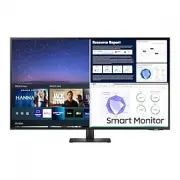


 Samsung S32R754UEU User Manual
 Samsung S34E790C User Manual
 Samsung S34J550WQR User Manual
 Samsung S34J550WQU User Manual
 Samsung S34J552WQU User Manual
 Samsung S55CG970NU User Manual
 Samsung T19C300EW User Manual
 Samsung T22C300EW User Manual
 Samsung T22D390EW User Manual
 Samsung T22E310EX User Manual
 Samsung T22E390EW User Manual