Samsung S24F350FHU - User Manual
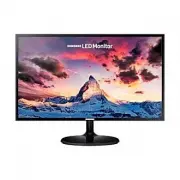
Samsung S24F350FHU Monitor – User Manual, read for free online in PDF format. We hope this helps you resolve any issues you may have. If you have further questions, please contact us through the contact form.


Table of Contents:
- Page 2 – Table of contents; Before Using the Product
- Page 4 – Securing the Installation Space; Precautions for storage; Safety Precautions; Caution; Symbols; Warning
- Page 5 – Cleaning; Electricity and Safety
- Page 6 – Installation
- Page 7 – Operation
- Page 9 – Parts; Control Panel; Preparations
- Page 10 – Direct Key guide
- Page 11 – Function Key Guide
- Page 12 – Changing Brightness, Contrast and Sharpness settings; Brightness
- Page 13 – Reverse Side
- Page 14 – Adjusting the Product Tilt
- Page 15 – Installing a Wall-mount Kit or Desktop Stand
- Page 23 – Connecting and Using a Source Device; Pre-connection Checkpoints
- Page 24 – Connection Using the HDMI or HDMI-DVI Cable; Connection Using an DP Cable
- Page 25 – Connecting the Power
- Page 26 – Correct posture to use the product; Driver Installation
- Page 27 – Screen Setup; SAMSUNG MAGIC Bright; In
- Page 28 – Sharpness; Color
- Page 29 – SAMSUNG MAGIC Upscale; HDMI Black Level
- Page 30 – Game Mode
- Page 31 – Screen Adjustment; Configuring Coarse; Configuring Fine
- Page 32 – Adjusting OSD (On Screen Display) settings; Transparency; Position; Language
- Page 33 – Setup and Reset
- Page 34 – The models in the Graphic Cards list supports FreeSync; How do you enable FreeSync?
- Page 35 – Eco Saving Plus; Off Timer; Source Detection
- Page 36 – Power LED On; Reset All
- Page 37 – Installing the Software; System Requirements
- Page 38 – Troubleshooting Guide; Requirements Before Contacting Samsung; Testing the Product; Checking the Resolution and Frequency; Screen issue
- Page 39 – Source device issue
- Page 41 – Specifications; General
- Page 45 – Appendix; Responsibility for the Pay Service; Others
User Manual
The color and the appearance may differ depending on the product, and the specifications are subject to change without prior
notice to improve the performance.
The contents of this manual are subject to change without notice to improve quality.
© Samsung
Samsung owns the copyright for this manual.
Use or reproduction of this manual in parts or entirety without the authorization of Samsung is prohibited.
Trademarks other than that of Samsung are owned by their respective owners.
S22F350FH* S22F352FH* S22F354FH* S24F350FH* S24F352FH* S24F354FH* S24F356FH* S24F359FH*
S27F350FH* S27F352FH* S27F354FH* S27F356FH* S27F358FW* S27F359FH* S32F351FU*
(For India Only)
This product is RoHS compliant.
For more information on safe disposal and recycling visit our
website www.samsung.com/in or contact our Helpline numbers -
1800 40 SAMSUNG (1800 40 7267864) (Toll-Free)
1800 5 SAMSUNG (1800 5 7267864) (Toll-Free)
"Loading the manual" means you need to wait until the file loads and becomes available for online reading. Some manuals are very large, and the time they take to appear depends on your internet speed.
Was this manual helpful?
About this manual
- Brand
- Samsung
- Model
- S24F350FHU
- Document type
- User Manual
- Category
- Monitor
- Language(s)
- English
- Pages
- 45
- File size
- 1.8 MB
- Format
Summary
Table of contents Before Using the Product Securing the Installation Space 4 Precautions for storage 4 Safety Precautions 4 Symbols 4Electricity and Safety 5 Installation 6Operation 7 Preparations Parts 9 Control Panel 9 Direct Key guide 10 Function Key Guide 11 Changing Brightness, Contrast and Sha...
4 Securing the Installation Space Ensure some space around the product for ventilation. An internal temperature rise may cause fire and damage the product. Be sure to allow the amount of space as shown below or greater when installing the product. ― The exterior may differ depending on the product. ...
5 Cleaning ― Exercise care when cleaning as the panel and exterior of advanced LCDs are easily scratched. ― Take the following steps when cleaning. 1 Power off the product and computer. 2 Disconnect the power cord from the product. ― Hold the power cable by the plug and do not touch the cable with w...
Ask a question
Related manuals
Popular Samsung Monitors


More Samsung Monitors models
 Samsung S24E650BW User Manual
 Samsung S24E650C User Manual
 Samsung S24E650DW User Manual
 Samsung S24E650PL User Manual
- Samsung S24E650XW User Manual
 Samsung S24F350FHR User Manual
 Samsung S24F352FHU User Manual
- Samsung S24F354FHR User Manual
- Samsung S24F354FHU User Manual
- Samsung S24F356FHI User Manual
- Samsung S24F356FHR User Manual
 Samsung S24F356FHU User Manual