Samsung S22A330NHU - User Manual
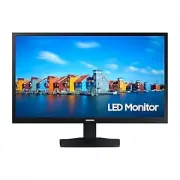
Samsung S22A330NHU Monitor – User Manual, read for free online in PDF format. We hope this helps you resolve any issues you may have. If you have further questions, please contact us through the contact form.


Table of Contents:
- Page 2 – Table of contents; Before Using the Product
- Page 3 – Troubleshooting Guide; Specifications; Appendix
- Page 4 – Safety Precautions; Electricity and Safety; Warning
- Page 5 – Installation
- Page 6 – Operation
- Page 7 – Caution; Cleaning
- Page 8 – Correct posture to use the product
- Page 9 – Attaching the Stand; Preparations
- Page 10 – Removing the Stand
- Page 11 – Precautions for moving the product; Checking the space around the product
- Page 12 – Adjusting the Product Tilt
- Page 14 – Control Panel; Return
- Page 15 – Direct Key guide
- Page 16 – Connecting and Using a Source Device; Read below before connecting the product.; Ports
- Page 17 – Connecting and Using a PC; PC; Connection Using the HDMI Cable; Connection Using the HDMI-DVI Cable; Connecting the Power
- Page 18 – Setting Optimum Resolution
- Page 19 – Menu; Picture
- Page 23 – OnScreen Display
- Page 24 – System
- Page 27 – Installing the Software; System Requirements; Driver Installation
- Page 28 – Requirements Before Contacting Samsung; Checking the Resolution and Frequency; Installation issue; Screen issue
- Page 29 – Source device issue
- Page 31 – General
- Page 34 – Not a product defect; Others
User Manual
The colour and the appearance may differ depending on the product, and the specifications are subject
to change without prior notice to improve the performance.
The contents of this manual are subject to change without notice to improve quality.
© Samsung
Samsung owns the copyright for this manual.
Use or reproduction of this manual in parts or entirety without the authorization of Samsung is
prohibited.
Trademarks other than that of Samsung are owned by their respective owners.
S*A33*
An administration fee may be charged in the following situations:
(a) An engineer is called out at your request, but it is found that the product has no defect (i.e.,
where the user manual has not been read).
(b) You bring the unit to a repair centre, but it is found that the product has no defect (i.e., where the
user manual has not been read).
You will be informed of the administration fee amount before a technician visits.
"Loading the manual" means you need to wait until the file loads and becomes available for online reading. Some manuals are very large, and the time they take to appear depends on your internet speed.
Was this manual helpful?
Helpful for 3 of 3 readers
About this manual
- Brand
- Samsung
- Model
- S22A330NHU
- Document type
- User Manual
- Category
- Monitor
- Language(s)
- English
- Pages
- 34
- File size
- 2.1 MB
- Format
Summary
2 Table of contents Before Using the Product Safety Precautions 4 Electricity and Safety 4 Installation 5Operation 6 Cleaning 7 Correct posture to use the product 8 Preparations Installation 9 Attaching the Stand 9 Removing the Stand 10 Precautions for moving the product 11 Checking the space around...
3 Table of contents Troubleshooting Guide Requirements Before Contacting Samsung Customer Service Center 28 Product diagnosis (Screen issue) 28 Checking the Resolution and Frequency 28 Check the following. 28 Q & A 30 Specifications General 31 Standard Signal Mode Table 32 Appendix Responsibilit...
4 Safety Precautions Warning A serious or fatal injury may result if instructions are not followed. Caution Personal injury or damage to properties may result if instructions are not followed. CAUTION RISK OF ELECTRIC SHOCK. DO NOT OPEN. CAUTION: TO REDUCE THE RISK OF ELECTRIC SHOCK, DO NOT REMOVE C...
Ask a question
Related manuals
Popular Samsung Monitors


More Samsung Monitors models
 Samsung LU28R550UQEXXY User Manual
 Samsung LU32J590UQEXXY User Manual
 Samsung P2070 User Manual
- Samsung S19C150F User Manual
- Samsung S19C300B User Manual
 Samsung S19D300NY User Manual
- Samsung S22B420BW User Manual
- Samsung S22C450MW User Manual
 Samsung S22D300HY User Manual
 Samsung S22D300NY User Manual
 Samsung S22D390H User Manual
 Samsung S22D390Q User Manual