Samsung MU-PE1T0S - User Manual
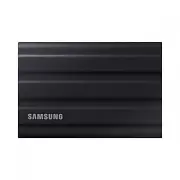
Samsung MU-PE1T0S RAM & Storage – User Manual, read for free online in PDF format. We hope this helps you resolve any issues you may have. If you have further questions, please contact us through the contact form.


Table of Contents:
- Page 2 – DISCLAIMER
- Page 3 – Samsung Portable SSD T7 Shield
- Page 4 – Introduction; Professional Grade Performance and Great Capacity; Designed for Durability – Dust, Water and Drop Resistance
- Page 5 – Management software; registration) and receive firmware updates.; Multi-device compatibility; hield provides wide compatibility.
- Page 6 – Getting Started; What’s In the Box
- Page 7 – System Requirements; Operating System Requirements; File Formats
- Page 8 – Capacity of T7 Shield Displayed on the System
- Page 9 – Using T7 Shield; Connecting T7 Shield; and the other end to the T7 Shield.; Disconnecting T7 Shield; Hardware feature may cause data loss or damage to the T7 Shield.; Installing Samsumg Portable SSD Software 1.0; For PCs and Macs
- Page 14 – change your password.
- Page 17 – For Android devices
- Page 18 – the T7 Shield to your device.
- Page 19 – clicking on the “SETTINGS” button on the main page.
- Page 21 – Caution; on the T7 Shield. Be sure to back up important data at all times.
- Page 23 – FAQ
- Page 25 – Product Specifications and Certifications; Product Specifications
- Page 26 – EU Compliance Contact information
- Page 27 – Innovation, Science and Economic Development Canada; Triman
1
Samsung Portable SSD T7 Shield
User Manual
MU-PE1T0S MU-PE2T0S MU-PE4T0S
MU-PE1T0K MU-PE2T0K
MU-PE1T0R MU-PE2T0R
"Loading the manual" means you need to wait until the file loads and becomes available for online reading. Some manuals are very large, and the time they take to appear depends on your internet speed.
Was this manual helpful?
About this manual
- Brand
- Samsung
- Model
- MU-PE1T0S
- Document type
- User Manual
- Category
- RAM & Storage
- Language(s)
- English
- Pages
- 27
- File size
- 1.2 MB
- Format
Summary
2 DISCLAIMER SAMSUNG ELECTRONICS CO., LTD. RESERVES THE RIGHT TO CHANGE PRODUCTS, INFORMATION AND SPECIFICATIONS AT ANY TIME WITHOUT NOTICE. Information in this document is provided in connection with products of Samsung Electronics Co., Ltd. (“Samsung”). Product descriptions and specifications cont...
3 Samsung Portable SSD T7 Shield User Manual Table of Contents Introduction ...................................................................................................................................................... 4 Getting Started ..........................................................
4 Introduction The T7 Shield Portable Solid-State Drive (PSSD) brings together both the exceptional performance photographers and videographers crave, and the durability that life demands. Intelligently designed from the inside out by Samsung, the lightweight and pocket-sized T7 Shield gives consume...
Ask a question
Related manuals
More Samsung RAM & Storage models
 Samsung 1000 User Manual
- Samsung 2000 User Manual
 Samsung MU-PA1T0B User Manual
 Samsung MU-PA500B User Manual
 Samsung MU-PB1T0B User Manual
 Samsung MU-PC1T0H User Manual
 Samsung MU-PC1T0T User Manual
 Samsung MU-PC2T0T User Manual
 Samsung MU-PE2T0S User Manual
 Samsung MU-PE4T0S User Manual
 Samsung MU-PT250B User Manual


