Samsung HW-MS650 - Quick Guide
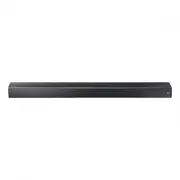
Samsung HW-MS650 Sound Bar – Quick Guide, read for free online in PDF format. We hope this helps you resolve any issues you may have. If you have further questions, please contact us through the contact form.


Table of Contents:
- Page 2 – Safety InforMatIon; Safety WarnInGS; WarnInG; CaUtIon; Wiring the Main Power Supply; IMPortant notICe; IMPortant; PreCaUtIonS
- Page 4 – aBoUt tHIS ManUaL; USER MANUAL; ContentS; Specifications and Guide
- Page 6 – 1 CHeCKInG tHe CoMPonentS; 2 ProDUCt oVerVIeW; front Panel / right Side Panel of the Soundbar
- Page 8 – 3 ConneCtInG tHe SoUnDBar; Connecting electrical Power; 4 ConneCtInG to yoUr tV; Method 1. Connecting with a Cable; Connecting a tV using an HDMI Cable; tV
- Page 10 – Method 2. Connecting Wirelessly; Connecting a tV via Bluetooth; the initial connection; Connecting using an optical Cable; auto Power Link
- Page 12 – Disconnecting the Soundbar from the tV; Step 1 : Connecting the Soundbar to Wi-fi; WIfI; Step 2 : Configuring Settings on the TV
- Page 14 – Speaker Settings; 5 ConneCtInG an eXternaL DeVICe; Connecting using an HDMI Cable; HDMI
- Page 16 – Connecting using an optical or analogue audio (aUX) Cable; or; optical Cable; 6 ConneCtInG a MoBILe DeVICe; Method 1. Connecting via Bluetooth; If the device fails to connect
- Page 20 – 7 USInG tHe reMote ControL; How to Use the remote Control
- Page 22 – adjusting the Soundbar volume with a tV remote control; 8 InStaLLInG tHe; Installation Precautions
- Page 23 – Wallmount Components
- Page 25 – Screws; Mounts; assembling the Holder-Cable; Screw
- Page 26 – Installing the Holder foot; UPDate; the unit will not turn on.
- Page 28 – Samsung Multiroom; 2 oPen SoUrCe; Wi-Fi max transmitter power
- Page 30 – Bluetooth; Press; SPK aDD; button on the product for 30
HW-MS650 / HW-MS651
USER MANUAL
"Loading the manual" means you need to wait until the file loads and becomes available for online reading. Some manuals are very large, and the time they take to appear depends on your internet speed.
Was this manual helpful?
About this manual
- Brand
- Samsung
- Model
- HW-MS650
- Document type
- Quick Guide
- Category
- Sound Bar
- Language(s)
- English
- Pages
- 33
- File size
- 11.8 MB
- Format
Other Manuals for Samsung HW-MS650
Summary
ENG - ii ENG - iii Safety InforMatIon Safety WarnInGS TO REDUCE THE RISK OF ELECTRIC SHOCK, DO NOT REMOVE THE COVER (OR BACK). NO USER-SERVICEABLE PARTS ARE INSIDE. REFER SERVICING TO QUALIFIED SERVICE PERSONNEL. CaUtIon rISK of eLeCtrIC SHoCK. Do not oPen. This symbol indicates that high voltage is...
ENG - iv ENG - v aBoUt tHIS ManUaL The user manual has two parts: this simple paper USER MANUAL and a detailed FULL MANUAL you can download. USER MANUAL See this manual for safety instructions, product installation, components, connections, and product specifications. fULL ManUaL You can access the ...
ENG - 2 ENG - 3 01 CHeCKInG tHe CoMPonentS Surround VOL BASS SOUNDBAR SOUND MODE SMART MODE Soundbar Main Unit remote Control / Batteries Power Cord Holder-Cable Holder-foot (2 ea) Screw (for Holder-foot : 2 ea) (for Holder-Cable : 1 ea) • For Soundbar wall mounting components, see page 19. • See pa...
Ask a question
Related manuals
Popular Samsung Sound Bars



More Samsung Sound Bars models
 Samsung HW-M550 Quick Guide
- Samsung HW-M560 Quick Guide
 Samsung HW-M4500 Quick Guide
 Samsung HW-M4501 Quick Guide
 Samsung HW-MS550 Quick Guide
 Samsung HW-MS651 Quick Guide
 Samsung HW-MS660 Quick Guide
- Samsung HW-MS661 Quick Guide
 Samsung HW-MS750 Quick Guide
 Samsung HW-MS6500 Quick Guide
 Samsung HW-MS6501 Quick Guide
 Samsung HW-N300 Quick Guide