Page 2 - Safety Information; Warning; CAUTION
2 English Safety Information Class II product : This symbol indicates that it does not require a safety connection to electrical earth (ground). AC voltage : This symbol indicates that the rated voltage marked with the symbol is AC voltage. DC voltage : This symbol indicates that the rated voltage m...
Page 4 - CLASS 1 LASER product; If the Region number of a Blu-ray Disc/DVDs does not
4 English Safety Information CLASS 1 LASER product This Compact Disc player is classified as a CLASS 1 LASER product. Use of controls, adjustments or performance of procedures other than those specified herein may result in hazardous radiation exposure. CAUTION : • THIS PRODUCT USES AN INVISIBLE LAS...
Page 5 - Using the 3D function
5 English 01Safety Information Using the 3D function IMPORTANT HEALTH AND SAFETY INFORMATION FOR 3D PICTURES. Read and understand the following safety information before using the 3D function. • Some viewers may experience discomfort while viewing 3D TV such as dizziness, nausea, and headaches. If y...
Page 6 - Contents; SAFETY INFORMATION
6 English Contents SAFETY INFORMATION 2 Warning 5 Using the 3D function GETTING STARTED 8 Accessories 9 Front Panel 9 Rear Panel 10 Remote Control 10 Tour of the Remote Control CONNECTIONS 11 Connecting to a TV 12 Connecting to an Audio System 12 Method 1 Connecting to an HDMI compatible AV receiver...
Page 7 - MEDIA PLAY
7 English Contents MEDIA PLAY 26 Playing Commercial Discs 26 Disc Storage & Management 26 Playing Photos, Videos, and Music (Multimedia) 26 Playing Media Content Saved on a USB Device 27 Playing Media Content Saved in a Computer/Mobile Device 27 Playing a Disc with User Recorded Content 29 Contr...
Page 8 - Getting Started; Accessories; Check for the supplied accessories shown below.; User Manual
8 English Getting Started Accessories Check for the supplied accessories shown below. APPS PANDORA DIGITAL SUBTITLE INPUT HOME 147 VOL + 2580 VOL – 369 SOURCE DISC MENU SMART TITLE MENU VOL VOL POPUP A B C D SEARCH FULL SUBTITLE SCREEN S A M S U N G T V – + INFO TOOLS RETURN EXIT HOME AUDIO REPEAT H...
Page 9 - Front Panel; To upgrade the product's software through the; Rear Panel
9 English 02Getting Started Front Panel PLAY/PAUSE BUTTON USB HOST REMOTE CONTROL SENSOR DISC TRAY DISPLAY STOP BUTTON POWER BUTTON OPEN/CLOSE BUTTON |NOTES | \ To upgrade the product's software through the USB HOST jack, you must use a USB memory stick. \ When the product displays the Blu-ray Disc'...
Page 10 - Remote Control; Tour of the Remote Control; Installing batteries
10 English Getting Started Remote Control Tour of the Remote Control Installing batteries |NOTE | \ If the remote control does not operate properly: - Check the polarity +/– of the batteries. - Check if the batteries are drained. - Check if the remote sensor is blocked by obstacles. - Check if there...
Page 11 - Connections; Connecting to a TV; Connect an HDMI cable (not supplied) from the
11 English 03Connections Connections Connecting to a TV Connect an HDMI cable (not supplied) from the HDMI OUT jack on the back of the product to the HDMI IN jack on your TV. - Do not connect the power cord to the wall outlet until you have made all the other connections. - When you change the conne...
Page 12 - Connecting to an Audio System; Method 1 Connecting to an HDMI compatible AV receiver; Audio
Connecting to an Audio System You can connect this product to an audio system using the methods illustrated below. - Do not connect the power cord to the wall outlet until you have made all the other connections. - When you change the connections, turn off all devices before you start. Method 1 Conn...
Page 13 - Connecting to a Network Router; You can connect your product to your network; Wired Network; Or; Wireless Network
13 English 03Connections Connecting to a Network Router You can connect your product to your network router using one of the methods illustrated below. To use the DLNA network functionality, you must connect your PC to your network as shown in the illustrations. The connection can be wired or wirele...
Page 14 - Settings; The Initial Settings Procedure; EXIT; The Home Screen
14 English Settings The Initial Settings Procedure • The Home screen will not appear if you do not configure the initial settings. • The OSD (On Screen Display) may change in this product after you upgrade the software version. • The access steps may differ depending on the menu you selected. After ...
Page 15 - Accessing the Settings Screen; Buttons on the Remote Control Used; HOME; Detailed Function Information
15 English 04Settings |NOTE | \ If you leave the product in the stop mode for more than 5 minutes without using it, a screen saver will appear on your TV. If the product is left in the screen saver mode for more than 20 minutes, the power will automatically turn off. Accessing the Settings Screen 1....
Page 16 - Settings Menu Functions; UHD Output
16 English Settings Settings Menu Functions Picture UHD Output This option outputs HDMI video at UHD (Ultra High Definition) resolution. This is only available when Movie Frame is set to Auto . |NOTES | \ To use this feature, you must connect the product to a device that supports UHD resolution and ...
Page 17 - Sound; On; Network
17 English 04Settings HDMI Deep Colour Lets you set the product to output HDMI video with Deep Colour. Deep Colour provides more accurate Colour reproduction with greater Colour depth. Progressive Mode Lets you improve picture quality when viewing DVDs. Sound Digital Output Lets you select the digit...
Page 18 - will not display when you are using the; Smart Hub; High Contrast
18 English Settings Wi-Fi Direct Lets you connect a Wi-Fi Direct device to the product using a peer-to-pear network, without the need for a wireless router. Note that if the product is connected to a wireless network, it may be disconnected when you use Wi-Fi Direct . |NOTE | \ Text files, such as f...
Page 19 - Device Manager; If you forget your PIN:; General
19 English 04Settings Device Manager You can connect a wireless USB keyboard or mouse to the USB port on the front of the product. Keyboard Settings : Lets you configure a wireless USB keyboard connected to the product. |NOTE | \ You can use the keyboard only when a QWERTY keyboard screen or window ...
Page 20 - Support; Remote Management; Networks and the Internet; Configuring Your Network Connection
20 English Settings DivX ® Video On Demand View DivX ® VOD Registration Codes to purchase and play DivX ® VOD contents. Support Remote Management When activated, lets Samsung Call Centre agents diagnose and fix problems with your player remotely. Requires an active Internet connection. |NOTES | \ Re...
Page 21 - You can get the Network parameters from your Internet; Network Settings
21 English 04Settings Ğ Wired - Manual If you have a static IP address or the Automatic procedure does not work, you'll need to set the Network Settings values manually. Follow Steps 1 and 2 in Wired - Automatic, and then follow these steps: 1. Select Network Status . The product searches for a netw...
Page 22 - Show Password
22 English Settings |NOTE | \ To view the password as you enter it, use the arrow buttons to select Show Password on the right side, and then press v button. 7. When finished, select Done and then press the v button. The product verifies the network connection and then connects to the network. 8. Wh...
Page 23 - WPS PIN
23 English 04Settings Ğ WPS PIN Before you begin, open the router's setup menu on your PC and access the screen with the WPS PIN entry field. 1. In the Home screen, select Settings , and then press the v button. 2. Select Network , and then press the v button. 3. Select Network Settings , and then p...
Page 24 - Upgrading Software; Update now
24 English Settings Upgrading Software This menu allows you to upgrade the product's software for performance improvements or additional services. • Never turn the product off or back on manually during the update process. 1. In the Home screen, select Settings , and then press the v button. 2. Sele...
Page 25 - Auto Update; Update by USB
25 English 04Settings Auto Update You can set the Auto Update function so that the product downloads new upgrade software when it is in Auto Update mode. This allows the product to download upgrade software automatically, when you are not using it. 1. Press the ▲▼ buttons to select Auto Update , and...
Page 26 - Media Play; Playing Commercial Discs; Disc Storage & Management
26 English Media Play Your Blu-ray product can play content located on Blu-ray/DVD/CD discs, USB devices, PCs, smart phones, tablets, and on the Web. To play content located on your PC or a mobile device, you must connect the PC or mobile device and the product to your network. To play content on yo...
Page 27 - Playing Media Content Saved in a; Allowing a Connection with a Mobile Device; Playing a Disc with User Recorded
27 English 05Media Play 5. To exit, press the 5 button or RETURN button. |NOTE | \ If you connect a USB device to the product, a popup window appears on the screen so that you can easily navigate the folders and files of the USB device. Playing Media Content Saved in a Computer/Mobile Device You can...
Page 28 - MULTIMEDIA
28 English Media Play |NOTE | \ Even though the product will display folders for all content types, it will only display files of the Content Type you selected in Step 2. For example, if you selected music, you will only be able to see music files. You can change this selection by returning to the M...
Page 29 - Controlling Video Playback; Buttons on the Remote Control used for Video Playback; During playback or in pause mode, press the; Playback related buttons; The product does not play sound in Search, Slow
29 English 05Media Play Controlling Video Playback You can control the playback of video content located on a Disc, USB, mobile device or PC. Depending on the disc or contents, some of the functions described in this manual may not be available. Buttons on the Remote Control used for Video Playback ...
Page 31 - Using the Sort by & Options Menus; Using the Sort by Menu; Using the Options Menu; On a file screen containing video files, select
31 English 05Media Play Picture Mode Lets you set the picture mode. - Dynamic : Increases sharpness and brightness. - Standard : Choose this setting for most viewing applications. - Movie : The best setting for watching movies. - User : Lets you adjust the sharpness and noise reduction function resp...
Page 32 - Controlling Music Playback; Buttons on the Remote Control used; NUMBER; Using the Options Menu During; Play Selected
32 English Media Play Controlling Music Playback You can control the playback of music content located on a Disc, USB, mobile device or PC. Depending on the disc or contents, some of the functions described in this manual may not be available. Buttons on the Remote Control used for Music Playback AP...
Page 33 - Using the Sort by & Options Menus on; Repeating Tracks on an Audio CD
33 English 05Media Play Using the Sort by & Options Menus on a File Screen Using the Sort by Menu On a file screen containing music files, select the and then press the v button. Track Displays all the music tracks on the media or storage device in alphabetical order. Album Displays all music on...
Page 34 - Ripping
34 English Media Play 4. Repeat Step 3 to select and check additional tracks. 5. To remove a track from the list, move to the track, and then press the v button again. The check on the track is removed. 6. When done, press the ▲▼ button to select Play , and then press the v button. The Music Playbac...
Page 35 - Playing Photo Contents; Using the Tools Menu During Playback; TOOLS
35 English 05Media Play Playing Photo Contents You can play photo contents located on a DVD, USB, mobile device or PC. Using the Tools Menu During Playback During playback or in pause mode, press the TOOLS button. Use the ▲▼◄► buttons to select the and then press the v button. Slideshow Settings Sel...
Page 36 - Send files; Copying Videos, Music or Photos; Options
36 English Media Play Using the Options Menu On a file screen containing photo files, select the and then press the v button. Slide Show Starts the slide show. Shows all the files in the current folder, one after another. If you want to create a slide show with a selected group of photos, see Play S...
Page 37 - Network Services; Creating a Samsung Account; Samsung sends a confirming e-mail to the address
37 English 06Network Services Network Services You can enjoy various network services such as streaming video or on-line apps by connecting the product to your network. To use network services, you must first: 1. Connect the product to a network. (See page 13) 2. Configure the network settings. (See...
Page 38 - Before Using Samsung Apps; The Samsung Apps Screen at a Glance
38 English Network Services Before Using Samsung Apps If you haven’t set up Smart Hub, when you use Apps for the first time, the product will ask you to perform the Smart Hub set up procedure. 1. On the Home screen, select SAMSUNG APPS , and then press the v button. 2. If you haven't set up Smart Hu...
Page 39 - Downloading an App; Starting an Application; The Options Menu; Cancel
39 English 06Network Services Downloading an App 1. Select Most Popular , What's New , or Categories , and then press the v button. 2. If you selected Categories , select a category icon, and then press the v button. Otherwise, go to Step 3. |NOTE | \ On the Most Popular , What's New , and Categorie...
Page 40 - View Details; You can also select; Update Apps; Screen Mirroring
40 English Network Services View Details 1. On the MY APPS screen, select the app you want to see detailed information for, and then press the v button for 3 seconds. 2. Select View Details , and then press the v button. Change View This function toggles the Apps screen between the Most Played view ...
Page 41 - Using the Web Browser; Link Browsing and Pointer Browsing
41 English 06Network Services |NOTES | \ You can connect your Player to a device that supports AllShare Cast. Note that all devices that have AllShare Cast may not be fully supported, depending on the manufacturer. For further information on mobile connection support, refer to the manufacturer’s web...
Page 42 - Using the Keyboard Pop-up; Caps; Options on the Keyboard Pop-Up; Language
Network Services 42 English 1 • : Moves to the previous page. • : Moves to the next web page. • : Displays the Bookmarks and History screen. You can bookmark the current page, select an existing bookmark, and edit and delete bookmarks. You can also view your browsing history and select a page to rev...
Page 43 - Using the Setting Menu
43 English 06Network Services Reset recommended text data Reset erases the Samsung Keyboard's memory. Select Reset to erase everything that the Samsung Keyboard has learned about your writing style, including any new words you have used. Predict Next Letter The keyboard predicts the next letter as y...
Page 44 - Linking Your Internet Service
44 English Network Services Web Browser Settings Set as homepage : You can set the Browser's home page. Pop-up Block : Turns the Popup Block on and off. Page Block : You can determine whether to block advertisements and select the URLs for which advertisements are blocked. General : You can delete p...
Page 45 - Appendix; Additional Information; Notes
45 English 07Appendix Appendix Additional Information Notes Settings 3D Settings • For some 3D discs, to stop a movie during 3D playback, press the 5 (STOP) button once. The movie stops and the 3D mode option is de-activated. To change a 3D option selection when you are playing a 3D movie, press the...
Page 47 - Resolution according to the contents type
47 English 07Appendix Resolution according to the contents type Contents Type Setup Blu-ray Disc E-contents/ Digital contents BD Wise Resolution of Blu-ray Disc 1080p Auto Movie Frame : Auto UHD Output : Auto 2160p@24F 2160p@24F UHD Output : Off 1080p@24F 1080p@24F Movie Frame : Off Max. Resolution ...
Page 48 - Digital Output Selection; Blu-ray Discs may include three audio streams :
48 English Appendix Digital Output Selection Setup PCM Bitstream (Unprocessed) Bitstream (Re-encoded DTS) Bitstream (Re-encoded Dolby D) Connection HDMI supported AV receiver Optical HDMI supported AV receiver Optical HDMI supported AV receiver or Optical HDMI supported AV receiver or Optical Audio ...
Page 49 - Troubleshooting; Before requesting service, please try the following solutions.
49 English 07Appendix Troubleshooting Before requesting service, please try the following solutions. PROBLEM SOLUTION No operation can be performed with the remote control. • Check the batteries in the remote control. They may need replacing. • Operate the remote control at a distance of no more tha...
Page 50 - PROBLEM
50 English Appendix PROBLEM SOLUTION Forgot password. • Press the @ button (on the top panel) for more than 5 seconds with no disc inside. The initialization message appears on the screen, and the player turns off automatically. When you turn your product on again, all the settings will be reset. Do...
Page 52 - Disc and Format Compatibility; Disc types and contents your product can play; Media; Disc types your product cannot play; HD DVD
52 English Appendix Disc and Format Compatibility Disc types and contents your product can play Media Disc Type Details VIDEO Blu-ray Disc 3D Blu-ray Disc BD-ROM or BD-RE/-R recorded in the BD-RE format. DVD-VIDEO DVD-RW DVD-R DVD+RW DVD+R DVD-VIDEO, recorded DVD+RW/DVD-RW(V)/DVD-R/+R that have been...
Page 53 - Region Code; Both products and discs are coded by region.; Logos of Discs the product can
53 English 07Appendix Region Code Both products and discs are coded by region. These regional codes must match for a disc to play. If the codes do not match, the disc will not play. The Region Number for this product is displayed on the rear panel of the product. Disc Type Region Code Area Blu-ray D...
Page 54 - Supported Formats; Supported Video File Formats; File Extension
54 English Appendix Supported Formats Supported Video File Formats File Extension Container Video Codec Resolution Frame rate (fps) Bit rate (Mbps) Audio Codec *.avi *.mkv *.asf *.wmv *.mp4 *.mov *.3gp *.vro *.mpg *.mpeg *.ts *.tp *.trp *.mov *.flv *.vob *.svi *.m2ts *.mts *.divx *.ps AVI MKV ASF MP...
Page 55 - Video decoder; Supported DivX subtitle file formats; Supported Subtitle File Formats
55 English 07Appendix ` Video decoder - Supports up to H.264 Level 4.1. (Does not support FMO/ASO/RS) - Does not support VC1/AP/L4. - CODECs except for WMVv7, v8, MSMPEG4 v3, MVC, VP6 1) Below 1280 x 720 : 60 frames max. 2) Above 1280 x 720 : 30 frames max. - Does not support GMC 2 or higher. - Supp...
Page 56 - Supported Picture File Formats
56 English Appendix File Extension Type Codec Support Range *.ape ape ape NonSmart is not supported. *.aif *.aiff AIFF AIFF - *.m4a ALAC ALAC - Supported Picture File Formats File Extension Type Resolution *.jpg *.jpeg JPEG 15360x8640 *.png PNG 4096x4096 *.bmp BMP 4096x4096 *.mpo MPO 15360x8640 Note...
Page 57 - Compliance and Compatibility Notice; NOT ALL discs are compatible
57 English 07Appendix Compliance and Compatibility Notice NOT ALL discs are compatible • Subject to the restrictions described below and those noted throughout this Manual, including the Disc Type and Characteristics section of this user manual, disc types that can be played are: pre-recorded commer...
Page 58 - Copy Protection; or this product, please contact SAMSUNG customer care Centre.; Network Service Disclaimer
58 English Appendix Copy Protection • Because AACS (Advanced Access Content System) is approved as content protection system for Blu-ray Disc format, similar to use of CSS (Content Scramble System) for DVD format, certain restrictions are imposed on playback, Analogue signal output, etc., of AACS pr...
Page 59 - Licences
59 English 07Appendix THIRD PARTY CONTENT AND SERVICES ARE PROVIDED "AS IS." SAMSUNG DOES NOT WARRANT CONTENT OR SERVICES SO PROVIDED, EITHER EXPRESSLY OR IMPLIEDLY, FOR ANY PURPOSE. SAMSUNG EXPRESSLY DISCLAIMS ANY IMPLIED WARRANTIES, INCLUDING BUT NOT LIMITED TO, WARRANTIES OF MERCHANTABILI...
Page 60 - United States and other countries.
60 English Appendix • The terms HDMI and HDMI High-Definition Multimedia Interface, and the HDMI Logo are trademarks or registered trademarks of HDMI Licencing LLC in the United States and other countries. • Oracle and Java are registered trademarks of Oracle and/or its affiliates. Other names may b...
Page 61 - Specifications; Network speeds equal to or below 10Mbps are not supported.
61 English 07Appendix Specifications General Weight 1.2 kg Dimensions 360.0 (W) X 40.0 (H) X 196.0 (D) mm Operating Temperature Range +5°C to +35°C Operating Humidity Range 10 % to 75 % USB Type A USB 2.0 DC output 5V 500mA Max. HDMI Video 2D : 2160p, 1080p, 1080i, 720p, 576p/480p 3D : 1080p, 720p A...
Page 62 - Samsung Customer Support Centre
UNITED KINGDOM EIRE This Samsung product is warranted for the period of twelve (12) months from the original date of purchase, against defective materials and workmanship. In the event that warranty service is required, you should return the product to the retailer from whom it was purchased. Howeve...
Page 63 - Contact SAMSUNG WORLD WIDE
Correct Disposal of This Product (Waste Electrical & Electronic Equipment) (Applicable in the European Union and other European countries with separate collection systems)This marking on the product, accessories or literature indicates that the product and its electronic accessories (e.g. charge...
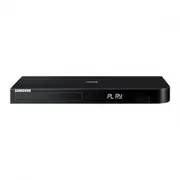


 Samsung BD-H8900N User Manual
 Samsung BD-J4500 User Manual
 Samsung BD-J5500 User Manual
 Samsung BD-J5900 User Manual
 Samsung BD-J7500 User Manual
 Samsung BD-P1000 User Manual
 Samsung BD-P1400 Manual
 Samsung BD-P1500 Manual
 Samsung BD-P4600 Manual
 Samsung DVD-C350 User Manual
 Samsung DVD-C500 Manual