Page 3 - Contents
1 EN Contents 1 Important safety instructions 3 2 Your phone 5 What is in the box 5 Over view of the phone 6 Over view of the base station 7 3 Get started 8 Connect the base station 8 Install the handset 8 Configure your phone (countr y dependent) 9 Change the remote access PIN code (for XL495) 9 Ch...
Page 7 - Your phone; What is in the box
5 EN 2 Your phone Congratulations on your purchase and welcome to Philips! To fully benefit from the suppor t that Philips offers, register your product at www.philips. com/welcome. What is in the box Handset** Base station (XL490) Base station (XL495) Charger** Power adapter** Line cord* Guarantee ...
Page 8 - Overview of the phone
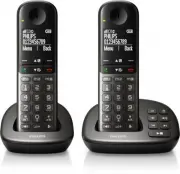
6 EN Overview of the phone a Earpiece b • Scroll up on the menu. • Increase the earpiece/speaker volume. • Access the phonebook in standby mode. c • Delete text or digits. • Cancel operation. • Access the redial list in standby mode. • Change the sound profile during a call. d • End the call. • Exit...
Page 9 - Overview of the base station
7 EN o • Access the main menu in standby mode. • Confirm selection. • Enter the options menu. • Select the function displayed on the handset screen directly above the key. p LED indicator View events or charging status. q Loudspeaker r Battery door Overview of the base station XL490 a • Press to fin...
Page 10 - Get started; Connect the base station; Install the handset
8 EN 3 Get started Caution • Make sure that you have read the safety instructions in the 'Impor tant safety instructions' section before you connect and install your handset. Connect the base station Warning • Risk of product damage! Ensure that the power supply voltage corresponds to the voltage pr...
Page 11 - Configure your phone; Set the country/language; Set the date and time; Change the remote access
9 EN Caution • Risk of explosion! Keep batteries away from heat, sunshine or fire. Never discard batteries in fire. • Use only the supplied batteries. • Risk of decreased batter y life! Never mix different brands or types of batteries. Note • Charge the batteries for 8 hours before first use. • If t...
Page 12 - Charge the handset; Check the battery level
10 EN 2 Enter the old PIN, then press [OK] to confirm. 3 Enter the new PIN code, then press [OK] to confirm. 4 Enter the new PIN code again, then press [Save] to confirm. » The setting is saved. Charge the handset Place the handset on the base station to charge the handset. When the handset is place...
Page 13 - Check the signal strength; Switch the handset on or off
11 EN It remains steadily on when browsing incoming calls in the call log.It remains steadily on when browsing outgoing calls in the redial list.It flashes when there is a new missed call or when browsing unread missed calls in call log. It remains steadily on when browsing the read missed calls in ...
Page 14 - Calls; Make a call; Normal call; Answer a call
12 EN 4 Calls Note • When the power fails, the phone cannot access emergency ser vices. Tip • Check the signal strength before you make a call or when you are in a call (see 'Check the signal strength' on page 11). Make a call You can make a call in these ways: • Normal call. • Predial call. • Call ...
Page 17 - Make a call to another; While you are on the phone; Make a conference call; During an external call
15 EN 5 Intercom and conference calls Note • This feature is available for multi- handset versions only. An intercom call is a call to another handset that shares the same base station. A conference call involves a conversation between you, another handset user and the outside callers. Make a call t...
Page 18 - During the conference call
16 EN Note • Press to join an ongoing conference with another handset if [Services] > [Conference] is set to [Auto] . During the conference call 1 Press [Int.] to put the external call on hold and go back to the internal call. » The external call is put on hold. 2 Press [Conf] to establish the co...
Page 19 - Enter text and numbers; Switch between uppercase
17 EN 6 Text and numbers You can enter text and numbers for handset name, phonebook records, and other menu items. Enter text and numbers 1 Press once or several times on the alphanumeric key to enter the selected character. 2 Press [Clear] to delete a character. Press and hold [Clear] to delete all...
Page 20 - Phonebook; Direct keys; Set the direct keys; Direct access memories; View the phonebook; Search a record; Scroll the contact list
18 EN 7 Phonebook This phone has a phonebook that stores up to 50 records. Each record can have a name up to 16 characters long. Each record can store up to 2 numbers, with each number up to 24 digits long. Direct keys The phone also features 3 direct keys to store the emergency phone numbers or num...
Page 22 - Delete all records
20 EN Delete all records 1 Select [Menu] > [Phonebook] > [Delete all] , press [OK] to confirm. » A confirmation request is displayed on the handset. 2 Press [OK] to confirm. » All records (except the 2 direct access memor y records) are deleted.
Page 23 - Call log; Call list type; Select the call list type; View the call records
21 EN 8 Call log The call log stores the incoming call histor y of all missed, received or blocked calls. The incoming call histor y includes the name and number of the caller, call time and date. This feature is available if you have registered to the caller ID ser vice with your ser vice provider....
Page 25 - Redial list
23 EN 9 Redial list The redial list stores the call histor y of dialed calls. It includes the names and/or numbers you have called. This phone can store up to 20 redial records. View the redial records Select [Redial] . Save a redial record to the phonebook 1 Press [Redial] to enter the list of dial...
Page 26 - 0 Phone settings; Sound settings; Audio boost; Set the hearing aid compatibility; Access the sound profile during a call; Set the handset's ringtone volume
24 EN 10 Phone settings You can customize the settings to make it your own phone. Sound settings Audio boost Caution • Audio boost should only be used by people with hearing impairment. Note • For hearing safety, audio boost will be deactivated at the end of each call. This feature can amplify the s...
Page 27 - Silent mode; Set the key tone; Eco mode
25 EN Silent mode You can set your phone to silent mode and enable the silent mode for a specified duration. When the silent mode is turned on, your phone does not ring and does not sound the key tone and docking tone. Note • When you press to find your handset, or when you activate the alarm, your ...
Page 28 - Name the handset; Auto answer
26 EN ECO+ mode When the ECO+ mode is activated, it eliminates the radiation of the handset and base station in standby mode. 1 Select [Menu] > [Phone setup] > [ECO+ mode] , then press [OK] to confirm. 2 Select [On] / [Off] , and press [OK] to confirm. » The setting is saved. » ECO+ is display...
Page 29 - Set the handset LED indicator
27 EN Note • When auto hang up is deactivated, you can put the handset to the base station or charging cradle and continue with your call through the speaker. Set the handset LED indicator behavior You can set the LED indicator behavior on your handset for different events or charging status. Select...
Page 30 - 1 Alarm clock; Set the alarm; Turn off the alarm; When the alarm rings; Before the alarm rings
28 EN 11 Alarm clock Your phone has a built-in alarm clock. Check the information below to set your alarm clock. Set the alarm 1 Select [Menu] > [Alarm] , then press [OK] to confirm. 2 Select [On once] or [On daily] , then press [OK] to confirm. 3 Enter an alarm time, then press [OK] to confirm. ...
Page 31 - Turn the answering machine; Through the handset; Through the base; Family notes
29 EN 12 Telephone answering machine Note • Available only for XL495. Your phone includes a telephone answering machine that records unanswered calls when it is on. You can access the answering machine remotely and change the settings through the answering machine menu on the handset. The button on ...
Page 32 - Set the answer mode; Announcements; Record an announcement; Listen to the announcement; Restore the default announcement; Incoming messages
30 EN Set the answer mode You can set the answering machine and select if the callers can leave messages. Select [Record also] if you allow the callers to leave messages. Select [Answer only] if you forbid the callers to leave messages. 1 Select [Menu] > [Answ. Machine] > [Voice answer] , then...
Page 33 - Listen to the incoming messages; Delete an incoming message; Call screening
31 EN message indicator flashes on the answering machine and the handset. Note • If you pick up the phone when the caller leaves a message, the recording stops and you can talk to the caller directly. • If the memor y is full, the answering machine switches to [Answer only] automatically. Delete old...
Page 34 - Set the ring delay; Remote access; Activate/deactivate the remote access
32 EN Set the ring delay You can set the number of times the phone rings before the answering machine picks up the call. 1 Select [Menu] > [Answ. Machine] > [Ring delay] , then press [OK] to confirm. 2 Select a new setting, then press [OK] to confirm. » The setting is saved. Note • Make sure t...
Page 35 - Behavior of the LED indicator on the
33 EN Remote access commands Key Function 1 Listen to the previous message. 2 Listen to messages. 3 Skip to the next message. 6 Delete the current message. 7 Switch the answering machine on (not available when you listen to the messages). 8 Stop listening to the message. 9 Switch the answering machi...
Page 36 - Auto conference; Activate/Deactivate auto conference; Call barring; Select the barring mode
34 EN 13 Services The phone suppor ts a number of features that help you handle and manage the calls. Call list type You can set if you can see all incoming calls or only missed calls from the call log. Note • This is a countr y dependent feature. Select the call list type 1 Select [Menu] > [Serv...
Page 37 - Call blocking; Block anonymous calls; Create a blacklist; Change the call blocking PIN/
35 EN 2 Enter the call barring PIN/passcode. The default PIN is 0000. Then press [OK] to confirm. 3 Select [Change PIN] , then press [OK] to confirm. 4 Enter the old barring PIN/passcode. The default PIN is 0000. Then press [OK] to confirm. 5 Enter the new PIN/passcode, then press [OK] to confirm. 6...
Page 38 - Network type; Auto prefix; Set auto prefix; Select the recall duration
36 EN 3 Select [Change PIN] , then press [OK] to confirm. 4 Enter the old PIN/passcode. The default PIN is 0000. Then press [OK] to confirm. 5 Enter the new PIN/passcode, then press [OK] to confirm. 6 Enter the new PIN/passcode again, then press [Save] to confirm. » The setting is saved. Network typ...
Page 39 - Set the dial mode; Auto clock; Register additional handsets; Auto registration; Unregister the handsets
37 EN pulse (rotar y) dial. Consult the ser vice provider for detailed information. Set the dial mode 1 Select [Menu] > [Services] > [Dial mode] , then press [OK] to confirm. 2 Select a dial mode, then press [OK] to confirm. » The setting is saved. Note • If your phone is in pulse dial mode, p...
Page 40 - Restore default settings
38 EN 3 Select the handset number to be unregistered. 4 Press [OK] to confirm. » The handset is unregistered. Tip • The handset name is displayed beside the handset number in standby mode. Restore default settings You can reset your phone settings to the original factor y settings. 1 Select [Menu] &...
Page 41 - 4 Technical data
39 EN 14 Technical data General specification and features • Talk time: 16 hours • Standby time: 250 hours • Range indoor : 50 meters • Range outdoor : 300 meters • Phonebook list with 50 entries • Redial list with 20 entries • Call log with 50 entries • Answering machine with up to 30 minutes recor...
Page 44 - Text and number input tables
42 EN 16 Appendix Text and number input tables Key Upper case characters (for English/ French/ German/ Italian/Turkish/ Por tuguese/Spanish/Dutch/Danish/ Finnish/Norwegian/ Swedish/Romanian/ Polish/Czech/Hungarian/Slovakian/ Slovenian/Croatian/Lithuanian/Estonian/ Latvian/Bulgarian) 0 Space . 0 , / ...