Philips TAZ5000/10 - User Manual
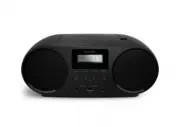
Philips TAZ5000/10 – User Manual, read for free online in PDF format. We hope this helps you resolve any issues you may have. If you have further questions, please contact us through the contact form.


Table of Contents:
- Page 2 – Contents; Product speci�cation
- Page 3 – Important; Safety; CAUTION
- Page 4 – Care for your product; This apparatus includes this label:; Notice; Compliance; Disposal of your old product and; Removing the disposable batteries
- Page 5 – Introduction; Congratulations on your purchase,
- Page 6 – Overview of the main unit
- Page 7 – Get started; Always follow the instructions in this; Connect power; Option 2: Battery power; App download
- Page 8 – Play from CD; Play a CD; Use CD menu; In CD mode, press to enter the; Press , to select and enter; Program tracks
- Page 9 – Listen to FM radio; FM; Listen to the; automatically, then the �rst stored; Select a preset FM radio station
- Page 10 – To change the preset station; Presetting stations to favorite; one; Display RDS information; INFO
- Page 11 – Play from Bluetooth; Use BT menu; Play from classic bluetooth; To disconnect the Bluetooth-enabled
- Page 12 – Play from Auracast; Scan Auracast broadcast channel; AURACAST RCV; automatically. After scan, the �rst available; nearby Auracast broadcasts, �nd the
- Page 13 – Play from USB; Listen to an external; Use USB menu; Use AUDIO IN menu; button on the; AUDlO IN
- Page 14 – mat; CD soundmachine; Bluetooth version; Connect with
- Page 15 – Unsupported USB formats:; USB playability; Compatible USB devices:; Disc; Battery life
- Page 16 – 1 Troubleshooting
- Page 17 – constitute a criminal offence. This
TAR1609
Series
CD Soundmachine
5000
Series
TAZ5000
Register your product and get support at:
www.philips.com/support
User manual
"Loading the manual" means you need to wait until the file loads and becomes available for online reading. Some manuals are very large, and the time they take to appear depends on your internet speed.
Was this manual helpful?
About this manual
- Brand
- Philips
- Model
- TAZ5000/10
- Document type
- User Manual
- Language(s)
- English
- Pages
- 18
- File size
- 3.2 MB
- Format
Other Manuals for Philips TAZ5000/10
Summary
Contents 1 Important 3 3 4 2 Your CD soundmachine 5 3 Get started 7 7 7 7 4 Play from CD 8 8 8 8 5 Listen to the radio 9 9 10 EN 2 Safety Notice Connect power Turn on/Standby App download What's in the box Overview of the main unit Play a CD Use CD menu Program tracks Listen to FM radio Presetting s...
1 Important Safety Read and understand all instructions before you use this CD soundmachine system. If damage is caused by failure to follow the instructions, the warranty does not apply. CAUTION RISK OF ELECTRIC SHOCK DO NOT OPEN CAUTION: TO REDUCE THE RISK OF ELECTRIC SHOCK, DO NOT REMOVE COVER (O...
Care for your product Do not insert any objects other than discs into the disc compartment. Do not insert warped or cracked discs into the disc compartment. Remove the discs from the disc compartment if you are not using the product for an extended period of time. the product. This apparatus include...
Ask a question
Related manuals
Popular Philips Other


More Philips Other models
 Philips TAX2208/37 User Manual
 Philips TAX4207/10 User Manual
 Philips TAX4509/37 User Manual
 Philips TAX5206/10 User Manual
 Philips TAX5708/37 User Manual
 Philips TAX7207/10 User Manual
 Philips TAZ6000/10 User Manual
 Philips TC Manual
 Philips TCW097 Manual
- Philips TL Manual
 Philips TL-D Manual
 Philips TL-E Manual