Philips TAW6205/10 - User Manual
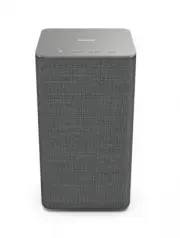
Philips TAW6205/10 – User Manual, read for free online in PDF format. We hope this helps you resolve any issues you may have. If you have further questions, please contact us through the contact form.


Table of Contents:
- Page 2 – Contents
- Page 3 – Safety; Important
- Page 4 – AC socket; Your wireless
- Page 6 – Turn on and off; Get started; Plug in the power
- Page 7 – Connect
- Page 8 – For iOS version only
- Page 9 – AirPlay setup; WPS mode
- Page 10 – Lighting
- Page 13 – Play from Bluetooth devices; Control playback; Play; What you need
- Page 14 – Upgrade Firmware; Update firmware via USB
- Page 16 – Troubleshooting; No power; No response form the speaker
- Page 17 – Cannot play Play-Fi music
- Page 18 – Disposal of your old product; Notice; Care of the environment; Environmental information
- Page 19 – RF Warning Statement
- Page 20 – Trademark notice
User manual
TAW6205
Register your poduct and get support at:
www.philips.com/support
Wireless Home Speaker
"Loading the manual" means you need to wait until the file loads and becomes available for online reading. Some manuals are very large, and the time they take to appear depends on your internet speed.
Was this manual helpful?
Helpful for 4 of 4 readers
About this manual
- Brand
- Philips
- Model
- TAW6205/10
- Document type
- User Manual
- Language(s)
- English
- Pages
- 21
- File size
- 2.1 MB
- Format
Other Manuals for Philips TAW6205/10
Summary
1 2 3 4 5 6 8 9 7 Contents Safety 3 Help and support 3 Important 3 What’s in the box 4 Overview of the speaker 4 Your wireless speaker 4 Plug in the power 6 Turn on and off 6 Get started 6 Connect to Wi-Fi (Wireless Operation) 7 Connect 7 Pairing with Ambilight TV 10 Follow Music 10 Mood Light mode ...
For 5G WiFi Device Important safety instructions Warning Safety Help and support 1 Important Follow the instructions on the website to select your language, and then enter your product model number. Alternatively, you can contact Consumer Care in your country. Before you contact, note down the model...
Play, pause or resume in Bluetooth/Play-Fi playback . Press and once to select next LED light color. Press to increase or decrease volume . Press and once to increase the LED light brightness. Press and once to decrease the LED light brightness. What’s in the box Overview of the speaker Wi-Fi LED in...
Ask a question
Related manuals
Popular Philips Other


More Philips Other models
 Philips TAT8505BK/00 User Manual
 Philips TAT8506BK/00 User Manual
 Philips TAUH201BK/00 Quick Guide
 Philips TAUH202BK/00 User Manual
 Philips TAUH202WT/00 User Manual
 Philips TAVS700/10 User Manual
 Philips TAW6505/10 User Manual
 Philips TAW8506/10 User Manual
 Philips TAX2208/37 User Manual
 Philips TAX4207/10 User Manual
 Philips TAX4509/37 User Manual
 Philips TAX5206/10 User Manual