Page 3 - User manual
3 User manual 1 Welcome 4 1.1 What’s in the box 4 1.2 Product highlights 4 2 Technical support and warranty 5 3 Important 6 3.1 Safety 6 3.2 Disposal of your old product 6 4 Your Digital Voice Tracer 7 5 Get started 8 5.1 Insert the batteries 8 5.2 Power on/off 8 5.3 Hold function 9 5.4 Use the Voic...
Page 4 - Welcome; What’s in the box
4 User manual Welcome 1 Congratulations on your purchase and welcome to Philips! To fully benefit from the support that Philips offers, visit our Website for support information such as user manuals, software downloads, warranty information and more: www.philips.com/dictation. What’s in the box 1.1 ...
Page 5 - Convenience; Technical support and warranty
5 User manual Convenience Large screen for comfortable viewing. • Enjoy up to 22 hours of continuous operation.* • Speedily transfer recordings, music and data via high-speed USB 2.0. • Index mark and temp mark features allow you to quickly find desired • locations in a recording.Supports up to 99 r...
Page 6 - Disposal of your old product; Important; Safety; Hearing safety
6 User manual Important (for models supplied with headphones): Philips guarantees compliance with the maximum sound power of its audio players as determined by relevant regulatory bodies, but only with the original model of provided headphones. If these headphones need replacement, we recommend that...
Page 7 - Your Digital Voice Tracer
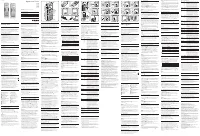
7 User manual Your Digital Voice Tracer 4 1 Headphone socket 2 Microphone socket 3 Built-in microphone 4 Record / Pause / Power on 5 Stop / Display / Delete 6 Speaker 7 Menu 8 Index / Folder / Repeat 9 Display 10 Record / Play indicator 11 Volume up 12 Power on/off, Play/Pause, Play speed 13 Fast fo...
Page 8 - Insert the batteries; Get started
8 User manual Insert the batteries 5.1 Slide open the battery cover. 1 Place the batteries in the correct polarity as indicated and close 2 the cover. 1 2 D Note Remove the batteries if you will not be using the Voice Tracer for an • extended period. Leaking batteries may damage the Voice Tracer.If ...
Page 9 - Hold function; Use the Voice Tracer with a computer; Record; Record with the built-in microphone
9 User manual Hold function 5.3 When the HOLD switch is in the Hold position, all buttons on the device are inactive. On Hold will be shown briefly on the display, and the display will turn off. Unlock the Voice Tracer by moving the HOLD switch to the Off position. Use the Voice Tracer with a comput...
Page 10 - Notes; Record with an external microphone
10 User manual D Notes Set the desired voice activation function and recording mode before • starting recording (see Customize settings on page 14 for details). Make a test recording to make sure that the Voice Tracer settings • are correct.Press and hold • f during recording to display the remainin...
Page 11 - Note; Playback functions; Playback
11 User manual Press the 1 INDEX / a button 1 while the recorder is stopped to select the desired folder A . Press the 2 h or b button 2 to select the file to play back. Press the 3 f button 3 . The playback time will be shown on the display, and the green LED B will light. Adjust the volume using t...
Page 12 - Repeat a file or folder
12 User manual Repeat a file or folder 7.2.2 Press and hold the 1 INDEX / a button for 1 second or longer during playback to switch between play modes (repeat file, repeat folder or normal playback). Icon Meaning REP. FILE Play one file repeatedly REP. FOLD Play all files within folder repeatedly of...
Page 13 - Delete; Icon; Update the firmware
13 User manual Delete 8 Press the 1 INDEX / a button while the recorder is stopped to select the desired folder.Press and hold the 2 j / DEL button for 1 second or longer. DELETE appears on the screen.Press the 3 h or b button to select a delete option: Icon Meaning FILE Delete a single file FOLD De...
Page 14 - 0 Customize settings; Menu
14 User manual 10 Customize settings Press the 1 MENU button 1 while the recorder is stopped. Press the 2 h or b button 2 to select a menu item A . Press the 3 f button 3 to enter a sub-menu. Press the 4 h or b button 2 to change a setting. Press the 5 f button 3 to confirm your selection. Press the...
Page 15 - Troubleshooting
15 User manual My recorder cannot power on The batteries may be out of power or not inserted correctly. Replace the batteries with new ones and verify that the batteries are inserted correctly. My recorder does not record anything The recorder may be in HOLD mode. Slide the HOLD switch to the Off po...
Page 16 - 2 Technical data
16 User manual 12 Technical data Connectivity USB: High-speed 2.0 mini-USB • Microphone: 3.5 mm, impedance 2.2 kΩ • Headphone: 3.5 mm, impedance 16 Ω or more • Display Type: LCD, segment • Diagonal screen size: 39 mm / 1.5 in. • Recording format .mp3 (Mpeg 1/Audio Layer 3) • Recording media Built-in...
Page 17 - Disclaimer and notices; Declaration of Conformity; c f b g a
Disclaimer and notices Philips performs extensive testing with the most popular configurations. However, since PC add-ons and device drivers are updated continually, conflict-free operation cannot be guaranteed. This device complies with part 15 of FCC rules. Operation is subject to the following tw...