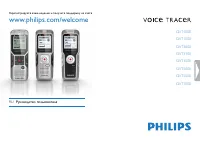
Page 2 - Table of contents
Table of contents 2 Table of contents 1 Welcome 3 Product highlights 3 2 Important 4 Safety 4 Hearing safety 4 Disposal of your old product 4 3 Your Voice Tracer digital recorder 5 Whatʹs in the box? 5 Overview 6 4 Get started 7 Insert the battery 7 Charge the battery 7 Power on/off 8 Keypad lock (H...
Page 3 - Welcome; Product highlights; • ClearVoice – for dynamic enhancement of quiet recording passages
Welcome 3 Table of contents 1 Welcome Congratulations on your purchase and welcome to Philips! To fully benefit from the support that Philips offers, visit our Website for support information such as user manuals, software downloads, warranty information and more: www.philips.com Product highlight...
Page 4 - Important; Safety
Important 4 Table of contents 2 Important Safety • To avoid a short circuit, do not expose the product to rain or water.• Do not expose the device to excessive heat caused by heating equipment or direct sunlight. • Protect the cables from being pinched, particularly at plugs.• Back up your files. ...
Page 5 - Your Voice Tracer digital recorder
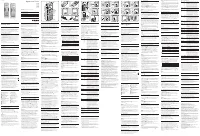
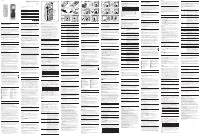
Your Voice Tracer digital recorder 5 Table of contents 3 Your Voice Tracer digital recorder Whatʹs in the box? Digital recorder battery 1 × AAA Regist er y our pr oduct and get suppor t at www .philips.com/welcome LFH0612 LFH0617 LFH0632 LFH0633 LFH0642 LFH0646 LFH0652 Quick s tart guide Quick sta...
Page 6 - Integrated microphone
Your Voice Tracer digital recorder 6 Table of contents Overview ME NU j /D E L g IND E X / a Record / play indicatorDisplayHold switchIndex, Folder, Repeat ( INDEX / a ) Fast rewind, File selection, Set menu option ( h ) Menu ( MENU ) Power on/off, Play/Pause, Play speed ( f ) SpeakerStrap holeVol...
Page 7 - Get started; Insert the battery; Customize settings on page 15
Get started 7 Table of contents 4 Get started Insert the battery 1 Slide open the battery cover. 2 Insert the battery as indicated. Make sure the polarity is correct. 3 Close the cover again. D Notes • Remove the battery if you will not be using the Voice Tracer for an extended period. The Voice T...
Page 8 - • The display briefly shows ‘On Hold’ and turns off.; HOLD
Get started 8 Table of contents Power on/off 1 To power on, press the f button until the display shows a short animation [ ] . 2 To power off, press the f button while the recorder is stopped until the display shows BYE. Keypad lock (HOLD function) 1 Slide the HOLD switch up into the Hold position...
Page 9 - Record; Record with the built-in microphone; • The record / play indicator will blink, and PAUSE will flash on the; DEL; chapter 8, Customize settings on page 15; FULL
Record 9 Table of contents 5 Record Please note the instructions in this section when you make the first recording with your Voice Tracer! Record with the built-in microphone 1 Press the INDEX / a button while the recorder is stopped to select the desired folder. 2 Press the g button to start reco...
Page 10 - Record with an external microphone; • The index number is displayed for one second.; Notes
Record 10 Table of contents Record with an external microphone To record with an external microphone, connect the microphone to the microphone jack and follow the same procedure as for the built-in microphone. The built-in microphone is switched off when an external microphone is connected. Add in...
Page 11 - Playback; • The playback time will be shown on the display, and the record / play
Playback 11 Table of contents 6 Playback Playback of a recording or music file 1 Press the INDEX / a button while the recorder is stopped to select the desired folder. 2 Press the h or b button to select the file to play back. 3 Press the f button. • The playback time will be shown on the display,...
Page 12 - • The symbol
Playback 12 Table of contents Slow, fast, normal playback 1 Press and hold the f button for one second or longer to switch between normal, slow and fast playback . Search 1 Press and hold the h or b button during playback to scan backward or forward in the current file at a fast speed. 2 Release t...
Page 13 - Repeat a file or folder
Playback 13 Table of contents Repeat a file or folder 1 Press and hold the INDEX / a button for one second or longer during playback to switch between play modes (repeat file, repeat folder or playback in random sequence). 2 Select the desired playback mode. D Note Random playback is available onl...
Page 14 - Delete; • DELETE appears on the display.
Delete 14 Table of contents 7 Delete Deleting files and index marks 1 Press the INDEX / a button while the recorder is stopped to select the desired folder. 2 Press and hold the j / DEL button for one second or longer. • DELETE appears on the display. 3 Press the h or b button to select a delete o...
Page 15 - Customize settings; • The display shows MODE and the current setting for recording mode
Customize settings 15 Table of contents 8 Customize settings You can customize the settings of your Voice Tracer to suit the recording conditions and your personal preferences. 1 Press the MENU button while the recorder is stopped. • The display shows MODE and the current setting for recording mod...
Page 16 - Option
Customize settings 16 Table of contents AUTOOFF 515 The Voice Tracer automatically turns off after 5 or 15 minutes of inactivity FORMAT NoYes Delete all files on the recorder. Transfer important files to a PC before formatting the memory. Press f to confirm the selection. INFO Display the firmware...
Page 17 - Update the firmware; • Please note that the firmware file must be located in the root
Update the firmware 17 Table of contents 9 Update the firmware Your Voice Tracer is controlled by an internal program called firmware. As a part of ongoing product maintenance, the firmware is revised and errors are corrected. It is possible that a newer version (an "update") of the firmwa...
Page 18 - Frequently asked questions; My Voice Tracer cannot power on.
Frequently asked questions 18 Table of contents 10 Frequently asked questions The answers to frequently asked questions listed here are intended to solve simple problems with the Voice Tracer. If you have no success please contact your dealer or visit our website: www.philips.com/support My Voice ...
Page 19 - Technical data; Connectivity
Technical data 19 Table of contents 11 Technical data Connectivity Headphones jack 3.5 mmImpedance: 16 Ω or above Microphone jack 3.5 mmImpedance: 2.2 k Ω USB High-speed USB 2.0, mini USB port Display Type LCD / segment Screen size 34.5 mm / 1.4 " Backlight white Memory Built-in memory capacit...