Page 2 - How to connect a plug; Norge; For; Italia; DICHIARAZIONE DI CONFORMITA’
2 Important notes for users in the U.K.Mains plug This apparatus is fi tted with an approved 13 Amp plug. To change a fuse in this type of plug proceed as follows: 1 Remove fuse cover and fuse. 2 Fix new fuse which should be a BS1362 5 Amp, A.S.T.A. or BSI approved type. 3 Refi t the fuse cover. If ...
Page 3 - LASER
3 LASER Type Semiconductor laser GaAIAs Wave length 645 - 660 nm (DVD) 770 - 800 nm (CD) Output Power 6 mW (DVD) 7 mW (VCD/CD) Beam divergence 60 degrees This product complies with the radio interference requirements of the European Community. This product complies with the requirements of the follo...
Page 5 - Index
English F rançais Español Deutsch Nederlands 5 Index English ------------------------------------ 6 Français ---------------------------------- 56 Español -------------------------------- 106 Deutsch -------------------------------- 156 Nederlands ---------------------------- 206 This product incorp...
Page 6 - English; Table of contents; General
6 English Table of contents General General Information ........................................................................................................ 8 Setup precautions ..........................................................................................................................
Page 7 - Playback other supported devices
7 English Table of contents Playing a MP3/ WMA disc ............................................................................................................................... 30Playing a JPEG image fi le (slide show) .................................................................................
Page 8 - General Information; Setup precautions; Finding a suitable location; place this; Space for ventilation; – This; Accessories supplied; speaker; Cleaning discs
8 English General Information WARNING!This unit does not contain any user-serviceable parts. Please leave all maintenance work to qualifi ed personnel. Setup precautions Finding a suitable location – Place this unit on a fl at, hard and stable surface. Never place the unit on a carpet.– Never place ...
Page 9 - Main Unit; OPEN
9 English Main Unit a 2 (Standby-On) – Turns on this unit or turns off to standby mode. b Disc Tray c ç (Open/Close) – Opens/closes the disc tray. d Display panel – Shows information about the current status of the unit. e VOLUME +- – Adjusts the volume level. f SOURCE – Selects the relevant active ...
Page 10 - Remote Control; v V b B
10 English Remote Control a 2 (Standby-On) – Turns on this unit or turns off to standby mode. b ç (Open/Close) – Opens/closes the disc tray. c Source buttons – AUX (MP3 LINK) : switches to SCART IN, AUX or MP3 LINK external source mode. – RADIO : switches to FM band. – USB: switches to USB mode. – D...
Page 12 - Using the remote control; uld be disposed
12 English Remote Control (continued) Using the remote control A Push to open the battery compartment. B Insert two batteries type R03 or AAA, following the indications ( +- ) inside the compartment. C Close the cover. D Point the remote control directly at the remote sensor (iR) on the front panel....
Page 13 - Basic Connections; Step 1: Placing the speakers; Place the front left and right speakers at
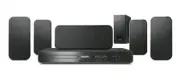
13 English Basic Connections Step 1: Placing the speakers The Philips Home Theatre System is simple to install. However, proper system placement is critical to ensure an optimum sound experience. A Place the front left and right speakers at equal distances from the TV and at an angle of approximatel...
Page 14 - Connecting to TV; ou only; one; of the options; SCART TO TV
14 English Step 2: Connecting to TV This connection enables you to view the video playback from this unit. Y ou only need to choose one of the options below to make the video connection. – For a standard TV, follow option 1 or or 2.– For a progressive scan TV, follow option 3.– For a HDMI TV, follow...
Page 15 - Y Pb Pr
15 English Basic Connections (continued) Option 3: Connecting to a Progressive Scan TV or component video input The progressive scan video quality is only available when using Y Pb Pr connection and a progressive scan TV is required. It provides superior picture quality when watching DVD movies. A U...
Page 16 - Step 3: Connecting speakers; e sure that the
16 English Basic Connections (continued) Step 3: Connecting speakers and subwoofer Connect all the speakers and subwoofer to the matching sockets at the rear of the main unit, Mak e sure that the colour s of the cables and sockets are matched. Helpful Hint:– To prevent unwanted noise, never place th...
Page 17 - Step 4: Connecting the
17 English Basic Connections (continued) Step 4: Connecting the power cord After everything is connected properly, connect the AC power cord into the power outlet. The standby LED on the main unit lights up. Helpful Hints:– Refer to the type plate at the rear or bottom of the product for identifi ca...
Page 18 - Optional Connections
18 English RF S-VIDEO OUT IN AUDIO R L VIDEO TO TV ANTENNA-IN TV-OUT ~ MAINS TO TV - I/O E X T 1 AUX - I/O E X T 2 Optional Connections Connecting to cable box/satellite receiver and recorder/VCR You can connect the audio output from an analogue audio/video device (e.g. VCR, Cable/Satellite Box, gam...
Page 19 - Refer to your TVs user manual on; Getting Started
19 English Finding the correct viewing channel A Press 2 to turn on the unit. B Press DISC on the remote control. C Turn on the TV and s witch it to the correct video-in channel. You may go to the lowest channel on your TV, then press the Channel Down button on your TVs remote control until you see ...
Page 20 - Setting language preferences; Audio
20 English Setting language preferences The language options are different depending on your country or region. It may not correspond to the illustrations shown on the user manual. On-screen display (OSD) language The OSD (On-Screen Display) language for this unit remains as you have set it, regardl...
Page 21 - Use the; OK; Repeat steps
21 English If the language you want is not available in the list, select { Others }. Use the numeric keypad (0-9) on the remote control to enter the 4-digit language code ‘XXXX’ (see last page) and press OK to confi rm. E Repeat steps C ~ D for other settings. Helpful Hints:– During DVD playback, yo...
Page 24 - Disc Operations; Playable discs; Region Codes for DVD discs; Playing a disc; SOURCE; Make sure the disc label is facing up.
24 English Disc Operations Playable discs Your DVD home theatre system plays: – Digital Versatile Discs (DVDs)– Video CDs (VCDs) – Super Video CDs (SVCDs)– Finalised DVD Recordable (DVD±R), DVD Rewritable (DVD±RW) – Audio Compact Discs (CDs) – MP3/ Windows Media™ Audio discs, picture (Kodak, JPEG) f...
Page 25 - Basic playback controls; Pausing playback; During playback, press; Selecting another track/chapter; If the repeat track mode is active, press; Searching backward/forward; Pr; Stopping playback; ’ appears on the TV while; REPEA
25 English Disc Operations (continued) Basic playback controls Pausing playback During playback, press u . While in pause mode, you can press to step forward one frame at each press. To resume playback, press u again. Selecting another track/chapter P ress í / ë or use the numeric keypad 0-9 to key ...
Page 27 - e number/time or use
27 English Other playback features for video discs (DVD/VCD/SVCD) OPTIONS INFO AUDIO SYNC ZOOM BACKMENU DISC SUBTITLE Note: The operating features described here might not be possible for certain discs. Always refer to the instructions supplied with the discs. Using the Disc menu Depending on the di...
Page 28 - Press; SUBTITLE; repeatedly to select; Switching camera angles
28 English Zooming This option allows you to zoom and pan through the picture on the TV. A During playback, press ZOOM repeatedly to select a different zoom factor. Playback continues. B Use keys to pan through the enlarged image. C Press ZOOM repeatedly to return to the original size. Changing subt...
Page 29 - press; DISC
29 English Playback Control (VCD only) Playback Control (PBC) playback allows you to play VCDs/SVCDs interactively, following the menu on the display. The PBC feature on this unit is turned on by default. For VCDs with PBC feature (version 2.0 only) and SVCDs During playback (PBC ON mode only), pres...
Page 30 - Playing a MP3/ WMA disc; The disc reading time may exceed 30
30 English Playing a MP3/ WMA disc This unit can playback most of the MP3 and Windows Media™ Audio fi les recorded on a recordable disc or commercial CD. Before you start ... Turn on your TV to the correct Video In channel. See ‘Finding the correct viewing channel’ for details. A Load a MP3/WMA disc...
Page 32 - Playing a
32 English Playing music and photo fi les simultaneously You can create a musical slide show playback if the disc contains both the MP3/WMA music and JPEG picture fi les. A Load a disc that contains both MP3/WMA and JPEG fi les. B Use keys to select a MP3/WMA fi le from the disc menu and press OK to...
Page 33 - Playback - USB Device; Playing from a USB device; USB
33 English Playback - USB Device Playing from a USB device You can play or view the data fi les (JPEG, MP3, Windows Media™ Audio or DivX ® ) in the USB fl ash drive or USB memory card reader. However, editing or copying the data fi le is not possible. A Connect the USB fl ash drive/USB memory card r...
Page 34 - Playback - Other Audio Player; MP3 LINK
34 English Playback - Other Audio Player Playing from other portable audio player You can connect your portable audio player to this unit to get the best immersion sound experience through the speaker system. However, controlling of playback is only possible on the portable audio player. A Use a 3.5...
Page 35 - Setup Menu Options; Accessing the setup menu; OPTIONS
35 English Press OPTIONS to exit menu General Setup Disc Lock Display Dim OSD LanguageScreen Saver DivX(R) VOD Code Sleep See ‘General Setup’ on this Chapter. Press OPTIONS to exit menu Audio Setup Speakers Volume Speakers Delay HDMI Audio CD Upsampling Audio Sync See ‘Audio Setup’ on this Chapter. ...
Page 37 - Audio Setup; HDMI Audio
37 English Audio Setup (underlined options are the factory default settings) Speakers Volume Access the speaker’s level setup menu. Use keys to adjust the volume level for each connected speaker between -6dB to +6dB. See ‘Getting Started - Setting the speakers’ channels’. Speakers Delay Access the s...
Page 38 - This feature enables you to convert the music CD to a; Off; SURROUND; Audio Sync
38 English CD Upsampling This feature enables you to convert the music CD to a higher sampling rate using sophisticated digital signal processing for better sound quality. { Off } – Turn off CD-upsampling. { 88.2 kHz (X2) } – To convert the sampling rate of the CDs twice as high as the original rate...
Page 39 - Video Setup
39 English Video Setup (underlined options are the factory default settings) TV Type Select the colour system that matches the connected TV. It enables playback of a different type of disc (PAL or NTSC disc) on this unit. { PAL } – For PAL-system TV. { NTSC } – For NTSC-system TV. { Multi } – For TV...
Page 42 - (underlined options are the factory default settings); Select the video output that matches the video connection
42 English Video Setup (underlined options are the factory default settings) Setup Menu Options (continued) Component Select the video output that matches the video connection between this unit and your TV. { YUV } – For component video (Y Pb Pr) connection. { RGB } – For scart (TV OUT) connection. ...
Page 45 - Default
45 English Preferences (underlined options are the factory default settings) Default This feature enables you to reset all the setup menu options and your personal settings to the factory defaults, except your password for the Disc Lock and Parental. Press OK to confi rm the default reset. Version I...
Page 46 - Radio Operations; Tuning to radio stations; Presetting radio stations; Using auto install; RADIO
46 English Radio Operations Before you start ..... Ensure that FM antenna is connected to the main unit. (For some models, it has been connected in the factory.) Extend the FM antenna and fi x its ends to the wall. Helpful Hints:– For better FM stereo reception, connect an external FM antenna (not s...
Page 47 - Using automatic preset; to select a preset number; The preset number and radio
47 English Radio Operations (continued) Using automatic preset Use automatic presetting to store or reinstall all the preset radio stations. RADIO REPEAT PROGRAM A Press RADIO B Press and hold REPEAT (PROGRAM) until ‘START ...’ appears on the display panel. All previously stored radio stations will ...
Page 48 - Sound and Volume Controls; Volume control
48 English Sound and Volume Controls SURROUND (mute) VOL +- SOUNDMODES +- Volume control Press VOL + / - to increase or decrease the volume level. To turn off the volume temporarily Press . Playback continues without sound and ‘MUTE’ appears. To restore the volume, press again, or increase the volum...
Page 49 - Other Features; Turning on the sleep timer
49 English Other Features Turning on the sleep timer The sleep timer enables the unit to switch to standby mode automatically after the selected preset time. Press SLEEP repeatedly until it reaches the desired preset turn-off time (in minutes): OFF > 60 > 45 > 30 > 15 > OFF .... To ch...
Page 50 - Troubleshooting; WARNING
50 English Troubleshooting WARNING Under no circumstances should you try to repair the system yourself, as this willinvalidate the warranty. Never open the system as there is a risk of electric shock. If a fault occurs, fi rst check the points listed below before taking the system for repair. If you...
Page 53 - Specifi cations
53 English Specifi cations AMPLIFIER Total output power :- Home Theatre mode: 300 W Frequency Response: 180 Hz – 18 kHz / ±3 dBSignal-to-Noise Ratio: > 60 dB (A-weighted)Input Sensitivity - AUX: 400 mV- SCART TO TV: 200 mV- MP3 LINK: 400 mV RADIO Tuning Range: FM 87.5–108 MHz (50 kHz) 26 dB Quiet...
Page 54 - Glossary; DivX
54 English Glossary Analogue audio: Sound that has not been turned into numbers. Analogue sound is available if you use the AUDIO LEFT/RIGHT. These red and white sockets send audio through two channels, the left and right. Aspect ratio: Aspect ratio refers to the length to height ratio of TV screens...
Page 55 - HDCP
55 English Glossary (continued) HDCP (High-bandwidth Digital Content Protection) is a specifi cation that provides a secure transmission of digital contents between different devices (to prevent unauthorised copyright). JPEG : A very common digital still picture format. A still-picture data compress...