Philips 55PUL7472/F7 - Quick Guide
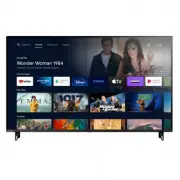
Philips 55PUL7472/F7 – Quick Guide, read for free online in PDF format. We hope this helps you resolve any issues you may have. If you have further questions, please contact us through the contact form.


Table of Contents:
- Page 2 – Using the remote; Google Assistant
- Page 3 – Best Experience; Google account; Network router; Set up Android TV with your Android smartphone or tablet
- Page 4 – Explore your television
- Page 5 – Add channels; Channel list; Program guide; Google Assistant; How to use Google Assistant with your remote; Privacy protection built-in
- Page 6 – Google Duo; USB; USB camera
- Page 7 – Connecting your devices; How to use external devices; Changing input to devices that are connected to the TV; How to use Chromecast built-inTM; How to connect to your Bluetooth® devices
- Page 8 – Parental Controls; How to set up Parental Controls; P P P; SafeSearch filter for Google search; Parental Control
- Page 9 – Troubleshooting
Quick start guide
74 series
1-866-309-5962
Call us:
Scan to call
http://tinyurl.com/y2e29xsq
Chat with us:
Scan to chat
To obtain assistance, contact Philips customer care center;
In the U.S.A., Canada, Puerto Rico, or the U.S. Virgin Islands
Register your product:
Scan to register
www.philips.com/my-tv
–Early access to exclusive offers and more!
– Keep track of your product warranty
coverage
–Get easy access to product support
User manual:
Scan to download
www.philips.com/support
For a detailed manual, please visit
our support page and enter your
TV model number to download.
Product design and user interface are for illustrative purposes only.
Actual product and user interface may vary.
"Loading the manual" means you need to wait until the file loads and becomes available for online reading. Some manuals are very large, and the time they take to appear depends on your internet speed.
Was this manual helpful?
About this manual
- Brand
- Philips
- Model
- 55PUL7472/F7
- Document type
- Quick Guide
- Language(s)
- English
- Pages
- 12
- File size
- 1.3 MB
- Format
Summary
1 Using the remote How to install the batteries in the remote Open the battery cover by firmly sliding down. Insert 2 AAA (1.5 V) batteries matching the polarity indicated inside battery compartment of the remote. a c AAA (1.5 V) x 2 b 1 (POWER) Turn the TV on/off into Quick Start Standby. Holding t...
2 Best Experience Google account Unleash your television's true potential. With a Google® account you can effortlessly expand your entertainment library via the Google Play Store and Google Play app and also keep apps up-to-date.While you can enjoy this Philips Android TV™ without a Google Account v...
3 Explore your television From the Android TV home screen, you can easily access movies, TV shows, music, apps, input devices, settings, and more. To go back to the home screen at any time, press a (HOME) on your remote. 1 2 3 4 5 6 7 8 9 1 Google Assistant With Google Assistant, quickly access ente...
Ask a question
Related manuals
Popular Philips Other


More Philips Other models
 Philips 55PUH4900/88 Quick Guide
 Philips 55PUH6101/88 Quick Guide
 Philips 55PUH6400/88 Quick Guide
 Philips 55PUK4900/12 Quick Guide
 Philips 55PUK6400/12 Quick Guide
 Philips 55PUK7100/12 Quick Guide
 Philips 55PUL7552/F7 Quick Guide
 Philips 55PUL7973/F7 Quick Guide
 Philips 55PUS6101/12 Quick Guide
 Philips 55PUS6162/05 User Manual
 Philips 55PUS6162/12 Quick Guide
 Philips 55PUS6201/12 Quick Guide