Page 2 - Contents
Contents 1 My new TV 4 1.1 Smart TV 4 1.2 App gallery 4 1.3 Rental videos 4 1.4 Social networks 4 1.5 Ambilight+hue 4 1.6 Skype 5 1.7 Smartphones and tablets 5 1.8 Pause TV and recordings 5 1.9 Gaming 5 1.10 EasyLink 6 2 Setting up 7 2.1 Read safety 7 2.2 TV stand and wall mounting 7 2.3 Tips on pla...
Page 4 - My new TV; Smart TV
1 My new TV 1.1 Smart TV Connect this Philips Smart LED TV to the Internet and discover a new world of television. You can make a wired connection toyour router or you can link up wirelessly with Wi-Fi. With the TV connected to your home network, a smartphonecan show a photo on TV, you can play vide...
Page 6 - EasyLink
In Help , press Keywords and look up Game console or Two player games for more information. 1.10 EasyLink With EasyLink you can operate a connected device, like a Bluray Disc player, with the remote control of the TV. EasyLink uses HDMI CEC to communicate with the connecteddevices. In Help , press...
Page 7 - Setting up; Read safety; TV stand and wall mounting; Tips on placement
2 Setting up 2.1 Read safety Read the safety instructions first before you use the TV. In Help, go to Safety and care > Safety . 2.2 TV stand and wall mounting TV stand You can find the instructions for mounting the TV stand in theQuick Start Guide that came with the TV. In case you lost thisguid...
Page 8 - Antenna cable; Satellite dish
Although this TV has a very low standby power consumption,unplug the power cable to save energy if you do not use the TVfor a long period of time. In Help , press Keywords and look up Switching on for more information on switching the TV on or off. 2.5 Antenna cable Insert the antenna plug firmly ...
Page 9 - Network; Wireless network
3 Network 3.1 Wireless network What you need To connect the TV wirelessly to the Internet, you need awireless router. Use a high-speed (broadband) connection tothe Internet.. Network devices The TV can connect to other devices in your wireless network,like your computer or smartphone. You can use a ...
Page 10 - Wired network; Network settings
Network problems Wireless network not found or distorted • Microwave ovens, DECT phones or other Wi-Fi 802.11b/g/ndevices in your proximity might disturb the wireless network.• Make sure that the firewalls in your network allow access tothe TV's wireless connection.• If the wireless network does not...
Page 12 - Connections; Tips on connections
4 Connections 4.1 Tips on connections Connectivity guide Always connect a device to the TV with the highest qualityconnection available. Also, use good quality cables to ensure agood transfer of picture and sound. If you need help to connect several devices to the TV, you canvisit the Philips TV con...
Page 14 - EasyLink HDMI CEC
You can set the type of the audio out signal to fit the audiocapabilities of your Home Theatre System.For more information, press Keywords and look up Audio Out settings . If the sound does not match the video on screen, you can adjustthe audio to video synchronisation.For more information, press ...
Page 15 - Common interface - CAM
Auto subtitle shift If you play a DVD or Blu-ray Disc on a Philips disc player thatsupports subtitles, the TV can move the subtitles upwards.Subtitles will be visible whatever Picture format you select. TheTV comes with Auto subtitle shift switched on.To switch off Auto subtitle shift, in the EasyLi...
Page 18 - DVD player; Game console
If the Blu-ray Disc player has EasyLink HDMI CEC, you canoperate the player with the TV remote control. For more information on EasyLink, press Keywords and look up EasyLink HDMI CEC . 4.8 DVD player Use an HDMI cable to connect the DVD player to the TV.Alternatively, you can use a SCART cable, if...
Page 19 - USB Hard Drive; USB keyboard or mouse
CVBS - Audio L R Connect the game console to the TV with a composite cable(CVBS) and an audio L/R cable to the TV. • Y shares the same jack with CVBS.• Component and Composite share audio jacks. 4.10 USB Hard Drive What you need If you connect a USB Hard Drive, you can pause or record a TVbroadcast....
Page 20 - USB flash drive
Install the keyboard To install the USB keyboard, switch on the TV and connect theUSB keyboard to one of the USB connections on the TV. When the TV detects the keyboard for the first time, you can selectyour keyboard lay-out and test your selection. If you select aCyrillic or Greek keyboard lay-out ...
Page 21 - Camcorder; Computer
If the contents list does not appear automatically, press SOURCE , select USB and press OK . Your camera might need to be set to transfer its content withPTP (Picture Transfer Protocol). Read the user manual of thedigital photo camera. For more information on viewing photos, press Keywords and l...
Page 22 - Headphones
the PC to HDMI and an audio L/R cable (mini-jack 3.5mm) toAUDIO IN L/R on the back of the TV. Settings Ideal monitor setting If your computer is added as a Computer type of device in theSource menu (the list of connections), the TV is set to the idealComputer setting automatically. If you use your c...
Page 23 - Switch on; On or Standby
5 Switch on 5.1 On or Standby Make sure you plugged in the mains power on the back of theTV before you switch on the TV.If the red indicator light is off, press the Joystick on the right sideor on the back of the TV to put the TV in standby - the redindicator will light up. With the TV in standby, p...
Page 24 - Remote control; Key overview
6 Remote control 6.1 Key overview Top 1 - Standby / On To switch the TV On or back to Standby. 2 - Playback and record keys • Play , to playback. • Pause , to pause playback • Stop , to stop playback • Rewind , to rewind • Fast forward , to go fast forward • Record , to record now 3 - ...
Page 26 - TV channels; Watching TV channels
7 TV channels 7.1 Watching TV channels Switch channels To watch TV channels, press . The TV tunes to the TV channel you last watched. Alternatively, press to open the Home menu and select Watch TV and press OK . To switch channels, press + or - . If you know the channel number, type in the n...
Page 31 - Channel installation
key or OK key to open their interactive programme. Navigate iTV pages You can use the arrow and colour keys, the number keys andthe key to navigate the iTV pages. You can use the (Play), (Pause) and (Stop) keys to watch videos within iTV pages. Digital Text (UK only) To open Digital Text, ...
Page 35 - Satellite channels; Watching satellite channels; Favourite satellite channels
8 Satellite channels 8.1 Watching satellite channels To watch satellite channels . . .Press and select Satellite and press OK . The TV tunes to the satellite channel you last watched. Change channel To change channels, press + or . The TV will tune to the next channel in the selected channel...
Page 36 - Lock satellite channels
Favourite channels You can mark channels as favourite channels. Your favouritesatellite channels are collected in the Favourites list of the satellite channel list. Watching favourite channels Set up a favourite channel list to easily switch between thechannels you want to watch.To only switch betwe...
Page 37 - Satellite installation
Child lock code You can set or change the Child lock code. To set the lock code or to change the current code . . . 1 - Press and select Setup and press OK . 2 - Select Satellite settings > Child lock > Change code and press OK . 3 - If a code is set already, enter the current Child lock cod...
Page 41 - Problems with satellites
To install a transponder . . . 1 - Press and select Setup and press OK . 2 - Select Satellite settings > Channel installation > Manual installation and press OK . 3 - If you have more than 1 satellite installed, select the satellite/LNB for which you want to add channels. 4 - Set the Polariz...
Page 42 - Home menu
9 Home menu From the Home menu, you can start any activity you can dowith the TV. Open the Home menu to start watching TV or start watching adisc on your Home Theatre System. Also in the Home menu,you can open Smart TV to surf the Internet, start Skype or openHelp if you need information on using th...
Page 43 - TV guide; Recordings
10 TV guide 10.1 What you need With the TV guide you can view a list of the current andscheduled TV programmes of your channels. Depending onwhere the TV guide information (data) is coming from, analogueand digital channels or only digital channels are shown. Not allchannels offer TV guide informati...
Page 44 - Sources; Sources list
11 Sources 11.1 Sources list In the list of connections - the Source menu - you can find thedevices connected to the TV. From this Source menu, you canswitch to a device. Sources menu To open the Sources menu, press SOURCES . To switch to a connected device, select the device with thearrows (lef...
Page 45 - Timers and clock; Sleeptimer
12 Timers and clock 12.1 Sleeptimer With the sleep timer, you can set the TV to switch to standbyautomatically after a preset time. To set the sleep timer . . . 1 - Press and select Setup and press OK . 2 - Select TV settings > General settings > Sleep timer . With the slider bar you can set...
Page 46 - The 3D glasses
13 3D 13.1 What you need For Active 3D sets This is an Active 3D TV. On this TV, you can watch 3Dprogrammes and movies in full High Definition resolution withActive 3D. To watch 3D you need to : • Tune to a TV channel that broadcasts programmes in 3D.• Rent a movie in 3D from an online video store w...
Page 49 - Games; Play a game
14 Games 14.1 Play a game With a game console connected to the TV, you can play gameson TV. For more information on connecting a game console, press Keywords and look up Game console, connect . Start a game 1 - Press SOURCES , select the game console and press OK . 2 - On the game console, start...
Page 53 - Pause TV
16 Pause TV You can pause a TV broadcast and resume watching it later.Only digital TV channels can be paused. You must connect aUSB Hard Drive to buffer the broadcast. You can pause abroadcast for a maximum time span of 90 minutes.For more information, press Keywords and look up USB Hard Drive . P...
Page 54 - Recording
17 Recording 17.1 What you need To record a TV programme you need . . . • a connected USB Hard Drive formatted on this TV• digital TV channels installed on this TV (the channels youwatch with Watch TV)• to receive channel information for the built-in TV guide (fromthe broadcaster or from the Interne...
Page 55 - Watch a recording
17.3 Watch a recording To watch a recording . . . 1 - Press , select Recordings and press OK . 2 - In the list, select the recording and press (Play) to start the playback. You can use the (Forward), (Rewind), (Pause) or (Stop) keys on the remote control. Expired recording Broadcasters...
Page 56 - Skype; About Skype
18 Skype 18.1 About Skype With Skype™ you can make video calls on your TV for free. You can call and see your friends from anywhere in the world.Talk to your friends while watching them on the big screen ofyour TV. 18.2 What you need To make a video call on Skype, you need the separately sold Philip...
Page 57 - Skype menu
password cannot contain a space. If you don't have a Skype Name and Password yet, you cancreate a new account on the sign in page on TV. 1 - On the sign-in page, select New account and press OK.2 - Create your new account.• Full nameEnter your full name.• Skype nameEnter a name as your Skype name. Y...
Page 58 - People
View or change your email address, check the amount of credityou have or view the subscription information, or write amessage that reflects your mood. • Profile picture If you did not upload a profile picture with your computer yet,you can select one of the available avatars as Profile picturehere. ...
Page 59 - Calling on Skype
Remove or rename You can Remove or Rename contacts. To remove a contact… 1 - On the Contacts page, select the contact you want to remove. 2 - Press OPTIONS and select Remove and press OK . The contact is removed from the list. To rename a contact… 1 - On the Contacts page, select the contact you w...
Page 60 - Skype credit
Outgoing calls and press OK . To view new contact requests, select Contact requests and press OK . To view and listen to your voicemails, select Voicemails and press OK . For how long your Skype events are kept in this history listdepends on the amount of contacts you have and howintensively you use...
Page 63 - About Smart TV
19 Smart TV 19.1 About Smart TV Connect this Philips Smart LED TV to the Internet and discover a new world of television. You can make a wired connection toyour router or you can link up wirelessly with Wi-Fi. With the TV connected to your home network, a smartphonecan show a photo on TV, you can pl...
Page 65 - Multi view
Streaming video With this TV, you can watch rental movies sent as a streamingvideo format. You can almost instantly watch the movie. Youmight need a USB Hard Drive to store some video buffer. If youhave a USB Hard Drive connected, you can also downloadrental movies from video stores that offer movie...
Page 66 - Multi room; About Multi room
20 Multi room 20.1 About Multi room With Multi Room you can watch a TV programme that comesfrom another TV in your home. The programme is streamedfrom one TV to the other. You can stream a programme to aTV that has no antenna connection or has no Smart cardsubscription of its own. You can also strea...
Page 67 - Setup menu
21 Settings 21.1 Setup menu Quick picture and sound settings With Quick picture and sound settings you can set your basic picture preferences in a few easy steps. The settings you madeare stored under the Picture style - Personal . You can return to your picture preference if some settings were chan...
Page 68 - Picture
Update software Press Keywords and look up Software, Internet update or Software, USB update . Update software Press Keywords and look up Software, USB update . Software settings Press Keywords and look up Software, current version . Watch demo With Demo in menu, you can watch some demonstra...
Page 74 - Ambilight
With EasyLink or EasyLink autostart selected, you can still switchto TV speakers if necessary. To set the TV speakers . . . 1 - Press and select Setup and press OK . 2 - Select TV settings > Sound > Sound output . 3 - Press (right) and select Off , TV speakers , EasyLink or EasyLink autost...
Page 76 - Universal access
4 - Press , repeatedly if necessary, to close the menu. Info In View configuration , you can consult the current Ambilight+hue configuration. Which network you use, howmany bulbs are connected, etc. To view the current Ambilight+hue setup… 1 - Press and select Setup and press OK . 2 - Select TV ...
Page 78 - Specifications; Environmental; Reception for non-satellite TVs
22 Specifications 22.1 Environmental Saving energy The Eco settings bundle the settings that help the environment. While you are watching TV channels, press icon, then select Eco settings , press OK . Active settings are marked with a . You can mark or unmark each setting with the OK key. Press ...
Page 79 - Reception for satellite TVs; Display
COFDM 2K/8K; DVB-C (cable) QAM- For model name with PxT: DVB-T2; DVB-C (cable) QAM• Analogue video playback : NTSC; SECAM; PAL• Digital video playback : MPEG2 SD/HD (ISO/IEC 13818-2);MPEG4 SD/HD (ISO/IEC 14496-10)• Digital audio playback (ISO/IEC 13818-3) Note: See selected countries on the TV type ...
Page 81 - Software; Software update; Software version
23 Software 23.1 Software update Update from USB It might be necessary to update the TV software. You need acomputer with an high-speed Internet connection and a USBmemory device to upload the software on the TV. Use a USBmemory device with 256MB free space. Make sure that writeprotection is switche...
Page 87 - Troubleshooting
24 Troubleshooting andsupport 24.1 Troubleshooting Channels No digital channels found during the installation See the technical specifications to make sure that your TVsupports DVB-T or DVB-C in your country.Make sure that all cables are properly connected and that thecorrect network is selected. Pr...
Page 88 - Register
Picture signals from some devices may not fit the screencorrectly. Check the signal output of the connected device. Computer picture is not stable Make sure that your PC uses the supported resolution andrefresh rate. Connections HDMI • Note that HDCP (High-bandwidth Digital Content Protection)suppor...
Page 89 - Consumer Care / Repair
24.5 Consumer Care / Repair For support and repair, call the Consumer Care hotline in yourcountry. Find the telephone number in the printeddocumentation that came with the TV.Or consult our website www.philips.com/support . TV model number and serial number You might be asked to provide the TV produ...
Page 90 - Safety and care; Safety
25 Safety and care 25.1 Safety Important Read and understand all safety instructions before you use theTV. If damage is caused by failure to follow instructions, thewarranty does not apply. Secure the TV from falling over Always use the supplied wall bracket to secure the TV fromfalling over. Mount ...
Page 91 - Screen care
Lightning storms Disconnect the TV from the power outlet and antenna beforelightning storms.During lightning storms, never touch any part of the TV, powercord or antenna cable. Risk of hearing damage Avoid using earphones or headphones at high volumes or forprolonged periods of time. Low temperature...
Page 95 - Index
Index 3 3D backlight contrast 68 3D, 2D to 3D conversion 47 3D, health warning 47 3D, optimal viewing 47 A Active control 68 Activity style 70 Ambilight+hue 74 Ambilight, Lounge light 76 Ambilight, mode 74 Ambilight, TV placement 7 Ambilight, TV switch off 76 Ambilight, wall colour 76 Amplifier, aud...
Page 98 - Contact information
Contact information Argentina 0800 444 7749Buenos Aires 0810 444 7782 België / Belgique 070 700 035 (0,15€/min.) Bosna i Hercegovina 033 941 251 (Lokalni poziv) Brazil 0800 701 0245Sao Paulo 2938 0245 Бълария 02 4916 273 (Национален номер) Česká republika 228880895 (Místní tarif) Danmark 3525 8314 D...
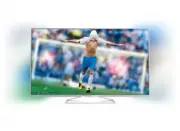


 Philips 40PFL9704H/12 User Manual
 Philips 40PFL9705H/12 User Manual
 Philips 40PFS5501/12 User Manual
 Philips 40PFS5709/12 User Manual
 Philips 40PFS6000/12 User Manual
 Philips 40PFS6009/12 User Manual
 Philips 40PFS6909/12 Quick Guide
 Philips 40PFT4009/12 Quick Guide
 Philips 40PFT4100/12 Quick Guide
 Philips 40PFT4101/12 Quick Guide
 Philips 40PFT4200/12 Quick Guide
 Philips 40PFT4319/12 Quick Guide