Philips 32PFL5505/F7 - Quick Guide
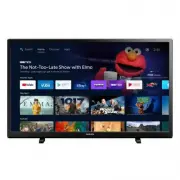
Philips 32PFL5505/F7 – Quick Guide, read for free online in PDF format. We hope this helps you resolve any issues you may have. If you have further questions, please contact us through the contact form.


Table of Contents:
- Page 2 – Using the remote; Google Assistant; H I J K; Microphone
- Page 3 – Connecting your devices; How to use external devices; If connecting to an antenna via an RF cable; Changing input to devices that are connected to the TV; How to use Chromecast built-in; Casting allows you to mirror your favorite apps on the big screen.; How to connect to your Bluetooth® devices; Settings; Installing the stands
- Page 4 – Connection overview; Best Experience; Google account; Network router
- Page 5 – Explore your television
- Page 6 – Add channels
- Page 7 – Google Assistant; How to use Google Assistant with your remote; Privacy protection built-in
- Page 8 – Parental Control; Parental Controls; OK; P P P; SafeSearch filter for Google search
- Page 9 – Specifications
- Page 10 – Troubleshooting; Category
- Page 12 – Safety instructions; safety; CAUTION; Important safety; Notice
- Page 14 – Wall mount; Copyright
Quick start guide
Televisions
5505 series
1-866-309-5962
http://tinyurl.com/y2e29xsq
9 AM to 9 PM EST
> Monday – Saturday
9 AM to 6 PM EST
> Sunday
Call us:
Chat with us:
Hours of operation:
Scan to call us:
Scan to chat with us:
1
What’s in the box
Quick start guide
with provided screws
Product design and user interface are for illustrative purposes only.
Actual product and user interface may vary.
"Loading the manual" means you need to wait until the file loads and becomes available for online reading. Some manuals are very large, and the time they take to appear depends on your internet speed.
Was this manual helpful?
About this manual
- Brand
- Philips
- Model
- 32PFL5505/F7
- Document type
- Quick Guide
- Language(s)
- English
- Pages
- 15
- File size
- 2.8 MB
- Format
Other Manuals for Philips 32PFL5505/F7
Summary
2 Using the remote 1 AAA (1.5 V) x 2 2 3 Controllable range for the remote 16 ' (5 m) 30 ° 30 ° 23 ' (7 m) 16 ' (5 m) 1 (POWER) Turn the TV on/off into Quick Start Standby. Holding the button for 1 second or more will put the TV into Low Power Standby. 2 (TV GUIDE) Access to the Electronic Program G...
4 Connecting your devices How to use external devices Connecting antenna or cable / satellite / IPTV set-top box E Tip: Connect your external devices to your Android TV™ before powering on. If connecting to an antenna via an RF cable If connecting a set-top box via an HDMI cable DTV programs that ar...
5 Connection overview Soundbar Blu-ray Disc™ Player HDMI cable Optical cable HDMI cable (ARC) Or 6 Best Experience Google account Unleash your television’s true potential. With a Google® account you can effortlessly expand your entertainment library via the Google Play Store and Google Play app and ...
Ask a question
Related manuals
Popular Philips Other


More Philips Other models
 Philips 32PFL5403D/10 User Manual
 Philips 32PFL5404/60 Manual
 Philips 32PFL5404H/12 Quick Guide
 Philips 32PFL5405H/12 Manual
 Philips 32PFL5405H/60 Manual
 Philips 32PFL5406H/12 Quick Guide
 Philips 32PFL5522D/05 Quick Guide
 Philips 32PFL5522D/12 Quick Guide
 Philips 32PFL5606 Manual
 Philips 32PFL5606H Manual
 Philips 32PFL5606H/12 Quick Guide
 Philips 32PFL5806K/02 Quick Guide