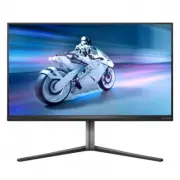
Page 2 - Table of Contents; Safety precautions and; Designs to prevent computer; Philips’ Panel Monitors Pixel
Table of Contents 1. Important ...................................... 1 1.1 Safety precautions and maintenance ..................................1 1.2 Notational Descriptions ..............3 1.3 Disposal of product and packing material ............................................4 2. Setting up the ...
Page 5 - Notational Descriptions
3 technology. In most cases, the “burn-in”, “after-imaging” or “ghost imaging” will disappear gradually over some time after the power has been switched off. Warning It is highly recommended that you always turn on Pixel Orbiting function from On Screen Display (OSD) menu in order to best protect th...
Page 7 - monitor; Package contents; *Different according to region
5 2. Setting up the monitor 2.1 Installation 1 Package contents *DP *HDMI *USB A-B Power Quick Start Register your product and get support at www.philips.com/welcome 32M2N6800M *Different according to region 2 Install the base 1. To well protect this monitor and avoid scratching or damaging of the m...
Page 9 - Operating the monitor
7 4 USB hub To comply with International energy standards, the USB hub/ports of this display are disabled during Standby and Off modes. Connected USB devices will not work in this state.To permanently put the USB function in the “ON” state, please go to OSD Menu, then select “USB standby mode”, and ...
Page 10 - Description of the On-Screen Display
8 2 Description of the On-Screen Display What is On-Screen Display (OSD)?On-Screen Display (OSD) is a feature in all Philips LCD monitors. It allows an end user to adjust screen performance or select functions of the monitors directly through an on- screen instruction window. A user-friendly OSD int...
Page 12 - Firmware
10 Note The local dimming feature cannot be enabled simultaneously with the Ambiglow feature’s “Follow Video” function.Game mode: This model is equipped with new features in OSD which gives you high-quality visual experience.• Stark Shadow Boost This feature enhances dark scenes without overexposing...
Page 13 - Swivel; Height adjustment
11 5 Physical Function Tilt 20° -5° Swivel -30° +30° Height adjustment 130mm Warning • To avoid potential screen damage, such as panel peeling, ensure that the monitor does not tilt downward by more than -5 degrees. • Do not press the screen while adjusting the angle of the monitor. Grasp only the b...
Page 17 - Image Optimization
15 3. Image Optimization 3.1 SmartImage 1 What is it? SmartImage provides presets that optimize display for different types of content, dynamically adjusting brightness, contrast, color, and sharpness in real-time. Whether you're working with text applications, displaying images, or watching a video...
Page 18 - HDR Game: Ideal setting to optimize
16 • RTS: For playing RTS (Real Time Strategy) games, a user-selected portion can be highlighted for RTS games (through SmartFrame). The picture quality can be adjusted for the highlighted portion. • Movie: Ramped up luminance, deepened color saturation, dynamic contrast, and razor sharpness display...
Page 19 - Off: No optimization by SmartImage; Customize color space
17 • Off: No optimization by SmartImage HDR. Note To switch off the HDR function, please disable the Input device and its content.Inconsistent HDR settings between the input device and monitor may cause unsatisfying images. 3.2 SmartContrast 1 What is it? It is a unique technology that dynamically a...
Page 20 - Adaptive Sync
18 4. Adaptive Sync Adaptive Sync PC gaming has long been an imperfect experience because GPUs and monitors update at different rates. Sometimes a GPU can render many new pictures during a single update of the monitor, and the monitor will show pieces of each picture as a single image. This is calle...
Page 21 - Ambiglow; How to enable Ambiglow
19 5. Ambiglow Ambiglow Ambiglow ambiglow What is it? Ambiglow adds a new dimension to your viewing experience. The innovative and exclusive Ambiglow processor continuously adjusts the overall color and brightness of the gamer's surroundings to match the on-screen image. User options like Auto mode ...
Page 22 - Lighting
20 6. Windows Dynamic Lighting This monitor is equipped with Microsoft Windows Dynamic Lighting feature, which enables users with Windows 11 or later to synchronize and manage the RGB lighting of all their monitors and peripherals from one menu. By doing this, the Dynamic Lighting feature creates a ...
Page 24 - Rearrange your displays.
22 7. HDR HDR Settings in Windows11/10 system.Steps 1. Right-click on the desktop, and enter Display settings. 2. Select the display/monitor.3. Select an HDR-capable display under Rearrange your displays. 4. Select Windows HD Color settings.5. Adjust Brightness for SDR content. Note Windows 10 editi...
Page 25 - Ideal working posture
23 8. Designs to prevent computer vision syndrome (CVS) Philips monitor is designed to prevent eye strain caused by prolonged computer use. Follow the below instructions and use a Philips monitor to efficiently reduce fatigue and maximize working productivity. 1. Appropriate environment lighting: • ...
Page 26 - Technical Specifications; Connectivity
24 9. Technical Specifications Picture/Display Monitor Panel Type IPS Backlight Mini LED backlight Panel Size 31.5" (80 cm) Aspect Ratio 16:9 Pixel Pitch 0.1818 (H) mm x 0.1818 (V) mm Contrast Ratio (typ.) 1000:1 Recommended Resolution 3840 X 2160 @ 60 Hz Maximum Resolution 3840 X 2160 @ 144 Hz ...
Page 29 - Resolution; Display Input Format; Note
27 9.1 Resolution & Preset Modes H. freq (kHz) Resolution V. freq (Hz) 31.47 720 x 400 70.09 31.47 640 x 480 59.94 35.00 640 x 480 66.67 37.86 640 x 480 72.81 37.50 640 x 480 75.00 37.88 800 x 600 60.32 46.88 800 x 600 75.00 48.36 1024 x 768 60.00 60.02 1024 x 768 75.03 44.77 1280x 720 59.86 63....
Page 30 - Power Management; Power Management Definition
28 10. Power Management If you have a VESA DPM compliance display card or software installed on your PC, the monitor can automatically reduce its power consumption when not in use. If an input from a keyboard, mouse, or other input device is detected, the monitor will 'wake up' automatically. The fo...
Page 31 - Philips’ Panel Monitors; Sub pixels; Pixels and Sub pixels
29 together form an image. When all the sub-pixels of a pixel are lit, the three colored sub-pixels together appear as a single white pixel. When all are dark, the three colored sub-pixels together appear as a single black pixel. Other combinations of lit and dark sub-pixels appear as single pixels ...
Page 35 - FAQs; Troubleshooting; Common Problems
33 12. Troubleshooting & FAQs 12.1 Troubleshooting This page deals with problems that can be corrected by a user. If the problem persists after you have tried these solutions, contact a Philips customer service representative. 1 Common Problems No Picture (Power LED not lit) • Make sure the powe...