Philips 26PFL3606H/12 - User Manual
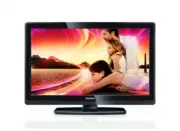
Philips 26PFL3606H/12 – User Manual, read for free online in PDF format. We hope this helps you resolve any issues you may have. If you have further questions, please contact us through the contact form.


Table of Contents:
- Page 2 – Contents
- Page 3 – Notice
- Page 5 – Important; Safety
- Page 6 – Disposal of your old product and; Screen care
- Page 8 – Remote control; Your TV; TV controls
- Page 9 – Remote control usage
- Page 10 – If the TV is in standby; Switch your TV to standby; Switch channels; Use your TV; Switch your TV on
- Page 11 – View channel preview; Watch connected devices; Select a device from the source list; Other ways to switch channels
- Page 12 – To mute or unmute sound; Adjust TV volume
- Page 13 – Use smart picture; Manually adjust picture settings; Use more of; Access TV menus
- Page 14 – Change picture format; Summary of picture formats
- Page 15 – Use smart sound; Manually adjust sound settings
- Page 16 – Use advanced teletext; Access the teletext options menu; Select teletext subpages; Use the universal access
- Page 17 – View all channels; Manage the favourites list; Create and use lists of; View only the list of favourite
- Page 18 – Set the TV clock manually; Display the TV clock; Use the Electronic; Switch on EPG; Change programme guide options
- Page 19 – Use timers; Automatically switch the TV to; Lock unsuitable content; Set or change code; Change the clock mode; Change the time zone; Use daylight saving
- Page 20 – Set parental ratings; Change language; Change menu language; Lock or unlock one or more channels
- Page 21 – View photos; Select a subtitle language in digital
- Page 22 – Change music settings; Change slide show settings; Listen to music
- Page 23 – Listen to digital radio; Update the TV software
- Page 24 – Start a TV demo; C: Check for updates through digital; Change TV preferences
- Page 25 – Manually install channels; Install channels; Automatically install channels
- Page 26 – Rearrange channels; Rename channels
- Page 28 – Connect devices; Back connections
- Page 30 – Use a Conditional Access; Insert and activate a CAM
- Page 31 – Switch on or off EasyLink; Set TV speakers to EasyLink mode; Access CAM services; Use Philips EasyLink
- Page 32 – Retain picture quality; Use a Kensington lock
- Page 36 – TV channel issues; Troubleshooting; General TV issues
- Page 37 – Sound issues; HDMI connection issues
België/ Belgique
0800 80 190 Gratis/Gratuit
ß
chat
www.philips.com/suppor t
България
00800 11 544 24
Česká republika
800 142 840 Bezplatný hovor
Danmark
3525 8759 Lokalt opkald
ß
chat
www.philips.com/suppor t
Deutschland
0800 000 7520 (kostenfrei)
ß
chat
www.philips.com/suppor t
Ελλάδα
0 0800 3122 1280
Κλήση χωρίς χρέωση
España
900 800 655 Teléfono local gratuito
solamente para clientes en España
ß
chat
www.philips.com/suppor t
Estonia
8000100288 kohalik kõne tariifi
France
0805 025 510 numéro sans frais
ß
chat
www.philips.com/suppor t
Hrvatska
0800 222778 free
Ireland
South: 1 800 7445477
Nor th: 0 800 331 6015
Italia
800 088774 Numero Verde
Қазақстан
+7 727 250 66 17 local
Contact information
Latvia
80002794 local
Lithuania
880030483 local
Luxemburg/Luxembourg
080026550
Or tsgespräch/Appel local
Magyarország
06 80 018 189 Ingyenes hívás
Nederland
0800 023 0076 Gratis nummer
Norge
22 70 81 11 Lokalsamtale
Österreich
0800 180 016
Polska
00800 3111 318
Portugal
0800 780 902 Chamada Grátis
Россия
(495) 961 1111
8800 200 0880
(бесплатный звонок по России)
România
0800-894910 Apel gratuit
0318107125 Apel local
Србија
+381 114 440 841 Lokalni poziv
Slovensko
0800 004537 Bezplatný hovor
Slovenija
600 744 5477 lokalni klic
Sverige
08 5792 9100 Lokalsamtal
Suisse/Schweiz/Svizzera
0800 002 050
Schweizer Festnetztarif/ Tarif réseau
fixe France
Suomi
09 2311 3415 paikallispuhelu
Türkiye
444 7 445
United Kingdom
0800 331 6015 Toll Free
Українська
0-800-500-697
This information is correct at the time of print. For updated information, see www.philips.com/suppor t.
updated:20110912
"Loading the manual" means you need to wait until the file loads and becomes available for online reading. Some manuals are very large, and the time they take to appear depends on your internet speed.
Was this manual helpful?
About this manual
- Brand
- Philips
- Model
- 26PFL3606H/12
- Document type
- User Manual
- Language(s)
- English
- Pages
- 39
- File size
- 11.8 MB
- Format
Other Manuals for Philips 26PFL3606H/12
Summary
En gl is h Access CAM ser vices 28 7 Connect devices 29 Back connections 29 Side connections 0 Connect a computer 0 Use a Conditional Access Module 1 Use Philips EasyLink 2 Use a Kensington lock 8 Product information 4 Suppor ted display resolutions 4 Multimedia 4 Tuner/Reception/Transmission 4 Remo...
4 light (red, green or blue) may appear constantly on the screen. This is a structural proper ty of the display (within common industr y standards) and is not a malfunction. Compliance with EMF Koninklijke Philips Electronics N.V. manufactures and sells many products targeted at consumers which, lik...
6 Avoid force coming onto power plugs. Loose power plugs can cause arcing or fire. Risk of injury or damage to the TV! Two people are required to lift and carr y a TV that weighs more than 25 kg or 55 lbs. When stand mounting the TV, use only the supplied stand. Secure the stand to the TV tightly. P...
Ask a question
Related manuals
Popular Philips Other


More Philips Other models
 Philips 25PT 2152 Manual
 Philips 25PT 4457 Manual
 Philips 25PT5125 Manual
 Philips 26PF5321/10 User Manual
 Philips 26PFL3404/12 Quick Guide
 Philips 26PFL3405/12 Manual
 Philips 26PFL5322/12 Quick Guide
 Philips 26PFL5403D/10 User Manual
 Philips 26PFL5522D/12 Quick Guide
 Philips 26PFL5604H/12 Quick Guide
 Philips 26PFL7532D/12 User Manual
 Philips 26PW6341 Manual