Panasonic RZ B310W - User Manual

Panasonic RZ B310W – User Manual, read for free online in PDF format. We hope this helps you resolve any issues you may have. If you have further questions, please contact us through the contact form.


Table of Contents:
- Page 2 – Table of Contents
- Page 3 – Expressions used in this document; Accessories; x USB charging cord; Water resistance is not guaranteed under all conditions.; Charging; Before use
- Page 4 – Put the earphones into the charging cradle.
- Page 5 – Battery level notification (USB charging cord not connected)
- Page 6 – How to fit the earphones; Fit firmly by turning the earphones a small amount at a time.; To remove/attach the earpieces; Removing the earpieces
- Page 7 – Part names
- Page 8 – Turning the earphones on and off; Auto power off
- Page 9 – Preparation
- Page 10 – How to pair additional devices
- Page 11 – Listening to music; Making a phone call; Connect the Bluetooth; Operation
- Page 12 – Adjust the volume of the playback device.; Activating voice functions
- Page 13 – Operating with the touch sensors
- Page 14 – Using just one earphone
- Page 15 – Restoring to the factory settings; Open the charging cradle lid.; Troubleshooting; Does not connect with the Bluetooth; Other
- Page 17 – The voice of the person on the other end of the call is small.; Cannot make a phone call.; Specifications; General
- Page 19 – Trademarks
- Page 20 – Earpiece Cleaning; Remove the earpieces.; When the earpieces are very dirty; Rinse well with clean water after washing.
- Page 21 – Clean the charging contacts of earphones; Touch the tip of the pointed cotton swab to the charging contacts (A).; Clean the charging contacts of charging cradle; Use a cotton swab to the tip of the charging contacts (B) from above.
- Page 23 – Notes
RZ-B310W
RZ-B110W
Digital Wireless Stereo Earphones
Owner’s Manual
RZ-B310W
RZ-B110W
Thank you for purchasing a Panasonic product.
Please read these operating instructions before using the unit and save them for
future reference.
Questo manuale d’istruzione è fornito da trovaprezzi.it. Scopri tutte le offerte per
"Loading the manual" means you need to wait until the file loads and becomes available for online reading. Some manuals are very large, and the time they take to appear depends on your internet speed.
Was this manual helpful?
About this manual
- Brand
- Panasonic
- Model
- RZ B310W
- Document type
- User Manual
- Language(s)
- English
- Pages
- 24
- File size
- 730.1 KB
- Format
Other Manuals for Panasonic RZ B310W
Summary
Before use Accessories ..................................................3(Important) About water resistance ..............3Charging .......................................................3How to fit the earphones ..............................6Part names ...............................................
Expressions used in this document R The product illustrations may differ from the actual product. R Unless otherwise indicated, illustrations in these Owner’s Manual are of RZ-B310W. Accessories 1 x USB charging cord (Input plug: USB Type-A Shape, Output plug: USB Type-C Shape) 1 x Earpieces set (2 ...
Before initial use: Remove the insulation sheet before charging. : USB charging cord (supplied): Power source (e.g., PC) 1 Use the USB charging cord (supplied) to connect the charging cradle to a 5.0 V powersource (500 mA or higher). R Charging cradle starts charging:Battery fully charged: RZ-B310W:...
Ask a question
Related manuals
Popular Panasonic Other


More Panasonic Other models
 Panasonic RX-FT500 Manual
 Panasonic RX-FT510 Manual
 Panasonic RX-FT530 Manual
 Panasonic RX-FT560 Manual
 Panasonic RX-FT570 Manual
 Panasonic RZ B110W User Manual
 Panasonic RZ S300W User Manual
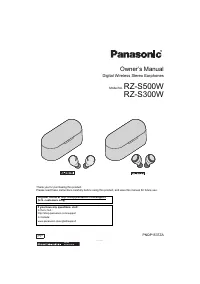 Panasonic RZ S500W User Manual
 Panasonic S48C90KAU6 Manual
 Panasonic S50 Manual
 Panasonic S60D Manual
 Panasonic SA-AK25 User Manual