Page 2 - Checking the contents of the box; Names of Parts
2 EN Checking the contents of the box or Digital camera Strap Lithium Ion Battery (LI-90B) USB-AC adapter (F-2AC) USB cable (CB-USB8) OLYMPUS Setup CD-ROM Stylus pen Names of Parts Names of Parts 3 2 1 4 6 5 8 91011 7 1 Strap eyelet 2 Connector cover 3 Multi-connector 4 HDMI micro connector 5 Self-t...
Page 3 - INFO; fl; Attaching the camera strap; Arrow pad; FGHI
3 EN 2 9 10 11 12 13 4 8 1 5 6 7 3 1 Stereo microphone 2 Flash switch 3 Monitor 4 Zoom lever 5 Shutter button 6 Mode dial 7 n button 8 Indicator lamp 9 F button (shooting movies) 10 A button (OK) 11 Arrow pad INFO (changing information display) # ( fl ash) Y (self-timer) (erase) 12 q button (switc...
Page 4 - Follow Steps
4 EN Inserting and removing the battery and card (commercially available) 1 Follow Steps 1 and 2 to open the battery/card cover. 2 1 Battery/card cover Battery/card cover lock Turn off the camera before opening the battery/ card cover. 2 Insert the battery while sliding the battery lock knob in the ...
Page 5 - When using the camera, be sure to close and; Charging the battery; Connecting the camera; AC outlet
5 EN To remove the card To remove the card 1 2 Press the card in until it clicks and comes out slightly, then remove the card. 4 Follow Steps 1 and 2 to close the battery/card cover. 1 2 When using the camera, be sure to close and lock the battery/card cover. Charging the battery Connect the USB cab...
Page 7 - FG
7 EN Turning on the camera and making the initial settings When you turn on the camera for the fi rst time, a screen appears enabling to set the language for the menus and messages displayed in the monitor, and the date and time.To change the selected date and time, see “Setting the date and time d ...
Page 8 - Touch
8 EN Learning how to use the camera ● Press the n button to turn on the camera and enter the standby mode. (Press the n button again to turn off the camera.) ● Select the shooting mode, and press the shutter button to shoot a still image. ● To shoot a movie, press the F button. ● Set the shooting fu...
Page 9 - Using for the playback mode
9 EN Using for the shooting mode Using for the shooting mode By touching the screen, the subject to be focused on can be set or the picture can be taken. Every time is touched, the operation is changed. : The subject that is touched is focused on and the picture is taken automatically. : T...
Page 10 - Shooting still images; Press the
10 EN 4 Press the shutter button halfway down to focus. Press halfway P P F3.0 F3.0 1/400 1/400 AF target mark Shutter speed Aperture value ● The camera was unable to focus if the AF target mark fl ashes red. Try focusing again. 5 To take the picture, gently press the shutter button all the way down...
Page 11 - Using the zoom; Image size; Using the; Slide the; To turn off the; Press
11 EN Using the zoom Turning the zoom lever adjusts the shooting range.Turn the zoom lever as far as it will go to speed up the zoom operation, and turn it partway for a slow zoom operation (not applicable when shooting a movie). W side T side Image size Zoom bar 16M Super-resolution zoom*1 Optical ...
Page 12 - To cancel the self-timer after it starts; Option
12 EN 2 Use HI to select the setting option, and press the A button to set. Option Description Y Off The self-timer is deactivated. Y 12 sec The self-timer lamp turns on for approx. 10 seconds, then blinks for approx. 2 seconds, and then the picture is taken. Y 2 sec The self-timer lamp blinks for a...
Page 13 - Shooting screen displays; Reading a histogram
13 EN Shooting screen displays F3.0 F3.0 1/100 1/100 0:34 0:34 DATE 44 N ORM P P 0.0 0.0 AUTO WB AUTO WB AUTO ISO AUTO ISO 16 M 4:3 z z 1 2 3 4 5 6 7 8 9 10 16 18 19 20 17 11 14 15 13 21 22 23 25 26 27 28 12 24 When the shutter button is pressed halfway down Reading a histogram Reading a histogram I...
Page 14 - Selecting the shooting mode; The default settings of the function are highlighted in; Shooting mode; Backlight HDR
14 EN Selecting the shooting mode The default settings of the function are highlighted in . Shooting mode Submode P ( P mode) – M ( M mode) – r (Advanced Movie mode) s Photo in Movie/ : 60i Movie/ ; High-Speed Movie (Photo with A Clip mode) / / / / / p (Panorama mode) Auto/Manual i (Ha...
Page 15 - To select a submode; Learning about the shooting; Using the live guide; Guide items
15 EN 1 Use the mode dial to select the shooting mode. In r , , p , , or P , press H of the arrow pad for the function menu, then press HI of the arrow pad for the sub menu, and press the A button. N ORM 4 4 0:34 0:34 0.0 0.0 AUTO WB AUTO WB AUTO ISO AUTO ISO 16 M 4:3 P P To select a submode To ...
Page 17 - mode or; Submenu; The image size of the movie is set to VGA.
17 EN r (Advanced Movie mode) You can shoot the movie by using the evolving movie function. Submenu Description s Captures still images as you shoot a movie. During a single movie, you can capture a maximum of 12 still images. : Shoots a smooth movie at 60 frames/second. Image size is fi xed at full...
Page 19 - To take photos with the
19 EN ● To combine only two frames, press the A button. 4 Repeat step 3 to take a third frame. The camera automatically combines the frames into a single panorama image. i (Hand-Held Starlight mode) Night scene pictures with less camera shake can be taken without using a tripod. The fl ash function ...
Page 20 - After pressing
20 EN Beauty Fix Beauty Fix 1 Use FGHI to select a retouching item, and press the Q button. MENU Off Eye Color Back 2 Check the retouched effects on the review screen, then press the Q button to start the retouch process and save. ● Settings for Beauty Fix can be registered. ● Depending on the pictu...
Page 21 - Viewing images; To play sound recordings; Index view and close-up view
21 EN Viewing images 1 Press the q button. Number of frames/ Total number of images 12:30 ’13/02/26 ’13/02/26 12:30 4/30 4/30 Playback image ● Pictures taken using V mode, sequential shooting function or Photo in Movie are displayed as a group. Turn the zoom lever to the T side to play back the im...
Page 22 - Playing back panorama images; Control while paused; Playing back grouped images; button
22 EN To select an image in index view To select an image in index view Use FGHI to select an image, and press the A button to display the selected image in single-image view. To scroll an image in close-up view To scroll an image in close-up view Use FGHI to move the viewing area. Playing back pa...
Page 23 - Photo in Movie frame
23 EN Sequential images frame Sequential images frame ● The sequentially shot images are played back automatically. ● Expand to view the images in index view. Sequential images frame OK 4/30 4/30 ’13/02/26 ’13/02/26 12:30 12:30 Play Play (Photo with (Photo with A A Clip) frame Clip) frame ● The ...
Page 24 - Playback mode display; Name; Switching the displays
24 EN Playback mode display ● Normal No. Name Normal Detailed No info. 1 Battery check – R – 2 Photo with movie clip R R R 3 Eye-Fi transfer data R R – 4 Protect R R – 5 Adding sound R R – 6 Upload order R R – 7 Print reservation/number of prints R R – 8 Current memory R R – 9 Frame number/total num...
Page 25 - Erasing images during playback; Shooting movies; Lights up red
25 EN Erasing images during playback 1 Display the image you want to erase and press G ( ). MENU Erase Erase Cancel 4/30 4/30 100-0004 100-0004 Back 2 Press FG to select [Erase], and press the A button. ● Grouped images are erased as a group. If you want to delete images from the grouped images, y...
Page 26 - Playing back movies; Operations while playback is paused; To stop movie playback
26 EN Playing back movies Select a movie, and press the A button. 00:12 / 00:34 00:12 / 00:34 During playback Movie ’13/02/26 ’13/02/26 12:30 12:30 4/30 4/30 ● Turn the zoom lever to the T side to display the movie index. Use FGHI to select the frame to start playback. Pausing and restarting playb...
Page 27 - Menu settings; Function menu; Using the function menu
27 EN Menu settings For details, refer to “List of settings available in each shooting mode” (p. 69). MENU MENU Flash Auto 0.0 0.0 AUTO WB AUTO WB AUTO ISO AUTO ISO 16 M 4:3 6 7 3 2 1 5 4 8 Function menu Setup menu (p. 31) Function menu Function menu 1 Flash 5 ISO sensitivity 2 Self-timer 6 Drive 3 ...
Page 28 - White balance
28 EN Flash Sets the fl ash fi ring method. _ Flash Auto The fl ash fi res automatically in low-light or backlight conditions. ! Redeye Pre- fl ashes are emitted to reduce the occurrence of red eye in your photos. # Fill In The fl ash fi res regardless of the available light. $ Flash Off The fl ash ...
Page 30 - object, and press the
30 EN Registering one touch white balance Registering one touch white balance Select [ One Touch 1] or [ One Touch 2], face the camera toward a piece of white paper or other white object, and press the button. ● The camera releases the shutter and the white balance is registered. When the whit...
Page 32 - Using the setup menu
32 EN Using the setup menu Press the button during shooting or playback to display the setup menu. The setup menu provides access to a variety of camera settings, such as shooting and playback functions, time and date settings, and display options. 1 Press the button. ● The setup menu is display...
Page 33 - Camera Menu 1
33 EN ● The default settings of the function are highlighted in . ● For the operation method, refer to “Using the setup menu” (p. 32). z Camera Menu 1 Restoring the shooting functions Restoring the shooting functions to the default settings to the default settings z z [Reset] [Reset] Submenu 2 Appli...
Page 34 - To focus on a moving subject
34 EN Setting the Touch Shutter function Setting the Touch Shutter function z z [Touch Shutter] [Touch Shutter] Submenu 2 Application On The subject that is touched is focused on and the picture is taken automatically. Off The subject that is touched is AF locked. (Press the shutter button manually....
Page 35 - Camera Menu 2
35 EN Shooting at higher magni fi cations Shooting at higher magni fi cations than optical zoom than optical zoom z z [Digital Zoom] [Digital Zoom] Submenu 2 Application Off Disable digital zoom. On Enable digital zoom. ● The option selected for [Digital Zoom] affects the appearance of the zoom bar....
Page 38 - Movie Menu
38 EN A Movie Menu Selecting the image size for Selecting the image size for movies movies A A [Image Size] [Image Size] Submenu 2 Application 1080p 720pVGA (640×480) Select the image quality based on the image size and frame rate. ● “Number of storable pictures (still images)/Recording length (movi...
Page 39 - Playback Menu
39 EN q Playback Menu Playing back images automatically Playing back images automatically q q [Slideshow] [Slideshow] Submenu 2 Submenu 3 Application BGM Off/MIX/Cosmic/Breeze/Mellow/Dreamy/Urban Selects the background music options. Type Normal/Short/Long Selects the type of transition effect used ...
Page 40 - Retouching faces on still images; Submenu 1
40 EN Adding sound to still images Adding sound to still images q q [ [ R R ]] Submenu 1 Submenu 2 Edit R 1 Use HI to select an image. 2 Aim the microphone toward the sound source. Microphone 3 Press the A button. ● Recording starts. ● The camera adds (records) sound for approx. 4 seconds while play...
Page 42 - When editing movies in a group
42 EN Capturing still images from movies Capturing still images from movies q q [In-Movie Image Capture] [In-Movie Image Capture] Submenu 1 Submenu 2 Edit In-Movie Image Capture 1 Use HI to select the movie and press the A button. 2 Use HI to display the frame to be captured and press the A button. ...
Page 43 - To individually select and erase images; Protecting images; Submenu 2
43 EN To individually select and erase images To individually select and erase images [Sel. Image] [Sel. Image] 1 Use FG to select [Sel. Image], and press the A button. 2 Use FGHI to select the image to be erased, and press the A button to add a R mark to the image. ● Turn to the T end to return to ...
Page 44 - Settings Menu 1
44 EN d Settings Menu 1 Erasing data completely Erasing data completely dd [Memory Format]/ [Memory Format]/ dd [Format] [Format] ● Before formatting, check that no important data is left in the internal memory or card. ● Cards must be formatted with this camera before fi rst use or after being used...
Page 45 - Settings Menu 2; dd
45 EN Selecting a method for connecting Selecting a method for connecting the camera to other devices the camera to other devices dd [USB Connection] [USB Connection] Submenu 2 Application Auto Set to select the connection method each time the camera is connected to another device. Storage Connect c...
Page 46 - To adjust the image processing function
46 EN Resetting the fi le names of Resetting the fi le names of pictures pictures dd [File Name] [File Name] Month: 1 to C(A=October, B=November, C=December) Day: 01 to 31 Pmdd Folder name Folder name File name DCIM 100OLYMP 999OLYMP Pmdd0001.jpg Pmdd9999.jpg Automatic numbering Automatic numbering ...
Page 47 - To adjust the monitor brightness; Use
47 EN Adjusting the brightness of the Adjusting the brightness of the monitor monitor dd [ [ s s ]] To adjust the monitor brightness To adjust the monitor brightness 1 Use FG to adjust the brightness while viewing the screen, and then press the A button. MENU Back s
Page 48 - To play back camera images on a TV
48 EN Playing back images on a TV Playing back images on a TV dd [TV Out] [TV Out] The TV video signal system varies depending on the countries and regions. Before viewing camera images on your TV, select the video output according to your TV’s video signal type. Submenu 2 Submenu 3 Application NTSC...
Page 49 - First turn on the TV, and then turn on the camera.
49 EN Connect to the TV video input jack (yellow) and audio input jack (white). Connect to the HDMI connector on the TV. HDMI micro connector (type D) HDMI cable (sold separately: CB-HD1) AV cable (sold separately: CB-AVC3) Multi-connector ● For details on changing the input source of the TV, refer ...
Page 50 - To resume standby mode; Settings Menu 3; To check the date and time
50 EN Saving battery power between Saving battery power between shots shots dd [Power Save] [Power Save] Submenu 2 Application Off Cancels [Power Save]. On When the camera is not being used for approx. 10 seconds, the monitor automatically turns off to save battery power. To resume standby mode To r...
Page 51 - Calibrating the touch panel
51 EN Registering the settings for Beauty Registering the settings for Beauty Fix Fix dd [Beauty Settings] [Beauty Settings] ● Depending on the picture, the editing may not be effective. 1 Use FG to select a retouching setting, and press the Q button. 2 Press the shutter button to take a portrait pi...
Page 52 - Connecting with a computer; System requirements; Windows; Connector cover
52 EN Connecting with a computer When [USB Connection] is set to [Auto], connect the camera and the computer, select [Storage] or [MTP] at the screen for selecting the connection method, and then press the A button. System requirements System requirements Windows : Windows XP Home Edition/ Professio...
Page 53 - Windows XP; A “Setup” dialog will be displayed.; Register your Olympus product.
53 EN Installing the PC software and registering user Windows Windows 1 Insert the supplied CD in a CD-ROM drive. Windows XP ● A “Setup” dialog will be displayed. Windows Vista/Windows 7/Windows 8 ● An Autorun dialog will be displayed. Click “OLYMPUS Setup” to display the “Setup” dialog. ● If the “S...
Page 54 - OLYMPUS Viewer 3; Processor; Install the camera manual.; Macintosh; Install OLYMPUS Viewer 3.
54 EN OLYMPUS Viewer 3 Operating System Windows XP (Service Pack 2 or later) /Windows Vista / Windows 7/ Windows 8 Processor Pentium 4 1.3 GHz or better (Core 2 Duo 2.13 GHz or better required for movies) RAM 1GB or more (2GB or more recommended) Free Hard Drive Space 3GB or more Monitor Settings 10...
Page 55 - Copy the camera manual.
55 EN OLYMPUS Viewer 3 Operating System Mac OS X v10.5–v10.8 Processor Intel Core Solo/Duo 1.5 GHz or better (Core 2 Duo 2 GHz or better required for movies) RAM 1GB or more (2GB or more recommended) Free Hard Drive Space 3GB or more Monitor Settings 1024 × 768 pixels or moreMinimum 32,000 colors (1...
Page 56 - Printing images at the printer’s; To exit printing
56 EN Direct printing (PictBridge) By connecting the camera to a PictBridge-compatible printer, you can print images directly without using a computer.To fi nd out if your printer supports PictBridge, refer to the printer’s instruction manual. ● The printing modes, paper sizes, and other parameters ...
Page 57 - Changing the printer’s settings; Submenu 4
57 EN Changing the printer’s settings for printing [Custom Print] 1 Display the image to be printed on the monitor. ● “ Viewing images” (p. 21) 2 Turn on the printer, and then connect the printer and camera. 3 Press the A button. 4 Use FG to select the print mode, and press the A button. Submenu 2...
Page 58 - To make the detailed printer settings; Submenu 5 Submenu 6
58 EN 7 Use HI to select an image. 8 Press F to make a print reservation for the current image. Press G to make the detailed printer settings for the current image. To make the detailed printer settings To make the detailed printer settings 1 Use FGHI to select the setting, and press the A button. S...
Page 59 - press the; When printing is; To cancel printing; Print Reservations; Display the setup menu.
59 EN 11 Use FG to select [Print], and press the A button. ● Printing starts. ● When [Option Set] is selected in [All Print] mode, [Print Info] screen is displayed. ● When printing is fi nished, the [Print Mode Select] screen is displayed. Multi Print Print Order All Index All Print Print Print MENU...
Page 60 - This prints the image only.
60 EN Reserving one print each of all images on the card [ U ] 1 Follow Steps 1 and 2 in [ < ] (p. 59). 2 Use FG to select [ U ], and press the A button. 3 Follow Steps 5 and 6 in [ < ]. Resetting all print reservation data 1 Follow Steps 1 and 2 in [ < ] (p. 59). 2 Select either [ < ] o...
Page 62 - Battery; “An error message is displayed”.; Shutter button
62 EN Usage Tips If the camera does not work as intended, or if an error message is displayed on the screen, and you are unsure of what to do, refer to the information below to fi x the problem(s). Troubleshooting Battery Battery “The camera does not work even when batteries are installed”. ● Insert...
Page 64 - Error message
64 EN Error message ● When one of the messages below is displayed on the monitor, check the corrective action. Error message Corrective action Card Error Card problem Insert a new card. Write Protect Card problem The card write-protect switch is set to the “LOCK” side. Release the switch. Memory Ful...
Page 66 - Shooting tips; Focusing; “Focusing on the subject”
66 EN Shooting tips When you are unsure of how to take a picture that you envision, refer to the information below. Focusing “Focusing on the subject” ● Taking a picture of a subject not in the center of the monitor After focusing on an object at the same distance as the subject, compose the shot, a...
Page 67 - Camera shake; “Taking pictures without camera shake”; The image pickup device; Taking pictures at a high ISO sensitivity; “Taking pictures with the right brightness”; A subject against backlight is brightened.
67 EN Camera shake “Taking pictures without camera shake” ● Taking pictures using [Image Stabilizer] (p. 35) The image pickup device *1 shifts to correct for camera shake even if the ISO sensitivity is not increased. This function is also effective when taking pictures at a high zoom magni fi cation...
Page 68 - Color hue; cial light settings,; Image quality; Playback/Editing tips; Playback; “Playing back images on a TV; Editing; “Adding sound to still images
68 EN Color hue “Taking pictures with colors at the same shade as they appear” ● Taking pictures by selecting white balance (p. 28) Best results in most environments can normally be obtained with the [WB Auto] setting, but for some subjects, you should try experimenting with different settings. (Thi...
Page 69 - List of settings available in each shooting mode
69 EN List of settings available in each shooting mode For details on , refer to “List of settings” (p. 70). P M r p i P M Zoom R R R R *1 R R R Flash R *1 – R – *1 R *1 Self-timer *1 *1 *1 *1 *1 *1 *1 *1 Exposure Compensation R – R R R – *1 – White balance R – R R R – *1 R ISO sensitivity R –...
Page 72 - Wipe gently with a soft cloth.; Lens; Mold may form on the lens surface if the lens is
72 EN AppendixCamera care Exterior • Wipe gently with a soft cloth. If the camera is very dirty, soak the cloth in mild soapy water and wring well. Wipe the camera with the damp cloth and then dry it with a dry cloth. If you have used the camera at the beach, use a cloth soaked in clean water and wr...
Page 73 - Using the card; Cards must be formatted with this camera before; Current memory indicator; : Internal memory is being used
73 EN Using the card Cards compatible with this camera Cards compatible with this camera SD/SDHC/SDXC/Eye-Fi/FlashAir (with Wireless LAN function) card (commercially available) (for compatibility card details, visit the Olympus website.) • This camera can be used without a card by storing images in ...
Page 75 - le
75 EN Trademarks Trademarks • Microsoft and Windows are registered trademarks of Microsoft Corporation. • Macintosh is a trademark of Apple Inc. • SDXC Logo is a trademark of SD-3C, LLC. • Eye-Fi is a registered trademark of Eye-Fi, Inc. • FlashAir is a trademark of Toshiba Corporation. • Powered by...
Page 76 - SPECIFICATIONS; Camera; Digital camera (for shooting and displaying)
76 EN SPECIFICATIONS Camera Camera Product type : Digital camera (for shooting and displaying) Recording system Still pictures : Digital recording, JPEG (in accordance with Design rule for Camera File system (DCF)) Applicable standards : Exif 2.3, Digital Print Order Format (DPOF), PRINT Image Match...
Page 78 - SAFETY PRECAUTIONS; CAUTION
78 EN SAFETY PRECAUTIONS CAUTION RISK OF ELECTRIC SHOCK DO NOT OPEN CAUTION: TO REDUCE THE RISK OF ELECTRICAL SHOCK, DO NOT REMOVE COVER (OR BACK). NO USER-SERVICEABLE PARTS INSIDE. REFER SERVICING TO QUALIFIED OLYMPUS SERVICE PERSONNEL. An exclamation mark enclosed in a triangle alerts you to impor...
Page 81 - Use Only Dedicated Rechargeable Battery,; Legal and Other Notices
81 EN • Using an exhausted battery may cause the camera to turn off without displaying the battery level warning. • The Olympus lithium ion battery is designed to be used only for the Olympus digital camera. Do not use the battery to other devices. • If the battery’s terminals get wet or greasy, cam...
Page 84 - WHAT TO DO WHEN SERVICE IS NEEDED; WHERE TO SEND PRODUCT FOR SERVICE
84 EN Representations and warranties made by any person, including but not limited to dealers, representatives, salespersons, or agents of Olympus, which are inconsistent or in con fl ict with or in addition to the terms of this limited warranty, shall not be binding upon Olympus unless reduced to w...
Page 85 - Notes regarding Guarantee maintenance
85 EN Provisions of warranty 1 If this product proves to be defective, although it has been used properly (in accordance with the written Handling Care and Operating instructions supplied with it), during the applicable national warranty period and has been purchased from an authorized Olympus distr...
Page 86 - Notes regarding warranty maintenance
86 EN For customers in Asia For customers in Asia Provisions of warranty 1 lf this product proves to be defective, although it has been used properly (in accordance with the written Handling Care and Operating instructions supplied with it), during a period of up to one year from the date of purchas...



 Olympus FE-4050 Manual
 Olympus MJU 600 Digital User Manual
 Olympus OM-D E-M10 User Manual
 Olympus Pen E-P1 User Manual
 Olympus Pen E-P2 User Manual
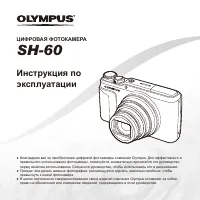 Olympus SH-60 User Manual
 Olympus SP-500 UZ User Manual
 Olympus SP-550UZ User Manual
 Olympus SP-560UZ Manual
 Olympus SP-600UZ Manual
 Olympus SP-610UZ Manual
 Olympus SP-700 Manual
 Olympus SP-800UZ Manual
 Olympus SP-810UZ Manual
 Olympus STYLUS 410 Digital User Manual