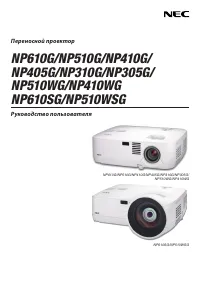
Page 2 - NOTES; to result from using the Projector.
1st edition July 2008 • IBM is a trademark or registered trademark of International Business Machines Corporation.• Macintosh, Mac OS X and PowerBook are trademarks of Apple Inc. registered in the U.S. and other countries.• Microsoft, Windows, Windows Vista, and PowerPoint are either a registered tr...
Page 3 - Important Information; Safety Cautions; Precautions; TO PREVENT FIRE OR SHOCK, DO NOT EXPOSE THIS UNIT TO RAIN OR MOISTURE.; CAUTION; Disposing of your used product
Important Information Safety Cautions Precautions Please read this manual carefully before using your NEC NP600/NP500/NP400/NP500W projector and keep the manual handy for future reference. CAUTION To turn off main power, be sure to remove the plug from power outlet.The power outlet socket should be ...
Page 4 - WASH HANDS AFTER HANDLING; WARNING; Important Safeguards; • Do not place the projector in the following conditions:
Important Information WARNING TO CALIFORNIA RESIDENTS: Handling the cables supplied with this product will expose you to lead, a chemical known to the State of California to cause birth defects or other reproductive harm. WASH HANDS AFTER HANDLING . RF Interference (for USA only) WARNING The Federal...
Page 6 - Remote Control Precautions; [THE LAMP HAS REACHED THE END OF ITS USABLE LIFE.; A Lamp Characterstc
v Important Information CAUTION • Do not use the tilt-foot for purposes other than originally intended. Misuses such as gripping the tilt-foot or hang- ing on the wall can cause damage to the projector. • Do not send the projector in the soft case by parcel delivery service or cargo shipment. The pr...
Page 7 - ponents such as the lamp.; About Copyright of original projected pictures:
v Important Information About High Altitude mode • Set [FAN MODE] to [HIGH ALTITUDE] when using the projector at altitudes approximately 5500 feet/1600 meters or higher. Using the projector at altitudes approximately 5500 feet/1600 meters or higher without setting to [HIGH ALTITUDE] can cause the pr...
Page 8 - Table of Contents
v Table of Contents Important Information ............................................................................................i 1. Introduction .......................................................................................................... 1 1 What’s in the Box? .....................
Page 9 - Convenient Features
v Table of Contents 7 Turning off the Projector .............................................................................................. 32 After Use...................................................................................................................... 33 4. Convenient Feature...
Page 11 - Introduction to the Projector; Congratulations on Your Purchase of the Projector; . The remote control can be used wirelessly.; Features you’ll enjoy:; An RJ-45 connector is equipped as standard feature.
1. Introduction Introduction to the Projector This section introduces you to your new projector and describes the features and controls. Congratulations on Your Purchase of the Projector This projector is one of the very best projectors available today. The projector enables you to project precise...
Page 12 - About this user’s manual
1. Introduction • Preventng unauthorzed use of the projector Enhanced smart security settings for keyword protection, cabinet control panel lock, security slot, and security chain opening to help prevent unauthorized access, adjustments and theft deterrence. • PC Control Port You can control the pro...
Page 13 - Part Names of the Projector; * This security slot supports the MicroSaver ® Security System.; Rear
4 1. Introduction STA TU S LA MP AU TO AD J. SO UR CE SE LE CT ME NU EX IT EN TE R FOC US Part Names of the Projector Front/Top SEL ECT MEN U EXIT EN TE R STA TUS LAM P AUT OAD J. SOU RCE FOC US Zoom Lever ( → page 27 ) Controls( → page 5 ) Lens Lens Cap Built-in Security Slot ( )* Focus Ring ( → ...
Page 14 - Top Features; Buttons
5 1. Introduction Top Features SELECT MENU EX IT ENTER STATUS LAMP AUTO ADJ. SOURCE 1 2 5 6 4 7 8 10 9 3 . (POWER) Button ( → page 22 , 32 ) . POWER Indcator ( → page 22 , 32 , 75 ) . STATUS Indcator ( → page 75 ) 4. LAMP Indcator ( → page 72 , 75 ) 5. SOURCE Button ( → page 24 ) 6. AUTO ADJ. Button...
Page 15 - Terminal Panel Features; . COMPUTER IN/ Component Input Connector
6 1. Introduction Terminal Panel Features 6 8 7 3 3 2 1 5 4 9 10 . COMPUTER IN/ Component Input Connector (Mn D-Sub 5 Pn) ( → page 13 , 16 , 18 ) . COMPUTER (DVI-I) IN Connector (9 Pn) (HDCP compatble) ( → page 15 , 16 ) . AUDIO IN Mn Jack (Stereo Mn) ( → page 13 , 15 , 18 ) 4. AUDIO OUT Mn Jack (St...
Page 16 - Part Names of the Remote Control; . Infrared Transmtter
7 1. Introduction Part Names of the Remote Control . Infrared Transmtter ( → page 8 ) . POWER ON Button ( → page 22 ) . POWER OFF Button ( → page 32 ) 4. MAGNIFY (+)(–) Button ( → page 34 ) 5. PIC-MUTE Button ( → page 34 ) 6. PAGE UP/DOWN Button* ( → page 39 , 40 ) 7. MENU Button ( → page 45 ) 8. ...
Page 17 - the remote sensor on the projector cabinet.; Battery Installation
8 1. Introduction Remote Control Precautions • Handle the remote control carefully.• If the remote control gets wet, wipe it dry immediately.• Avoid excessive heat and humidity.• Do not heat, take apart, or throw batteries into fire.• If you will not be using the remote control for a long time, remo...
Page 18 - Installation and Connections; Setting Up the Screen and the Projector; Selecting a Location; TER
9 2. Installation and Connections SEL ECT ME NU EXIT EN TER STA TUS LAM P AU TOA DJ. SO UR CE FO CU S This section describes how to set up your projector and how to connect video and audio sources.Your projector is simple to set up and use. But before you get started, you must first: z Set up a scre...
Page 20 - B = Vertical distance between lens center and
2. Installation and Connections C α B D Throw Distance and Screen Size The following shows the proper relative positions of the projector and screen. Refer to the table to determine the position of installation. Dstance Chart B = Vertical distance between lens center and screen center C = Throw dist...
Page 21 - * Installing your projector on the ceiling must be done; Reflectng the Image; page
2. Installation and Connections WARNING * Installing your projector on the ceiling must be done by a qualified technician. Contact your NEC dealer for more information. * Do not attempt to install the projector yourself.• Only use your projector on a solid, level surface. If the projector falls to t...
Page 22 - Making Connections; Enabling the computer’s external display
2. Installation and Connections Making Connections NOTE: When using with a notebook PC, be sure to connect the projector and notebook PC while the projector is in standby mode and before turning on the power to the notebook PC.In most cases the output signal from the notebook PC is not turned on u...
Page 25 - Using Two Analog COMPUTER Inputs Simultaneously
6 2. Installation and Connections COMPUTER 1 IN COMPUTER 2 (DVI-I) IN VGA signal cable (supplied) IBM PC or Compatibles (Notebook type) or Macintosh (Notebook type) IBM PC or Compatibles (Desktop type) or Macintosh (Desktop type) VGA signal cable (not supplied) DVI to VGA adapter (supplied) NOTE: Wh...
Page 29 - Example of wired LAN connection
0 2. Installation and Connections Connectng to a Network The projector comes standard with a LAN port (RJ-45) which provides a LAN connection using a LAN cable. Using a LAN cable allows you to specify the Network Settings and the Alert Mail Settings for the projector over a LAN. To use a LAN connect...
Page 31 - Turning on the Projector; tion. Failure to do so may cause damage to the projector.
3. Projecting an Image (Basic Operation) SELE CT MENU EXIT ENT ER STAT US LAM P AUTO ADJ. SOU RCE FOCU S STATUS LAMP AUTO ADJ. SOURCE STATUS LAMP AUTO ADJ. SOURCE POWER SOURCE PIC-MUTE ASPECT MENU UP MAGNIFY PAGE OFF POWER ON PIC-MUTE DOWN STATUS LAMP AUTO ADJ. SOURCE Standby Blinking Power On Stead...
Page 32 - Note on Startup screen (Menu Language Select screen); To select a menu language, follow these steps:; or
3. Projecting an Image (Basic Operation) Note on Startup screen (Menu Language Select screen) When you first turn on the projector, you will get the Startup menu. This menu gives you the opportunity to select one of the 21 menu languages. To select a menu language, follow these steps: 1. Use the SEL...
Page 33 - Selecting a Source; Selecting the computer or video source; COMPUTER1; Usng the Remote Control; The menu will be displayed.
4 3. Projecting an Image (Basic Operation) VOLUME L-CLICK MOUSE R-CLICK AUTO ADJ. ASPECT HELP FREEZE PICTURE S-VIDEO VIDEO COMPUTER 2 LAMP MODE 1 SELECT MENU EXI T ENTER STATUS LAMP AUTO ADJ. SOURCE Selecting a Source Selecting the computer or video source NOTE: Turn on the computer or video sourc...
Page 34 - Adjusting the Picture Size and Position; In this chapter drawings and cables are omitted for clarity.
5 3. Projecting an Image (Basic Operation) Adjusting the Picture Size and Position Use the adjustable tilt foot, the zoom lever or the focus ring to adjust the picture size and position. In this chapter drawings and cables are omitted for clarity. Adjusting the throw angle (the height of an image)...
Page 35 - Adjust the Tilt Foot; Lift the front edge of the projector.; Adjustng the left and rght tlt of an mage [Rear foot]; Keep the spacer for future use.
6 3. Projecting an Image (Basic Operation) STA TU S LA MP AU TO AD J. SO UR CE SE LE CT ME NU EX IT EN TE R FO CU S 2 1 STA TU S LA MP AU TOA DJ. SO UR CE SELE CT ME NU EX IT EN TE R FO CU S 3 4 Adjustable Tilt Foot Adjustable Tilt Foot Lever Adjust the Tilt Foot 1. Lift the front edge of the projec...
Page 36 - Zoom; Use the ZOOM lever to adjust the image size on the screen.; Focus; Use the FOCUS ring to obtain the best focus.
7 3. Projecting an Image (Basic Operation) STA TU S LA MP AU TO AD J. SO UR CE SE LE CT ME NU EX IT EN TE R FO CU S FOCUS STA TU S LA MP AU TO AD J. SO UR CE SE LE CT ME NU EX IT EN TE R FO CU S FOCUS Zoom Use the ZOOM lever to adjust the image size on the screen. Focus Use the FOCUS ring to obtain ...
Page 37 - Correcting Keystone Distortion; Press the SELECT
8 3. Projecting an Image (Basic Operation) Correcting Keystone Distortion Correcting Keystone Distortion If the screen is tilted vertically, keystone distortion becomes large. Proceed with the followingsteps to correct keystone distortion NOTE: • The Keystone correction can cause an image to be sl...
Page 38 - Adjusting with the Remote Control
9 3. Projecting an Image (Basic Operation) Adjusting with the Remote Control 1. Press the MENU button. The menu will be displayed. 2. Press the SELECT button to select [SETUP] and press the ENTER button. The [GENERAL] screen will be displayed. 3. Press the SELECT button to select [KEYSTONE]. 4. ...
Page 39 - Adjusting with the Auto Keystone Function; Press the MENU button
0 3. Projecting an Image (Basic Operation) Adjusting with the Auto Keystone Function The Auto Keystone correction feature will correct the vertical distortion of a projected image on the screen. No special operation required. Just put the projector on a flat surface. TIP: Even when the menu setting ...
Page 40 - Optimizing Computer Signal Automatically; Adjusting the Image Using Auto Adjust; Turning Up or Down Volume; Sound level from the speaker can be adjusted.
3. Projecting an Image (Basic Operation) Optimizing Computer Signal Automatically Adjusting the Image Using Auto Adjust Optimizing a computer image automatically.Press the AUTO ADJ. button to optimize a computer image automatically.This adjustment may be necessary when you connect your computer fo...
Page 41 - Turning off the Projector; To turn off the projector:; Secondly, press the ENTER button or press the
3. Projecting an Image (Basic Operation) 7 Turning off the Projector To turn off the projector: SELECT MENU EXI T EN TE R STATUS LAMP AUTO ADJ. SOURCE ENTER EXIT MENU UP MAGNIFY PAGE OFF POWER ON PIC-MUTE DOWN 1. First, press the (POWER) button on the projector cabinet or the POWER OFF button on the...
Page 42 - After Use; Preparaton: Make sure that the projector s turned off.; Retract adjustable tilt foot if extended.
3. Projecting an Image (Basic Operation) After Use Preparaton: Make sure that the projector s turned off. 1. Unplug the power cable. 2. Disconnect any other cables. 3. Retract adjustable tilt foot if extended. 4. Cover the lens with the lens cap. 5. Put the projector and accessories in the supplie...
Page 43 - You can enlarge the picture up to four times.
4 1 Turning off the Image and Sound Press the PIC-MUTE button to turn off the image and sound for a short period of time. Press again to restore the image and sound. NOTE:• Even though the image is turned off, the menu still remains on the screen.• Sound from the AUDIO OUT jack (Stereo mini) can be ...
Page 44 - Changing Lamp Mode; Press the SELECT
5 4. Convenient Features Changing Lamp Mode This feature enables you to select two brightness modes of the lamp:Normal and Eco modes. The lamp life can be extended by using the Eco mode. To change to the [ECO] mode, do the following: 1. Press the LAMP MODE button on the remote control to display [...
Page 45 - Preventing the Unauthorized Use of the Projector [SECURITY]; To enable the Securty functon:
6 4. Convenient Features Preventing the Unauthorized Use of the Projector [SECURITY] A keyword can be set for your projector using the Menu to avoid operation by an unauthorized user. When a keyword is set, turning on the projector will display the Keyword input screen. Unless the correct keyword ...
Page 46 - Type in the same combination of SELECT
7 4. Convenient Features 7. Type in the same combination of SELECT buttons and press the ENTER button. The confirmation screen will be displayed. 8. Select [YES] and press the ENTER button. The SECURITY function has been enabled. To turn on the projector when [SECURITY] s enabled: When the SECU...
Page 47 - To dsable the SECURITY functon:
8 4. Convenient Features To dsable the SECURITY functon: 1. Press the MENU button. The menu will be displayed. 2. Select [SETUP] → [INSTALLATION] → [SECURITY] and press the ENTER button. The OFF/ON menu will be displayed. 3. Select [OFF] and press the ENTER button. The KEYWORD CONFIRMATION screen wi...
Page 48 - Using the Optional Remote Mouse Receiver (NP01MR); Connectng the remote mouse recever to your computer
9 4. Convenient Features 30˚ 30˚ Using the Optional Remote Mouse Receiver (NP01MR) The optional remote mouse receiver enables you to operate your computer’s mouse functions from the remote control. It is a great convenience for clicking through your computer-generated presentations. Connectng the ...
Page 49 - You can operate your computer’s mouse from the remote control.
40 4. Convenient Features Operatng your computer’s mouse from the remote control You can operate your computer’s mouse from the remote control. PAGE UP/DOWN Button: scrolls the viewing area of the window or to move to the previous or next slide in Power- Point on your computer. SELECT Buttons: ...
Page 50 - Network Setting by Using an HTTP Browser; Overview; Should this happen, consult your network administrator.; Preparation Before Use
41 4. Convenient Features 7 Network Setting by Using an HTTP Browser Overview Connecting the projector to a network allows the Alert Mail setting ( → page 43 ) and the projector control from a computer via the network.To perform the projector control from a web browser, you must have an exclusive ap...
Page 52 - characters can be used.
4 4. Convenient Features Alert Mal Settng http:// <the projector’s IP address>/lanconfig.html This option notifies your computer of an error message via e-mail when using wired LAN. An error message notification will be sent when the projector lamp has reached the end of its usable life or an ...
Page 53 - Using the VGA Signal Cable to Operate the Projector; Overvew
44 4. Convenient Features Using the VGA Signal Cable to Operate the Projector (Virtual Remote) Overvew The projector supports DDC/CI (Display Data Channel Command Interface) that is a standard interface for bidirectional communication between display/projector and computer. The optional utility so...
Page 54 - Using the Menus; NOTE: The commands such as
45 5. Using On-Screen Menu 1 Using the Menus NOTE: The on-screen menu may not be displayed correctly while interlaced motion video image is projected. 1. Press the MENU button on the remote control or the projector cabinet to display the menu. NOTE: The commands such as ENTER, EXIT, , in the b...
Page 55 - Menu Elements
46 5. Using On-Screen Menu 2 Menu Elements Slide bar Solid triangle Tab Radio button High Altitude symbol Menu windows or dialog boxes typically have the following elements: Highlight.............................. Indicates.the.selected.menu.or.item..Solid.triangle....................... Indicates.f...
Page 56 - List of Menu Items; Some menu items are not available depending on the input source.
47 5. Using On-Screen Menu List of Menu Items Some menu items are not available depending on the input source. Menu Item Default Options SOURCE COMPUTER1 * COMPUTER2(DIGITAL) * COMPUTER2(ANALOG) * VIDEO * S-VIDEO * ADJUST PICTURE PRESET * 1-6 DETAIL SETTINGS GENERAL REFERENCE * HIGH-BRIGHT, PRESEN...
Page 58 - Selects what is connected to your S-VIDEO input-VCR or DVD player.
49 5. Using On-Screen Menu Menu Descriptions & Functions [SOURCE] COMPUTER Selects the computer connected to your COMPUTER 1 IN input connector. NOTE:• When the component input signal is connected to the COMPUTER 1 IN connector, select [COMPUTER1].• The projector will determine if the input si...
Page 60 - Selectng Gamma Correcton Mode [GAMMA CORRECTION]; Each mode is recommended for:; Adjustng Color Temperature [COLOR TEMPERATURE]; Adjusts the brightness level or the back raster intensity.
5 5. Using On-Screen Menu [GENERAL]Storng Your Customzed Settngs [REFERENCE] This function allows you to store your customized settings in [PRESET 1] to [PRESET 6].First, select a base preset mode from [REFERENCE], then set [GAMMA CORRECTION] and [COLOR TEMPERA-TURE]. HIGH-BRIGHT ........ Recommende...
Page 61 - This allows you to manually adjust CLOCK and PHASE.
5 5. Using On-Screen Menu [RESET] The settings and adjustments for [PICTURE] will be returned to the factory settings with the exception of the following; Preset numbers and [REFERENCE] within the [PRESET] screen.The settings and adjustments under [DETAIL SETTINGS] within the [PRESET] screen that ar...
Page 62 - Adjusts the image location horizontally and vertically.
5 5. Using On-Screen Menu Adjustng Horzontal/Vertcal Poston [HORIZONTAL/VERTICAL] Adjusts the image location horizontally and vertically. - An image can be distorted during the adjustment of [CLOCK] and [PHASE]. This is not malfunction.- The adjustments for [CLOCK], [PHASE], [HORIZONTAL], and [VERTI...
Page 63 - next page
54 5. Using On-Screen Menu Selectng Aspect Rato [ASPECT RATIO] The term “aspect ratio” refers to the ratio of width to height of a projected image.The projector automatically determines the incoming signal and displays it in its appropriate aspect ratio.• This table shows typical resolutions and asp...
Page 66 - Correctng Vertcal Keystone Dstorton Manually [KEYSTONE]; You can correct vertical distortion manually. (; Savng Vertcal Keystone Correcton [KEYSTONE SAVE]; This option enables you to save your current keystone settings.
57 5. Using On-Screen Menu Menu Descriptions & Functions [SETUP] [GENERAL] Enablng Auto Keystone [AUTO KEYSTONE] This feature allows the projector to detect its tilt and correct vertical distortion automatically.To turn on the AUTO KEYSTONE feature, select [ON]. To adjust the KEYSTONE feature ...
Page 68 - You can choose one of 21 languages for on-screen instructions.; Selectng a Color or Logo for Background [BACKGROUND]
59 5. Using On-Screen Menu Selectng Menu Language [LANGUAGE] You can choose one of 21 languages for on-screen instructions. NOTE: Your setting will not be affected even when [RESET] is done from the menu. [MENU] Selectng Menu Color [COLOR SELECT] You can choose between two options for menu color: CO...
Page 69 - Selectng Projector Orentaton [ORIENTATION]; DESKTOP FRONT
60 5. Using On-Screen Menu [INSTALLATION] Selectng Projector Orentaton [ORIENTATION] This reorients your image for your type of projection. The options are: desktop front projection, ceiling rear projection, desktop rear projection, and ceiling front projection. DESKTOP FRONT CEILING REAR DESKTOP RE...
Page 70 - Dsablng the Cabnet Buttons [CONTROL PANEL LOCK]; This option turns on or off the CONTROL PANEL LOCK function.; Selectng Communcaton Speed [COMMUNICATION SPEED]
6 5. Using On-Screen Menu Dsablng the Cabnet Buttons [CONTROL PANEL LOCK] This option turns on or off the CONTROL PANEL LOCK function. NOTE:• This CONTROL PANEL LOCK does not affect the remote control functions.• When the control panel is locked, pressing and holding the EXIT button on the projector...
Page 71 - Assgnng or Changng the Control ID; The CONTROL ID screen will be displayed.
6 5. Using On-Screen Menu Settng ID to the Projector [CONTROL ID](Avalable only when the optonal remote control NP0RC s used) You can operate multiple projectors separately and independently with the single remote control that has the CONTROL ID function. If you assign the same ID to all the project...
Page 73 - Turns on or off the deinterlace function for a telecine signal.
64 5. Using On-Screen Menu Selectng Sgnal Format [SIGNAL SELECT] [COMPUTER1], [COMPUTER2(ANALOG)]Allows you to choose [COMPUTER1], or [COMPUTER2(ANALOG)] for an RGB source such as a computer, or [COMPONENT] for a component video source such as a DVD player. Normally select [RGB/COMPONENT] and the pr...
Page 74 - MINUTES] message will be displayed on the bottom of the screen.
65 5. Using On-Screen Menu [OPTIONS()] Usng Off Tmer [OFF TIMER] 1. Select your desired time between 30 minutes and 16 hours: OFF, 0:30, 1:00, 2:00, 4:00, 8:00, 12:00, 16:00.2. Press the ENTER button on the remote control.3. The remaining time starts counting down.4. The projector will turn off afte...
Page 75 - bination of the AUTO POWER OFF function.; Enabling Power Management [AUTO POWER OFF]
66 5. Using On-Screen Menu Turning On the Projector By Applying Computer Signal [AUTO POWER ON(COMP1)] When the projector is in Standby mode, applying a computer signal from a computer connected to the COMPUTER1 IN input will power on the projector and simultaneously project the computer’s image.Thi...
Page 78 - EXCEPT; Clearng Networkng Settngs [NETWORK SETTINGS]
69 5. Using On-Screen Menu Menu Descriptions & Functions [RESET] Returnng to Factory Default [RESET] The RESET feature allows you to change adjustments and settings to the factory preset for a (all) source (s) except the following: [CURRENT SIGNAL]Resets the adjustments for the current signal ...
Page 79 - Cleaning or Replacing the Filters; Vacuum the filter-through the filter cover.
70 6. Maintenance SEL ECT ME NU EXI T ENTER STA TUS LAM P AUTOA DJ. SOU RCE FO CU S This section describes the simple maintenance procedures you should follow to clean the filters and replace the lamp. 1 Cleaning or Replacing the Filters The air-filter sponge keeps dust and dirt from getting inside ...
Page 80 - Cleaning the Cabinet and the Lens; detergents or solvents such as alcohol or thinner.
7 6. Maintenance 3. Reinstall the new filter cover (2 locations). • Insert the filter cover until you feel click. 4. Clear the filter hours used. To reset the filter usage time, from the menu, select [RESET] → [CLEAR FILTER HOURS]. ( → page 69 for resetting the filter usage time.) NOTE: Do not wash ...
Page 81 - Replacing the Lamp; Optional lamp and tools needed for replacement:
7 6. Maintenance Replacing the Lamp When the lamp reaches the end of its life, the LAMP indicator in the cabinet will blink red. Even though the lamp may still be working, replace the lamp to maintain the optimal projector performance. After replacing the lamp, be sure to clear the lamp hour meter...
Page 84 - Troubleshooting; Indicator Messages; Power Indicator; Lamp Indicator; Over-Temperature Protecton
75 7. Appendix 1 Troubleshooting This section helps you resolve problems you may encounter while setting up or using the projector. Indicator Messages Power Indicator Indcator Condton Projector Condton Note Off The main power is off – Blinking light Green 0.5 sec On, 0.5 sec Off The projector is get...
Page 85 - For more information contact your dealer.
76 7. Appendix Common Problems & Solutions ( → “Power/Status/Lamp Indicator” on page 75 .) Does not turn on or shut down Will turn off No picture Picture suddenly becomes dark Color tone or hue is unusual Image isn’t square to the screen Picture is blurred Flicker appears on screen Image is scro...
Page 86 - If there s no pcture, or the pcture s not dsplayed correctly.
77 7. Appendix If there s no pcture, or the pcture s not dsplayed correctly. • Power on process for the projector and the PC. Be sure to connect the projector and notebook PC while the projector is in standby mode and before turning on the power to the notebook PC. In most cases the output signal fr...
Page 87 - Specifications; Model Number; Optical
78 7. Appendix Specifications This section provides technical information about projector’s performance. Model Number NP600/NP500/NP400/NP500W Optical NP600/NP500/NP400 NP500W LCD Panel NP600/NP500: 0.63 inch LCD with Micro Lens Array (Aspect Ratio 4:3) NP400: 0.63 inch LCD (Aspect Ratio 4:3) 0.59...
Page 88 - Mechanical; The specifications are subject to change without notice.
79 7. Appendix Power Requirement NP600/NP500/NP400: 100–240V AC, 50/60Hz NP600G/NP500G/NP400G: 200–240V AC, 50/60Hz NP500W: 100–240V AC, 50/60Hz NP500WG: 200–240V AC, 50/60Hz Input Current NP600: 3.8–1.5A NP500/NP400: 3.5–1.4A NP600G: 1.8A NP500G/NP400G: 1.6A NP500W: 3.8–1.5A NP500WG: 1.8A Power Con...
Page 89 - Cabinet Dimensions
80 7. Appendix SELECT MENU EXI T EN TE R STAT US LAMP AUTO ADJ. SOURCE FOCUS 263 (10.4" ) 78 (3.1") 108.5 (4.3") 55.3 (2.2") 76 (3.0") 308 (12.1") Cabinet Dimensions Lens center Lens center Unit: mm (inch)
Page 90 - Mini D-Sub 15 Pin Connector; Pin Assignments of D-Sub COMPUTER Input Connector; YCbCr Sgnal
8 7. Appendix Mini D-Sub 15 Pin Connector Pin Assignments of D-Sub COMPUTER Input Connector Signal LevelVideo signal : 0.7Vp-p (Analog)Sync signal : TTL level 5 1 4 2 3 10 11 12 13 14 15 6 9 7 8 * Only COMPUTER 1 input connector supported. Pn No. RGB Sgnal (Analog) YCbCr Sgnal 1 Red Cr 2 Green or ...
Page 91 - Compatible Input Signal List; 280 x 800) will be displayed with Advanced AccuBlend.
8 7. Appendix Compatible Input Signal List Horizontal: 15KHz to 100KHz (RGB: 24KHz or over)Vertical: 50Hz to 120Hz Signal Resolution (Dots) Frequency H. (kHz) Refresh Rate (Hz) VIDEO NTSC - * 15.7 59.9 PAL - * 15.6 50.0 PAL60 - * 15.7 60.0 SECAM - * 15.6 50.0 IBM 640 480 31.5 59.9 640 480 31.5...
Page 92 - Cable Connection; Communication Protocol; PC Control Codes and Cable Connection; PC Control Codes
8 7. Appendix NOTE: Contact your local dealer for a full list of the PC Control Codes if needed. Cable Connection Communication Protocol Baud rate .........................................19200 bpsData length ......................................8 bitsParity ...........................................
Page 93 - Troubleshooting Check List; Frequency of occurrence; always; Power
84 7. Appendix No image is displayed from your PC or video equipment to the projector. Still no image even though you connect the projector to the PC first, then start the PC.Enabling your notebook PC’s signal output to the projector. • A combination of function keys will enable/disable the exter- n...
Page 94 - Installaton envronment
85 7. Appendix In the space below please describe your problem in detail. Information on application and environment where your projector is used Projector Model number:Serial No.:Date of purchase:Lamp operating time (hours):Lamp Mode: Normal Eco Information on input signal: Horizontal synch fre...
Page 95 - TravelCare Guide; TravelCare - a service for international travelers; Term of warranty; List of TravelCare Outlets
86 7. Appendix TravelCare Guide TravelCare - a service for international travelers This product is eligible for “TravelCare”, NEC’s unique international warranty.Please note that TravelCare coverage differs in part from coverage under the warranty included with the product. Services offered with T...
Page 97 - Application Sheet for TravelCare Service Program
88 7. Appendix TO: NEC or NEC’s Authorzed Servce Staton: FM: (Company & Name with signature) Dear Sir (s), I would like to apply your TravelCare Service Program based on attached registration and qualification sheet and agree with your following conditions, and also the Service fee will be charg...
Page 98 - Condition of your TravelCare Service Program
89 7. Appendix 5. Loan Servce Charges and Condtons: Upon acceptance of this NEC Projector, Customer agrees to assume liability for this loan unit. The current cost of use of this loan unit is US$200 for 12 calendar days.If Customer does not return the unit within the 12 calendar days, Cus-tomer will...