Lutron PJ2-3BRL-WH-F01R - User Manual
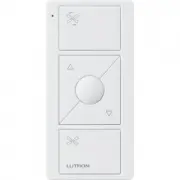
Lutron PJ2-3BRL-WH-F01R Remote Control – User Manual, read for free online in PDF format. We hope this helps you resolve any issues you may have. If you have further questions, please contact us through the contact form.


P/N 0301907 REV A
OFF
ON
x2
Hold for 6 seconds
until LEDs start
blinking
quick-start guide
In-wall fan control
Welcome
—and thank you for purchasing a Caséta
Wireless in-wall fan control. In order to control your
ceiling fan from an app or remote, you’ll need to replace
an existing switch with a Caséta Wireless in-wall fan
control.
Before you install the fan control, please read the quick-
start guide and watch the installation video at
www.casetawireless.com/support
We hope you enjoy the convenience of Caséta Wireless!
IMPORTANT NOTES
1. For indoor use only.
2. Operate between 32 ˚F (0 ˚C) and 104 ˚F (40 ˚C).
3. Use to control one paddle-type ceiling fan.
4. Use the ceiling fan’s pull chain to set its speed to
the highest setting.
5. Do not use to control exhaust fans (e.g. bathroom
or kitchen exhaust fans).
6. Do not use to control fans that have integrated
fan speed controls other than a pull chain (i.e.
fans that have a remote control), unless the
integrated control is removed from the ceiling fan.
7. Do not connect to any other motor-operated
appliance or to any lighting load type.
8. Do not use to control lighting loads on a fan.
9. Do not use to control DC motor fans.
Fan
—
up to 1.5 A
Contents supplied
Double your warranty
In-wall fan control (PD-FSQN)
120 V
~
50/60 Hz 1.5 A
Tools you’ll need
Works with one paddle-type
ceiling fan:
Flat-head screwdriver
Wire connectors (3)
Phillips-head screwdriver
Pliers
Screws (2)
Installing your fan control
Using your Caséta Wireless kit
(sold separately)
Some fans have one wall switch, while others
have two or more wall switches. We’ve included
instructions for fans with one wall switch (called a
single pole). If your fan has more than one switch
(called a 3-way), please visit
www.casetawireless.com/3way
for complete
installation instructions and how-to videos.
WARNINg: ShOCk hAzARD.
May result in serious injury or death. Turn off
power at circuit breaker or fuse before installing.
1
Install the fan
2
Set the fan speed
3
Turn power off at circuit breaker!
Press and hold “off” button on the
fan control
2
Press and hold “off” button on the
Pico remote control
6
Connect the fan control
7
Mount the fan control
8
Attach the wallplate
9
Turn power on at circuit breaker
4
Remove existing switch from wall
Remove the wallplate from the switch.
Install the fan according to the manufacturer’s
instructions and ensure proper operation.
Set the fan to the
highest speed
using the pull chains.
5
Remove side sections (if necessary)
Remove the switch and pull it away from the wall.
* If your switch has more than 3 wires attached, see
“Installing Caséta Wireless in a 3-way switch application”
video at
www.casetawireless.com/3way
Bend back
and forth.
3
5
Tag
1
4
6
Ground
Ground
7
2
Place tag on load wire. Disconnect all three
wires* from the switch.
1
Connect the bare copper (or green) “ground” wire
from the wallbox to the green wire on the fan control
using a wire connector.
2
Wrap line/hot wire around screw terminal. Tighten
securely to 5 in-lb (0.55 N•m).
3
Connect the neutral wire from the wallbox to the
white wire on the fan control using a wire connector.
4
Connect the load/tagged wire from the wallbox
to the yellow wire on the fan control using a
wire connector.
Do not
remove outside side sections
on the controls at the end of gang.
Each control
has inside side
sections removed.
Control at middle has all
side sections removed.
If using a Claro wallplate (sold separately), attach the
adapter to the fan control using the screws provided
and snap on the wallplate.
‘snap’
Use the screws provided.
Pairing the fan control and
Pico remote control
Go to
www.casetawireless.com/support
for
additional troubleshooting suggestions.
Symptoms
Probable cause and action
Fan does not
turn ON and no
indicator lights
turn ON.
• Front Accessible Service Switch
(FASS) is in the OFF position.
Push FASS in to the ON
position.
• Ensure that the fan pull chain is
set to highest possible setting.
• Neutral wire is not connected.
Refer to wiring diagram in
step 6.
• Breaker is OFF or tripped (or
fuse blown). Reset breaker
or replace fuse. If condition
persists, contact Lutron
Customer Assistance or a
licensed electrician.
• Load and Line wires may
be reversed. Refer to wiring
diagram in step 6.
Fan does not turn
ON and indicator
lights are ON.
Fan direction switch is between
forward and reverse. Set switch
to desired position.
Fan speed is too
slow.
Set fan pull chain speed to high.
Love Caséta Wireless controls? Have ideas
for making them better? Tell us what you think
and we’ll extend your warranty by 1 year.
www.casetawireless.com/register
For advanced features, tips for using Caséta Wireless products, the complete Caséta Wireless product line, and more,
please visit
www.casetawireless.com/features
Changing the favorite setting on
the Pico remote control
(sold
separately)
or fan control
The round “favorite” button on the
Pico remote control or fan control
can be used to recall favorite
speed(s). Both the Pico remote
control and the fan control can
have different favorite speeds. The
default is Medium, but it can be
changed to any speed.
Favorite
CAUTION
Use only with permanently installed ceiling fans. To
avoid overheating and possible damage to other
equipment, do not use to control receptacles, motor-
driven appliances, or transformer-supplied appliances.
Codes
Install in accordance with all national and local
electrical codes.
grounding
When no “grounding means” exist in wallbox, the
National Electrical Code (NEC
®
) allows a control to
be installed as a replacement if 1) a nonmetallic,
noncombustible faceplate is used with nonmetallic
attachment screws or 2) the circuit is protected by a
ground fault circuit interrupter (GFCI). When installing
a control according to these methods, cap or remove
green wire before screwing control into wallbox.
FCC/IC Information
This device complies with part 15 of the FCC Rules and Industry Canada
license-exempt RSS standard(s). Operation is subject to the following two
conditions: (1) This device may not cause interference, and (2) this device
must accept any interference, including interference that may cause undesired
operation. Modifications not expressly approved by Lutron Electronics Co.,
Inc. could void the user’s authority to operate this equipment.
Note: This equipment has been tested and found to comply with the limits for
a Class B digital device, pursuant to part 15 of the FCC Rules. These limits
are designed to provide reasonable protection against harmful interference
in a residential installation. This equipment generates, uses and can radiate
radio frequency energy and, if not installed and used in accordance with
the instructions, may cause harmful interference to radio communications.
However, there is no guarantee that interference will not occur in a particular
installation. If this equipment does cause harmful interference to radio or
television reception, which can be determined by turning the equipment off
and on, the user is encouraged to try to correct the interference by one or
more of the following measures:
—Reorient or relocate the receiving antenna.
—Increase the separation between the equipment and receiver.
— Connect the equipment into an outlet on a circuit different from that to which
the receiver is connected.
—Consult the dealer or an experienced radio/TV technician for help.
)
Lutron Lutron, Caséta,
Lutron
and Pico are trademarks of Lutron
Electronics Co., Inc., registered in the U.S. and other countries. FASS
and Smart Bridge are trademarks of Lutron Electronics Co., Inc. NEC is a
registered trademark of the National Fire Protection Association, Quincy,
Massachusetts. Google and the Google logo are registered trademarks
of Google Inc., used with permission. Apple is a trademark of Apple Inc.,
registered in the U.S. and other countries. App Store is a service mark of
Apple Inc.
© 2018 Lutron Electronics Co., Inc
P/N 0301907 REV A
Lutron Electronics Co., Inc.
7200 Suter Road
Coopersburg, PA 18036-1299, U.S.A.
1
2
1
2
Hold the favorite button on
either the remote or control
for 6 seconds until LEDs
blink twice on in-wall fan
control. New favorite level is
now saved.
3
Set desired fan speed setting on
fan control
4
Press and hold “favorite” button
Important note:
Troubleshooting
Hold for 6 seconds
until fan control LEDs
flash in a waterfall
pattern.
Repeat steps to pair other
Pico remote controls.
Wireless
Pico remote control (sold separately)
High
Off
Slower
Faster
Favorite
FASS
Front Accessible
Service Switch
Important Notice:
To service or clean the fan, remove
power by pulling out the FASS as far as possible. To
restore power after servicing the load, push the FASS
back in completely.
In-wall fan
control
High
Off
Slower
Favorite
Faster
With a smartphone or tablet
(Bridge required, sold separately)
1
Press and hold “off” button on dimmer
2
Press and hold “off” button on remote
The Lutron app will walk you through
setting up your devices.
Download the Lutron app
www.casetawireless.com/LutronApp
Launch the Lutron app
Lutron
The Caséta Wireless fan control can be controlled from a
smartphone when used with the Lutron
Smart Bridge.
If you are using the fan control and remote control with the Lutron
Smart Bridge follow the instructions below.
Search for “Lutron Caseta”
3
Press and hold “off” button on remote
Use the Lutron app to complete
ALL
remaining steps
Lutron
Lutron Smart Bridge
Note:
If you are using the fan control and remote control with
another manufacturer’s bridge, please refer to that manufacturer’s
instructions for set-up.
Lutron
Lutron app
Without a smartphone or tablet
(Bridge not required)
Warranty
For warranty information, please visit
www.casetawireless.com/warranty
Control
three ways
Add devices
• Pico remotes
• Dimmers
• Shades
• Switches
• Fan controls
Schedule
your lights or
fans
Connect
while away
3
Tag
2
3
4
Ground
Tag
1
1
Using your controls
"Loading the manual" means you need to wait until the file loads and becomes available for online reading. Some manuals are very large, and the time they take to appear depends on your internet speed.


