LG GP65NW60 - User Manual
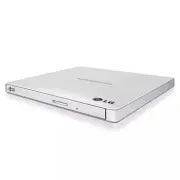
LG GP65NW60 Drive – User Manual, read for free online in PDF format. We hope this helps you resolve any issues you may have. If you have further questions, please contact us through the contact form.


Table of Contents:
- Page 2 – Drive activity indicator; The LED is used to indicate the operation of drive.; Emergency Eject Hole; This connector is used to connect to the USB cable.; Location and function of controls; Front; What is TV Connectivity?
- Page 3 – Computer; Specifications; Slim Portable DVD Writer
- Page 4 – Safety Instructions
• Please pay attention to handling Electrostatic Sensitive Devices, you may use anti-static
products such as wrist straps, heel straps, mats to protect your body from electrostatic.
• Make sure you have a personal computer with one or two open USB ports before
connecting the drive to your computer.
Connect the drive to the computer as shown in figure.
1
Connect the USB cable (mini plug) to the drive.
2
Connect the other end of the USB cable to your computer.
The drive may get its power from the PC USB power. All systems may not meet
USB power requirements and full performance may not be achieved.
In this case, connect to the USB Y type cable (not supplied.).
When the computer is ready, confirm that the drive is detected. And then, insert the
supplied software CD into the drive and install the software.
The drive supports both Windows and Mac®. To use it properly, please follow directions below.
How to Eject Disc from the drive
•
When using with Mac
- Click the eject button located on Mac OS menu or toolbar.
•
When using with Windows
- Press the eject button in the front of the product.
*
Software CD (for Windows only)
- The Software CD includes DVD software for usage for Windows.
•
Please do not connect the USB cables by any means other than specified above.
Using the wrong type of cable with this drive can cause it to malfunction.
•
The appliance is not intended for use by young children or infirm persons without supervision.
Young Children should be supervised to ensure that they do not play with appliance.
•
If the appliance is supplied from a cord extension set or an electrical portable outlet device,
the cord extension set on electrical portable outlet device must be positioned so that it is not
subject to splashing or ingress of moisture.
Installation
NOTES
NOTES
Connection to computer or A/V Device
Hardware Installation
1
2
"Loading the manual" means you need to wait until the file loads and becomes available for online reading. Some manuals are very large, and the time they take to appear depends on your internet speed.
Was this manual helpful?
About this manual
- Brand
- LG
- Model
- GP65NW60
- Document type
- User Manual
- Category
- Drive
- Language(s)
- English
- Pages
- 4
- File size
- 284.6 KB
- Format
Summary
1. Disc Tray 2. Drive activity indicator The LED is used to indicate the operation of drive. 3. Eject Button 4. Emergency Eject Hole 1. USB Connector (mini) This connector is used to connect to the USB cable. Location and function of controls This following is the general figure of the design of the...
Features • Universal Serial Bus (USB) 2.0 interface for high-speed data transfer. • Buffer Under Run error protection technology • Emergency eject support • Combination of CD-R/RW, DVD-R/RW, DVD+R/RW, DVD+R DL, DVD-R DL, M-Disc(DVD+R SL) and DVD-RAM drive functions into one drive. • Supports region ...
Safety Instructions CLASS 1 LASER PRODUCT KLASSE 1 LASER PRODUKT LUOKAN 1 LASER LAITE KLASS 1 LASER APPARAT CLASE 1 PRODUCTO LÁSER CLASSE 1 PRODOTTO LASER CAUTION : CLASS 3B VISIBLE AND INVISIBLE LASER RADIATION WHEN OPEN AND INTERLOCKS DEFEATED.AVOID EXPOSURE TO THE BEAM. ADVARSEL : KLASSE 3B SYNLI...
Ask a question
Related manuals
Popular LG Drives


More LG Drives models
 LG GP55EX70 User Manual
 LG GP60NB50 User Manual
 LG GP60NS50 User Manual
 LG GP65NB60 User Manual
 LG GP65NG60 User Manual
 LG GP65NS60 User Manual
 LG GP70NS50 User Manual
 LG GS40N User Manual
 LG GSA-4163B User Manual
 LG GSA-H55N User Manual
 LG GTC0N User Manual
 LG N2B1DD2 User Manual
 LG SP60NB50 User Manual
 LG SP80NB60 User Manual
 LG SP80NB80 User Manual
 LG UH12NS30 User Manual
 LG WH10LS30 User Manual